

View Applications
Although there is a separate Applications sub-tab for Workflows, this section allows you to open applications for that specific workflow.
- Applications Tab shows all of the applications for all workflows.
- View Applications show the applications of a specific workflow.
1. How to reach it
- Go to the Workflow List and find your desired workflow.
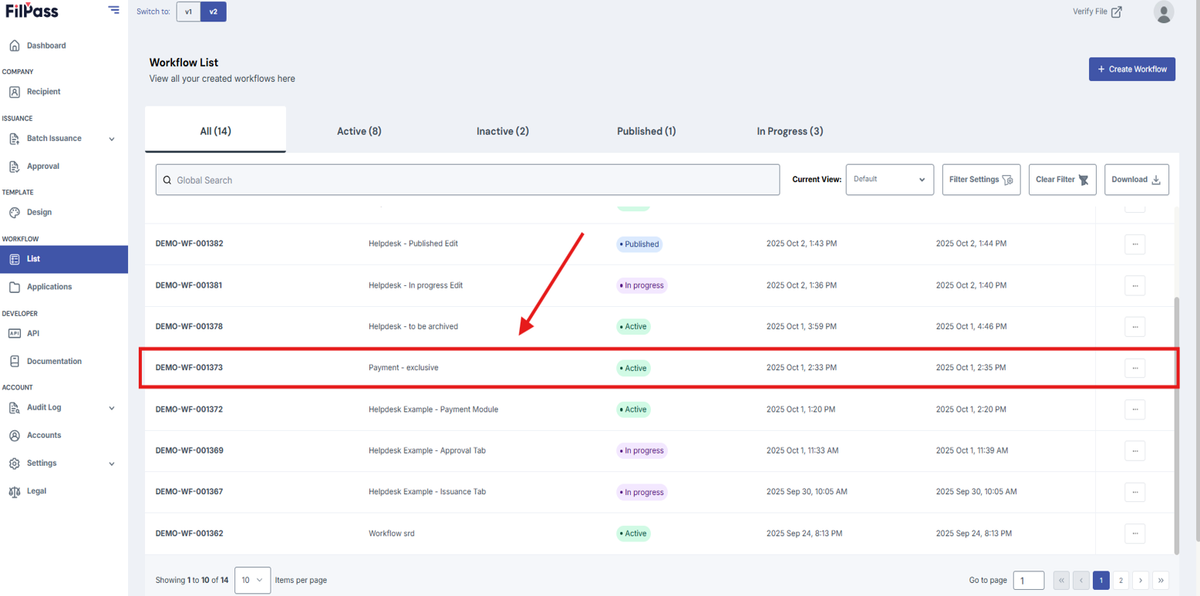
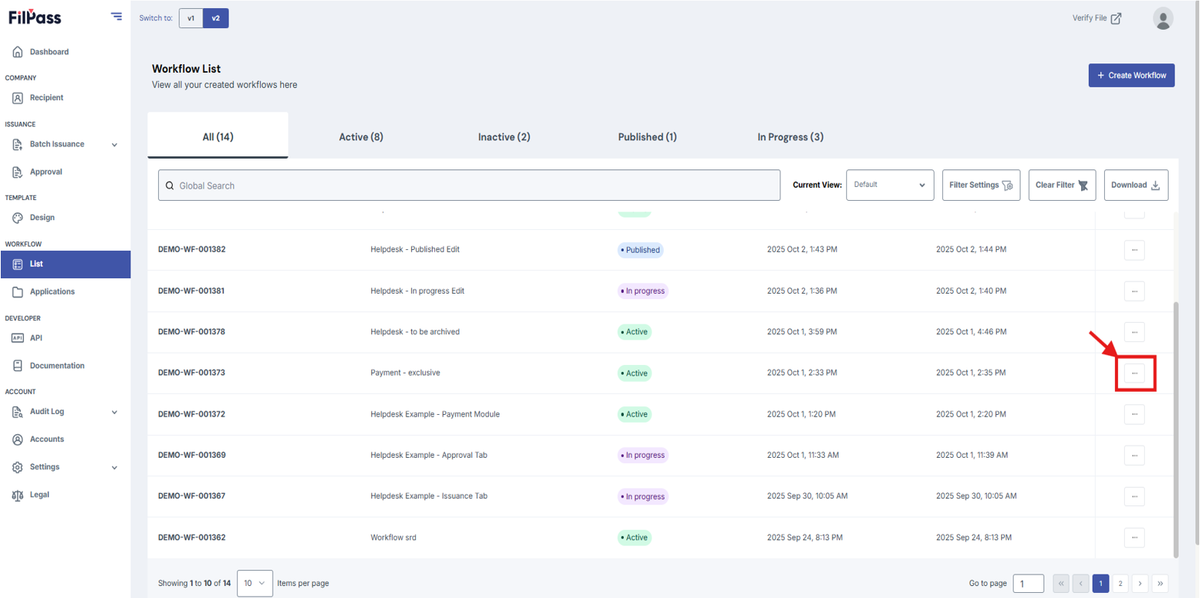
- Click on the Action button for that row
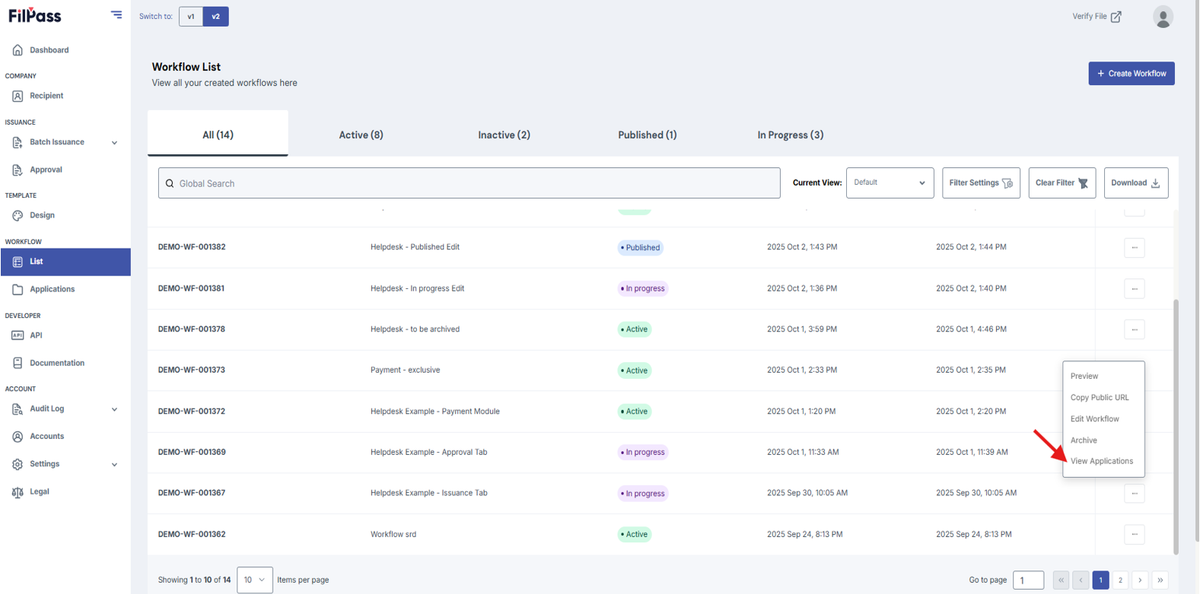
- Click View Applications
- You are now in the Applications tab of that workflow.
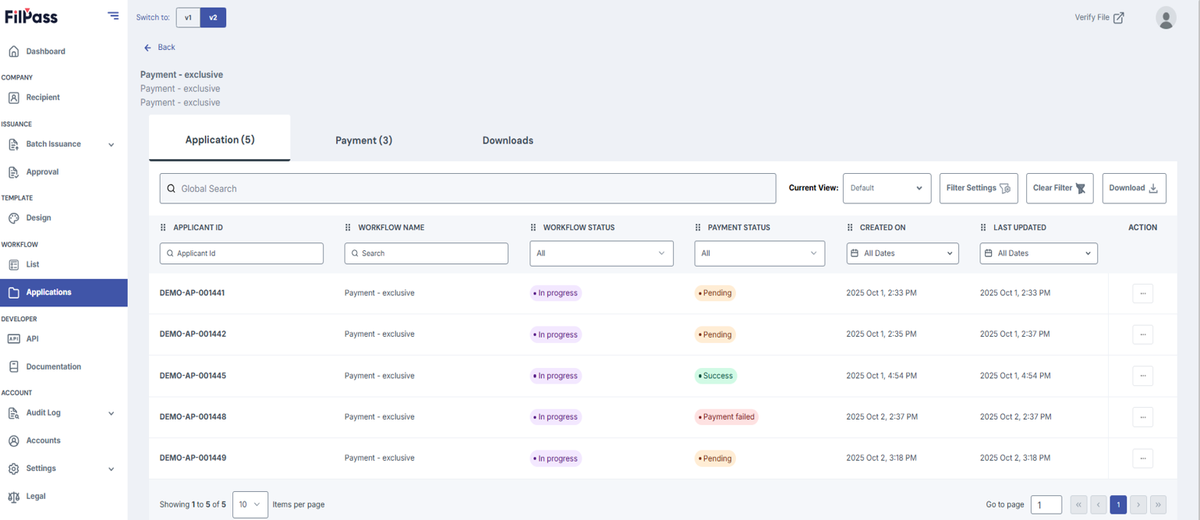
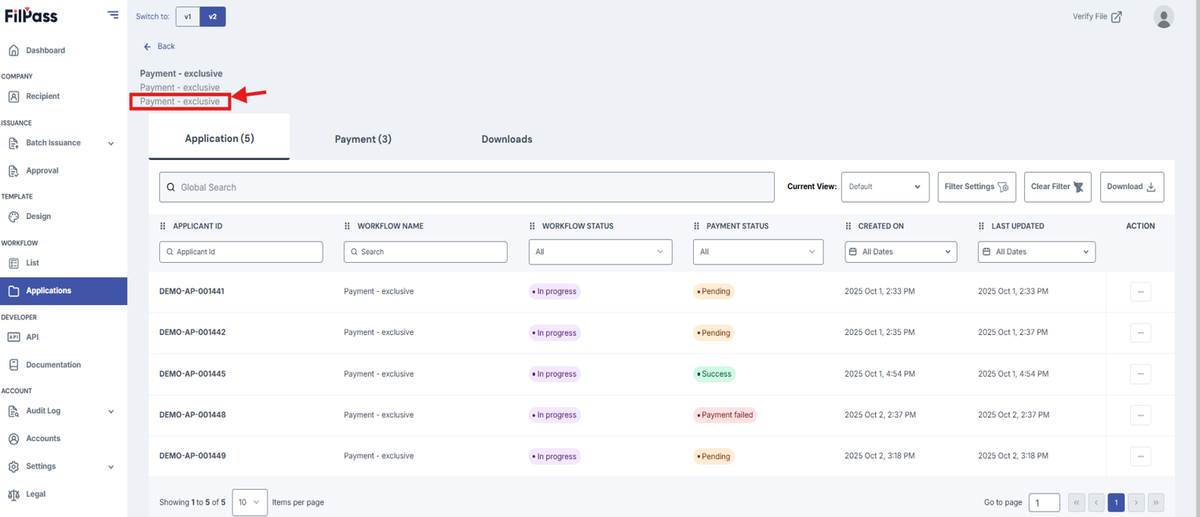
2. Header
- Workflow List Name
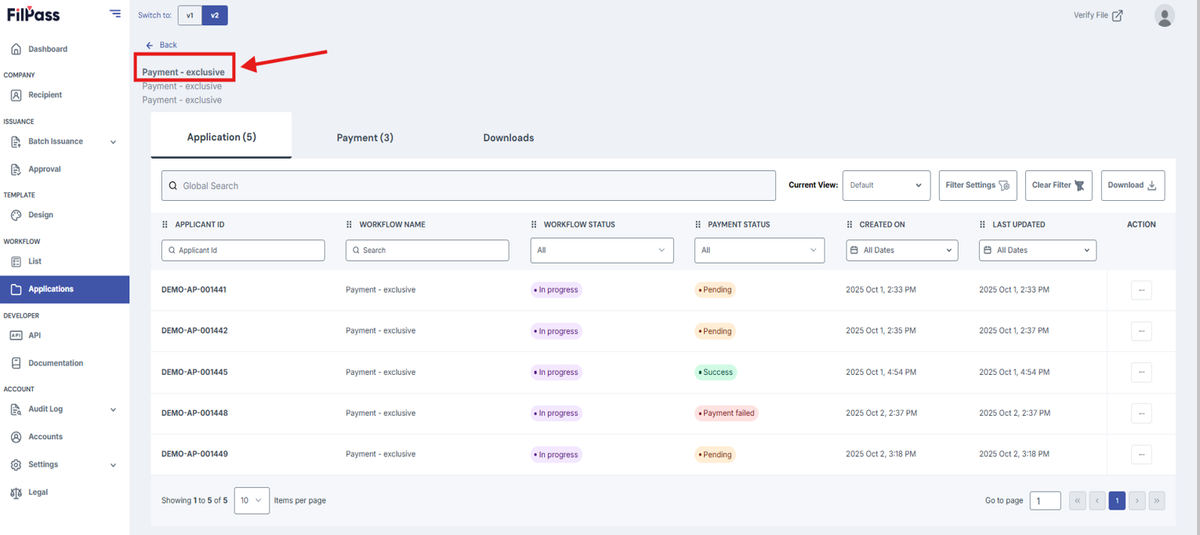
- Published Workflow Name
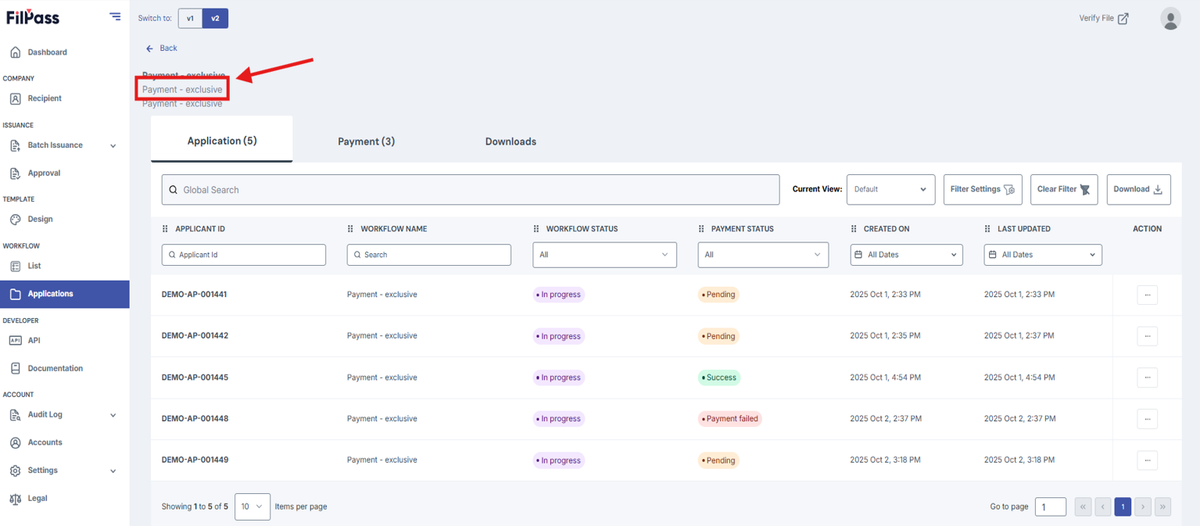
- Workflow Description
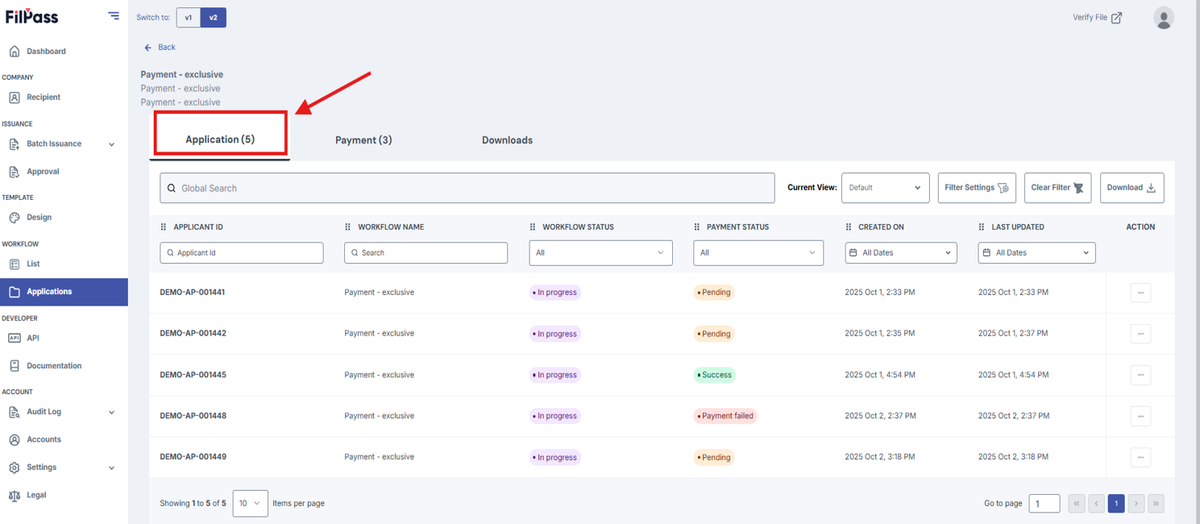
3. Application Tab
- This is where all the applications of this workflow are placed. It behaves similarly to the Applications Tab in the navbar, except it only shows specific applications.
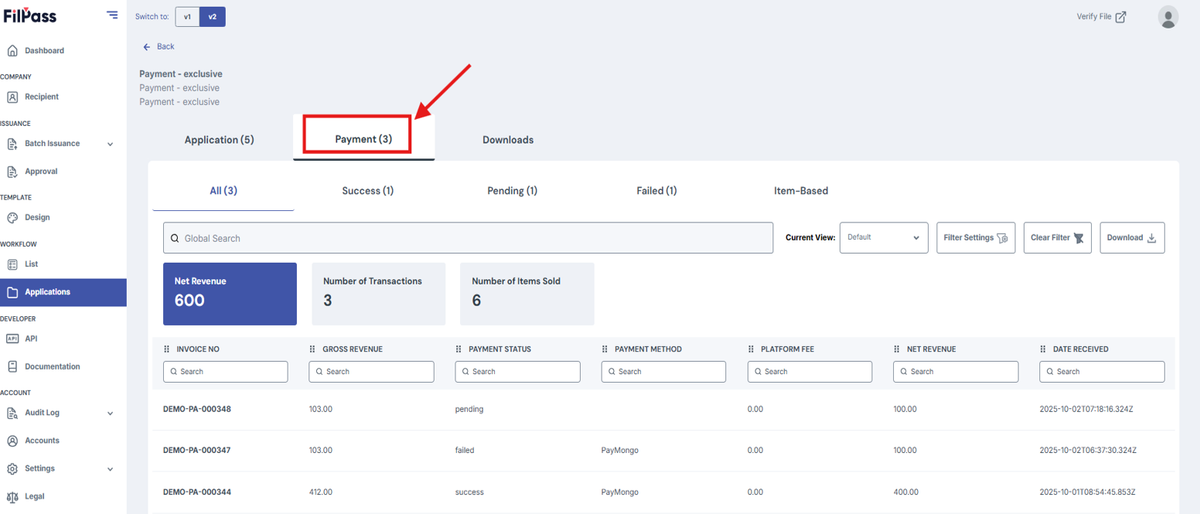
4. Payment Tab
- This is only available if you have the payment module for your workflow. If this is not toggled on, it will not appear.
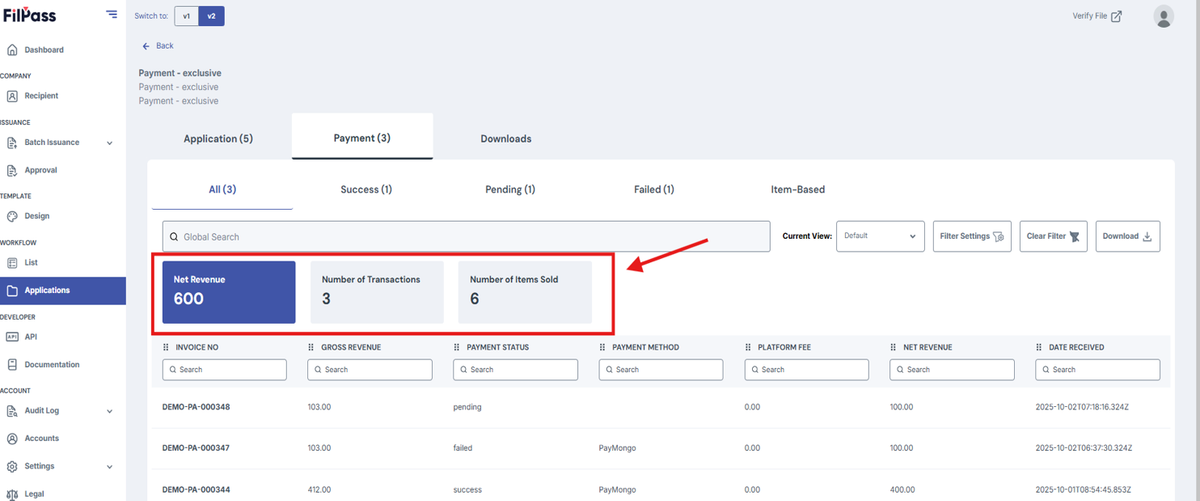
- This part shows the following:
- Net Revenue: Shows total net revenue for that tab.
- Number of Transactions: Shows the number of transactions for that tab.
- Number of Items Sold: Shows the number of items sold for that tab.
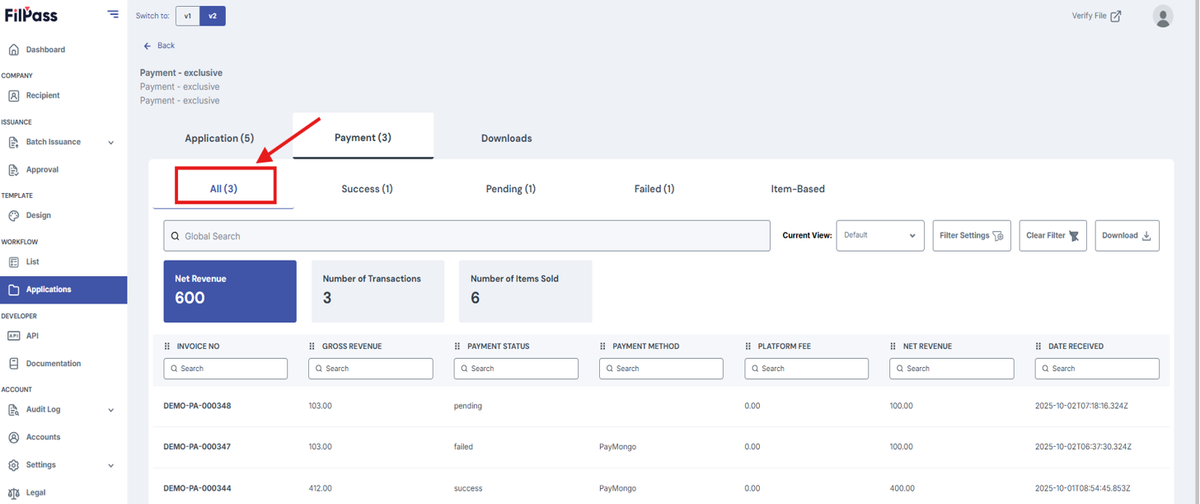
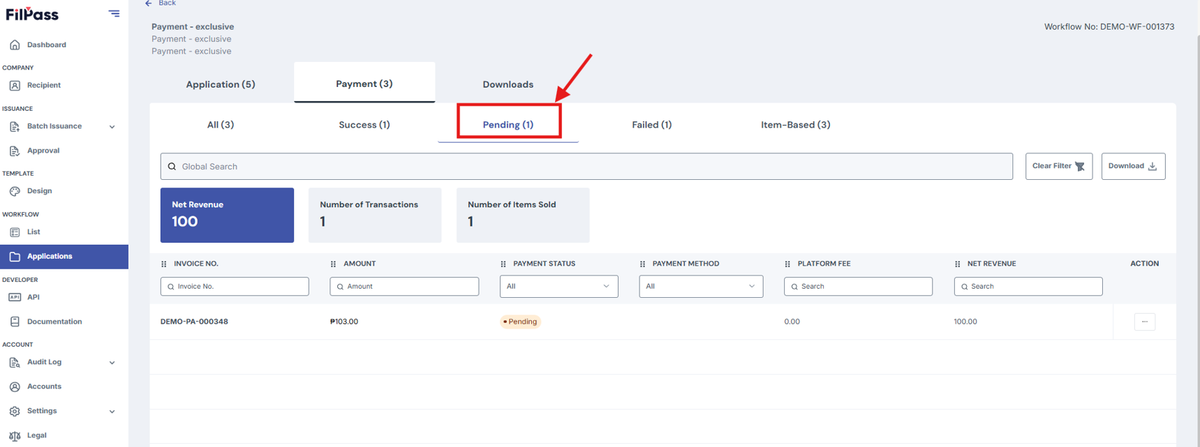
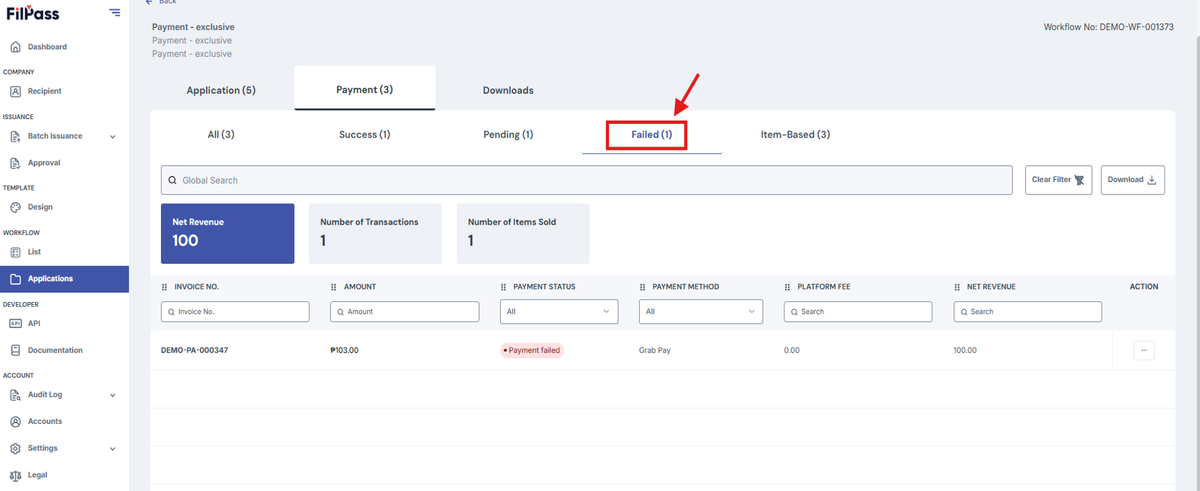
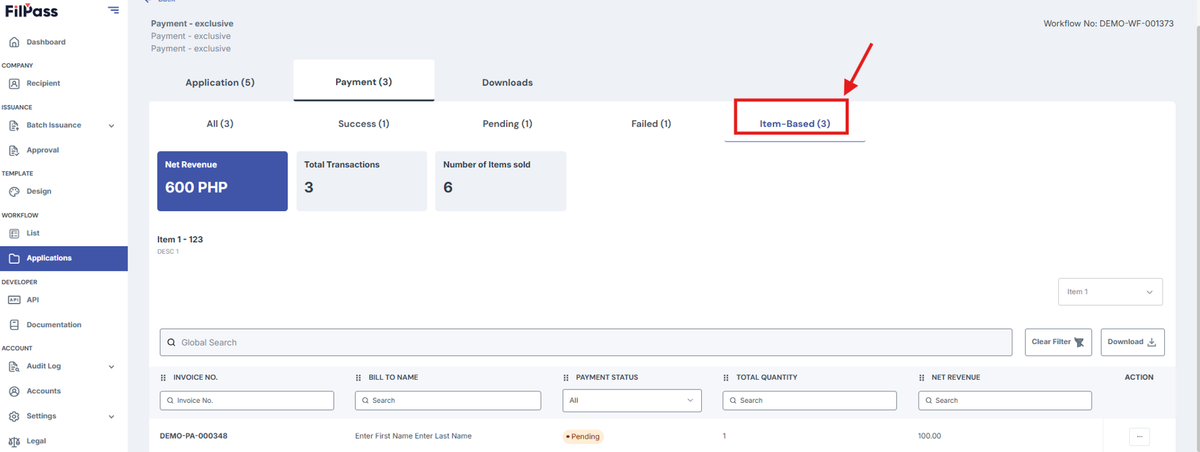
- The Payment Tab has sub-tabs to filter the applications based on the status of their payments.
- All: All applications are shown.
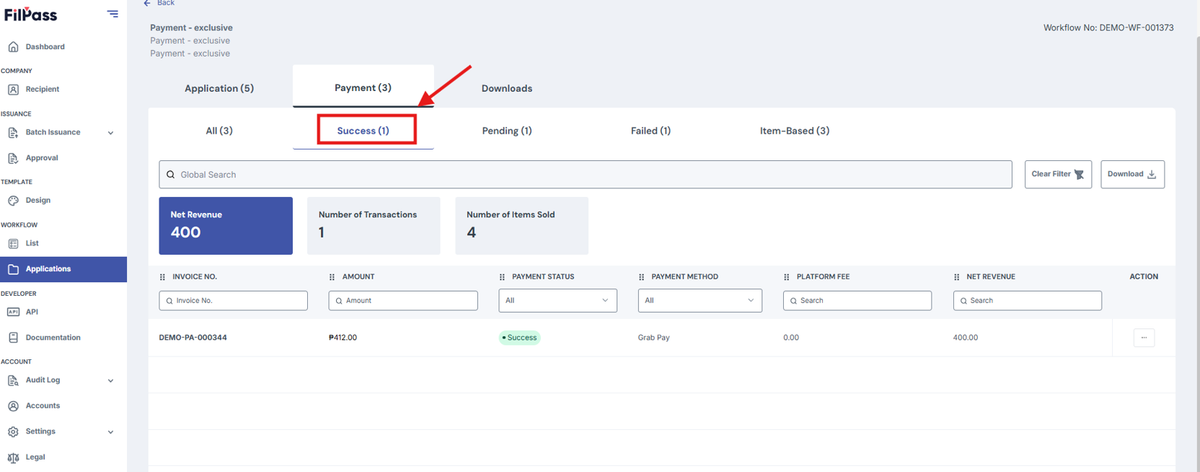
- Success: All applications with success are filtered.
- Pending: All applications with pending are filtered.
- Failed: All applications with Failed are filtered.
- Item-Based: Like All but shows the Invoice number, Recipient Name, and Quantity.
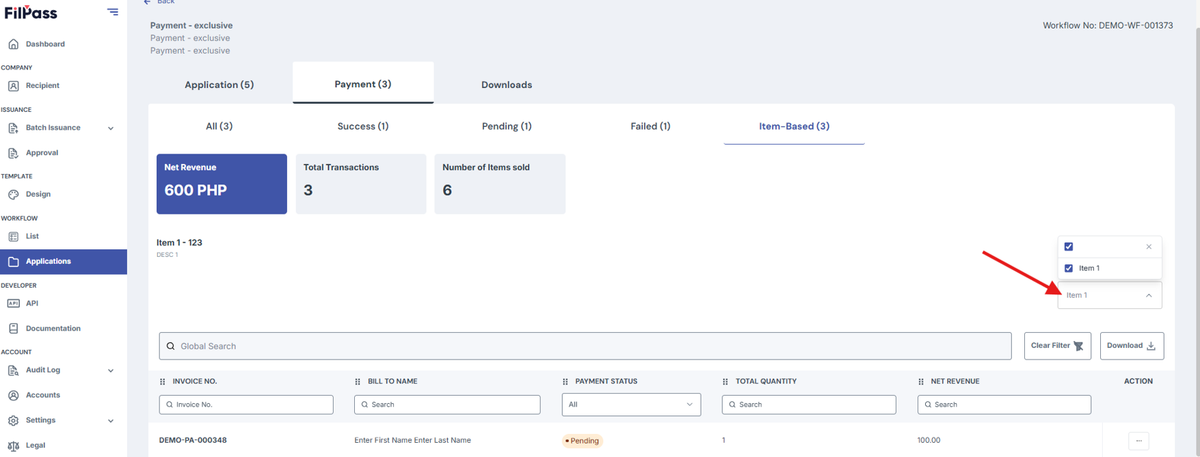
- If you have more than one item, you may filter it based on their item by pressing this dropdown.
5. Downloads Tab
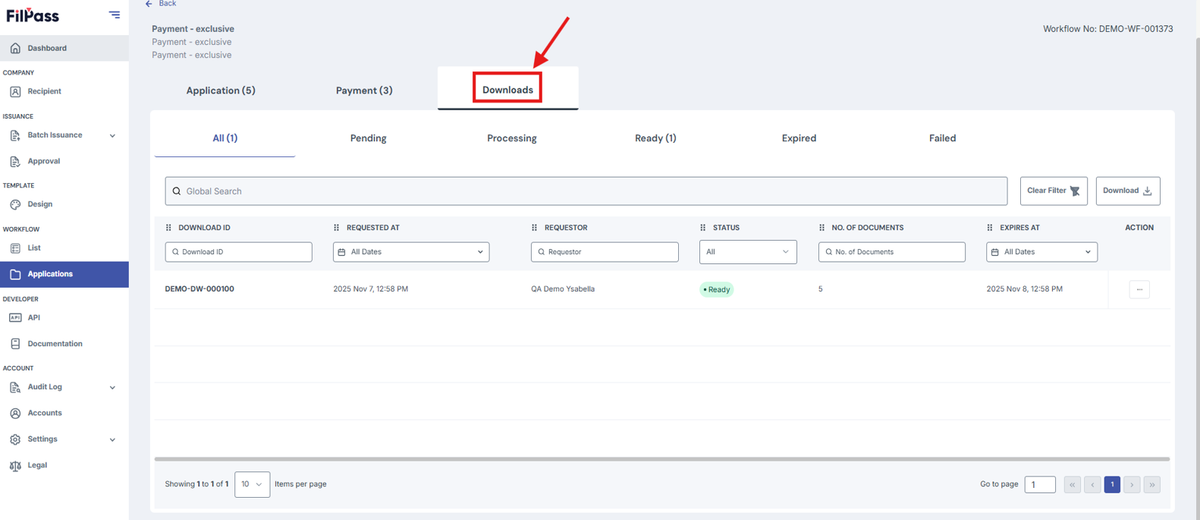
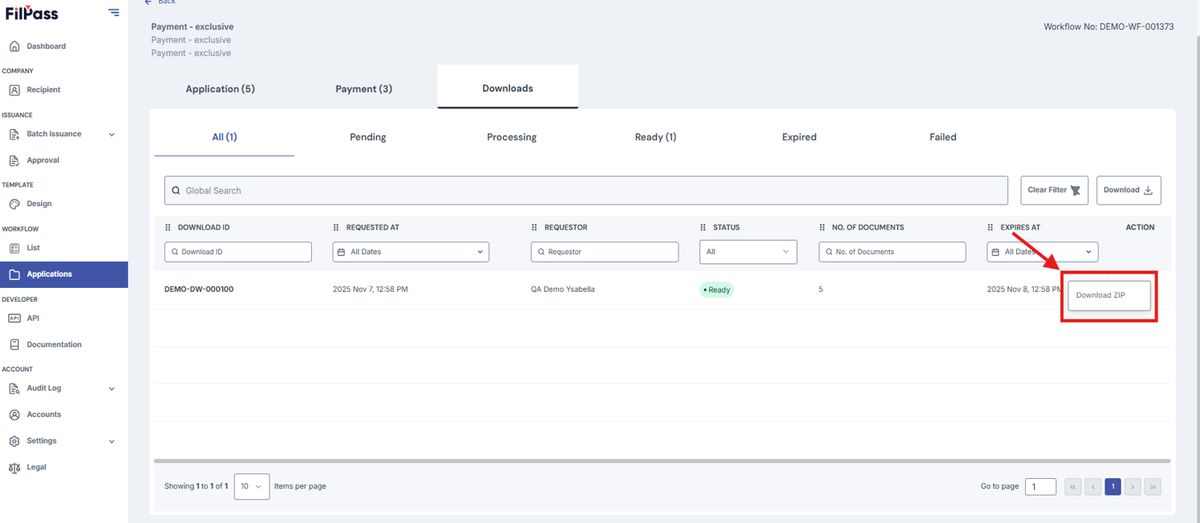
- This is where all your downloads for the Applications Tab are sent.
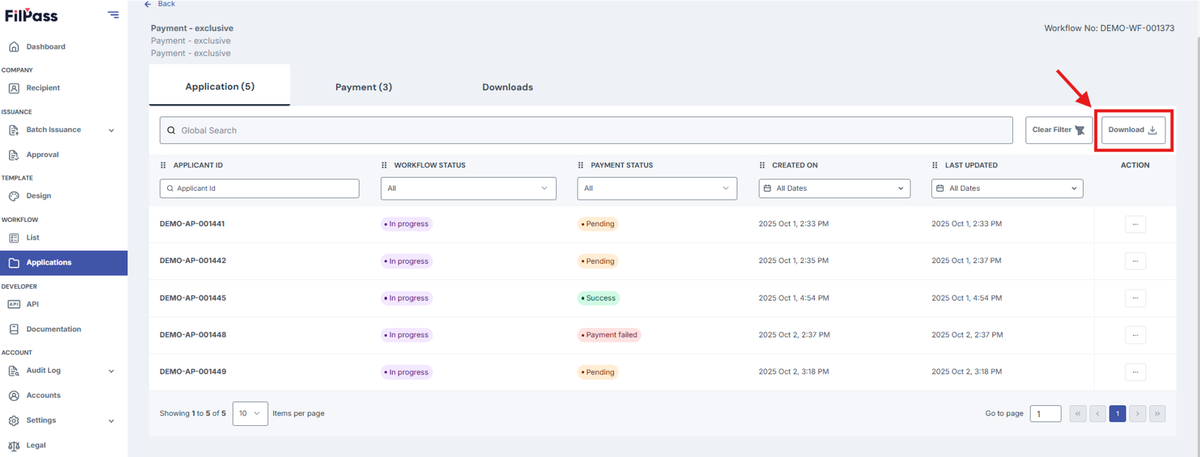
- To get items for Downloads Tab, go to the Application Tab
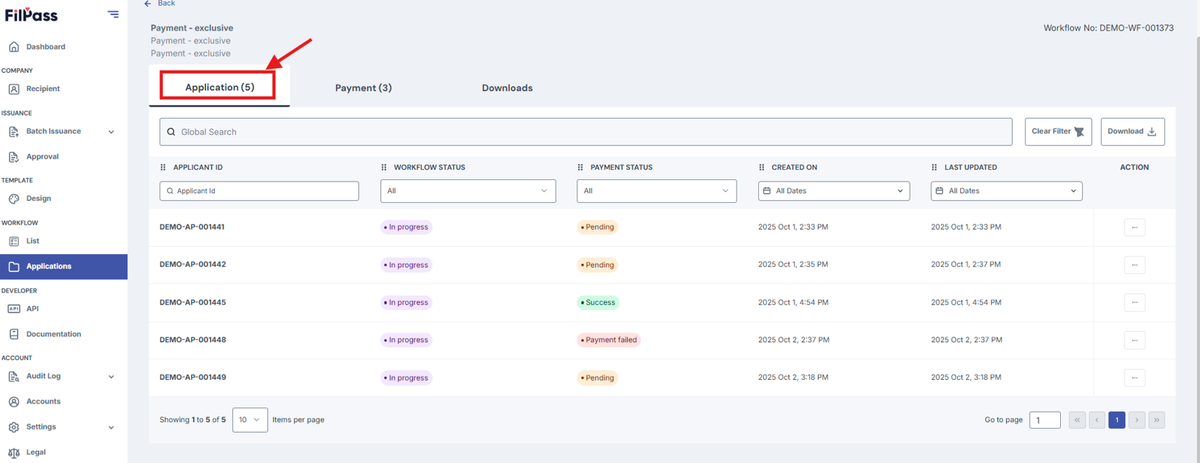
- Then press Download. It will download the excel table and any issuances that workflow has.
- Go to the Downloads Tab
- Once it finishes processing, click the Action Button.
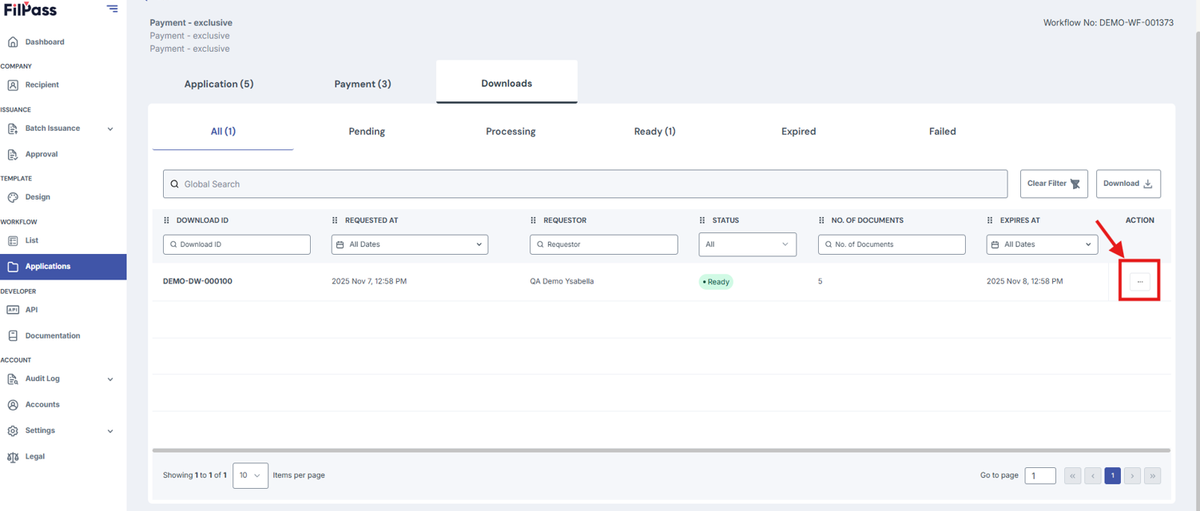
- Then press the Download Zip.
Was this helpful?