

Download Applications
Downloading applications from your workflow is simple. Follow these steps to retrieve your data and any associated documents:
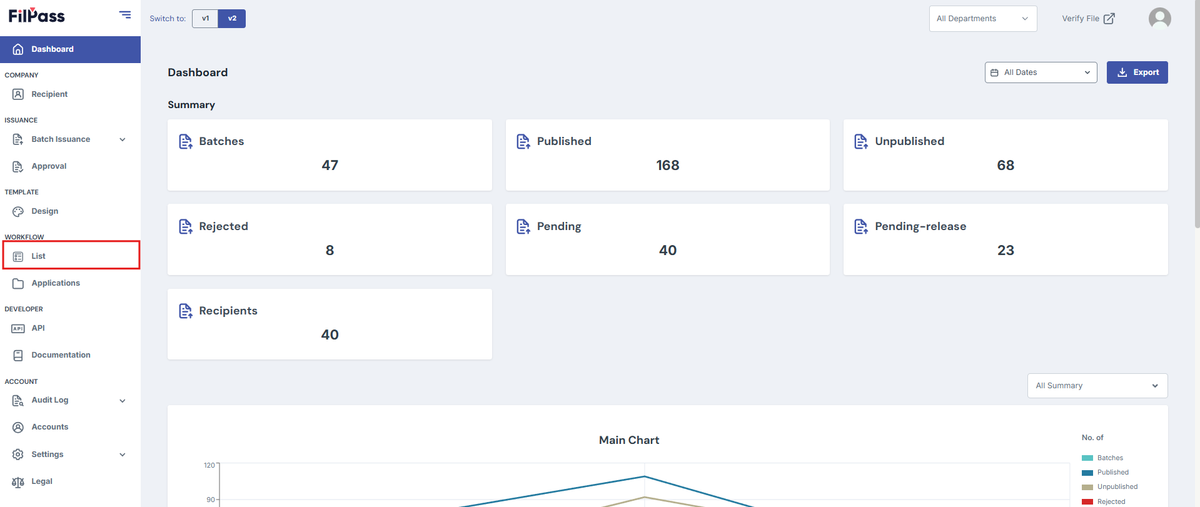
Step 1: Go to the Workflow Tab
- Navigate to the workflow section.
Step 2: Select the Workflow
- Find the workflow you want to download responses from. Click the three dots (⋯) next to its name.
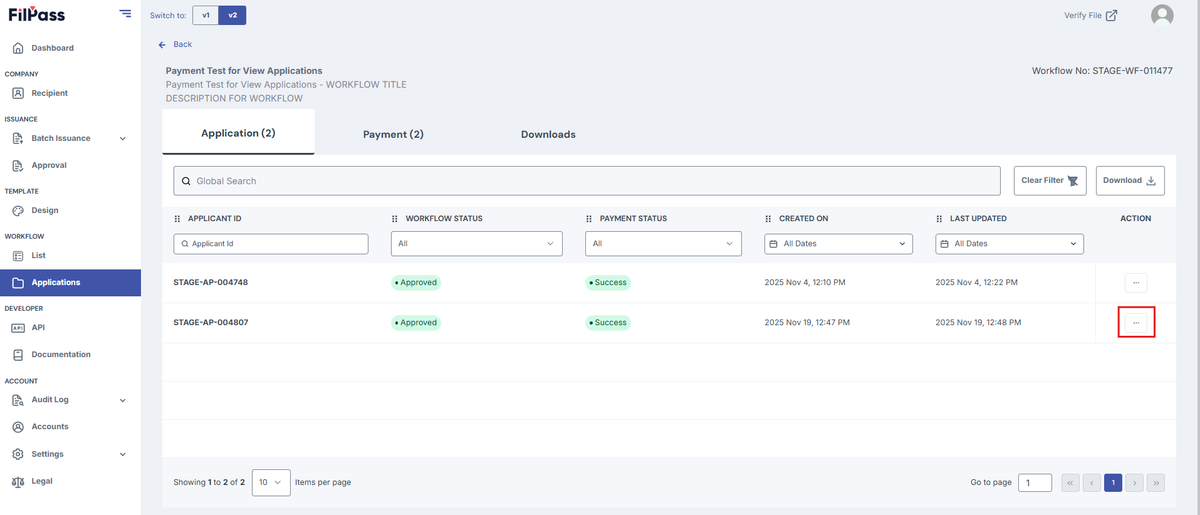
- Select “View Applications.”
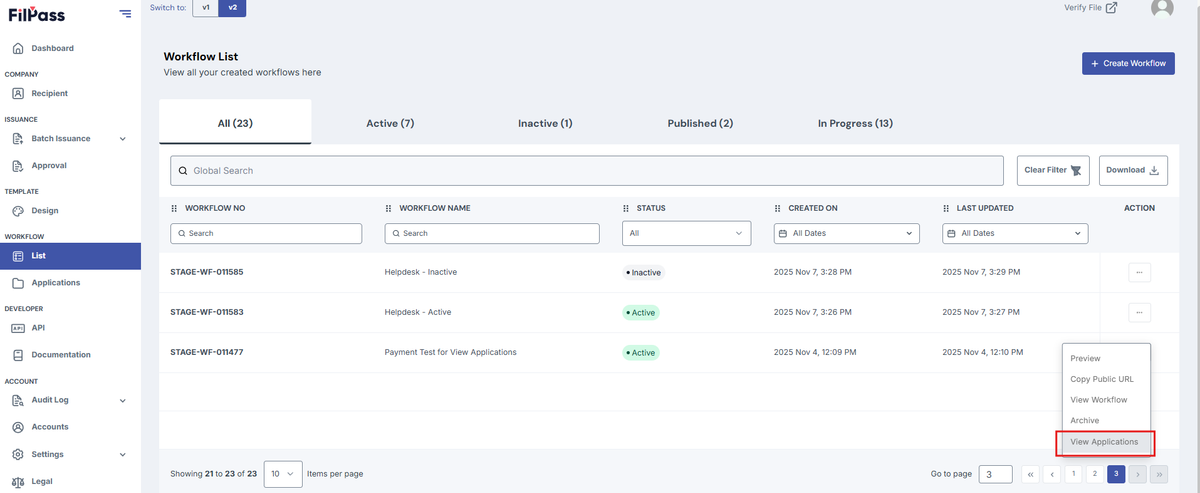
Step 3: Filter Approved Responses
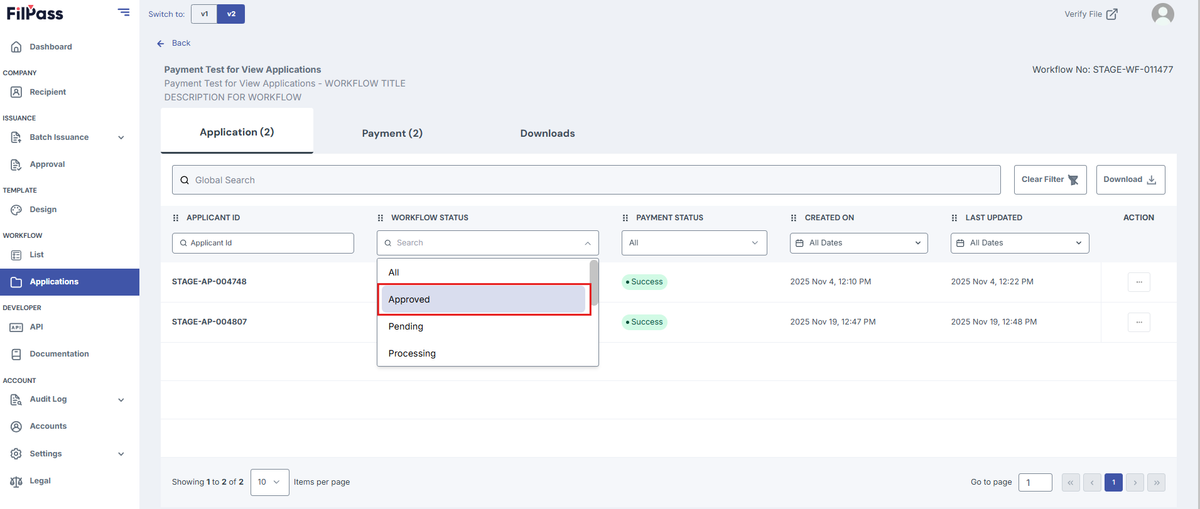
- On the Applications page, click the “Workflow Status” dropdown.
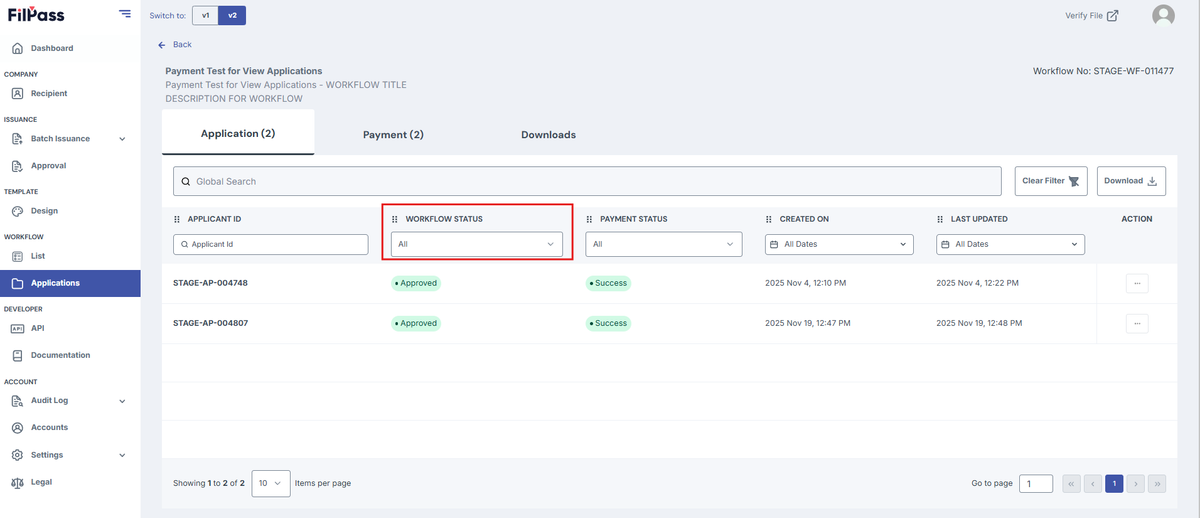
- Select “Approved” to filter only approved workflows.
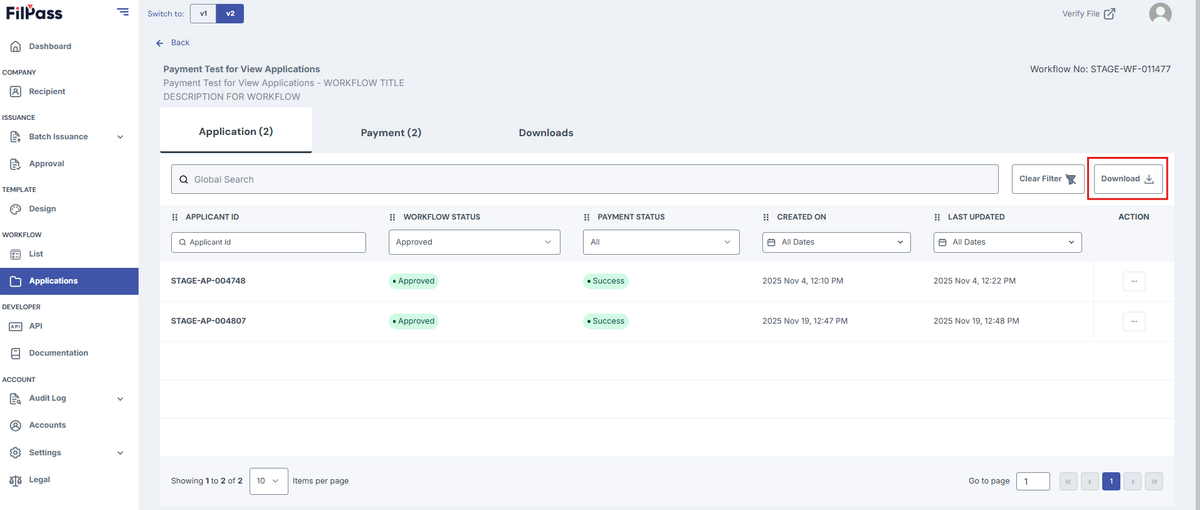
Step 4: Click the Download Icon
- Locate and click the download icon to initiate the download process.
Step 5: Confirm and Download
- The system will process your request.
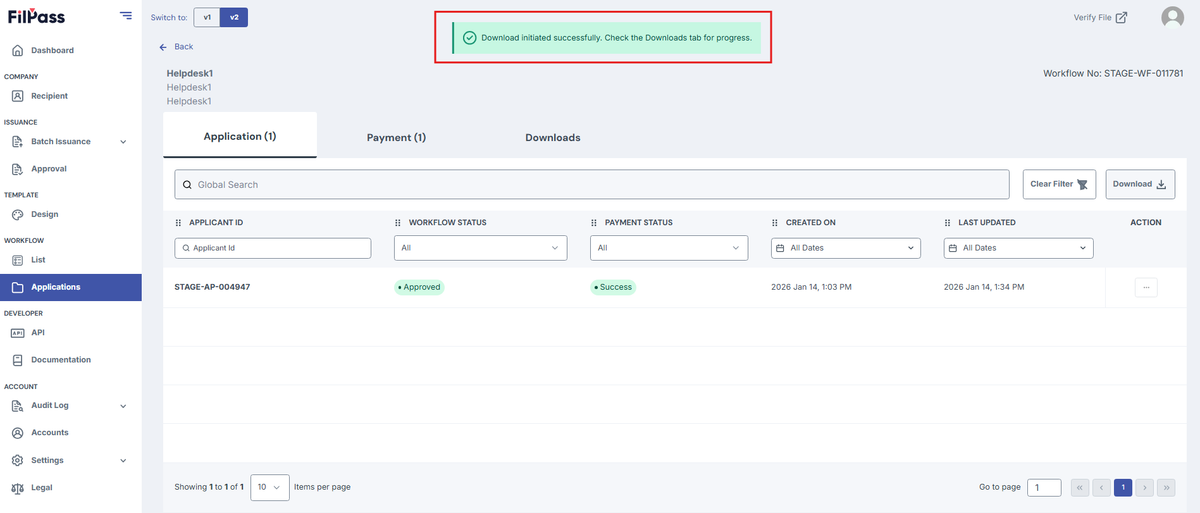
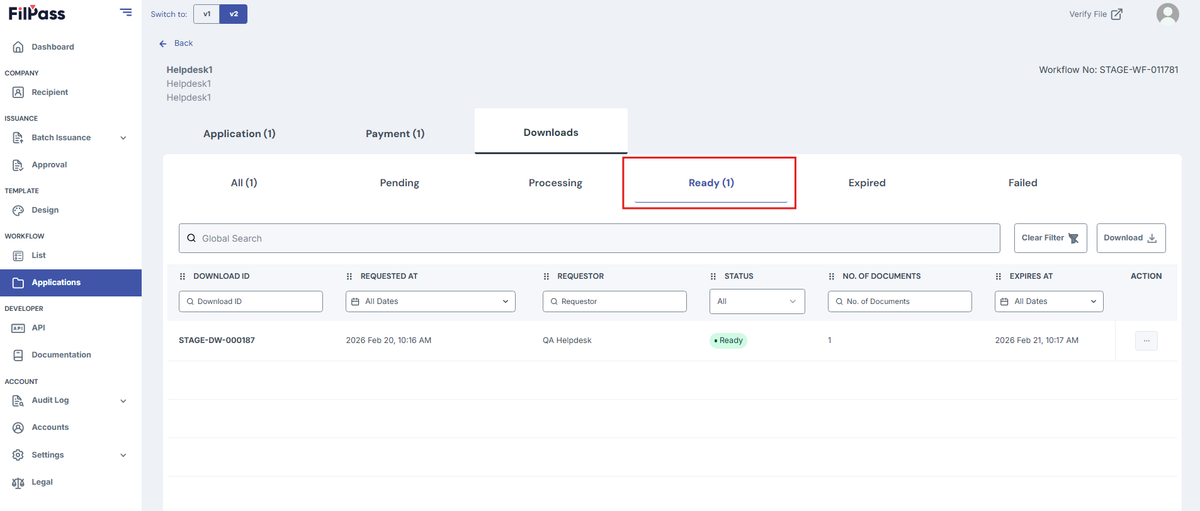
- Once completed, Go to Downloads Tab to download the file with or without issuance documents, based on your selection.
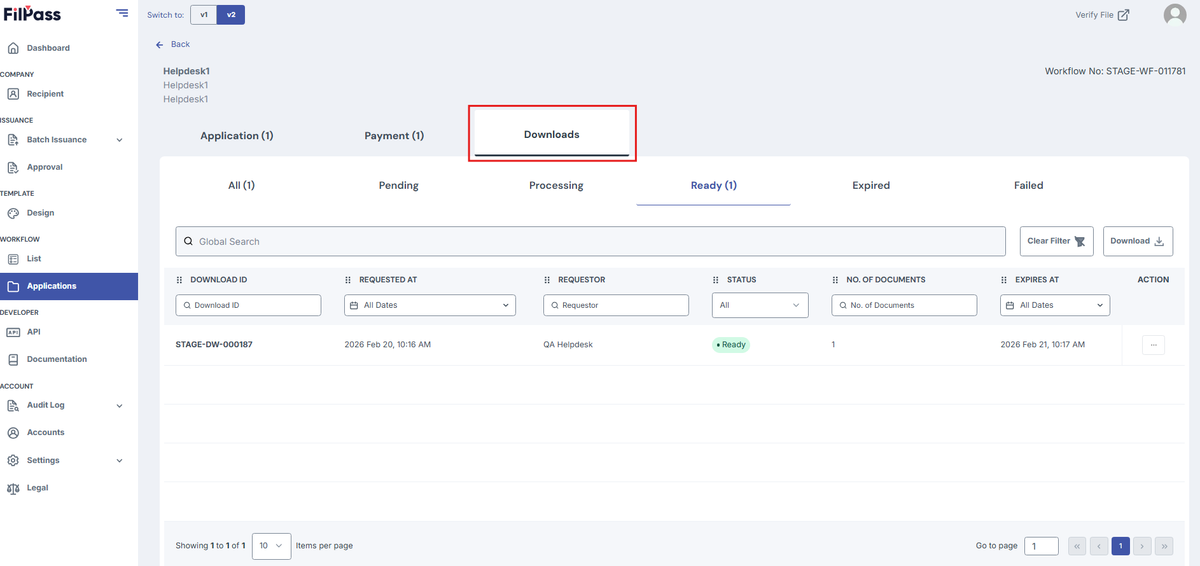
- Go to Ready tab to view all the ready to download applications
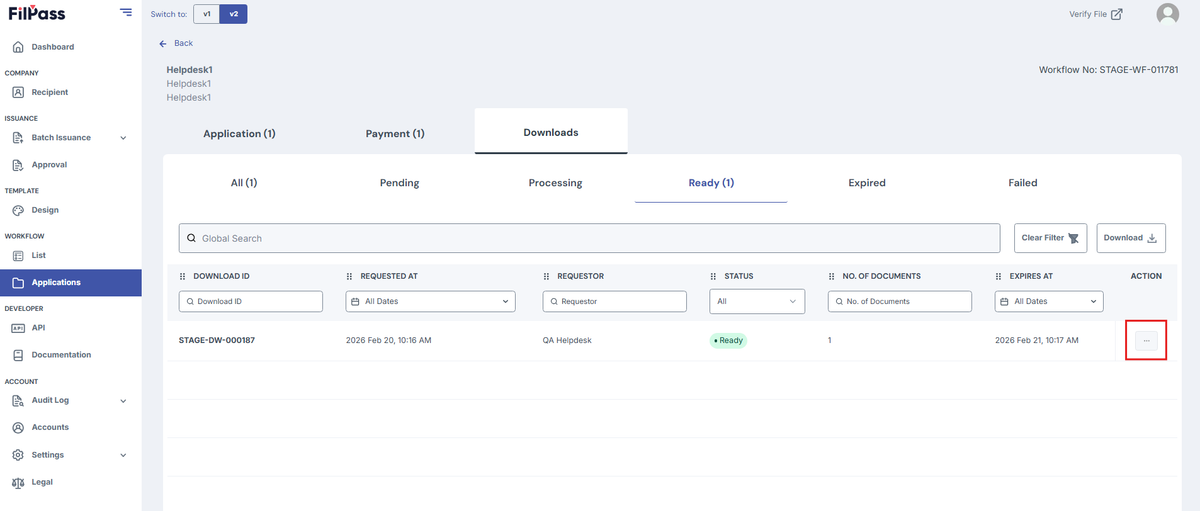
- Click on the Action button
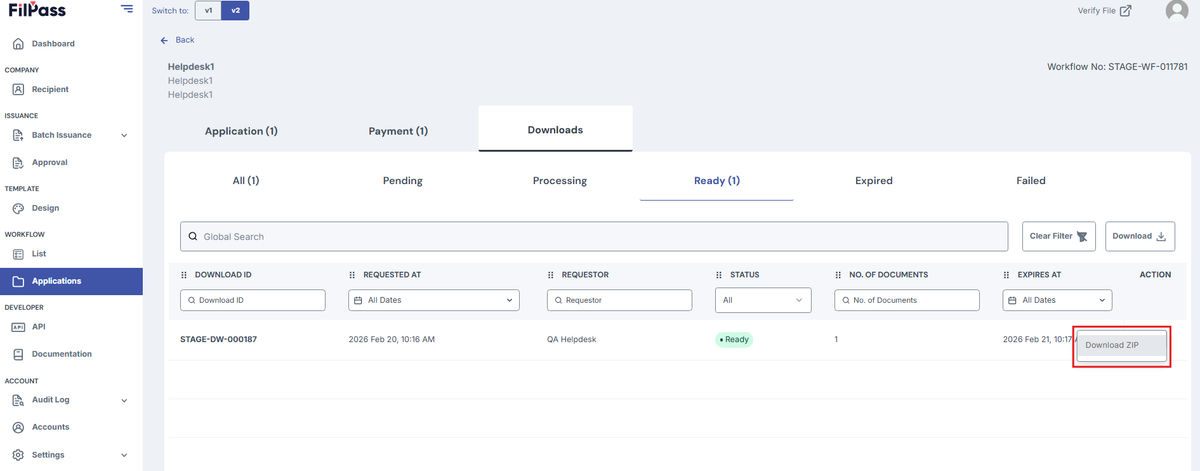
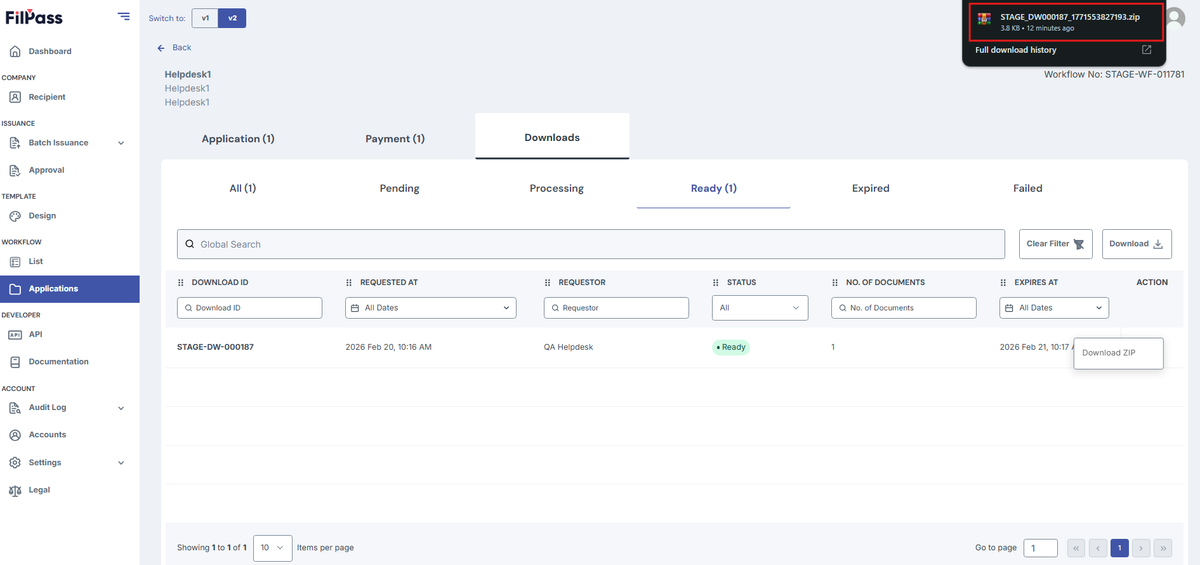
- Click on Download ZIP to download the applications. This will download a ZIP file to your system.
Was this helpful?