

How Do I Change the Background of a Template Using Copy Template?
If you want to reuse an existing template (same layout, variables, and structure) but only change the background design, the best approach is to use the Copy Template feature.
This allows you to:
- Keep all variables and paragraph content
- Retain layout and positioning
- Modify only the background design
Steps to Change Background Using Copy Template:
- Go to the Templates Dashboard
- Select the template you want to reuse
- Open the template preview
- Click Copy Template
- ✅ A duplicate template will be created
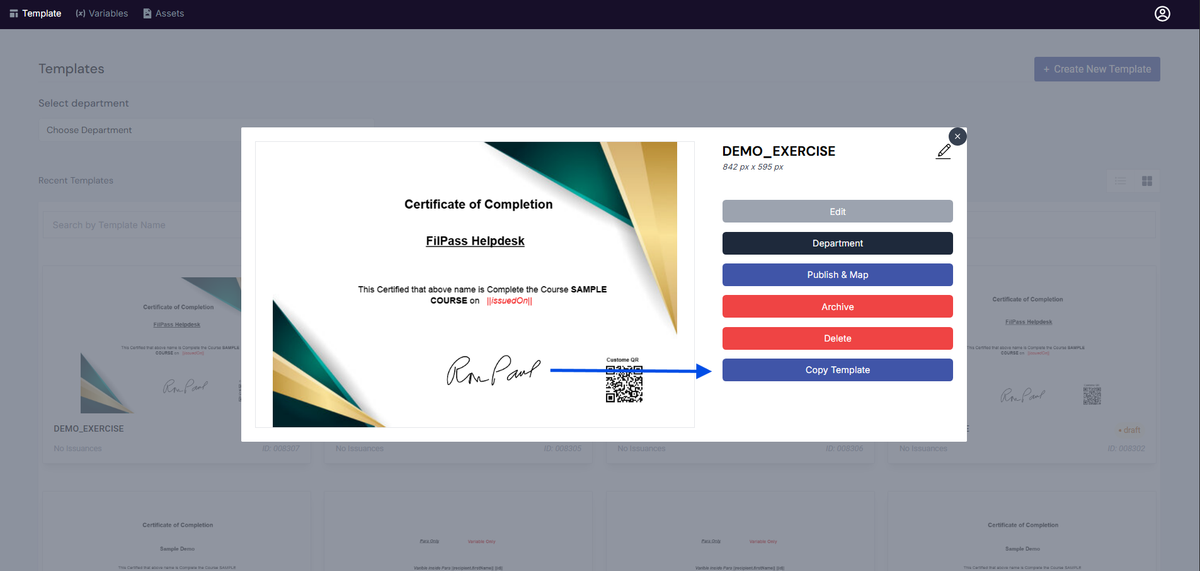
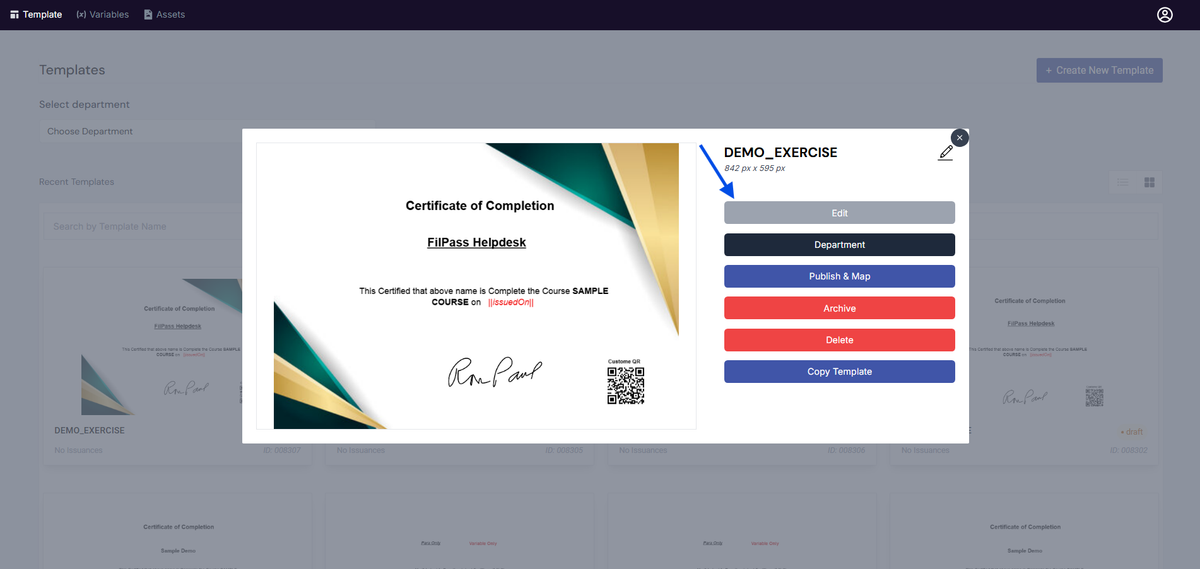
5. Locate the copied template.
6. Click Edit to open it in the Template Design canvas
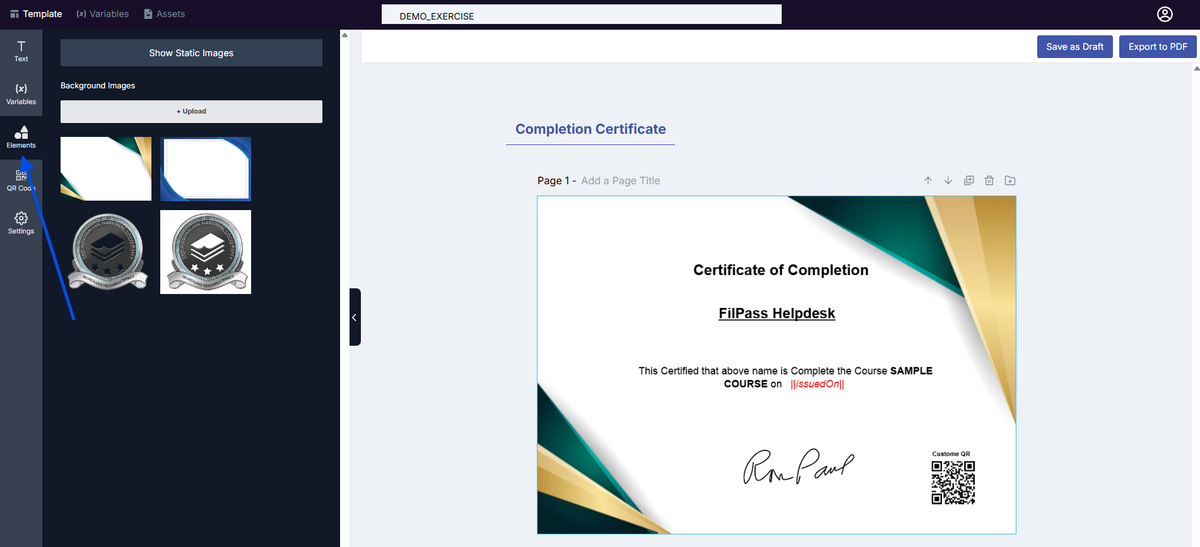
7. Click anywhere on the template canvas (main page area)
⚠️ This is important — the background can only be changed when the canvas itself is selected (not text, variables, or other elements)
7. In the left panel, click Elements
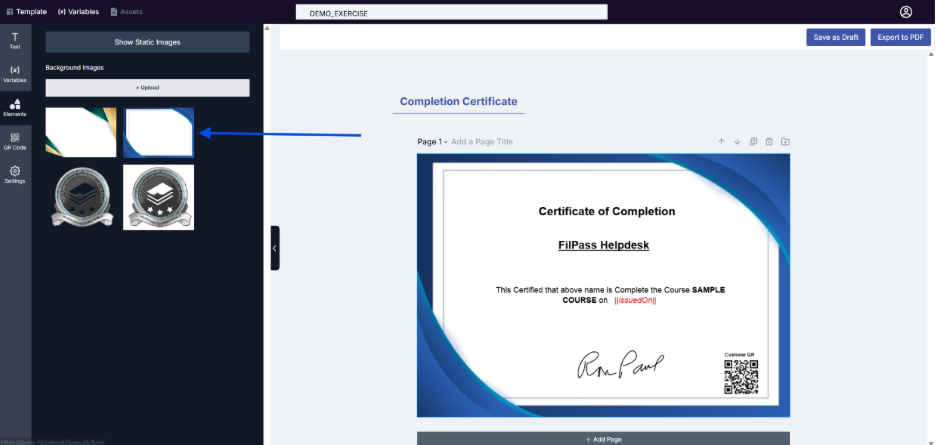
8. Under Background Images:
- ✅ If background is already uploaded:
- Click your preferred background image
- It will automatically apply to the canvas
- ⬆️ If background is NOT uploaded yet:
- Click + Upload under Background Images
- Select your image
- Once uploaded, click the image to apply
⚠️ Do NOT upload under “Static Images” — use Background Images only
9. Check if all elements are still properly aligned.
10. Adjust positions if needed
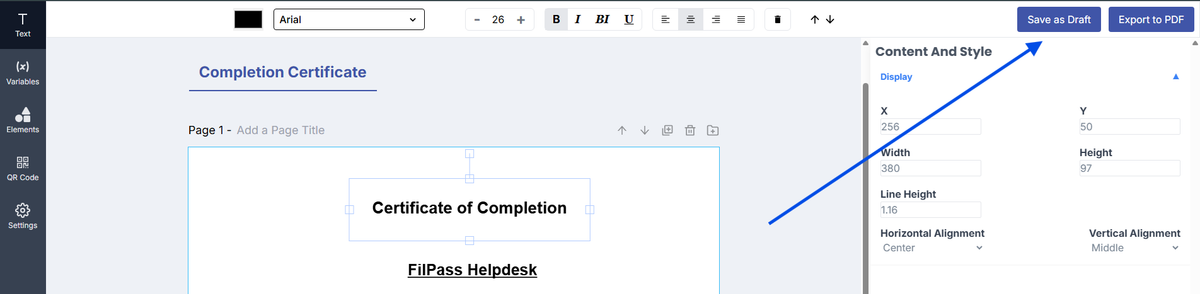
11. Once satisfied, click Save as Draft
Result
- Background is successfully updated
- Layout, variables, and content remain unchanged
- Original template stays intact
Important Notes
- Always use Copy Template before making design changes
- Background changes only apply when the canvas is selected
- Upload backgrounds under Background Images, not Static Images
- Ensure background does not overlap important content