

How Do I Change Date Format in Template Design?
Date variables such as issuedOn, certifiedOn, and other date fields can be customized to display in different formats (e.g., MM/DD/YYYY, February 17, 2020, 17 Feb 2020).
To properly preview the formatted date, the variable must be placed inside a paragraph.
Steps to Change Date Format
- In the Template Design canvas, locate the paragraph containing your date variable (e.g., ||issuedOn||).
- Click or highlight the date variable inside the paragraph.
- On the right panel (Content and Style), locate the dropdown field at the top and ensure the correct variable is selected (e.g., issuedOn).
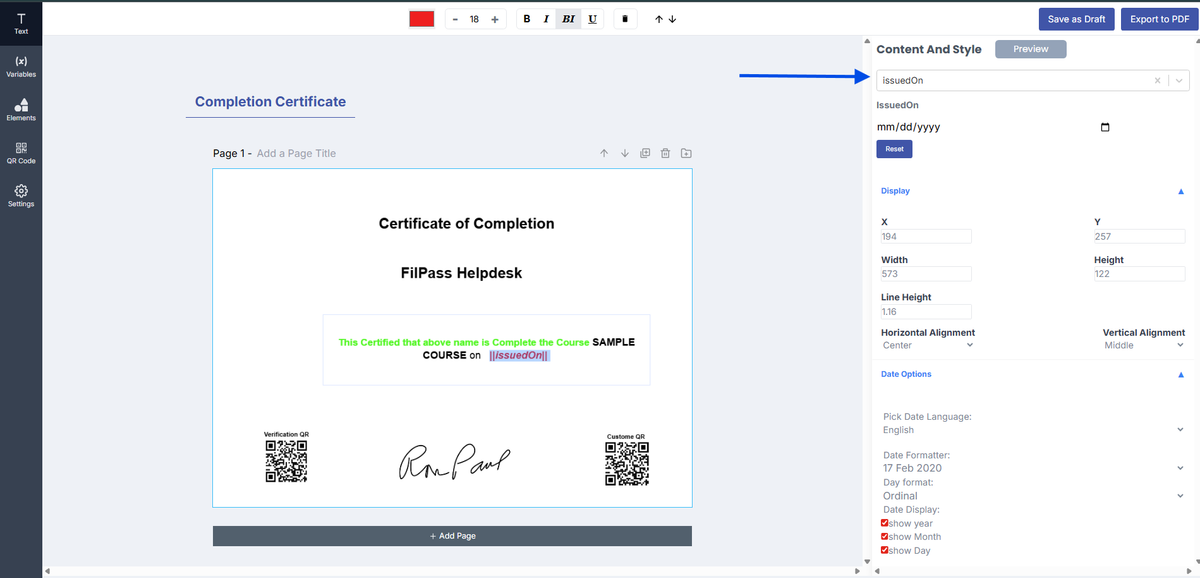
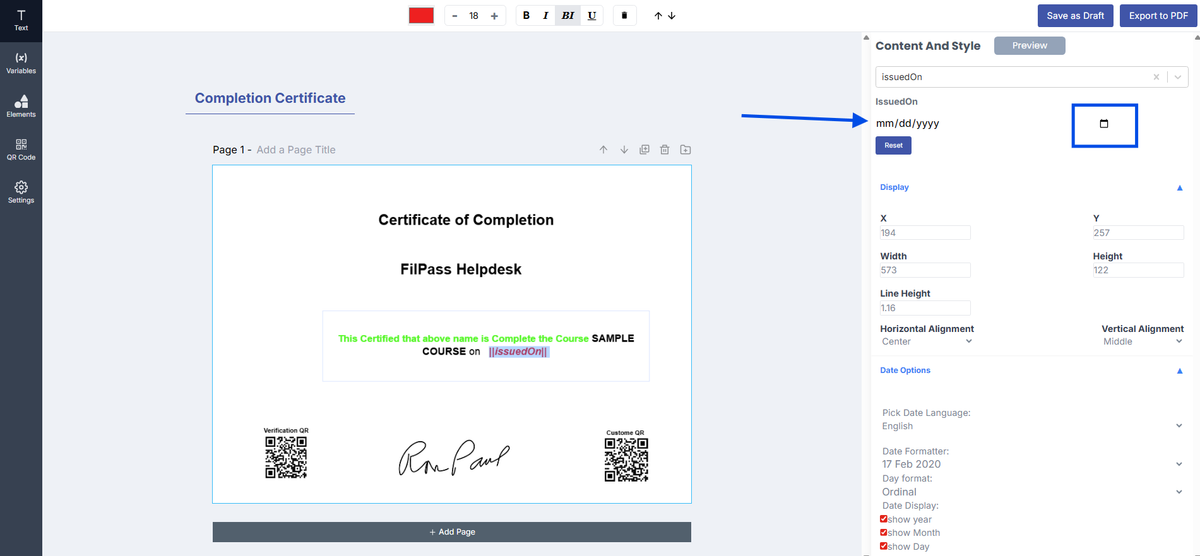
4. Once selected, assign a sample date value (e.g., pick any date using the date field).
- This allows you to preview how the date will appear.
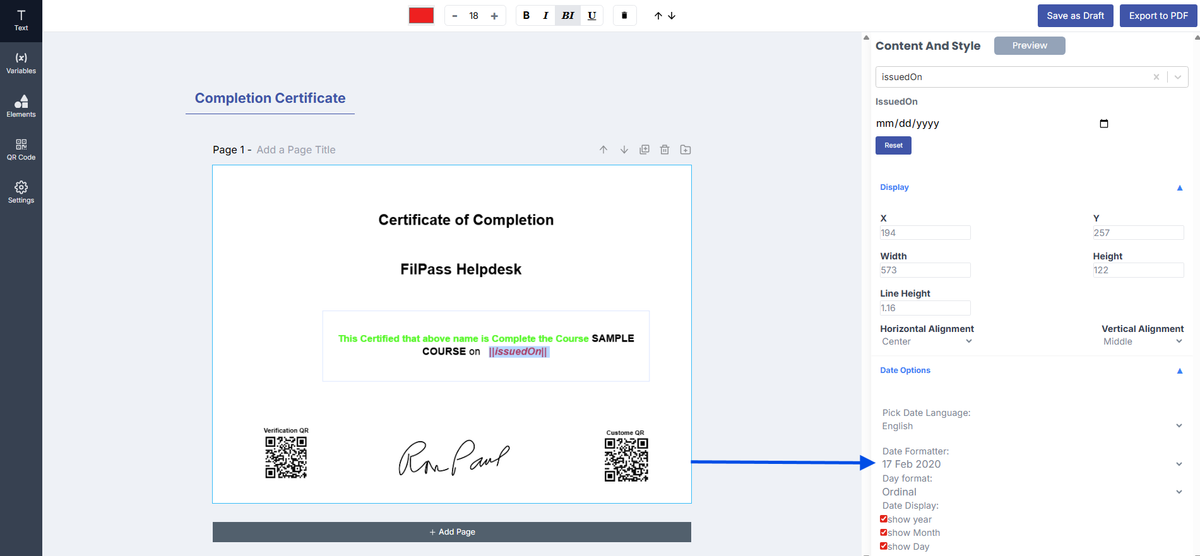
5. Scroll down to the Date Options section.
6. Under Date Formatter, select your preferred date format (e.g., 17 Feb 2020, MM/DD/YYYY, etc.).
7. (Optional) Adjust additional settings if needed:
- Date Language (e.g., English)
- Day Format (e.g., Ordinal or Normal)
- Show Year, Month & Day toggle
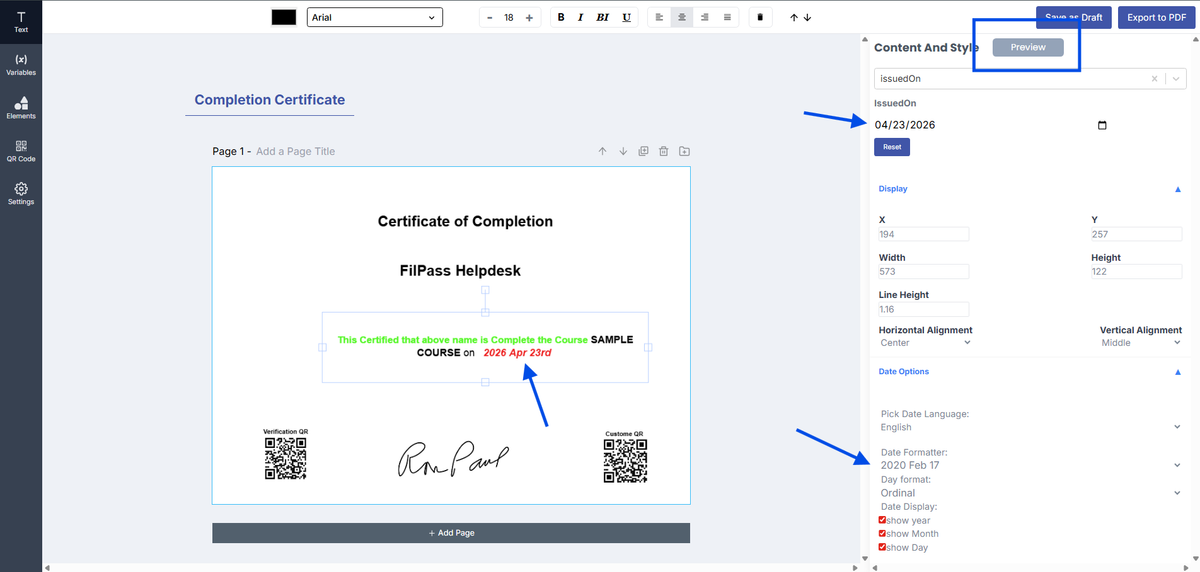
8. Click Preview on the right panel to see how the formatted date will appear in the template.
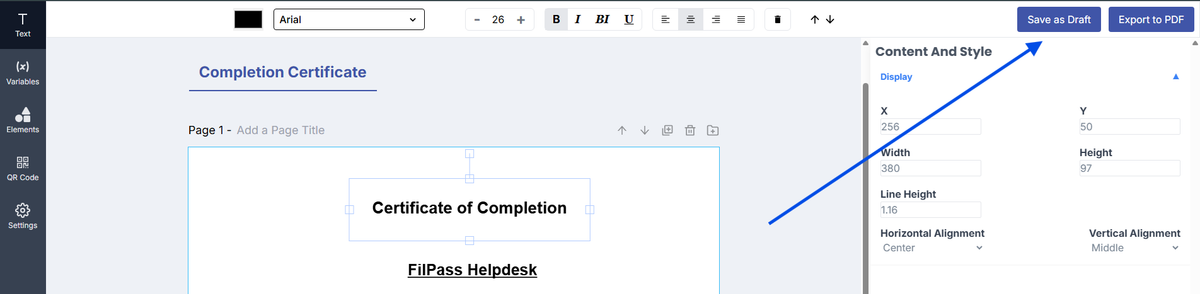
9. Once satisfied, click Save as Draft.
Important Reminder:
- Date formatting will only apply if the correct date variable is selected
- Ensure the variable is inside a paragraph to properly preview the output
- Variables placed outside a paragraph will not display in preview
Notes:
- Different formats can be used depending on your document requirements
- Always preview before saving to ensure the correct format is applied
- This feature applies only to date-type variables
Was this helpful?