

How Do I Change Font Style & Size in Template Design?
You can modify the font style and font size of text and variables directly within the Template Design canvas using the formatting toolbar.
- In the Template Design canvas, locate the paragraph or variable you want to modify.
- Highlight or select the specific text or variable.
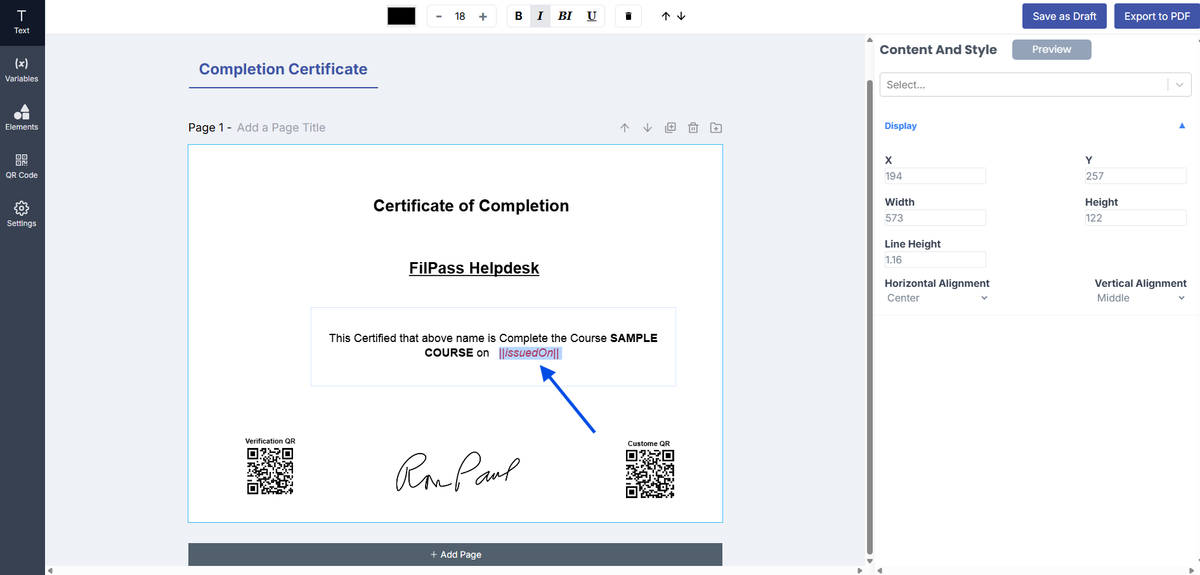
3. From the toolbar above the canvas:
- Select your preferred Font Style.
- Adjust the Font Size using the size controls
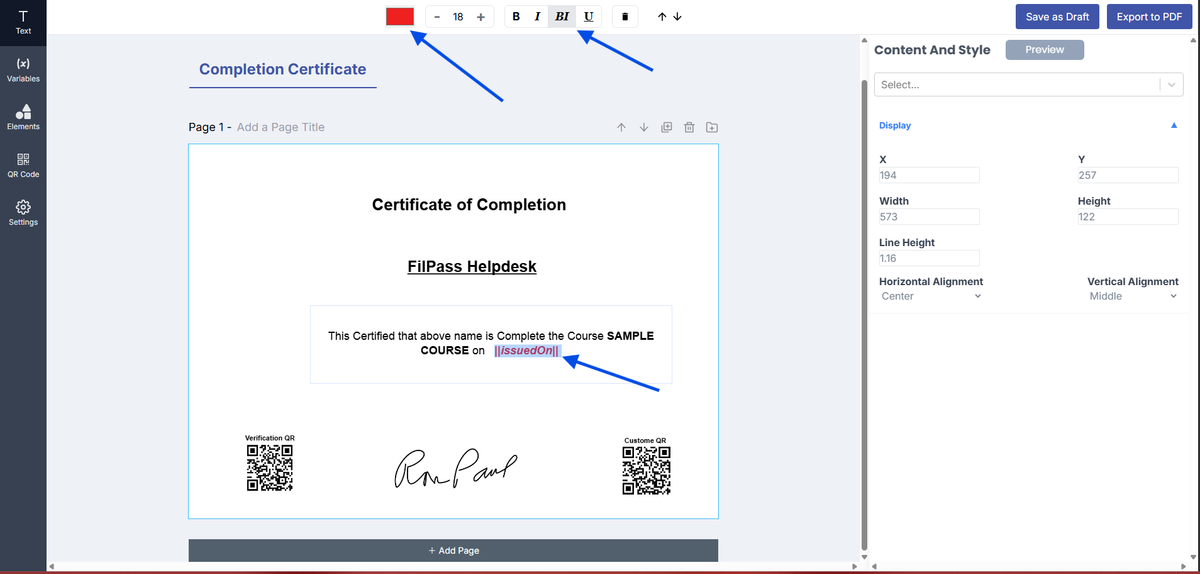
4. The changes will automatically apply to the selected text or variable.
5. To preview your template, click Preview in the right panel.
- Note: To preview variable values, ensure the variable is placed inside a paragraph.
- Variables not inside a paragraph will not be displayed in the preview.
6. Review the changes. If satisfied, click Save as Draft.
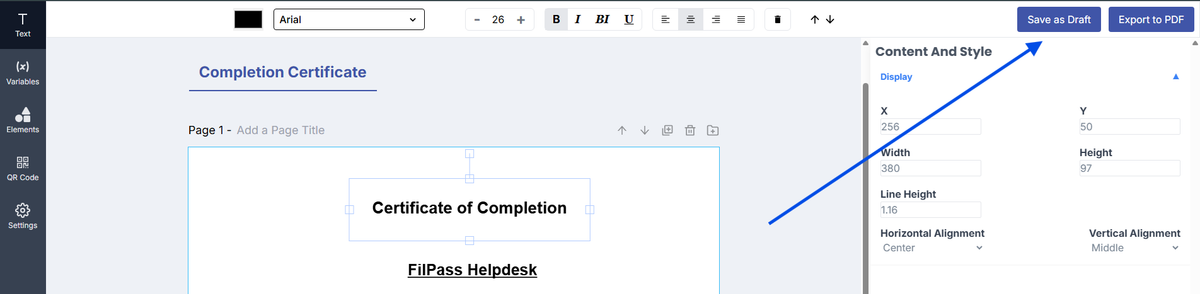
7. Once saved, your template is ready to be mapped for issuance.
Notes:
- Formatting will only apply to the selected or highlighted text/variable
- If nothing is selected, changes will not take effect
- Font settings apply to both static text and variables
- Always use Preview to verify the final appearance before mapping
Was this helpful?