
What is the Check-In Feature?
This section provides information using Check-in in Batch Issuance.
Check-in Module is only available for Template-Based Batch Issuances and allows the Issuing Authority to monitor if a recipient has received their Issuance through their check-in status. This is usually used for events. For example, in an ongoing event this serves as for your proof for the recipient’s attendance on the event to make sure that they have attended before releasing the document to the recipient.
You can only check in on Approved documents.
1. Enable Check-in Module
- Create a Template-Based Batch Issuance and toggle the Enable Check-in Module to Yes.
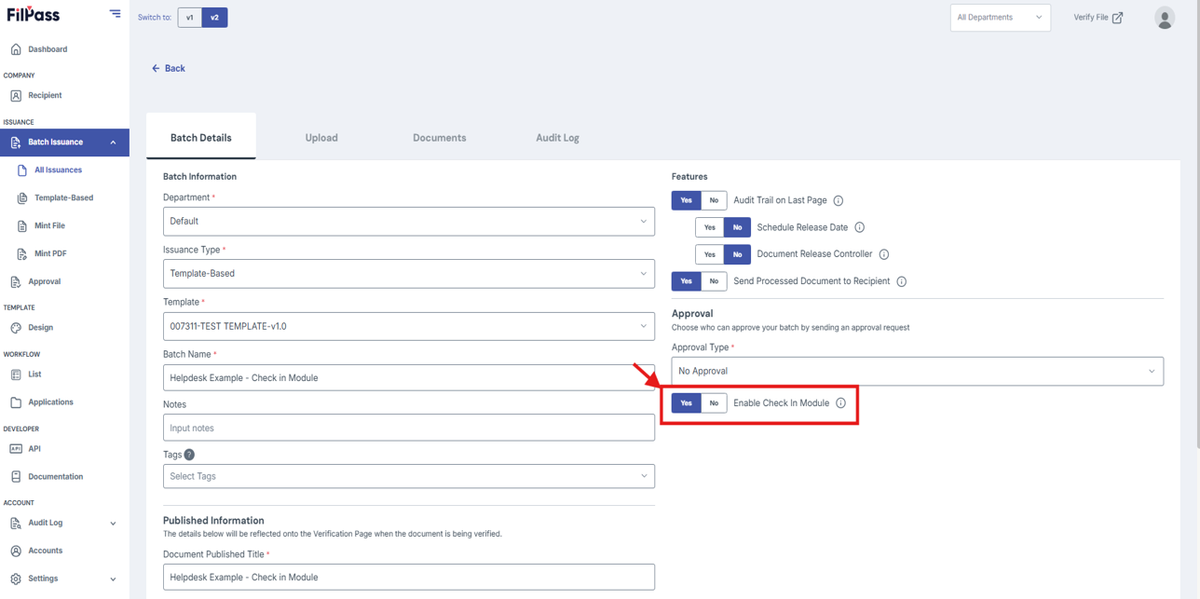
- Continue with your Batch Issuance.
2. Check-in
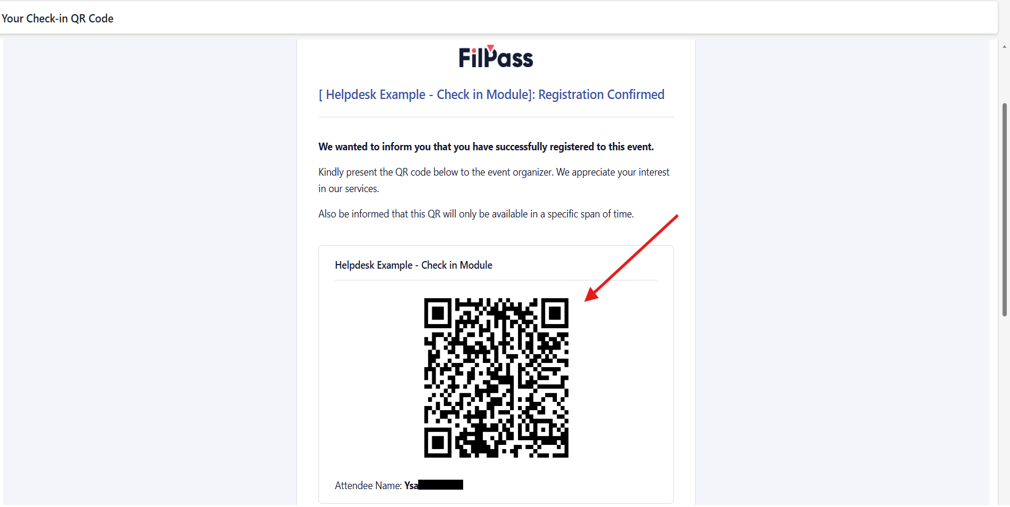
- You can either do a manual check-in via the documents tab or through the email check-in QR code where it should be scanned.
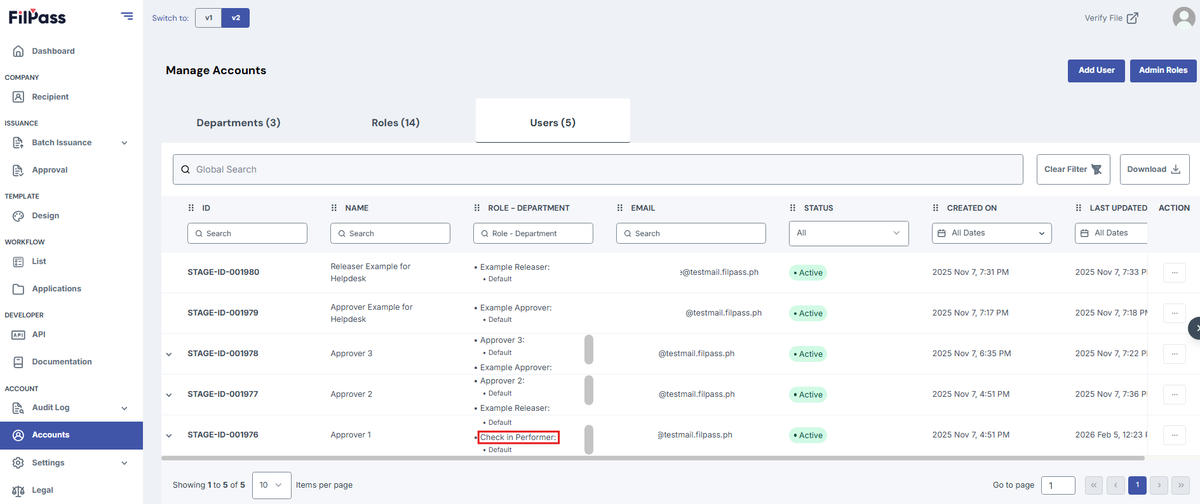
Note: Please note that only Users with the “Can Perform Check In“ Permission can perform a Manual Check In in behalf of the recipient.
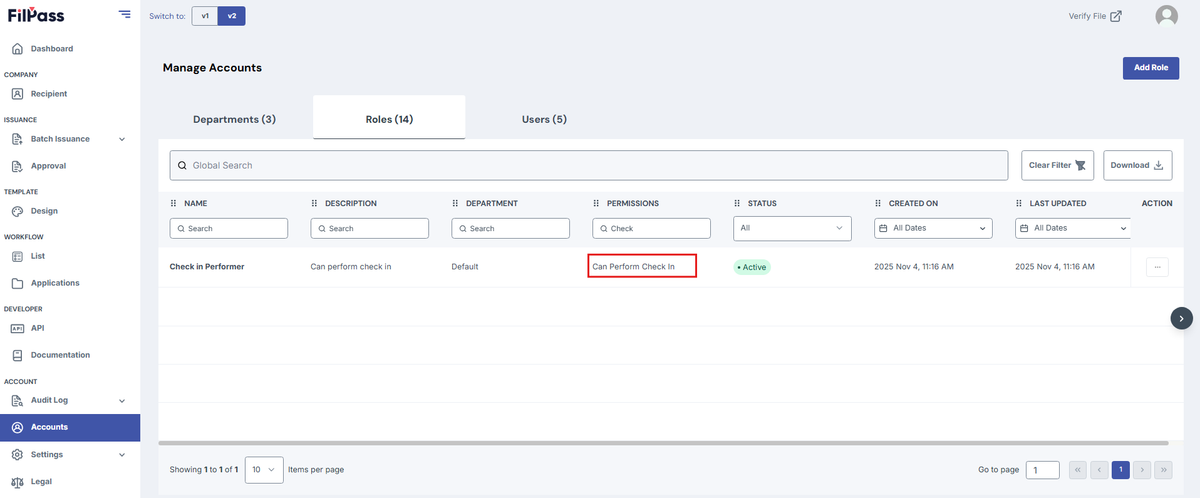
A Sample User with the default Check-In Performer Role:
For Manual Check-in:
- Go to the Approved Tab of your Batch Issuance
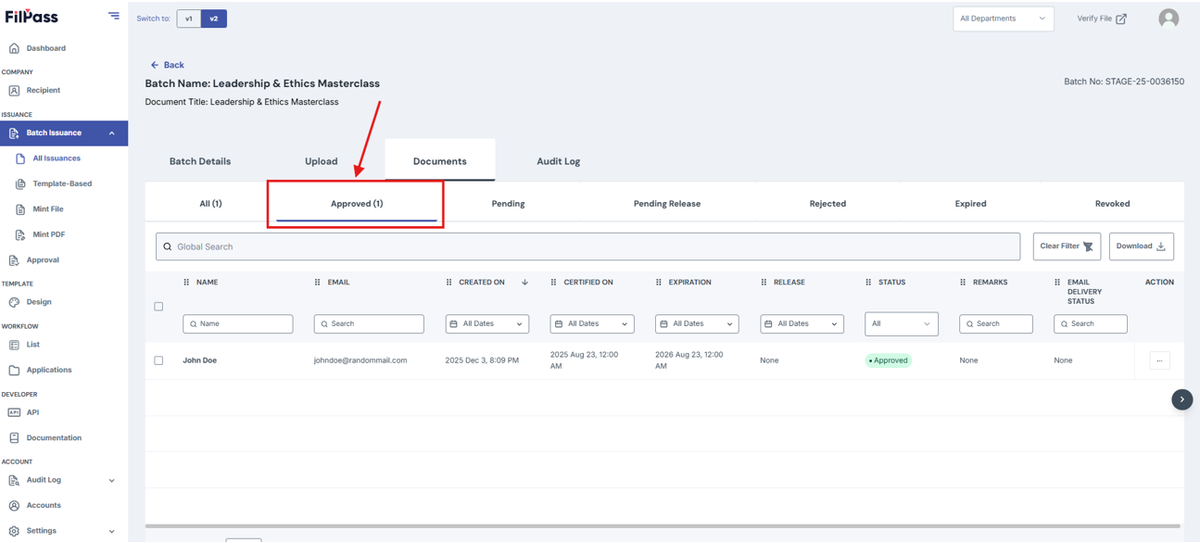
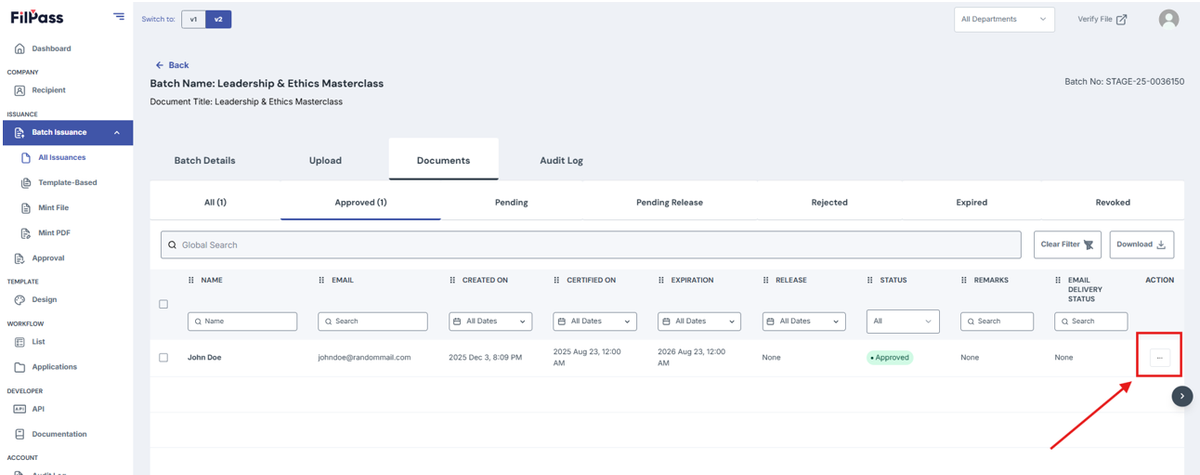
- Click the action button of the document you want to check in.
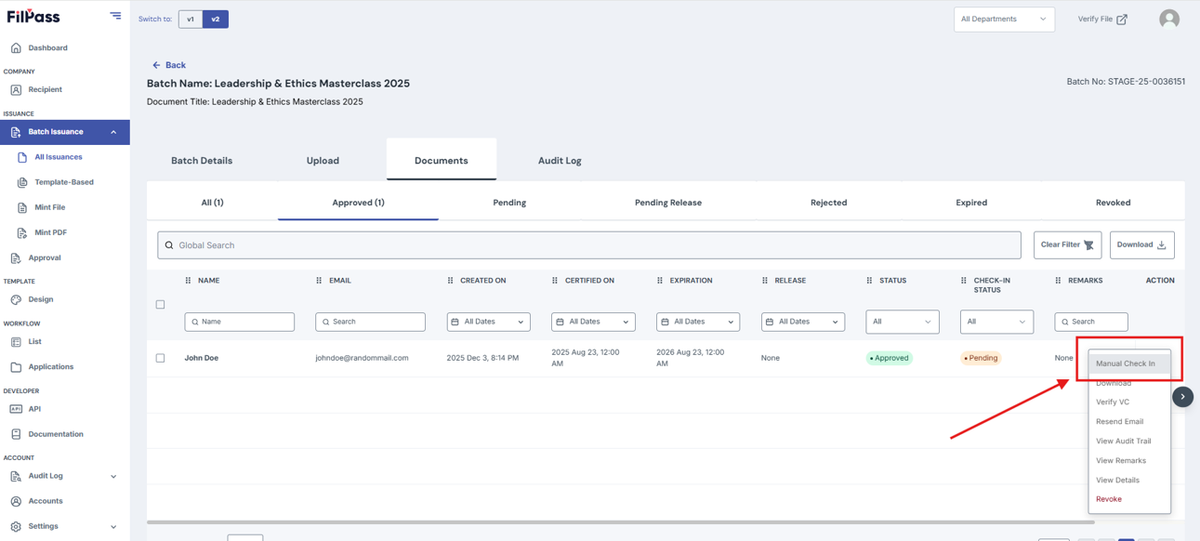
- Click Manual Check-in
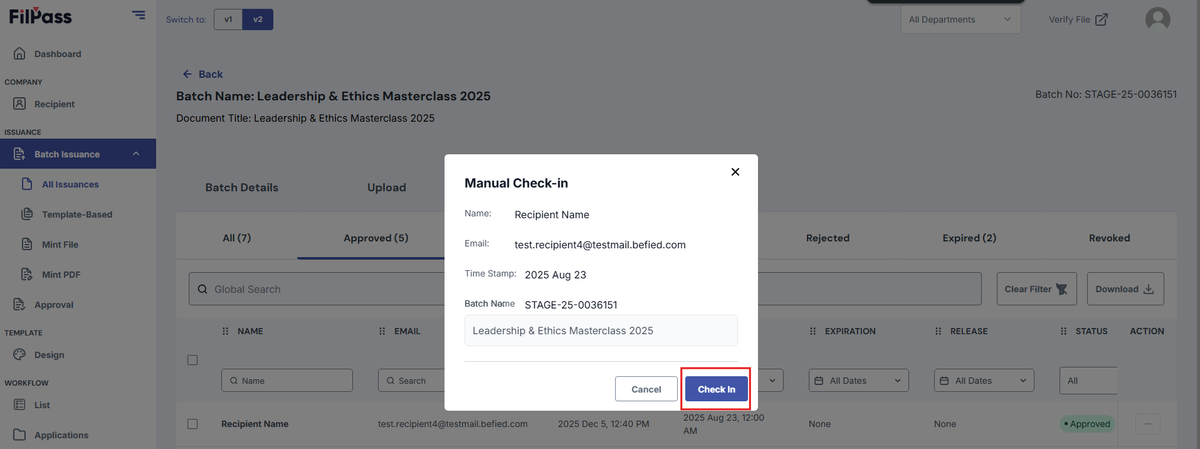
- On the Check-in Confirmation Modal, click on the Check in button
- A Success pop up message will appear once the check-in is successful
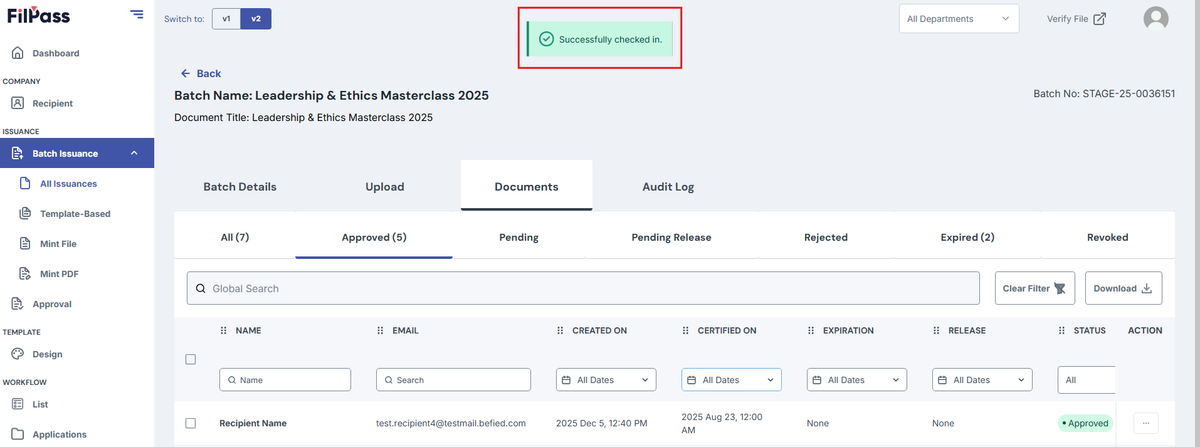
For email check-in QR code:
- Open this link in your phone and log into your Issuing Authority Account or Sub-account: https://app.v2.filpass.ph/ia/checkin/event
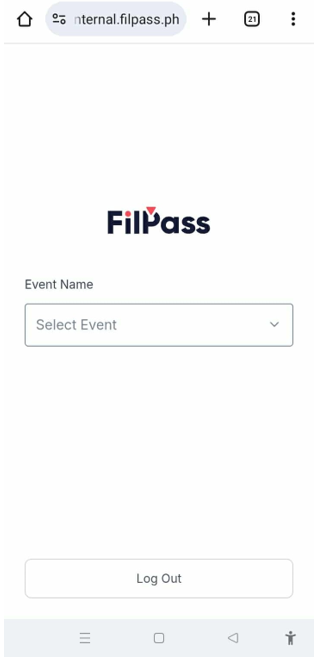
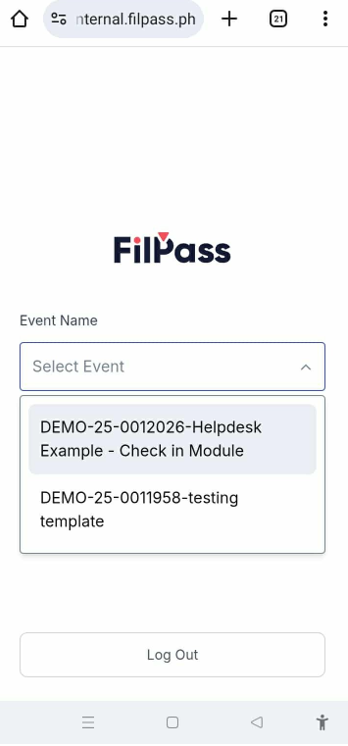
- Select your event from the dropdown
- Scan the QR code in the recipient's email.
- You have successfully checked in for that document.
For a couple of Messages of note:
- If the Sub IA (Issuing Authority) has no permission for the Check In, they will see the error message on this photo.
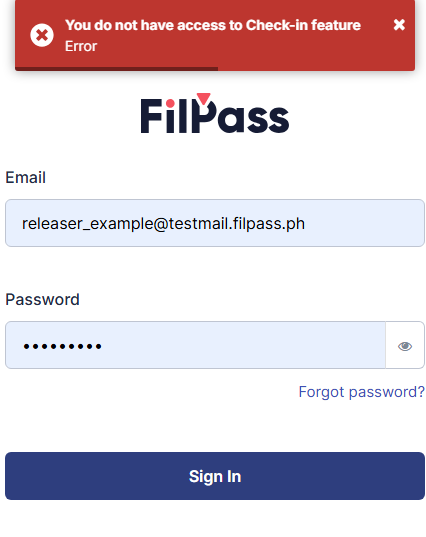
- If the page displays the image below, The Sub IA or the IA might have selected a different event compared to the QR code being scanned from the recipient.
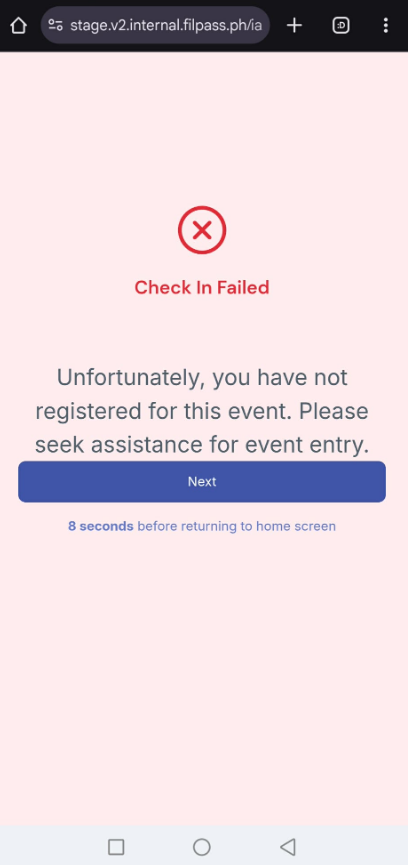
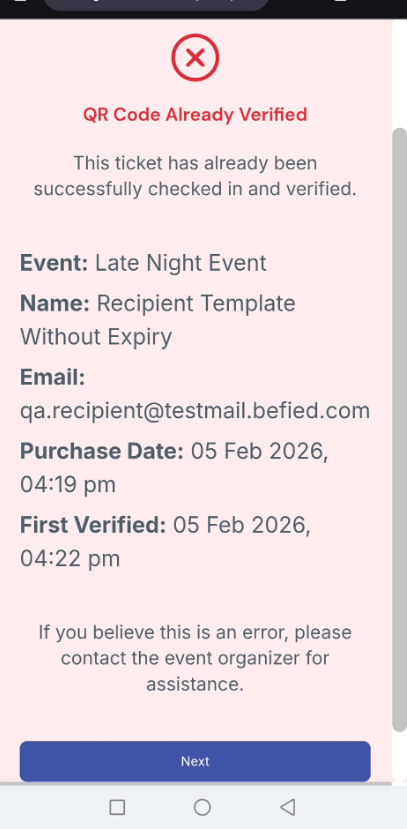
- If the image below is encountered, it means that the QR code being scanned has already been scanned