

Admin Role

  • Adding Admin Role to a Role
    • Access the Admin Role Modal by pressing the Admin Role button in the Upper Right
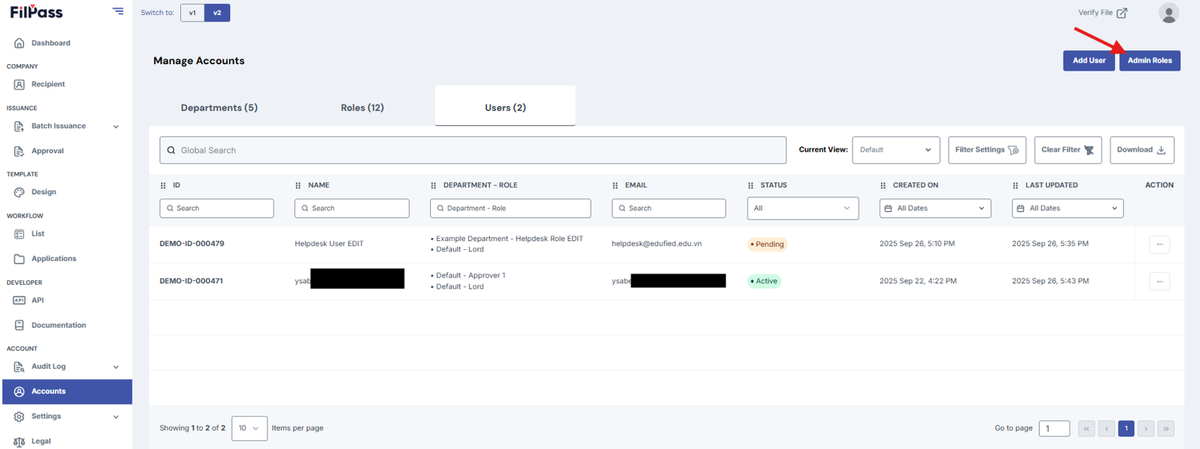
Image of Users tab with a highlighted Admin Role button
  • Simply open the dropdown and find the name of that role. Then click Save.
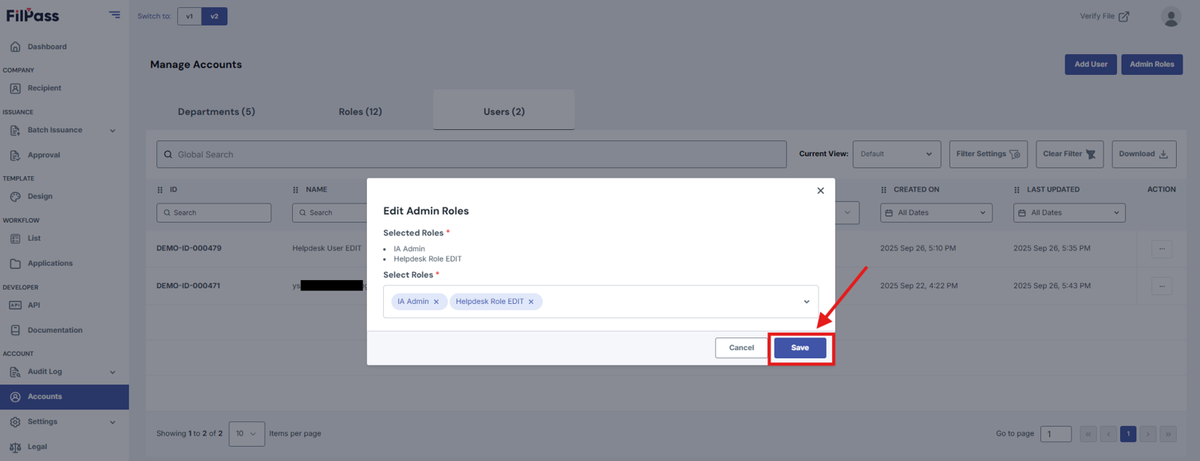
Image of the Edit Admin Roles pop-up modal with the Save button being highlighted.
  • To remove an Admin Role:
    • Access the Admin Role Modal by pressing the Admin Role button in the Upper Right
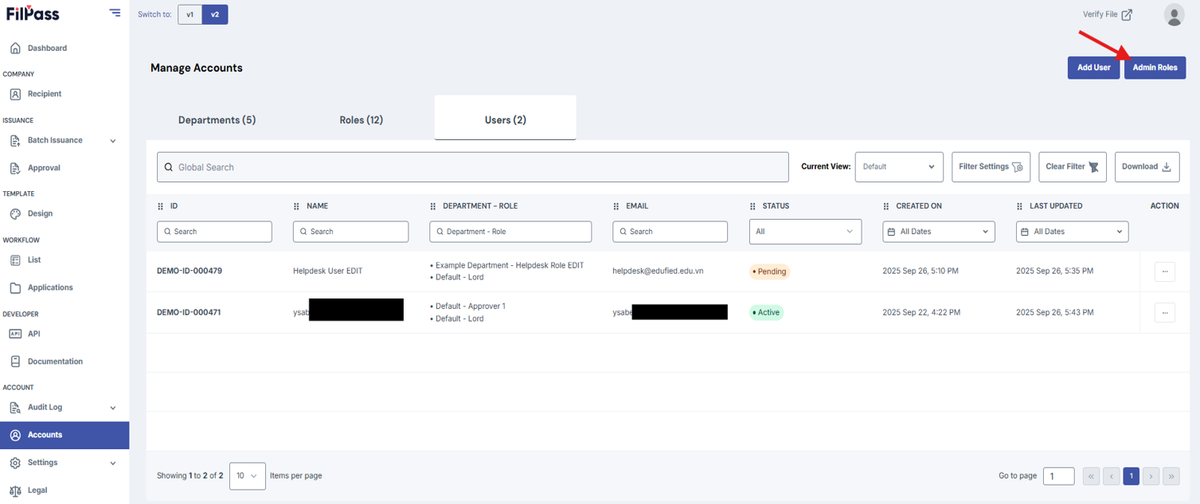
Image of the User tab with the Admin Role button being highlighted.
  • Simply open the dropdown and press the X button next to the role you want to remove from the Admin Roles. Then click Save.
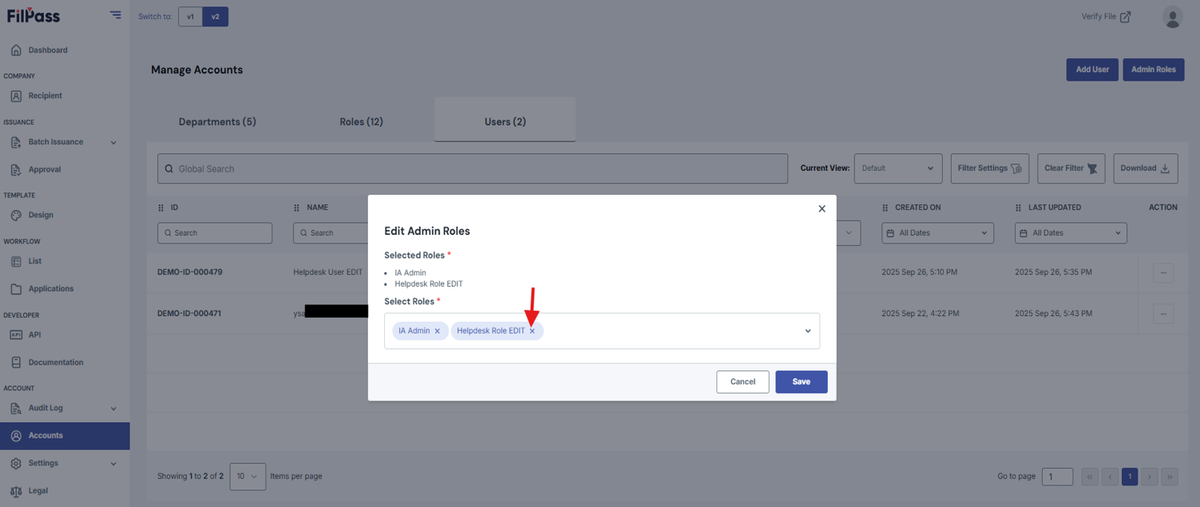
Image of the Edit pop-up modal with the X button being highlighted.

Related Articles

Issuing AuthorityProfile Settings

Access Level

This section explains the Access Level of your IA.

settings
28 Jan 202653 views
Issuing AuthorityWorkflow

Add Field Section

This section explains how to add fields in a Custom Tab of a Workflow.

workflow
26 Jan 202614 views
Issuing AuthorityWorkflow

Approval Tab

This section explains the Approval Tab of a Workflow.

workflow
26 Jan 202617 views
Issuing AuthoritySuper Admin

Batch Issuance Domain

This section explains how to set up your Batch Issuance Domain.

settings
28 Jan 202615 views