

Recipient Request Document Payment
This section explains how the recipient can pay their respective request document
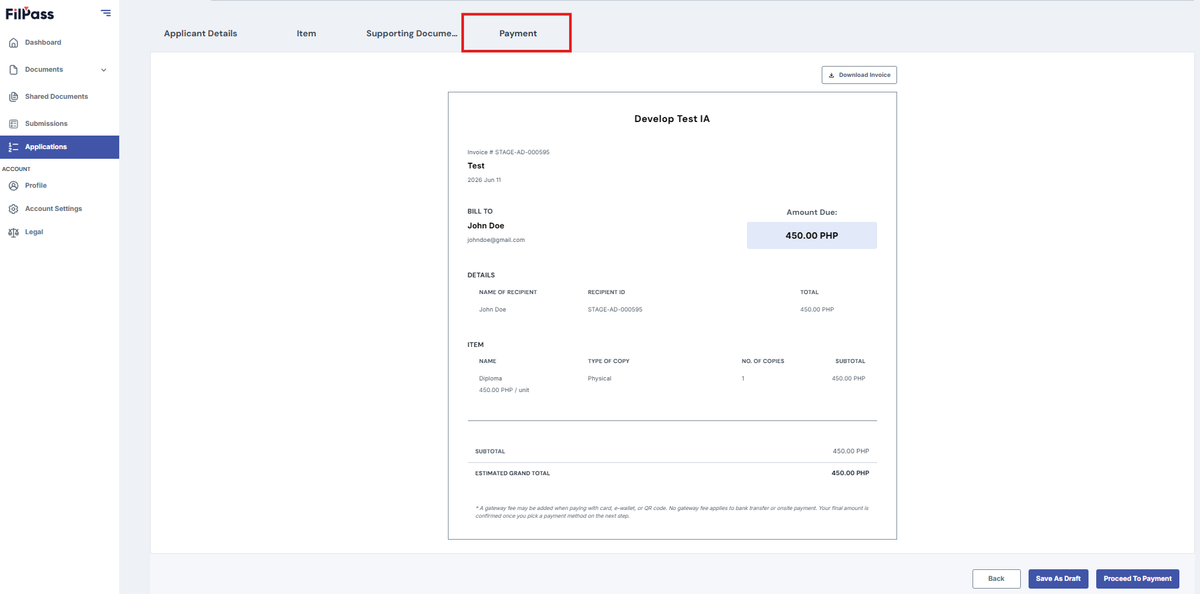
- After clicking next on the supporting document tab, you will be redirected to the Payment tab. This will only exist if the payment is enabled.
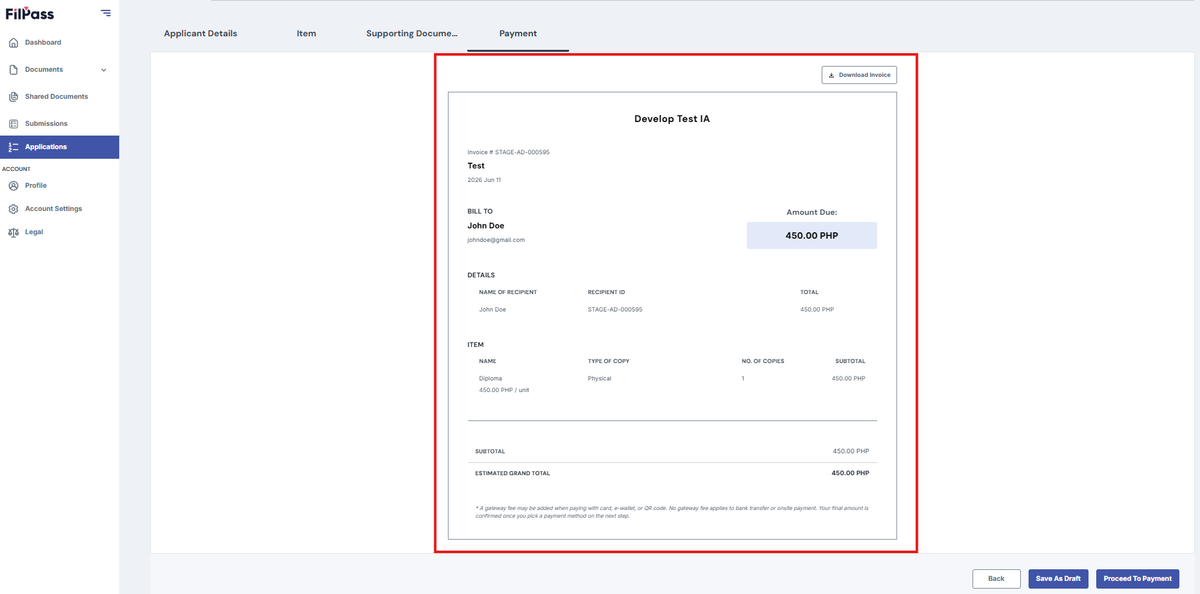
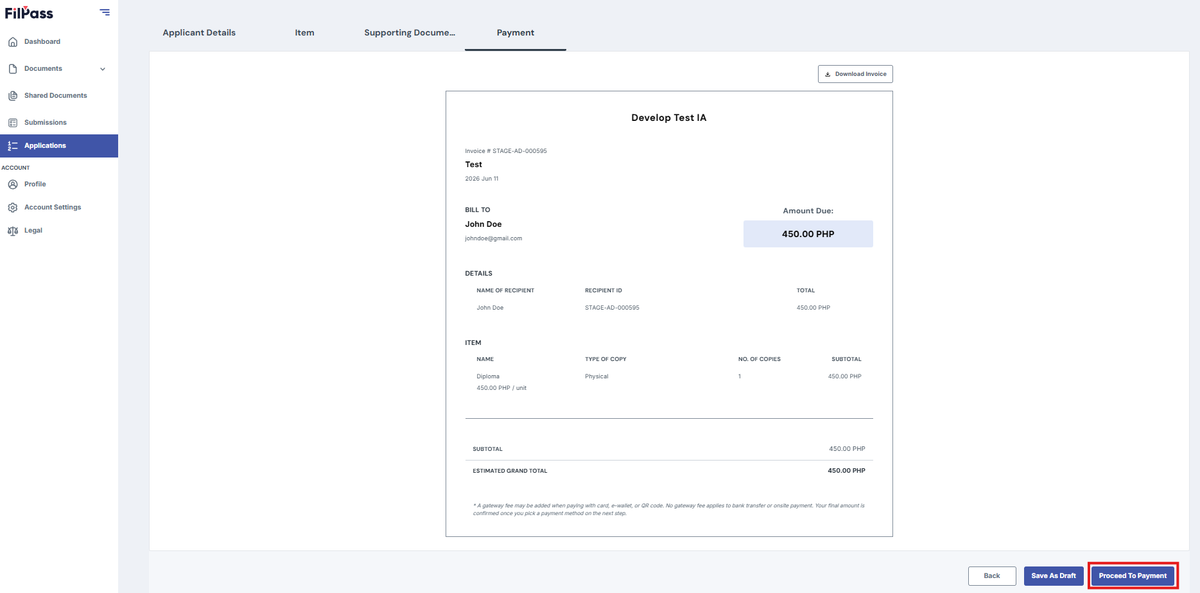
2. You can see the details of your payment
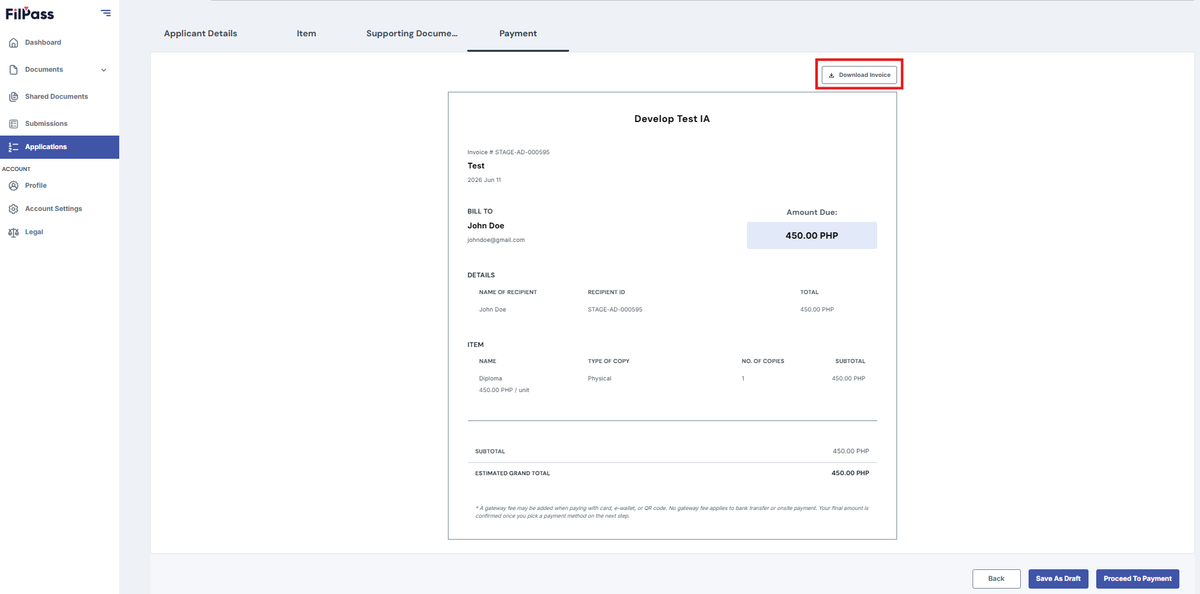
3. Click Download Invoice to download the invoice file
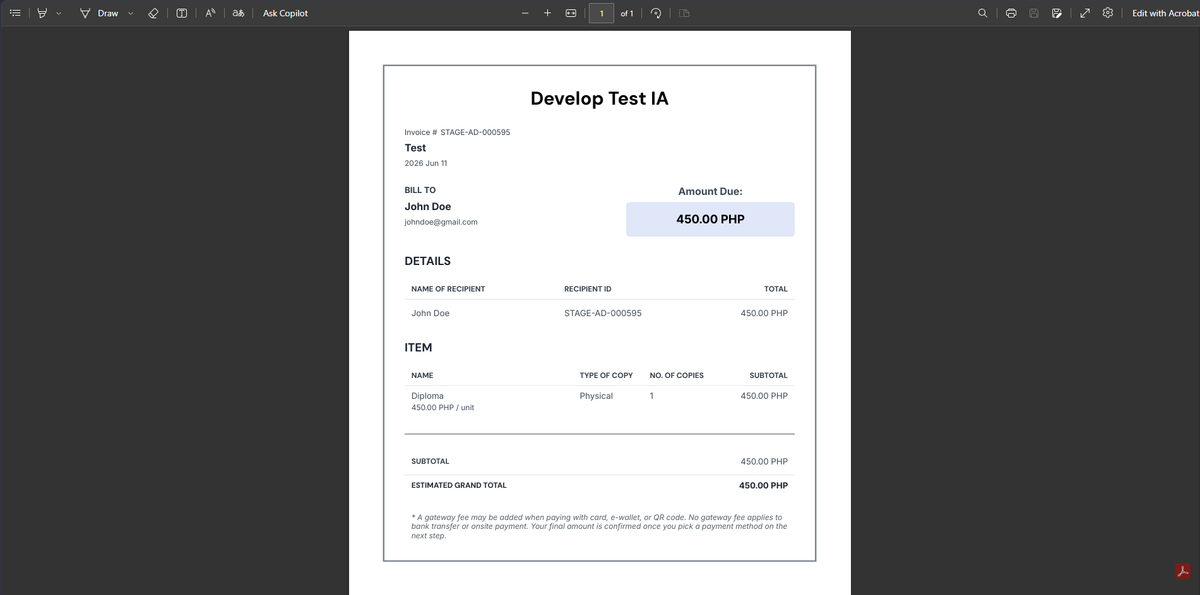
Sample Picture of the Invoice
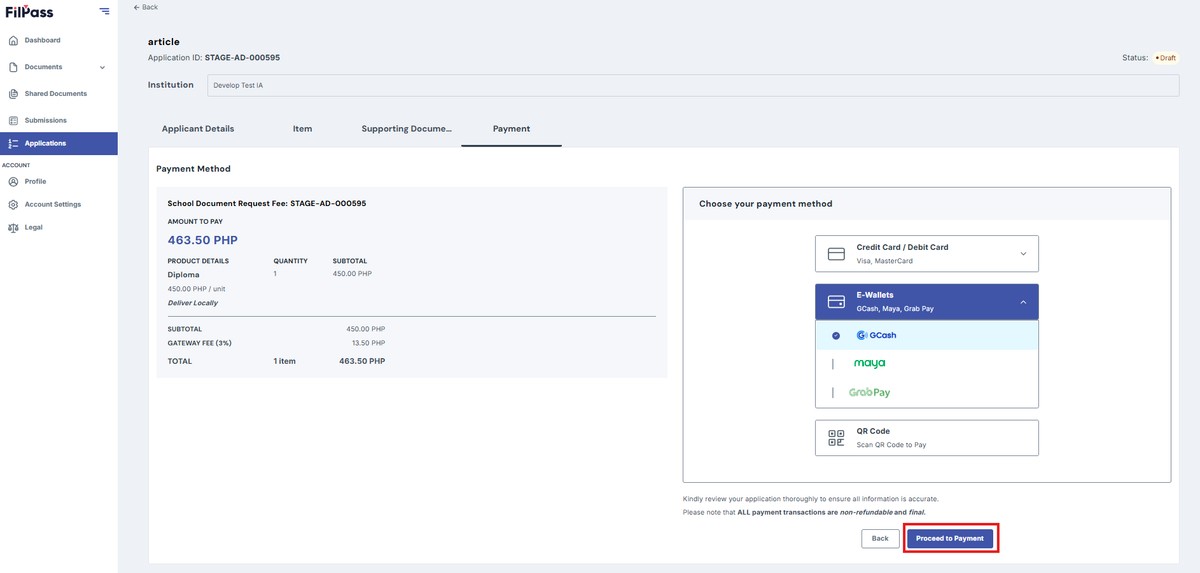
4. Click Proceed to Payment to proceed paying
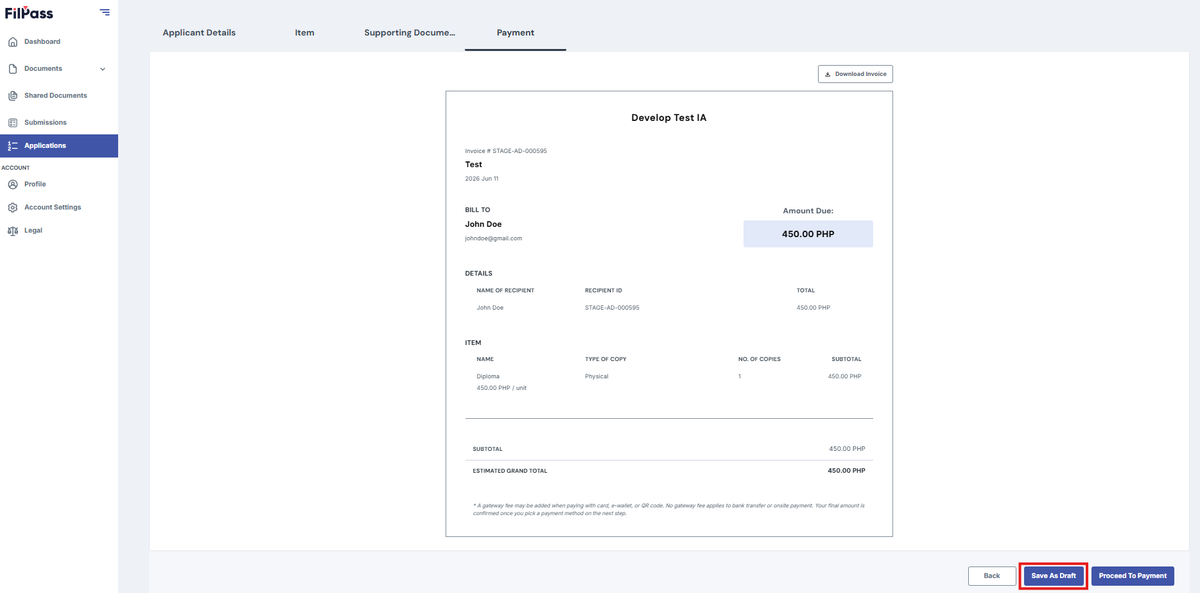
5. Click Save Draft to saved your progress and continue it later
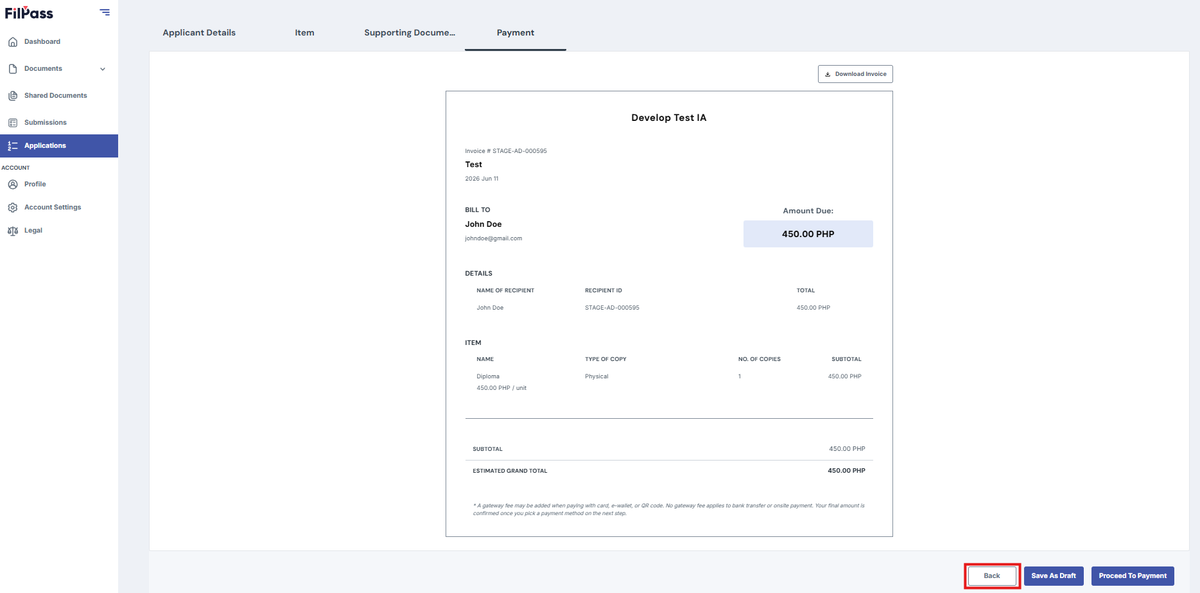
6. Click Back it will return you to the supporting documents tab
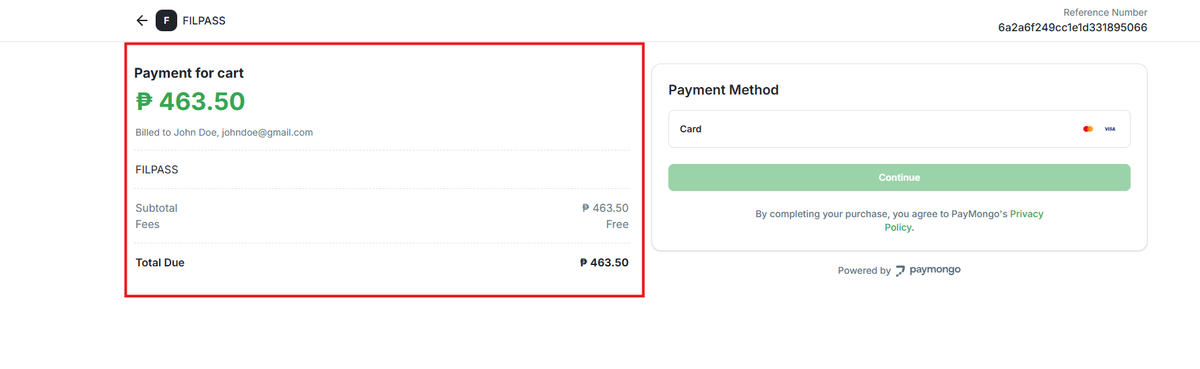
7. After clicking proceed to payment, you will be redirected to the payment method. It contains:
- Total Due
- Reference Number
- Payment Method
8. Click the Dropdown (Card or E-wallets)
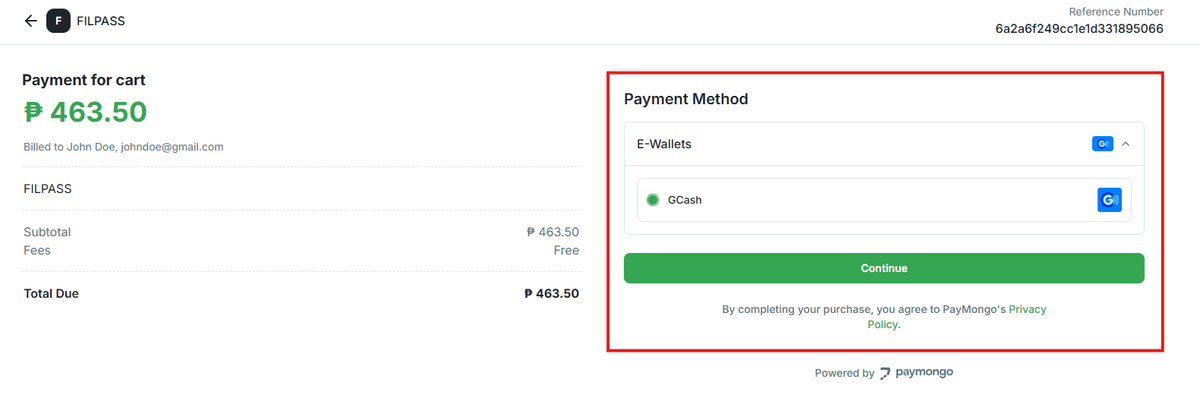
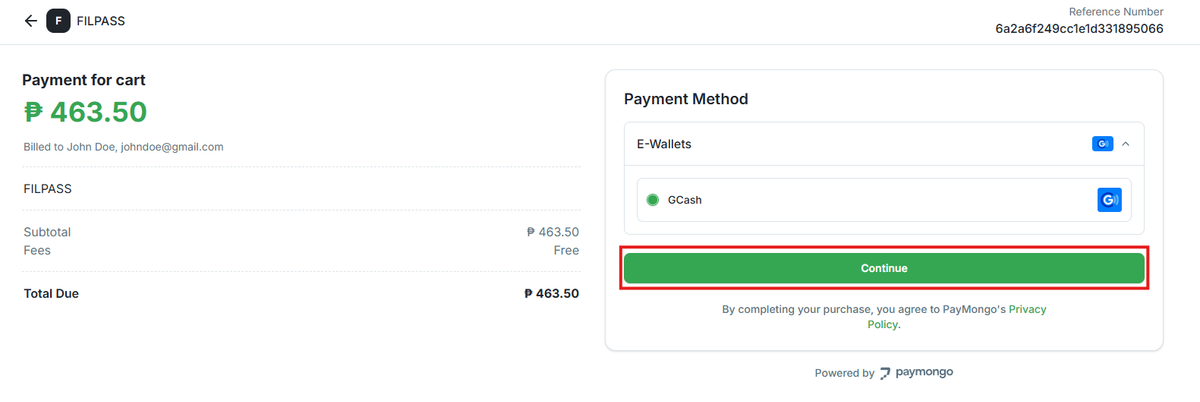
9. Click Continue to Proceed paying
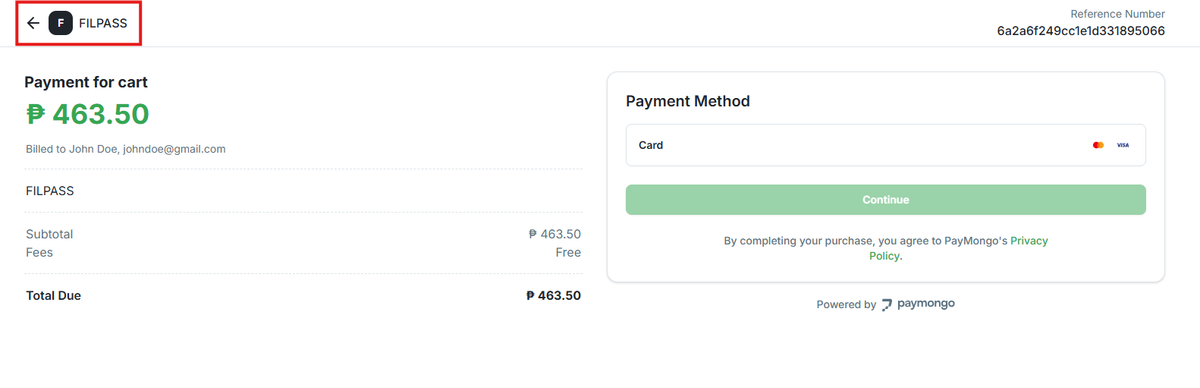
Cancel Payment
- Click the back button
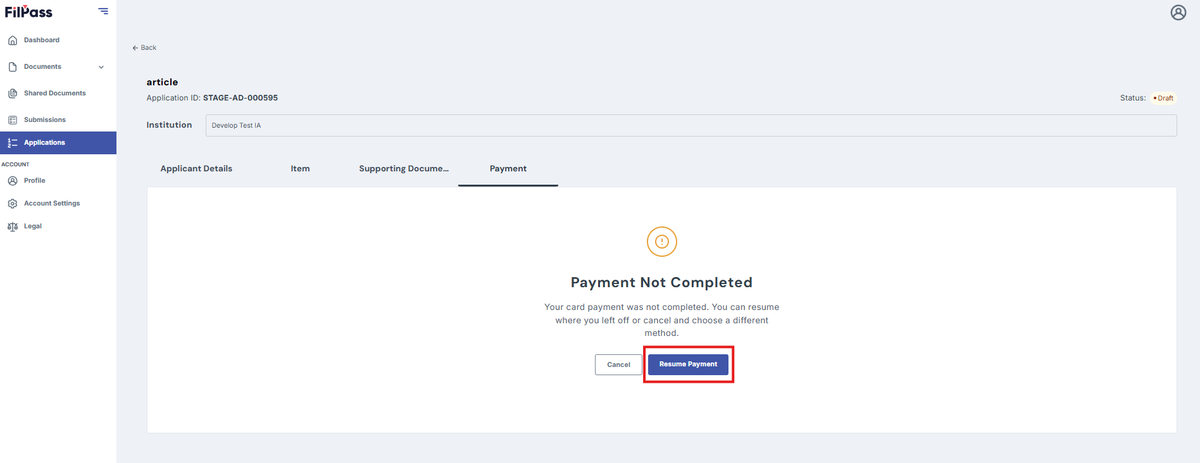
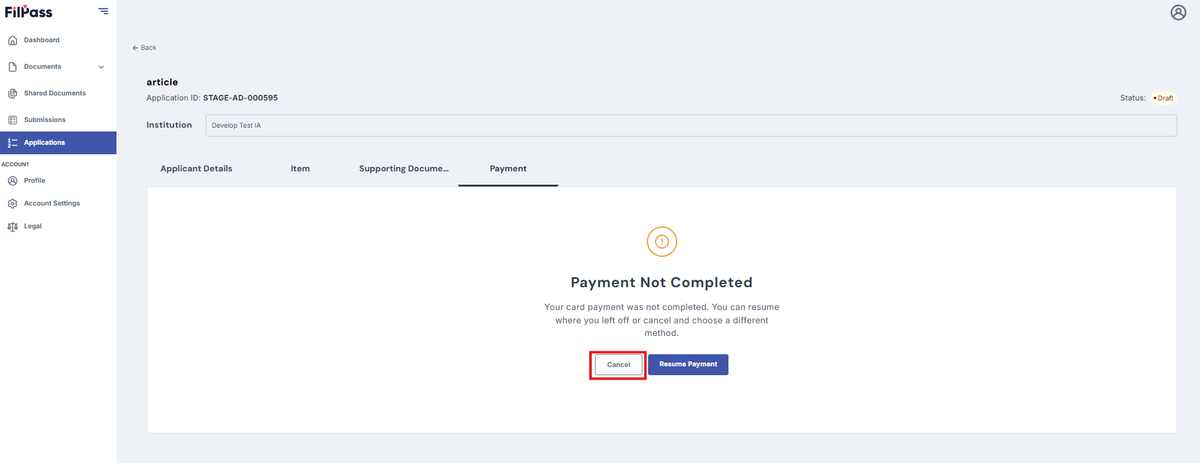
2. You will be redirected to the Payment tab saying Payment Not Completed
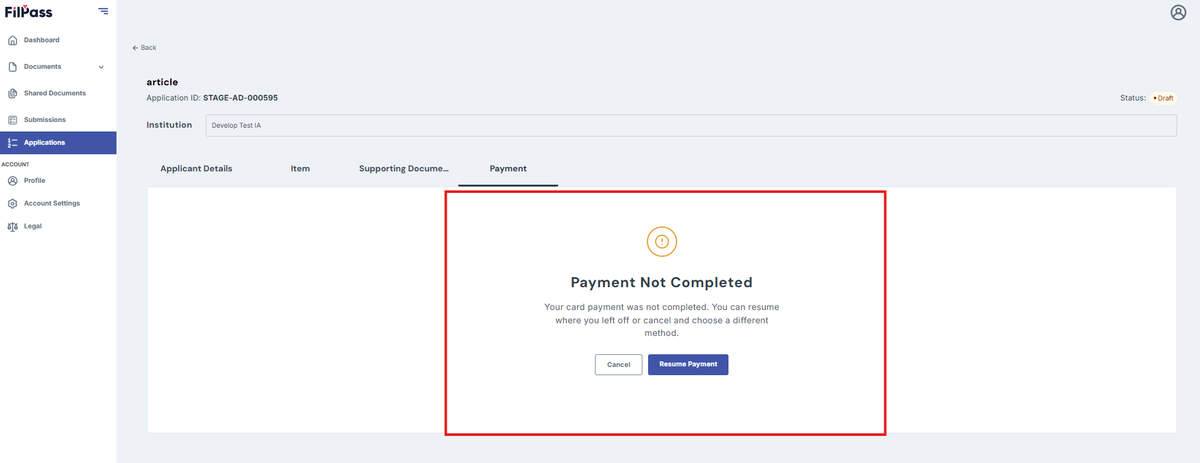
3. Click Proceed Payment will bring you back to the Payment Site where you left your progress
4. Click Cancel to cancel the whole payment process
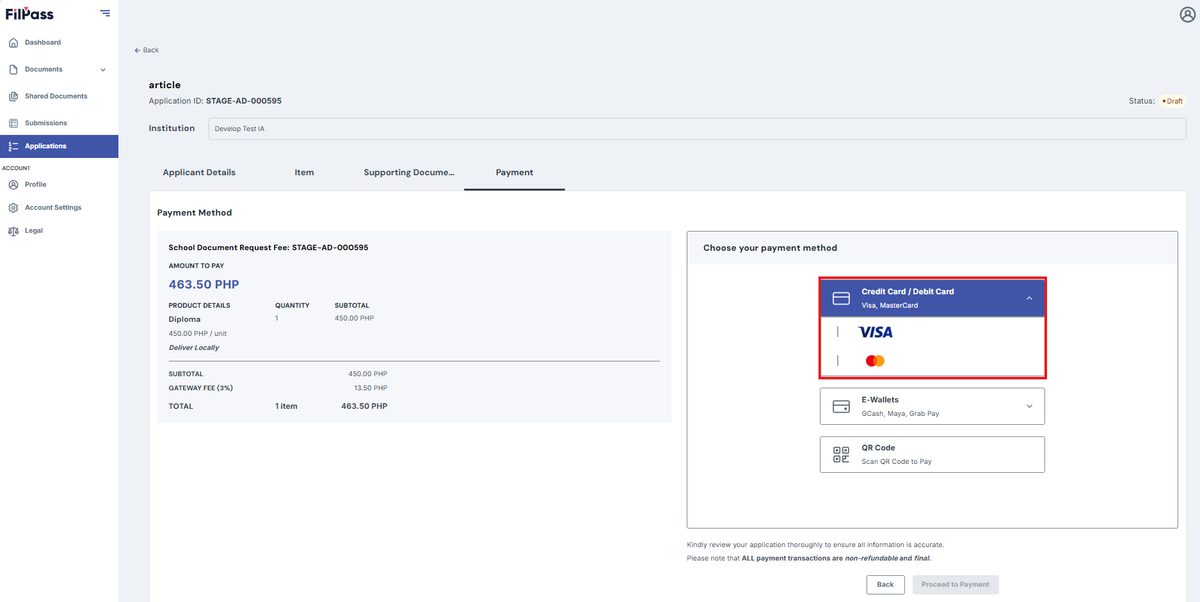
Payment Methods
- Credit Card/Debit Card (Visa, MasterCard)
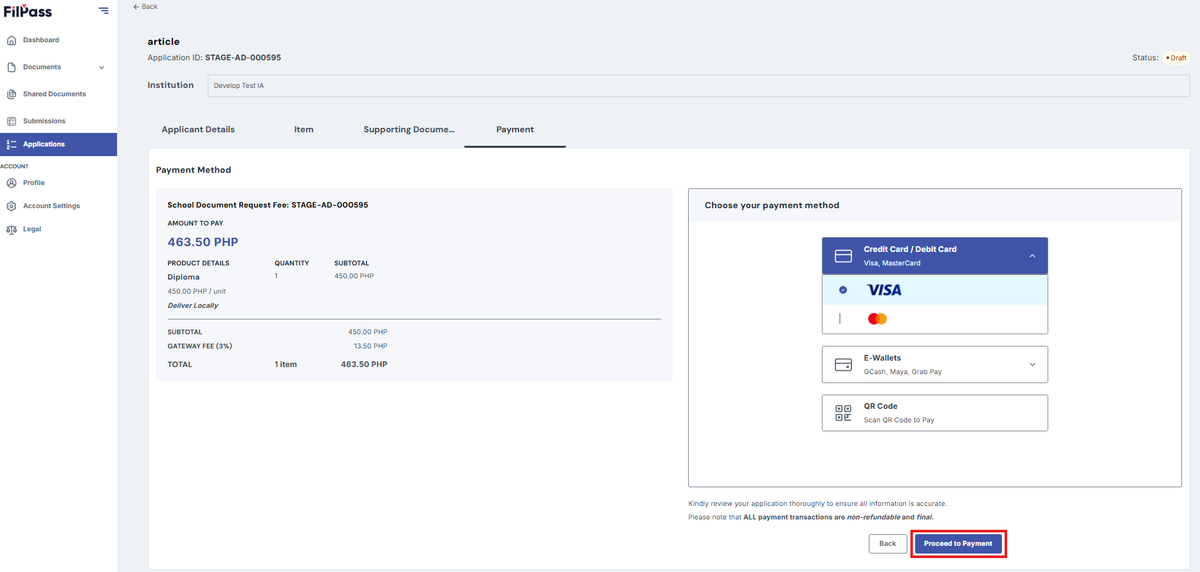
- After Selecting a specific card, click proceed to payment
2. A confirmation message will pop-up
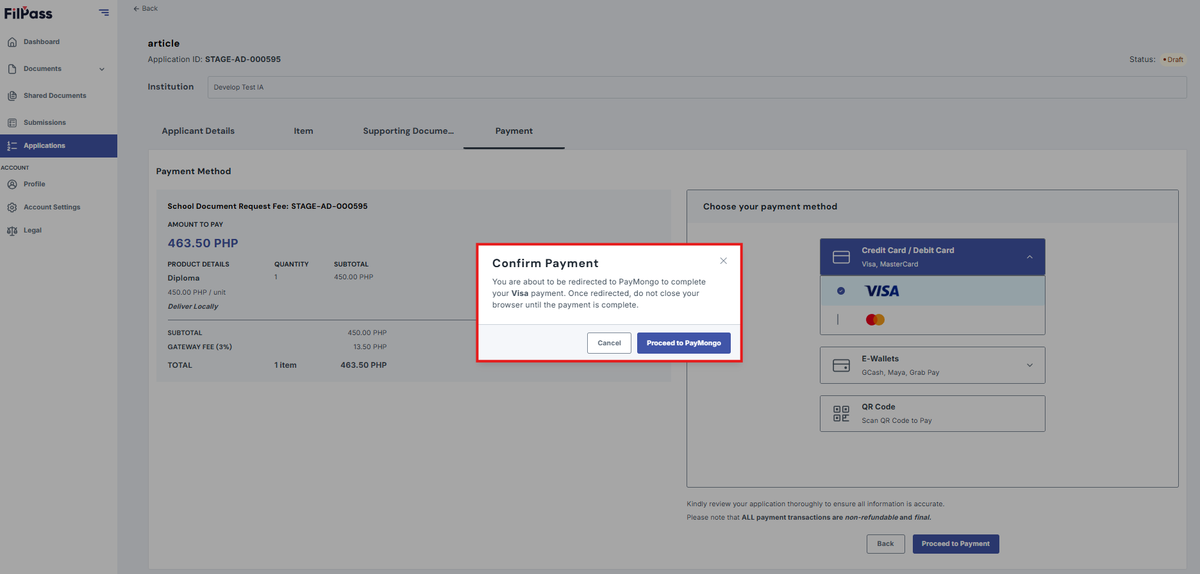
3. Click Proceed to PayMongo and it will redirect you to the Payment Site
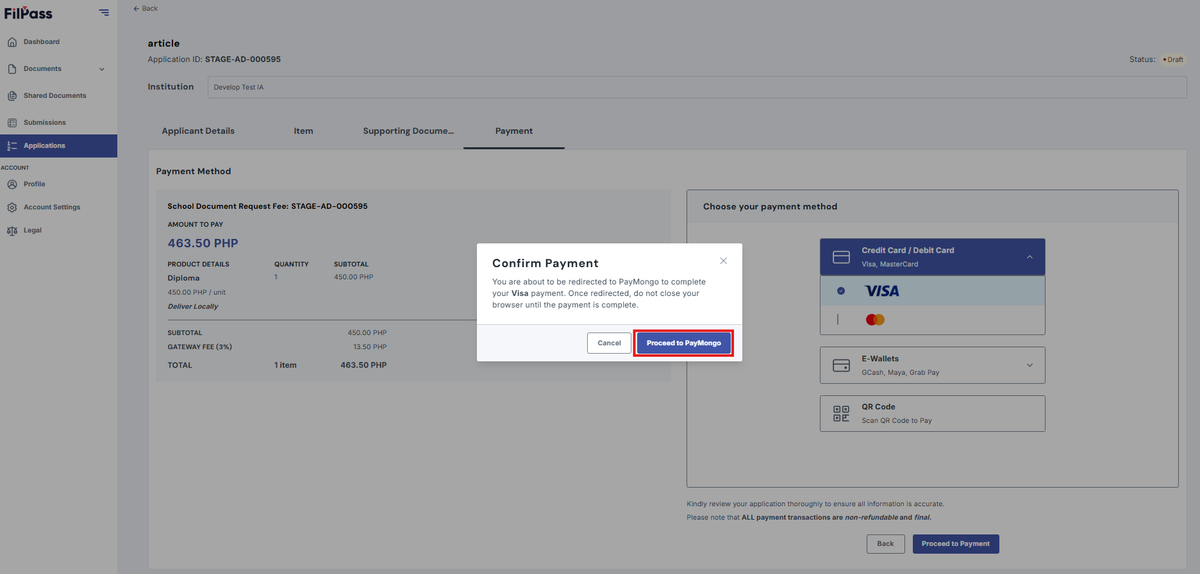
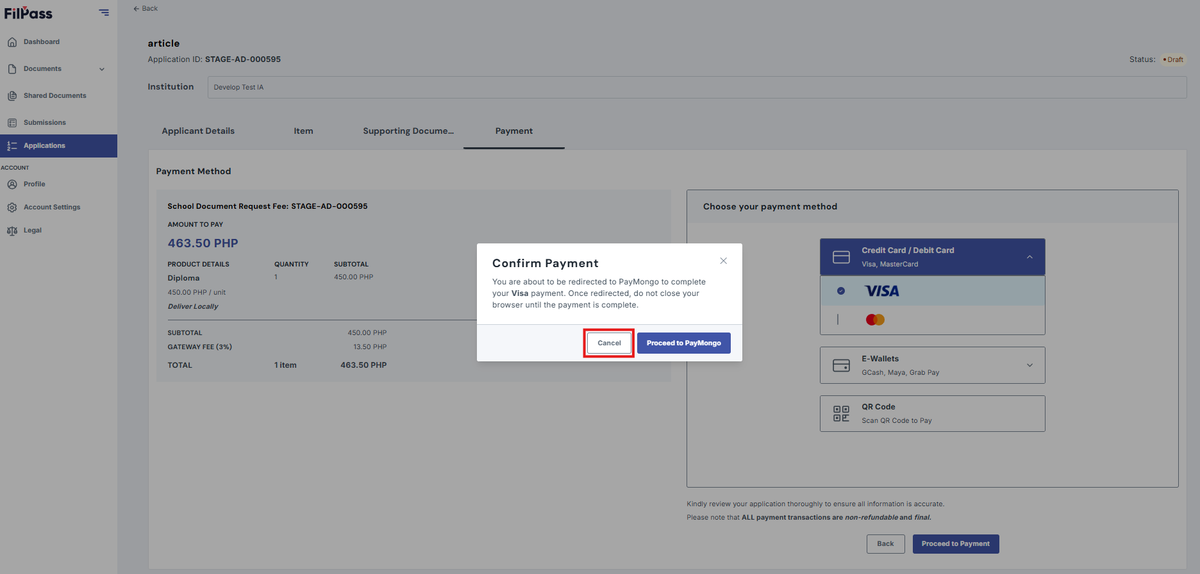
4. Click Cancel if you don’t want to proceed and change the payment method
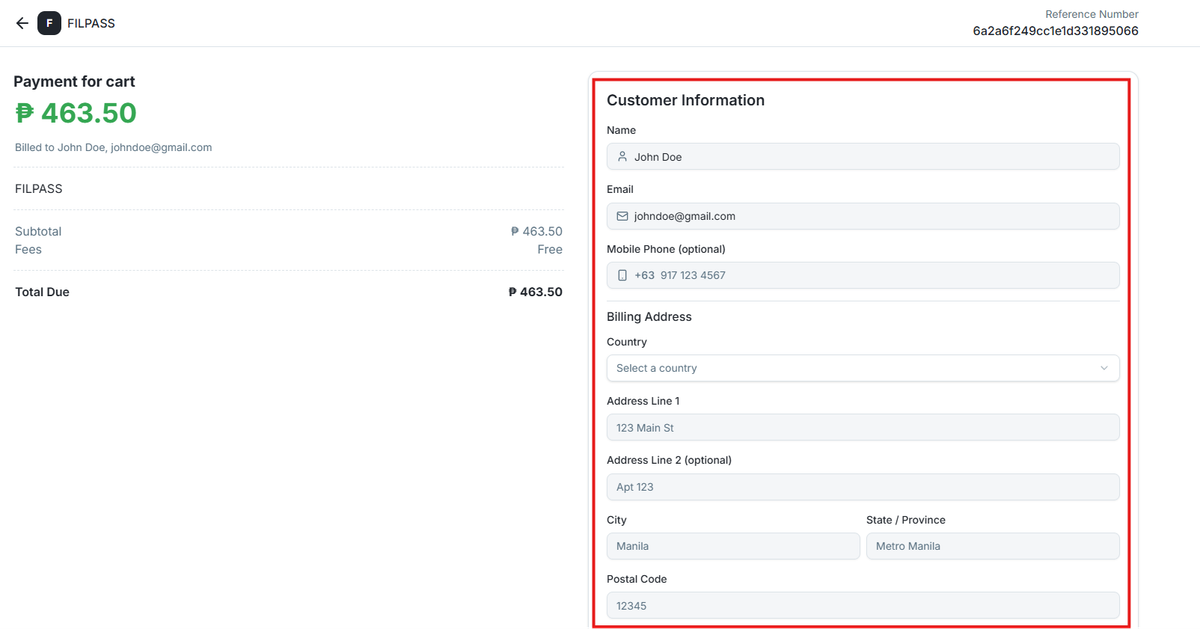
5. After clicking the Proceed to PayMongo, you will need to fill up necessary information
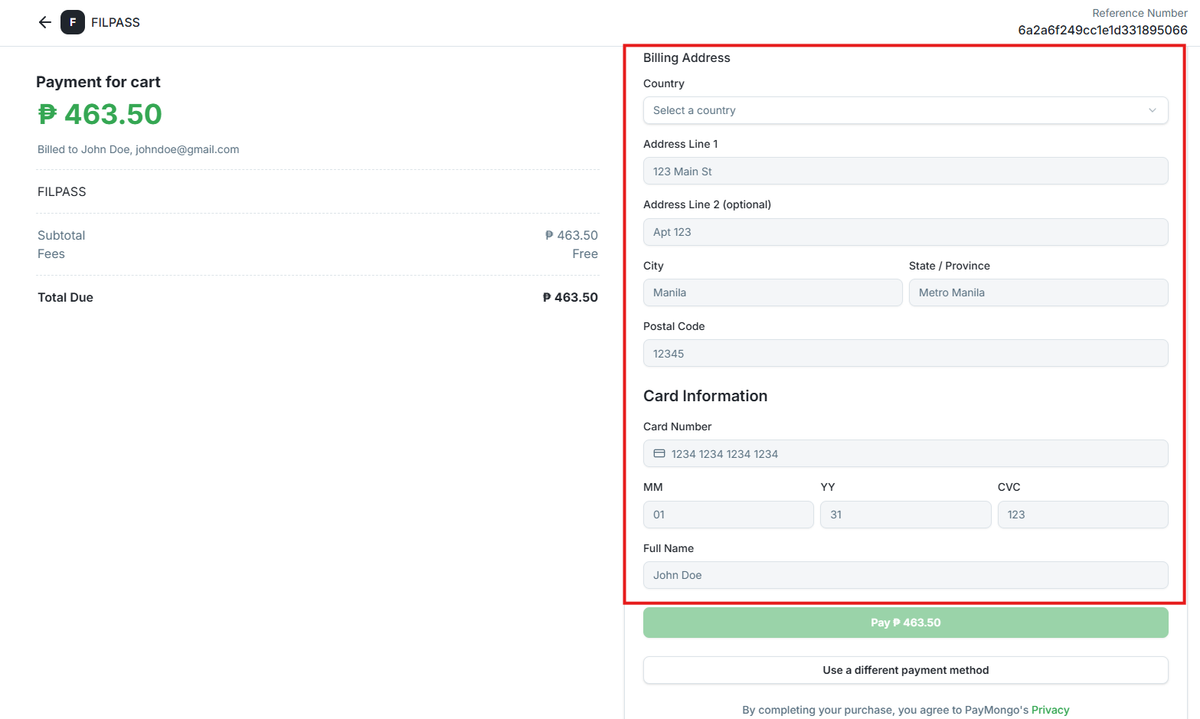
- E-Wallets (GCash, Maya, GrabPay)
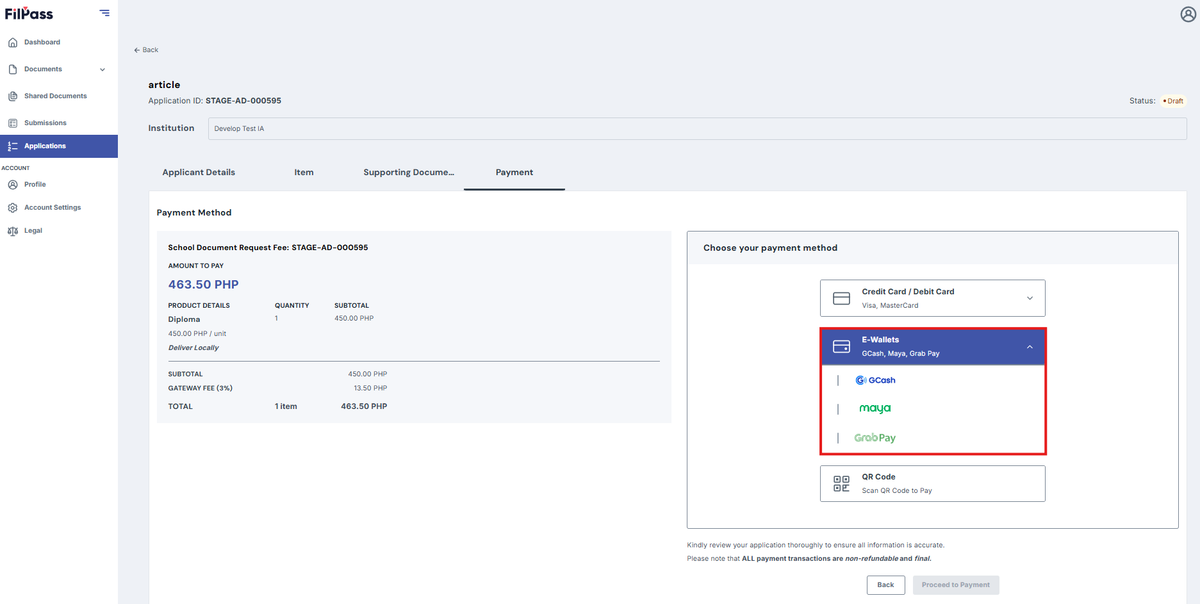
- After Selecting a E-wallet, click proceed to payment
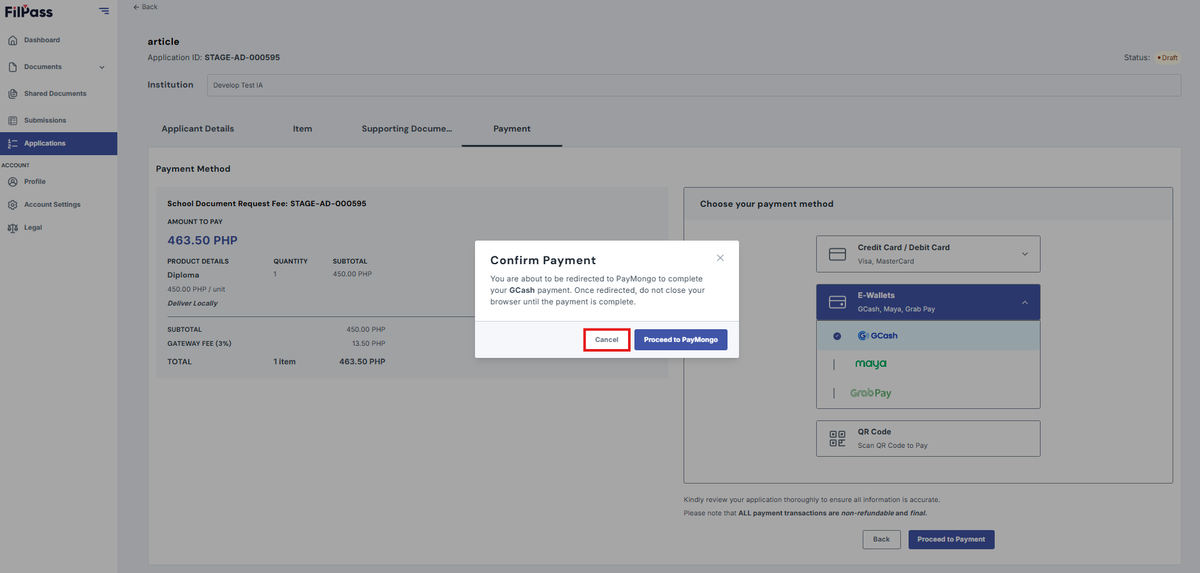
2. A confirmation message will pop-up
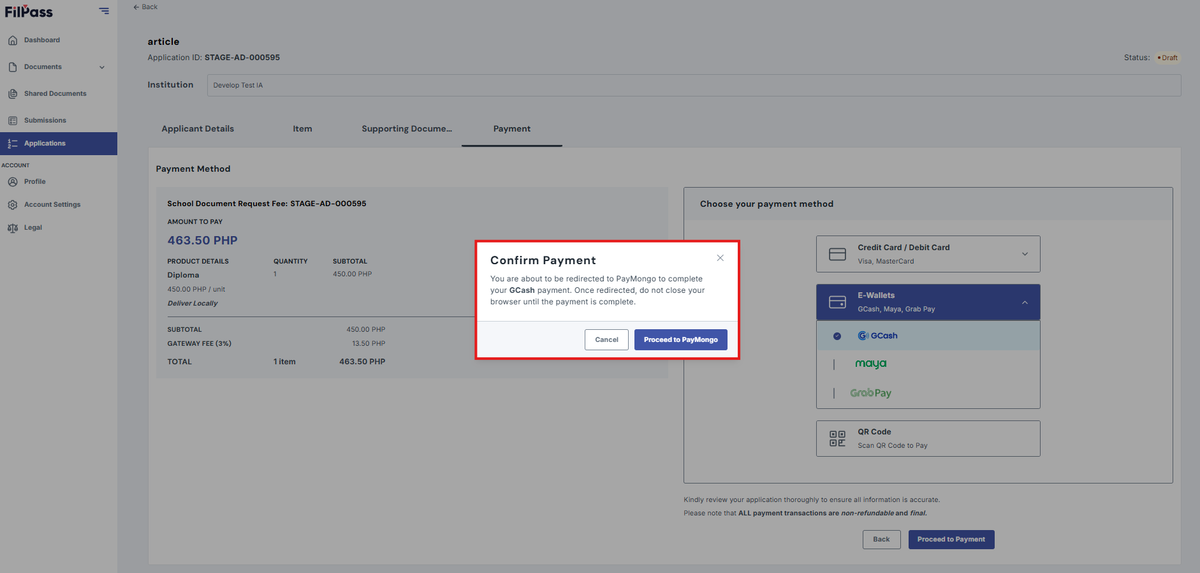
3. Click Proceed to PayMongo and it will redirect you to the Payment Site
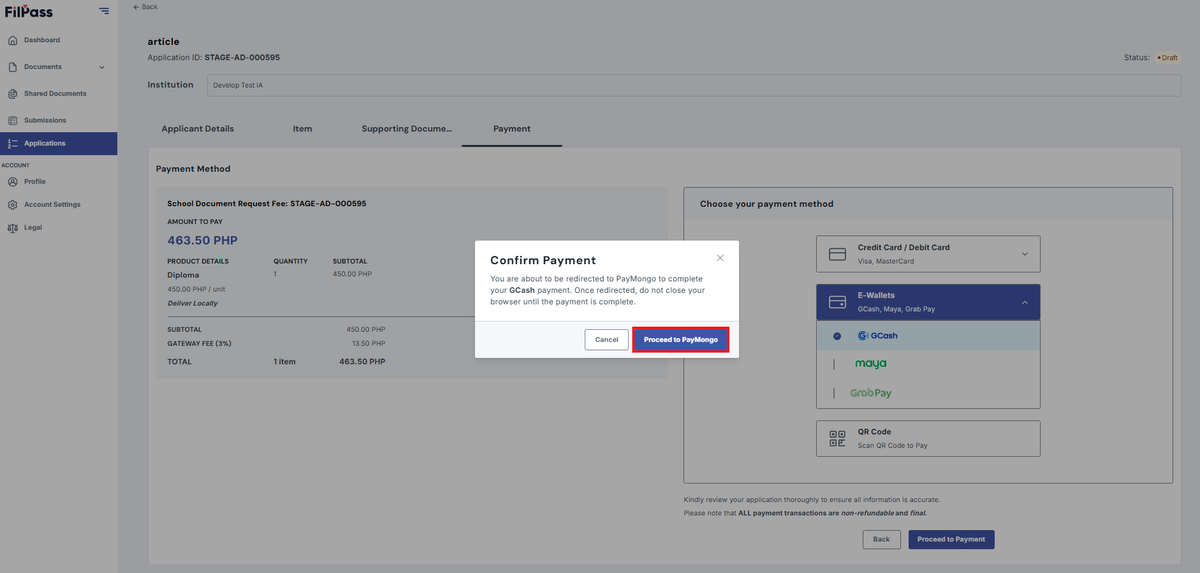
4. Click Cancel if you don’t want to proceed and change the payment method
- QR Code (Scan QR Code)
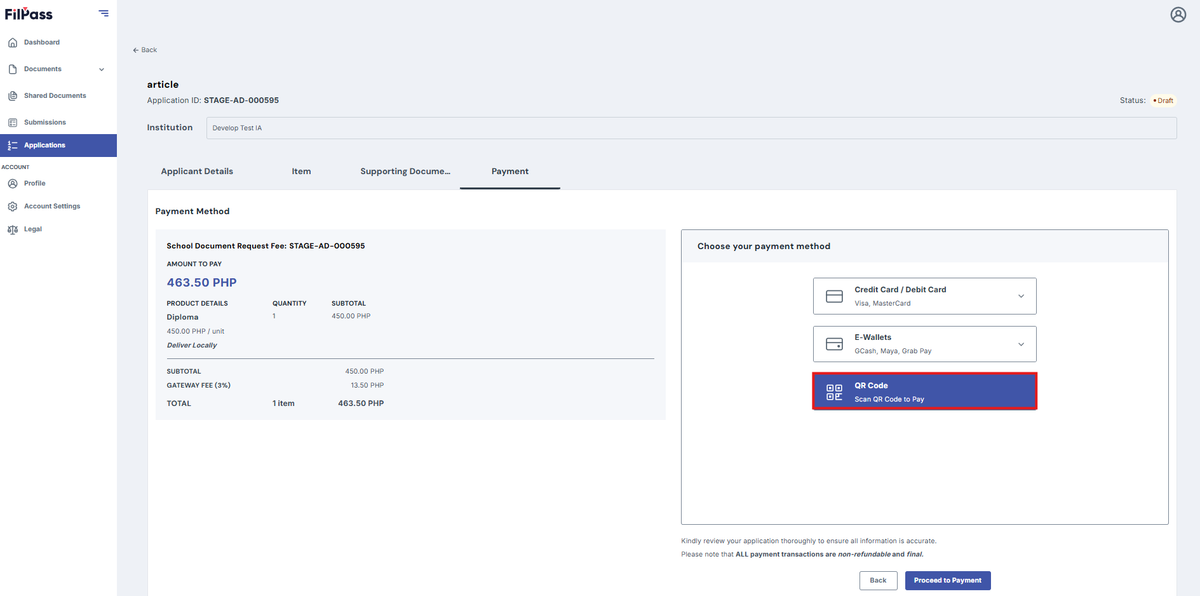
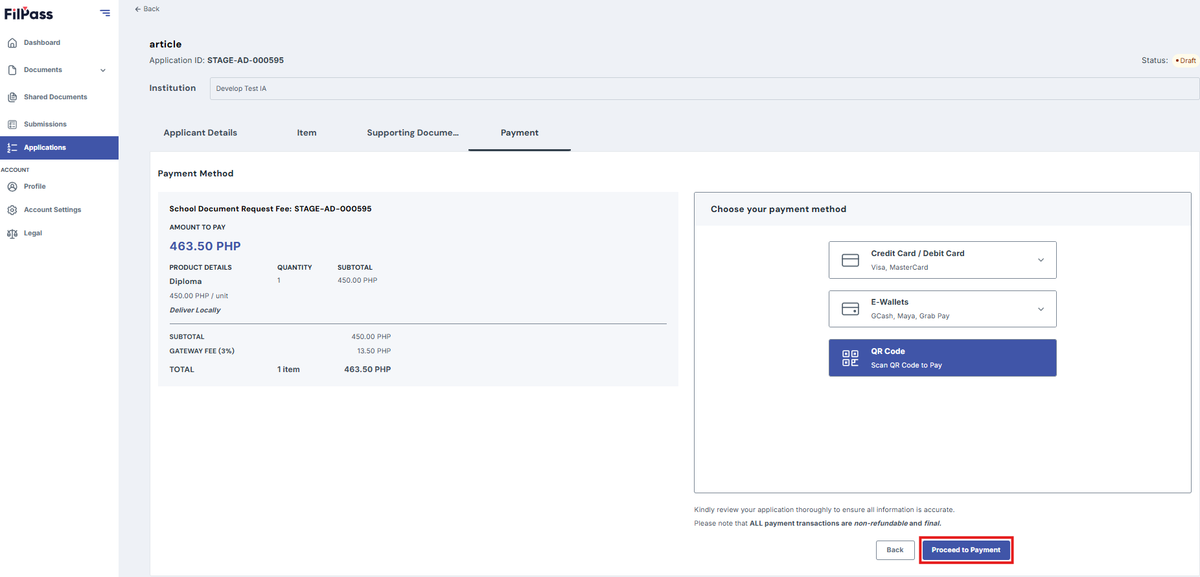
- After Selecting the QR Code payment method, click proceed to payment
2. A confirmation message will pop-up
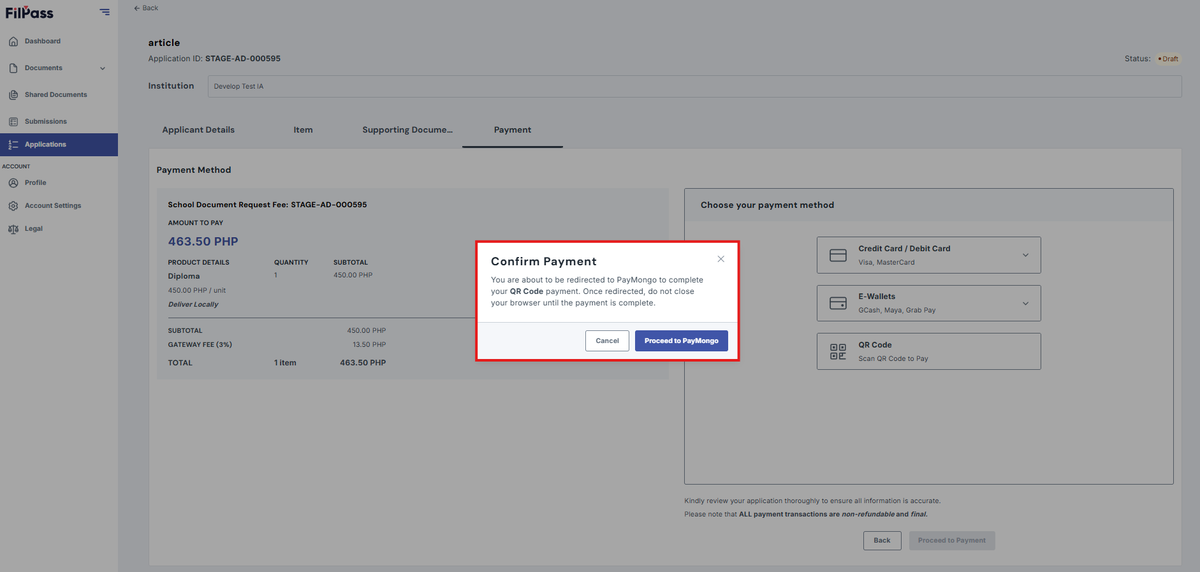
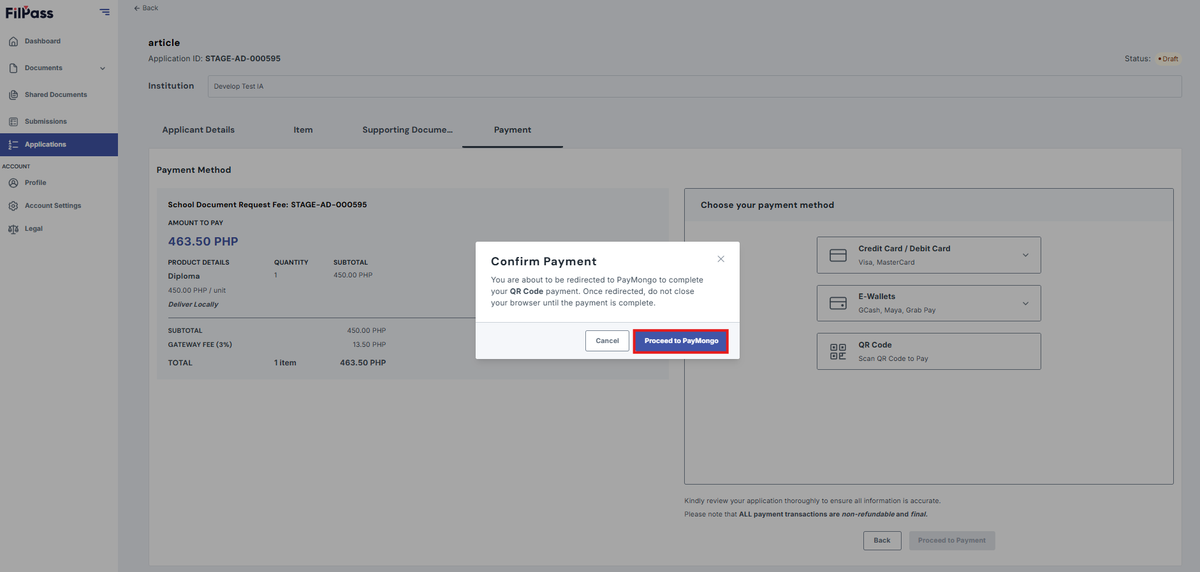
3. Click Proceed to PayMongo and it will redirect you to the Payment Site
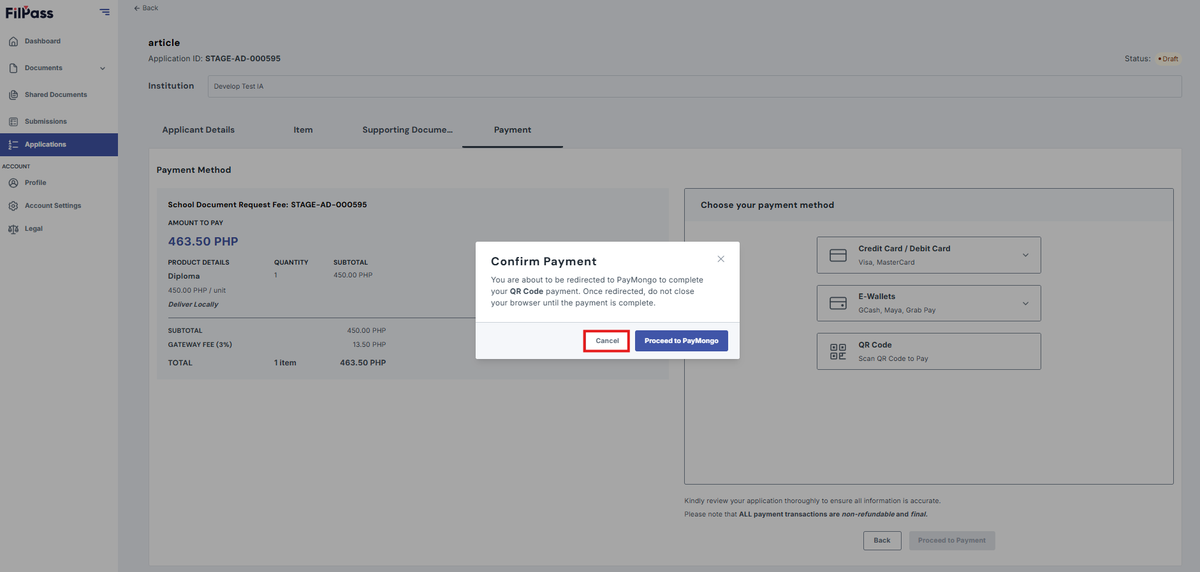
4. Click Cancel if you don’t want to proceed and change the payment method
5.