
How to download uploaded Excel file?

1. Click “Batch Issuance” tab
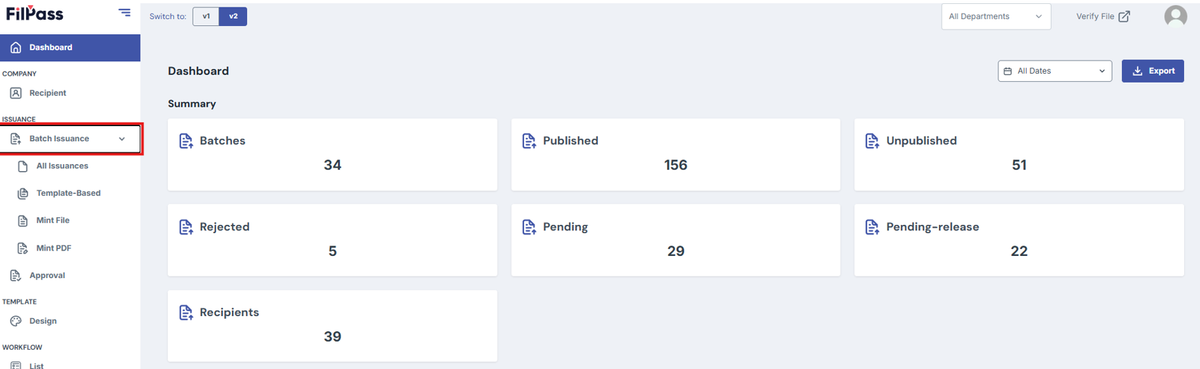
Image of Filpass page with Batch Issuance highlighted by a red box


2. Choose any batch and click the three-dot button under “Action”

3. Click “View Batch” button

Image of View Batch Button being highlighted


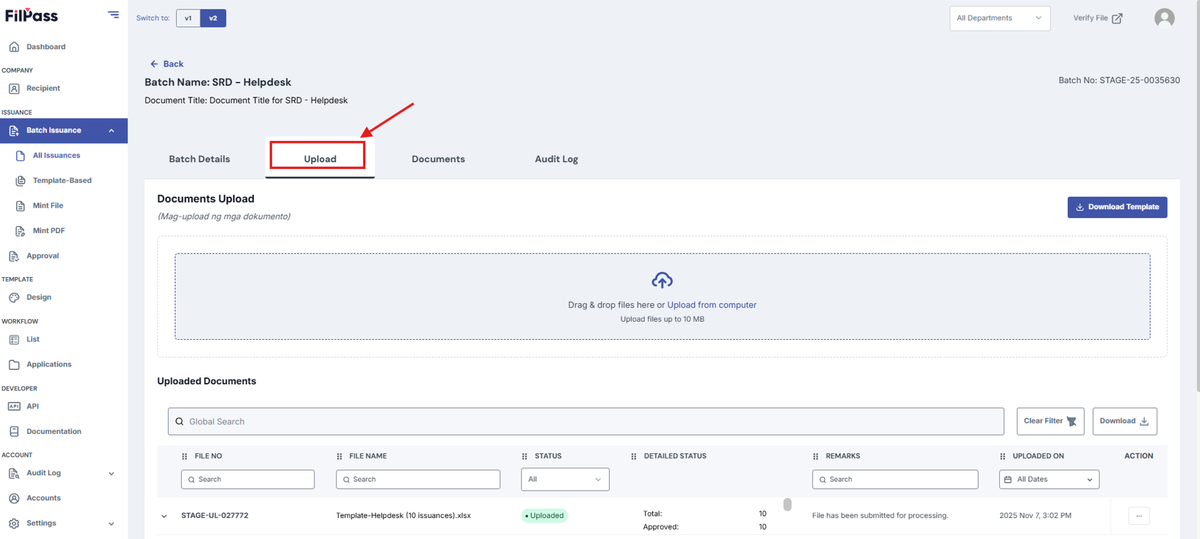
4. Go to the “Upload” tab

Image of Upload page with the Upload tab highlighted by a red box


5. Click "Download Template” to download the Excel file.

This template will store the recipient's document credentials and will be used for uploading and creating documents.

6.Then, click “Download File” button to download the file
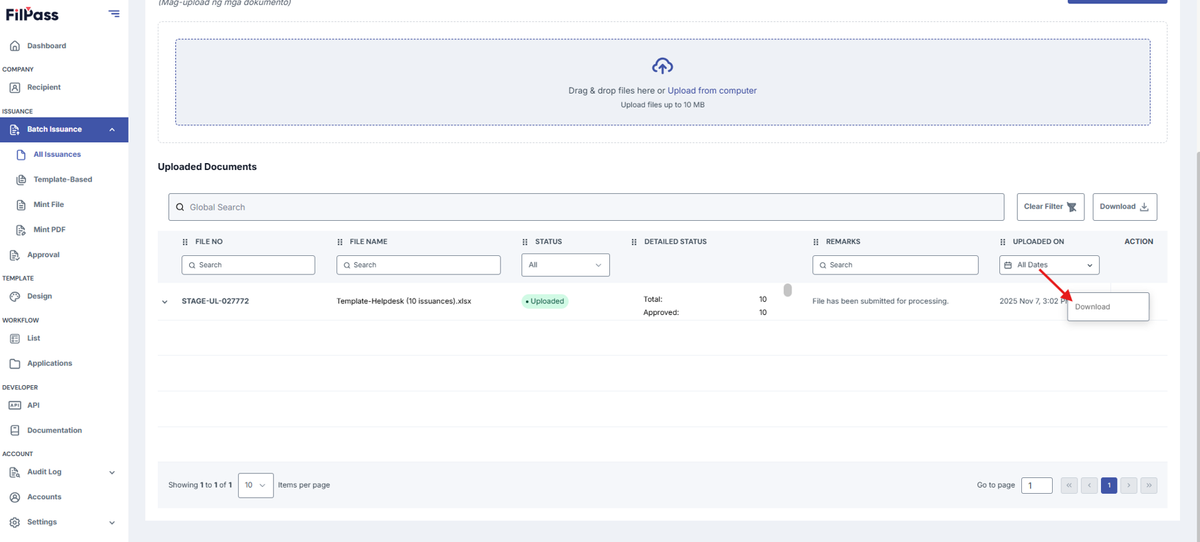
Image of Upload page with the Download button highlighted

Related Articles

Issuing AuthorityProfile Settings

Access Level

This section explains the Access Level of your IA.

settings
28 Jan 202653 views
Issuing AuthorityWorkflow

Add Field Section

This section explains how to add fields in a Custom Tab of a Workflow.

workflow
26 Jan 202614 views
Issuing AuthorityAccount Settings

Admin Role

This section explains how you can add and remove an Admin role in the Accounts Section.

27 Jan 202633 views
Issuing AuthorityWorkflow

Approval Tab

This section explains the Approval Tab of a Workflow.

workflow
26 Jan 202617 views