How to Create a Template-Based Batch Issuance?
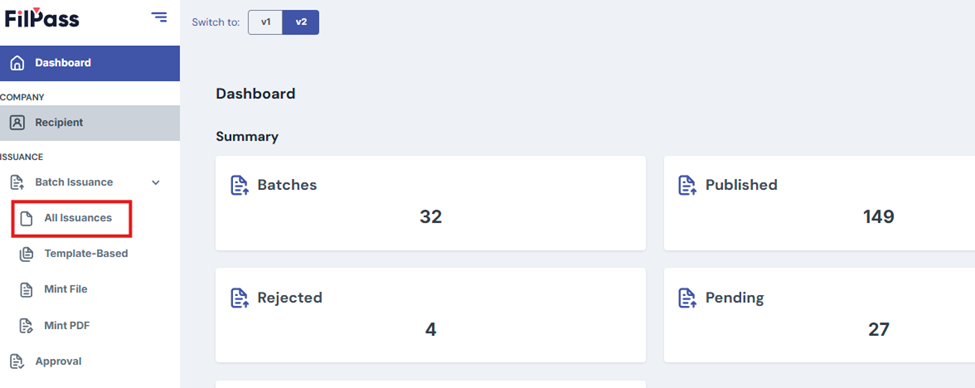
1. Click Batch Issuance > All Issuances tab
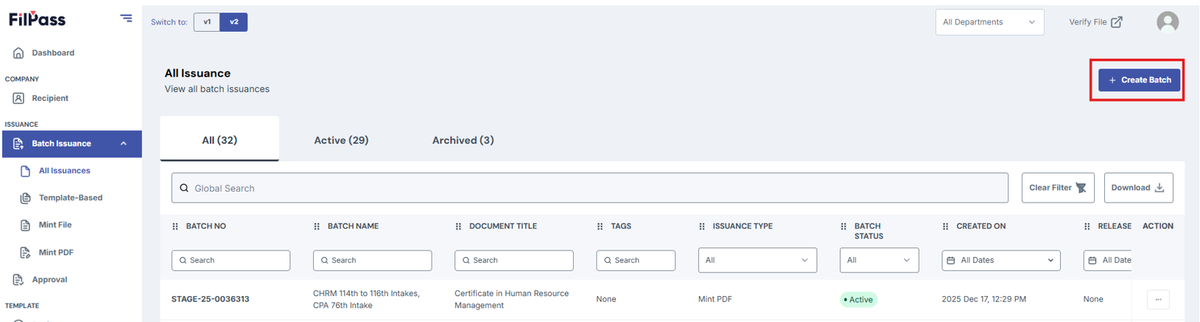
2. Click “Create Batch” button
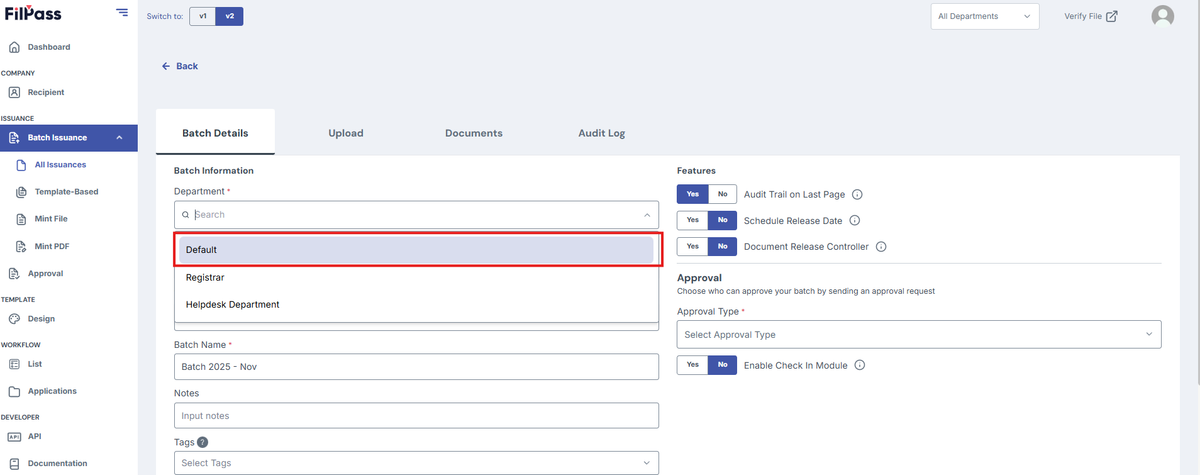
3. Select the Department under the "Department" field.
- Only users and roles within the selected department can be chosen as Approvers.
4. Choose "Template-Based" under "Issuance Type".
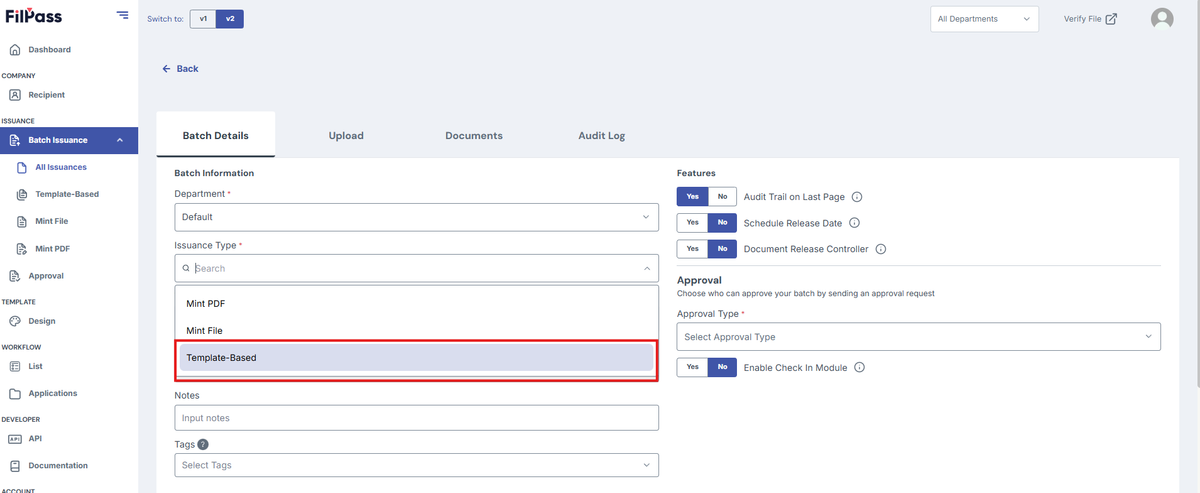
5. Search and select a template under "Choose Template".
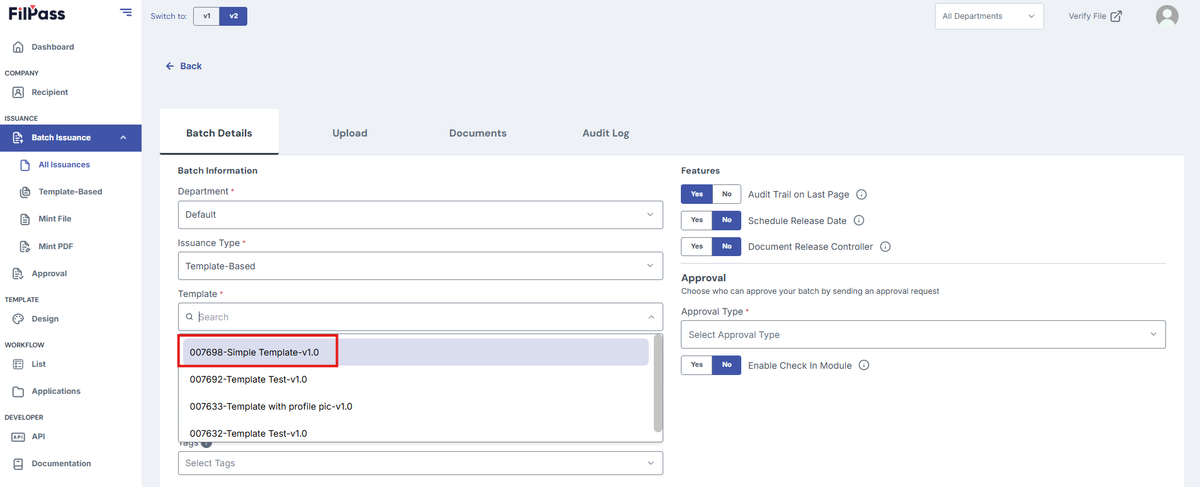
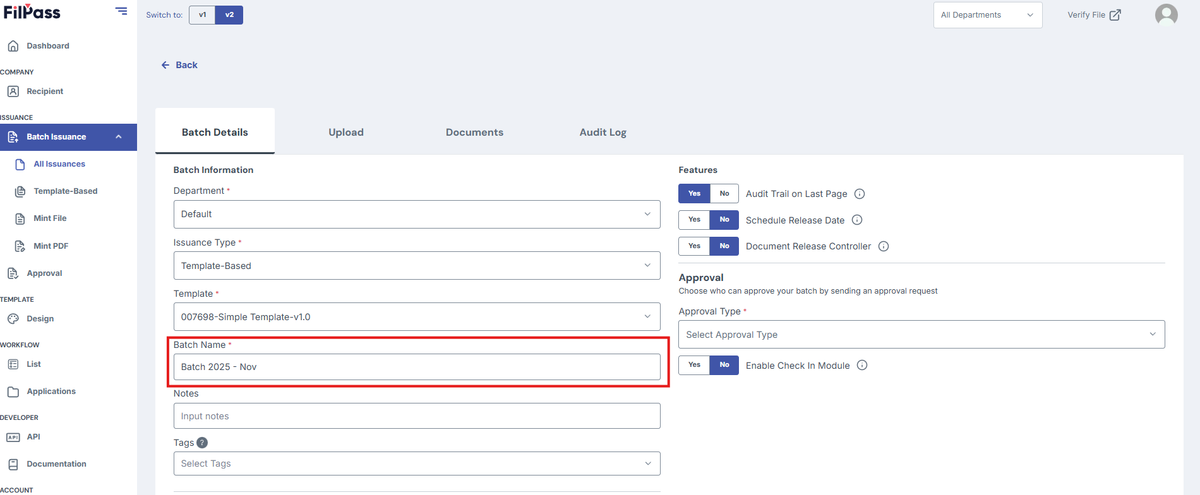
6. Under "Batch Name",
- Include relevant details such as shortcode and intake for easy searching.
- Example: PGDipSHCM (ODP) - 16th and 17th intakes - Certificate & Transcript
7. For the “Document Published Title”, This section will autofill depending on the items selected on the next steps so it will be left blank.
8. Under “Document Category”, select the category which matches your Batch Issuance. This will show additional fields depending on the category you’ve selected.
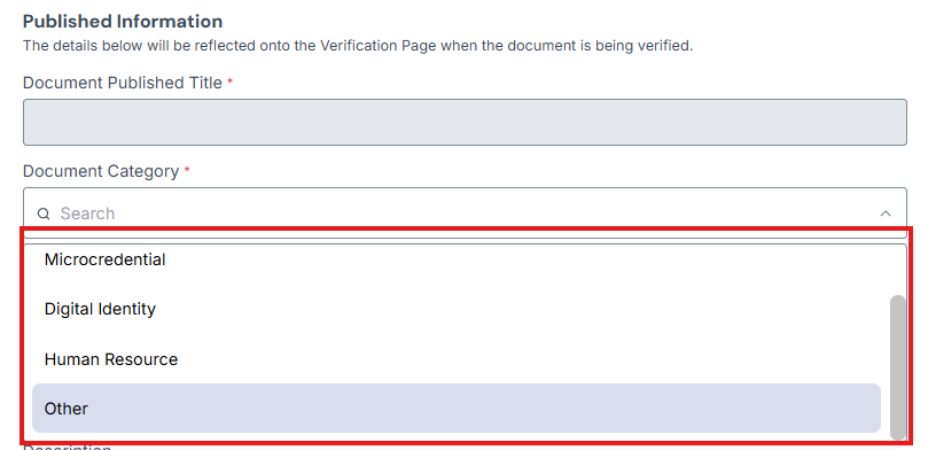
Below are the additional fields that you would see depending on the Document Category selected:
Education: Has an additional field for Document Type, Course Name and Majors (Optional).
Microcredential: Has an additional field for Document Type and Course/Program Name.
Digital Identity: Has an additional field for Document Type and Country.
Human Resource: Has an additional field for Document Type and Document Title.
Other: Has an additional field for Document Type and Document Title.
9. On the new additional fields that appear according to the selected category, select and input relevant and required details.
10. Under "Description", Input the necessary details. This will be a future feature to display Course/Programme Information related to the document.
11. Under "Course Website", input necessary details. This can be a URL related to the course/program.
12. Under “Skills”, This could include relevant skills to associate with the Batch. You can enter your Custom Skill by typing and pressing enter to add the custom skill. You can also search for existing skills in the field and select pre-made skills.
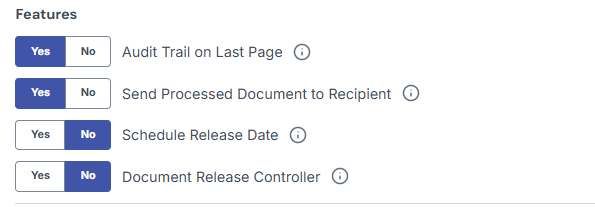
13. Under “Features”, there are four controller/toggle for Template-Based Issuance:
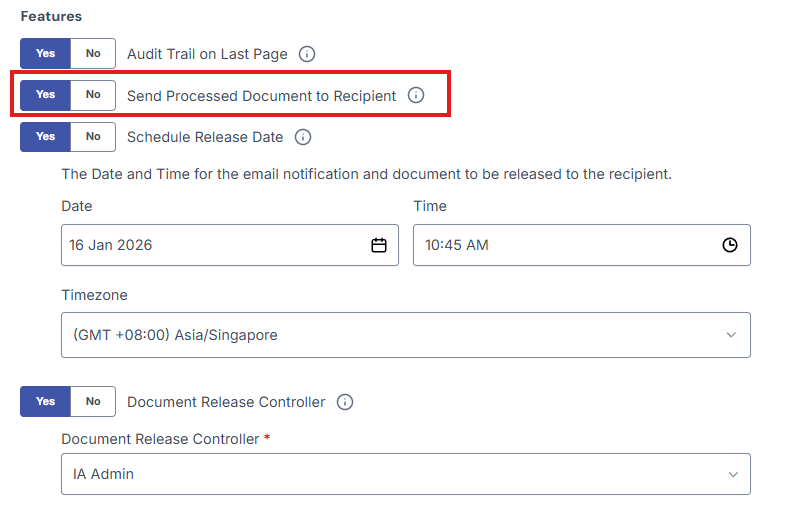
Send Processed Document to Recipient
Yes – There would be an email with the attached file.
No – There would be an email with no attached file.
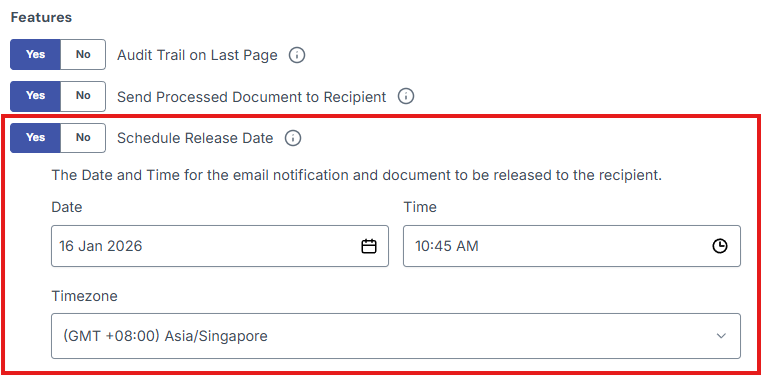
Scheduled Release Date
Yes – The document will be sent to the recipient according to the set of release time and date.
No - There will be no scheduled release date and will be sent to the recipient once approved.
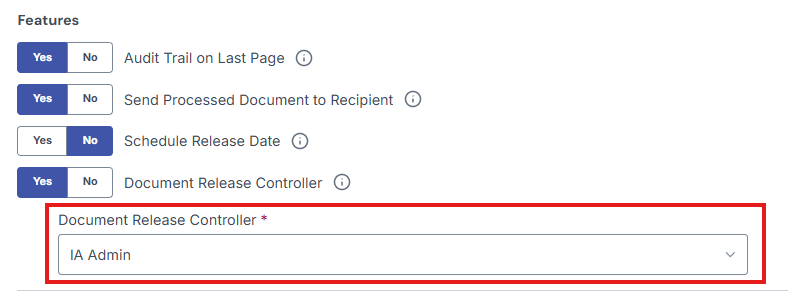
Document Release Controller
Yes – There will be a release controller after the approval before the release.
No – Once the last designated approved has approved the document, it would be released or if there were a scheduled release date, it would be released on the set time and date.
14. Under “Approval”, The system allows up to 9 approvers to be set up. This is subject to the role setting under “Account”.
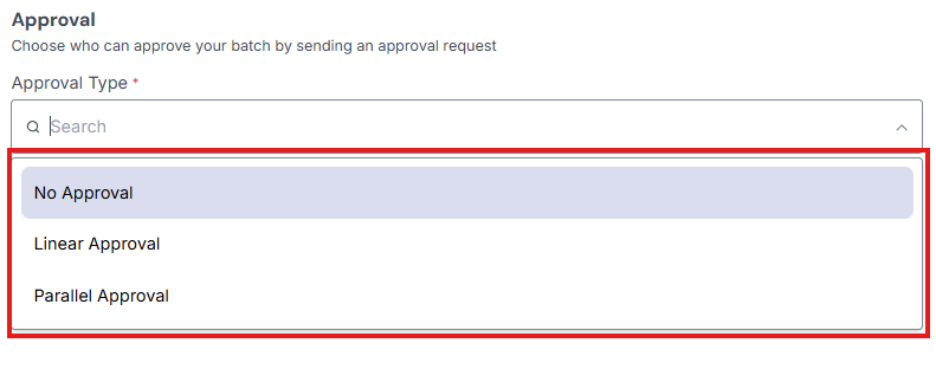
A) Type: Linear or Parallel
- Linear is a dependency approval workflow that requires 1st Approver to approve before going to the next level. Document will only be approved once the Last Approver approves the document.
- Parallel means all the approvers can approve in no order. The document will only be processed once all approvers have approved the document.
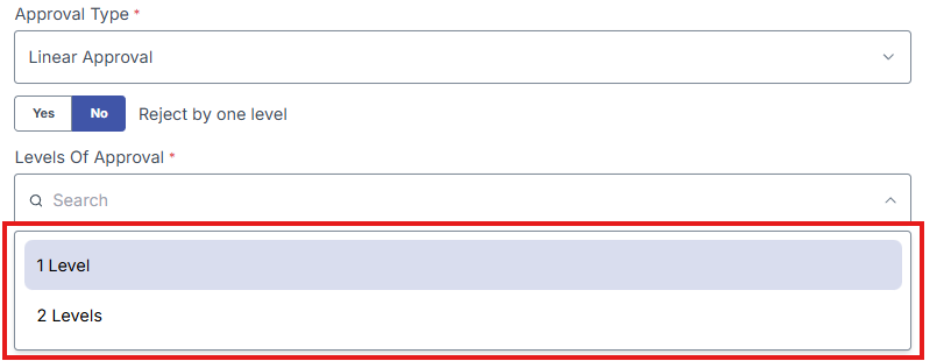
17. Under “How many levels of approval”, Select the level according to requirement. This can be up to 9 Approvers.
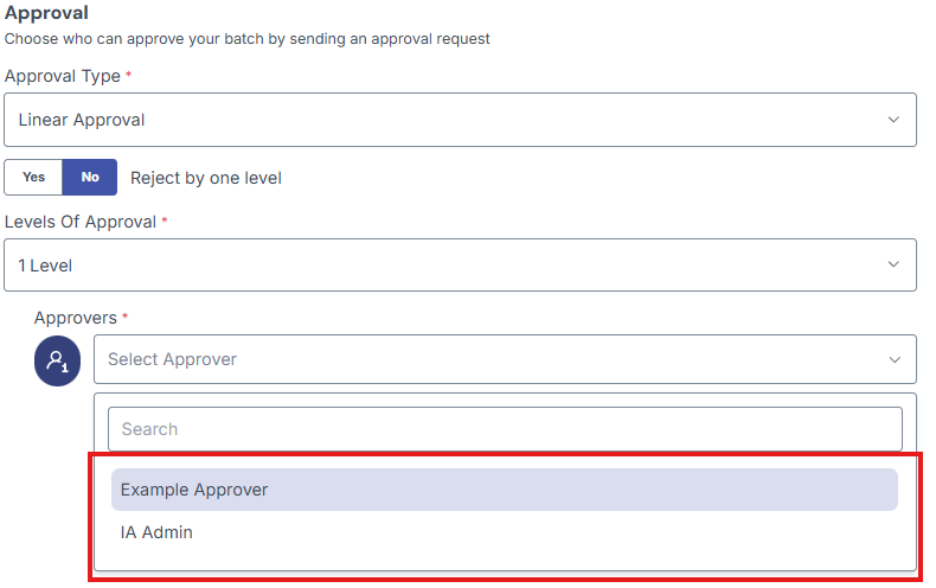
18. Select the role for the approvers.
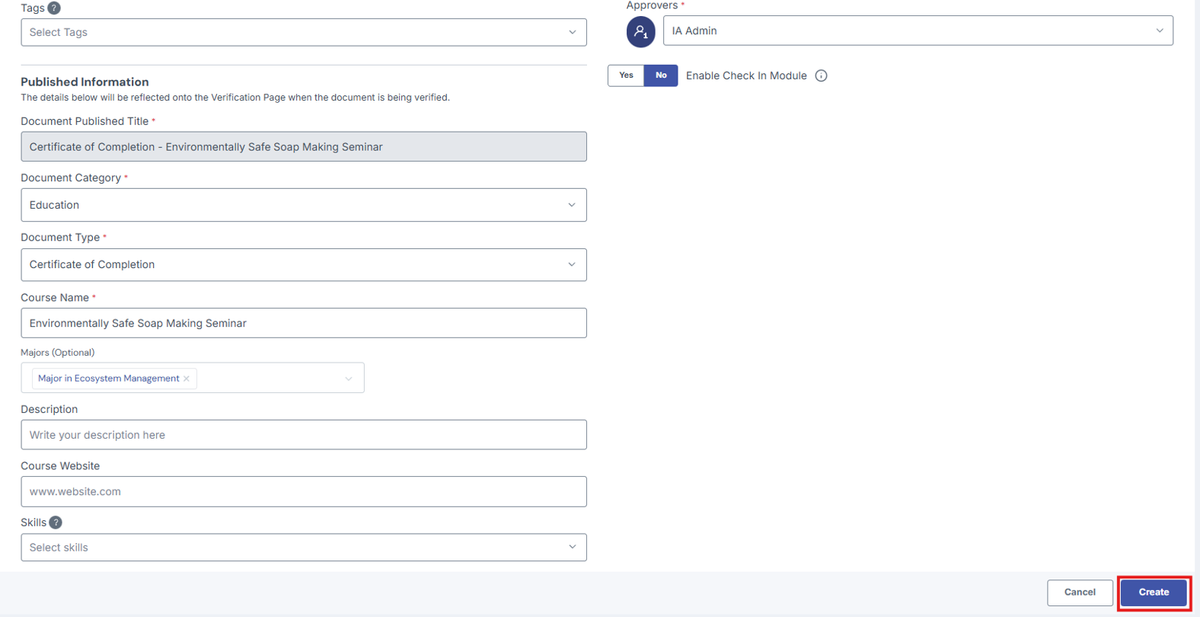
19. Click the "Create Batch" button
20. Click the "Download Template" button on the right side.
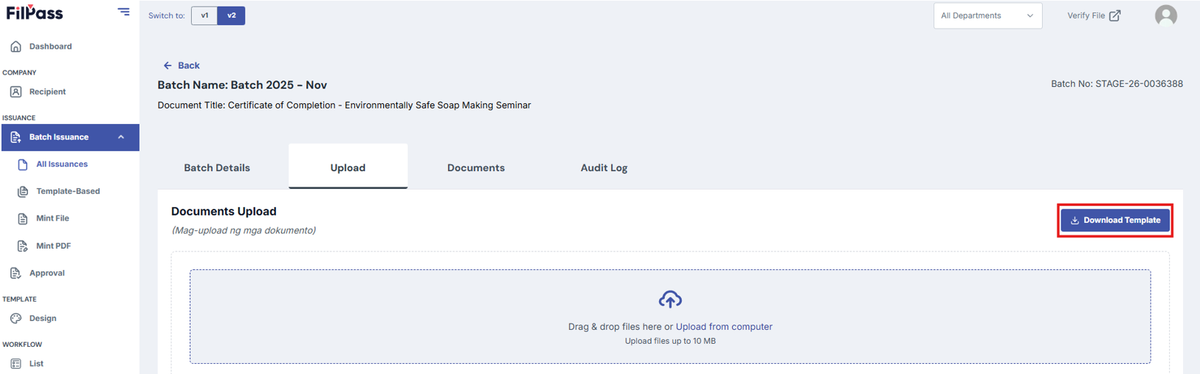
21. Fill up the necessary details for the recipient’s document using the downloaded template.
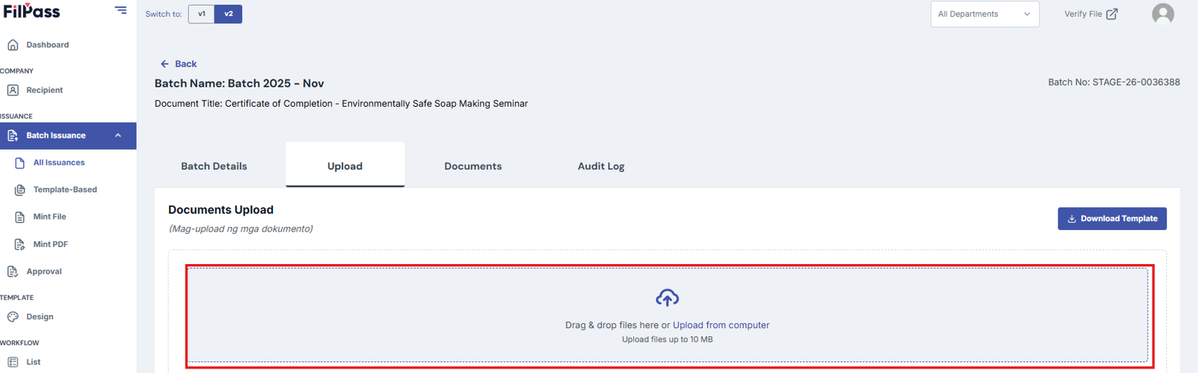
22. Drag and drop the document or Upload from the computer and click create.
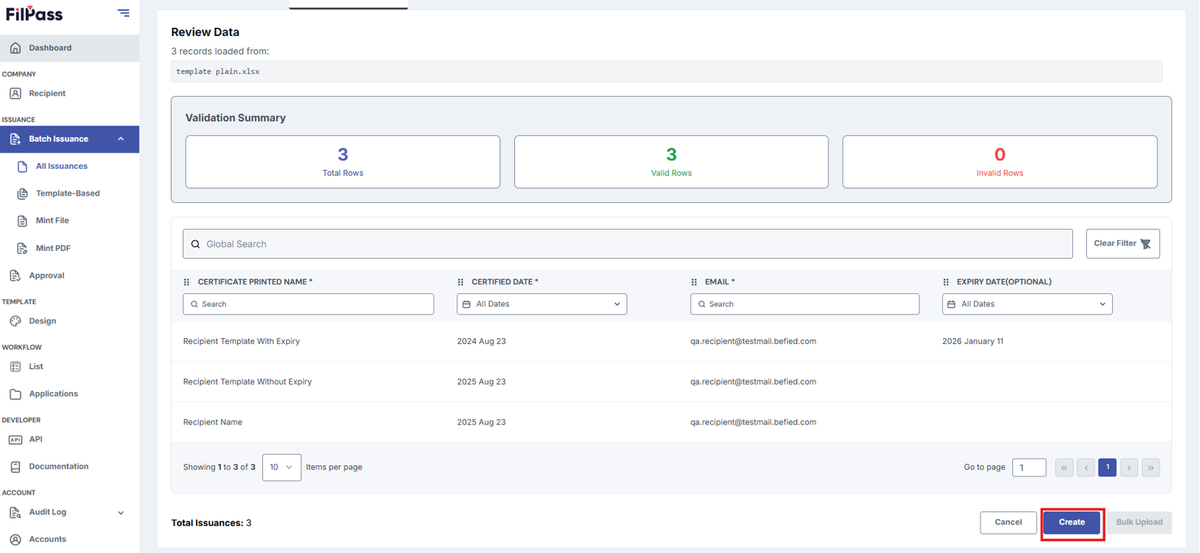
23. Click on Create button. A notification will pop out after successfully creating the document.
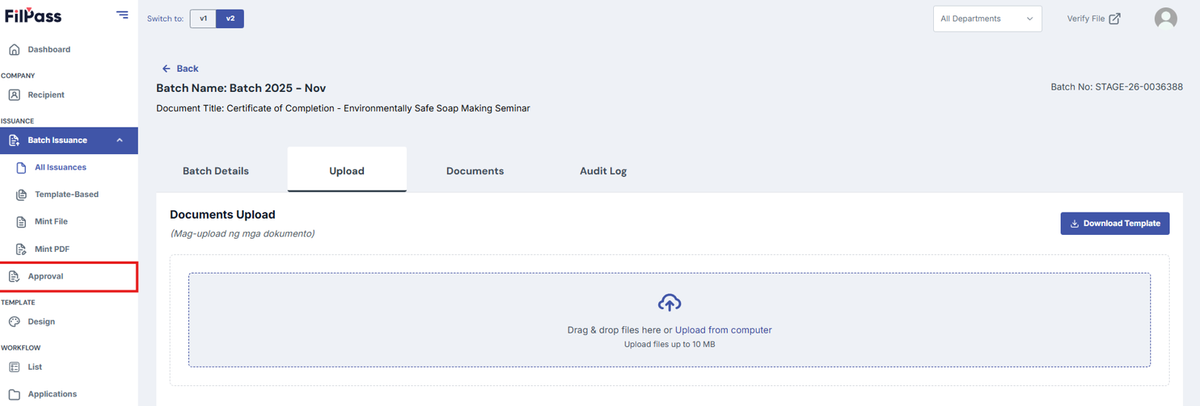
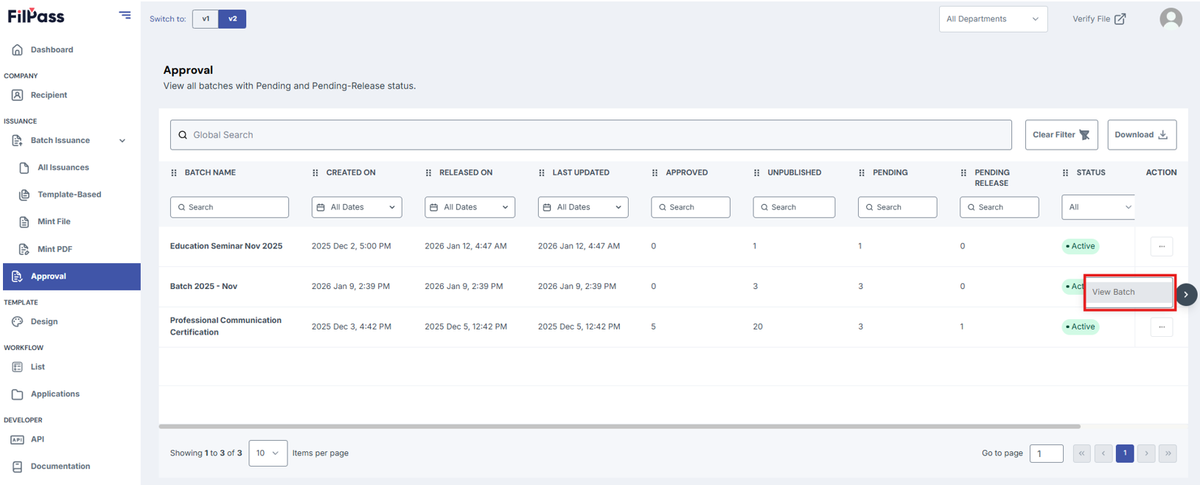
24. You can see all the documents that need to be approved in the "Approval List" Tab.
25. Select a batch and then click "View Batch".
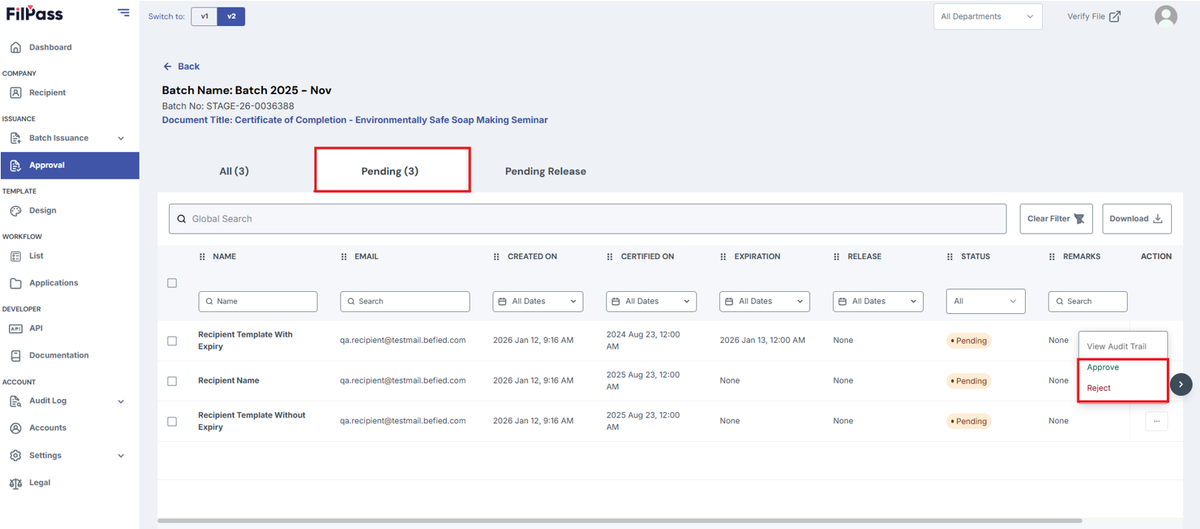
26. To approve issued documents, Go to Pending tab and click the three dots on the right and select "Approve." You may also reject the batch by clicking "Reject." If there is no approver assigned, the system will automatically process the document.
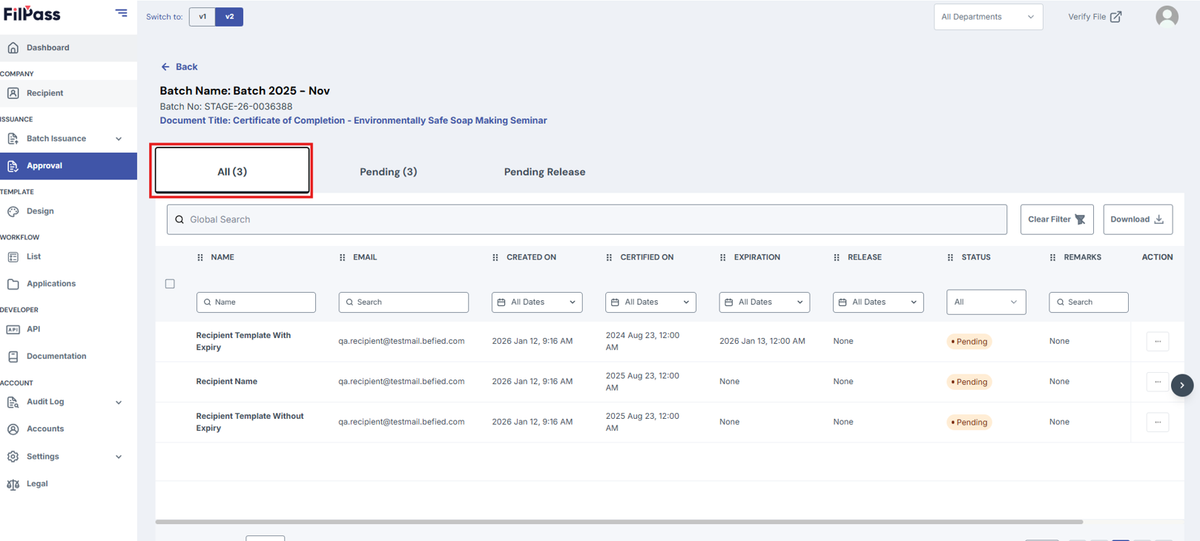
27. Go to the "All" tab to check the batch status.
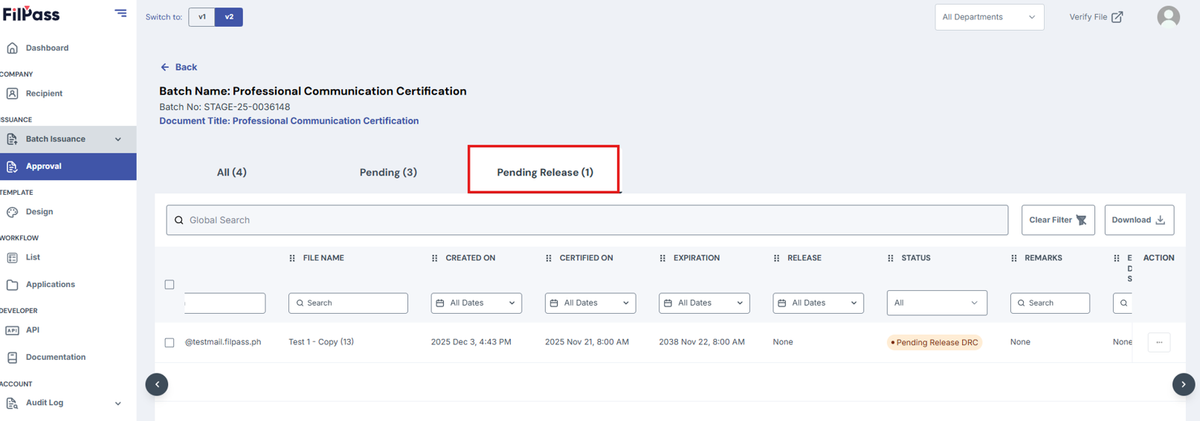
28. If a batch has been approved but is scheduled for later release, it will show a Pending-Release status. This will update to Approved once the document is released on the scheduled date.
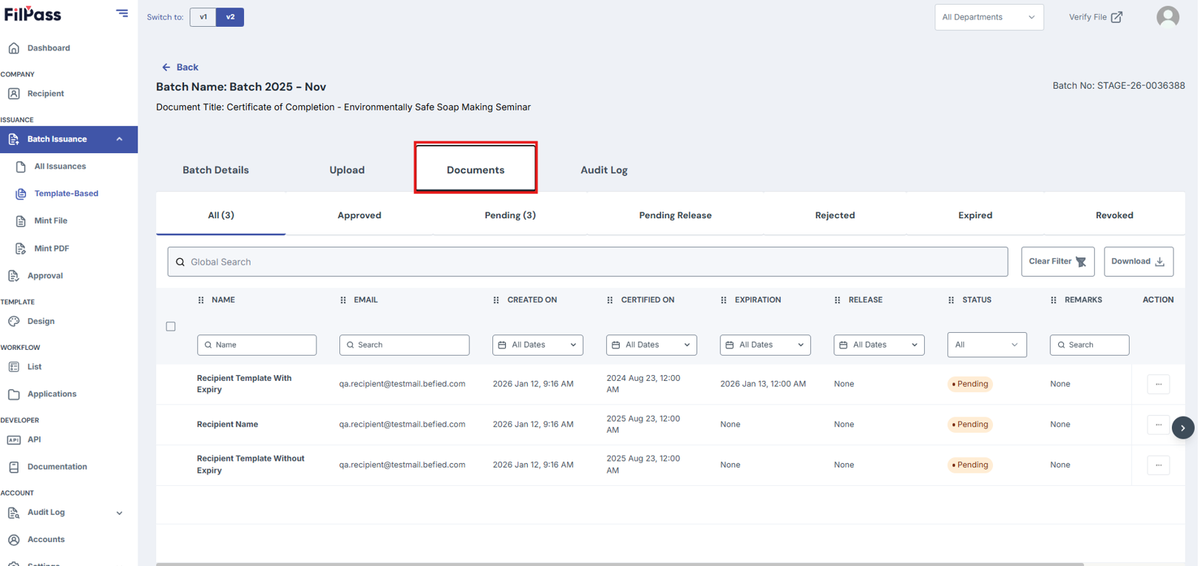
29. Under the "Documents" tab, you can view the list of documents and their statuses:
- Pending: The document remains in the "Approval" tab until all required approvals are completed.
- Pending-Release: The document is approved but waiting for the scheduled release.
- Processing: It may take 1-5 minutes for the document to be fully processed and updated to Approved status.