

How Do I View a Batch Issuance?
On this page
Overview
After successfully creating a Batch Issuance, the Issuing Authority (IA) can access and review all issued documents within that batch.
This applies to all issuance types:
- Template-Based
- Mint PDF
- Mint File
The Batch Issuance page allows the IA to:
- View batch details
- Track recipient document statuses
- Access approved and pending documents
- Monitor revoked or expired credentials
- Search recipient information
- Download documents
- Review audit-related actions
Steps to View a Batch Issuance
Step 1: Open Batch Issuance Module
From the Dashboard:
- Go to the left navigation panel
- Click Batch Issuance
- Select All Issuances
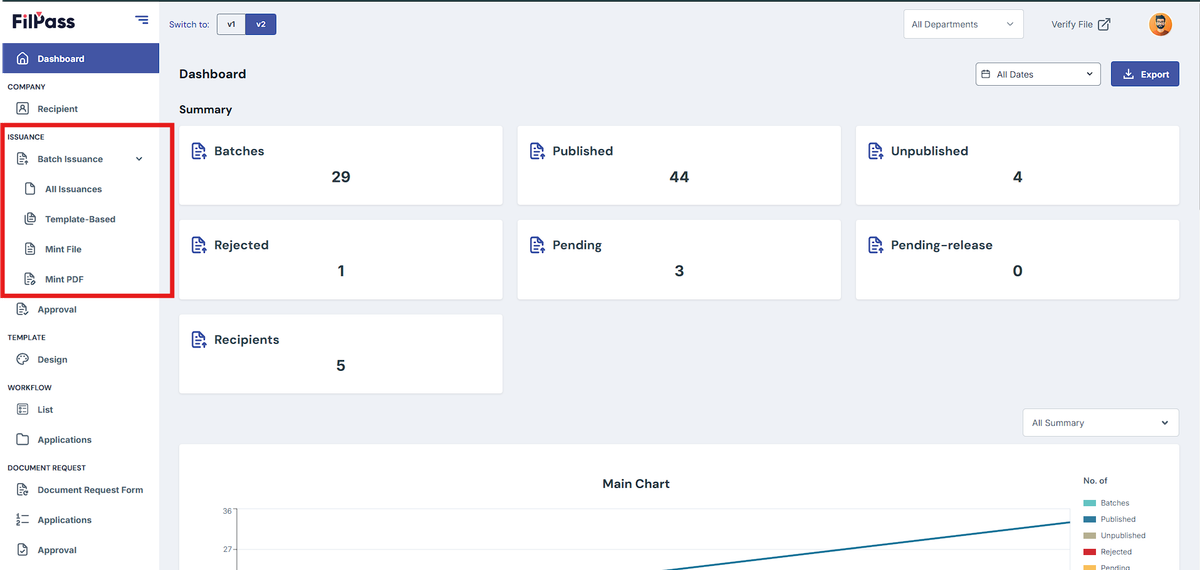
This page displays all created batch issuances.
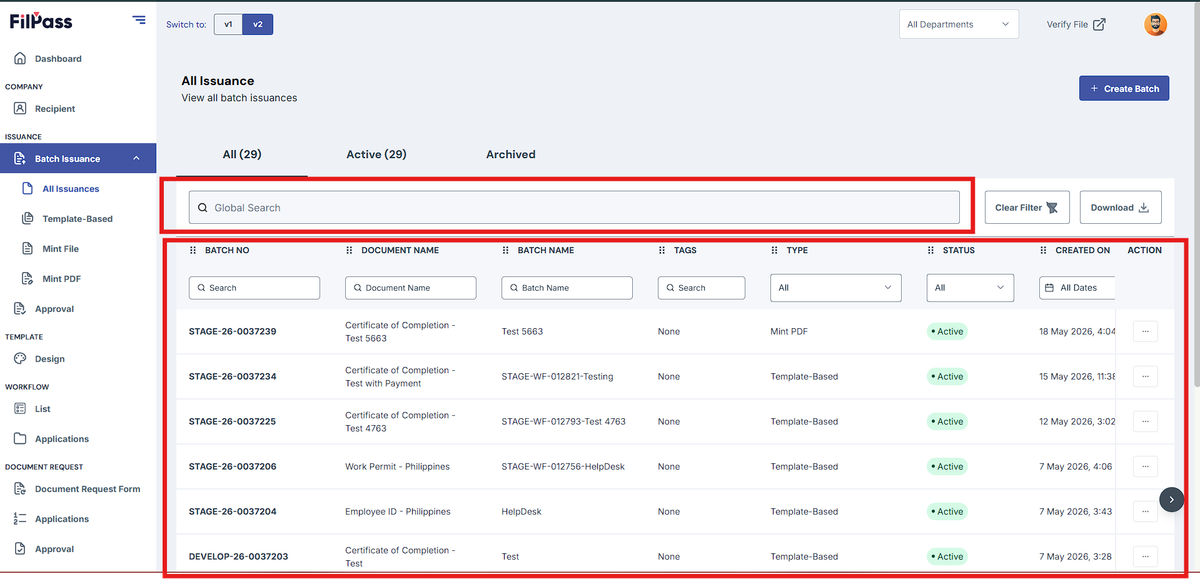
Step 2: Locate the Batch Issuance
Use any of the available search fields or filters to locate the batch.
You may search using:
- Batch Number
- Document Name
- Batch Name
- Tags
- Type
- Status
- Date Created
Step 3: Open the Batch
Once you locate the correct batch:
- Go to the Action column
- Click the three-dot menu (⋯)
- Select View Batch
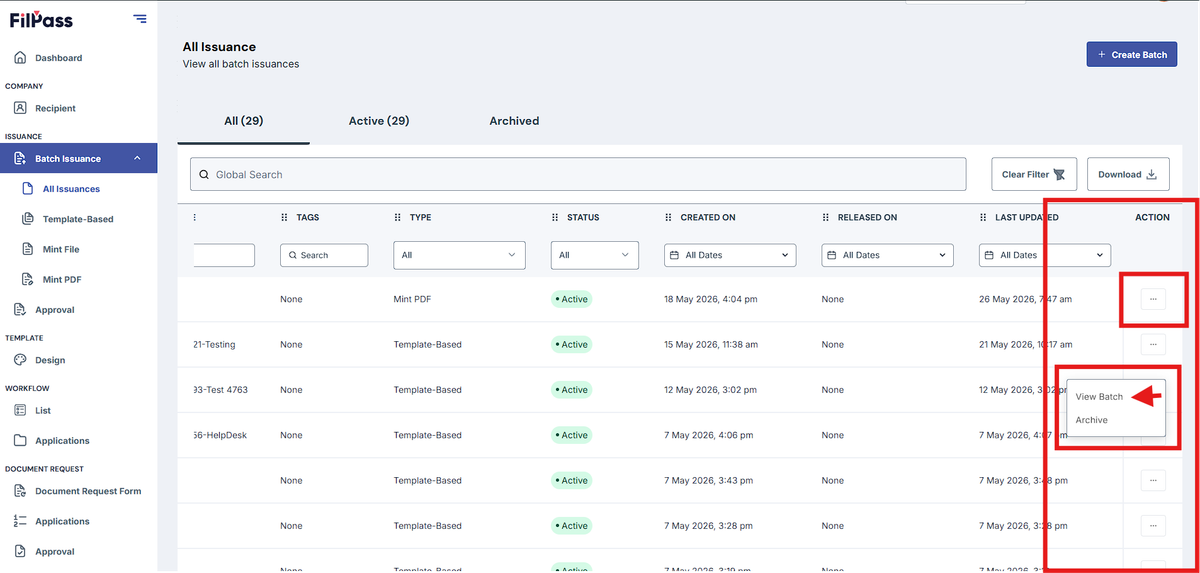
The system will redirect you to the full Batch Issuance details page.
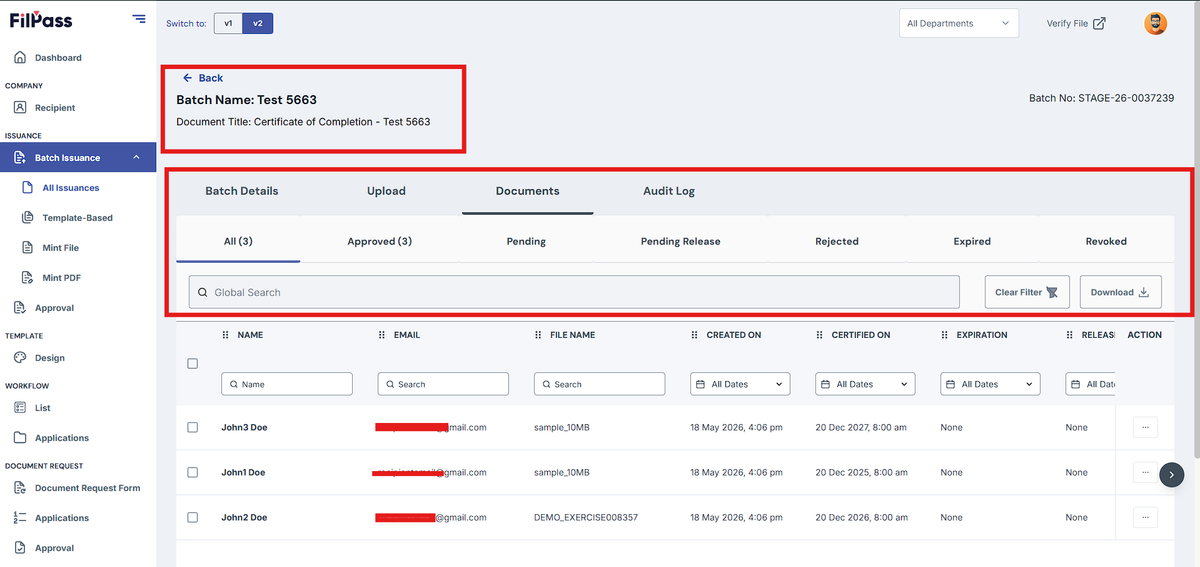
Understanding the Batch Issuance Page
Inside the Batch page, the IA can access multiple sections:
Available Tabs
- Batch Details - Displays general information about the batch issuance.
- Upload - Shows uploaded recipient files or issuance source files.
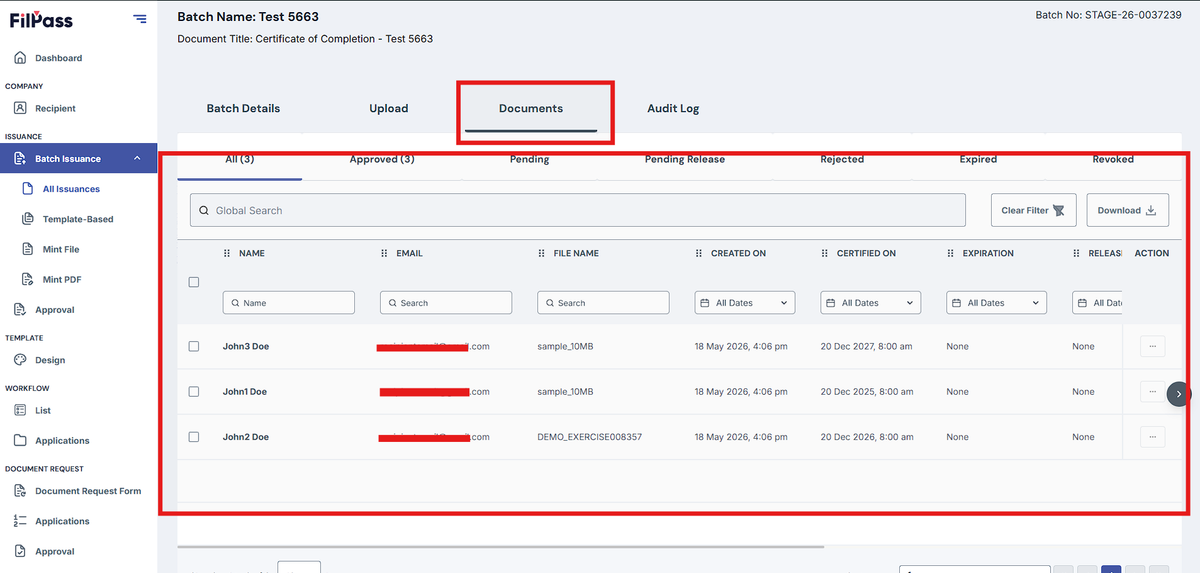
- Documents - Displays all recipient documents and issuance statuses.
- Audit Log - Shows activity logs and actions related to the batch.
How to View Recipient Documents
Step 1: Open the Documents Tab
Click the Documents tab to access all issued recipient credentials under the selected batch.
Step 2: Review Document Status Tabs
Inside the Documents section, the IA can monitor the status of all credentials using the available tabs:
- All - Displays every document in the batch.
- Approved - Shows successfully issued credentials.
- Pending - Displays credentials waiting for approval or processing.
- Pending Release - Shows credentials scheduled for release.
- Rejected - Displays rejected recipient issuances.
- Expired - Shows credentials that have already expired.
- Revoked - Displays revoked credentials.
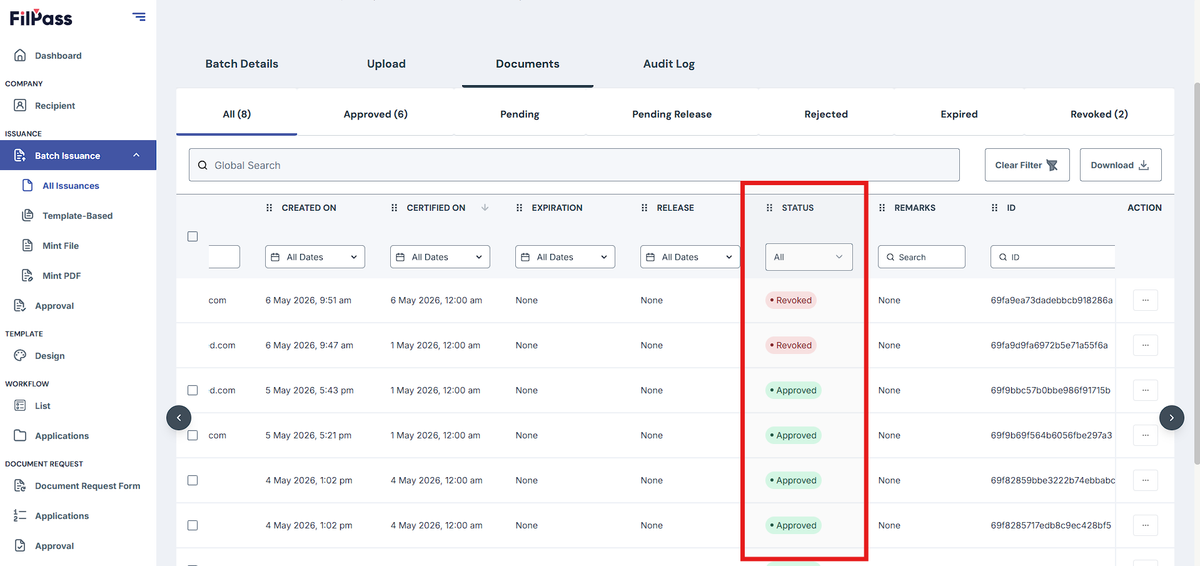
The Documents page also supports filtering and searching for easier document management.
Available search and filter options include:
- Global Search
- Recipient Name
- File Name
- Created Date
- Certified On Date
- Expiration Date
- Release Date
- Status Filter
This helps the IA quickly locate specific recipient credentials within large batches.
Important Notes
Batch Issuance viewing is available for all issuance types:
- Template-Based
- Mint PDF
- Mint File
Best Practice
Use clear and searchable Batch Names during creation to make future tracking easier.
Recommended (examples):
- HR_Onboarding_May2026
- Completion_Certificate
- Employee_ID_Batch_2026
This helps simplify searching and monitoring of batch issuances.