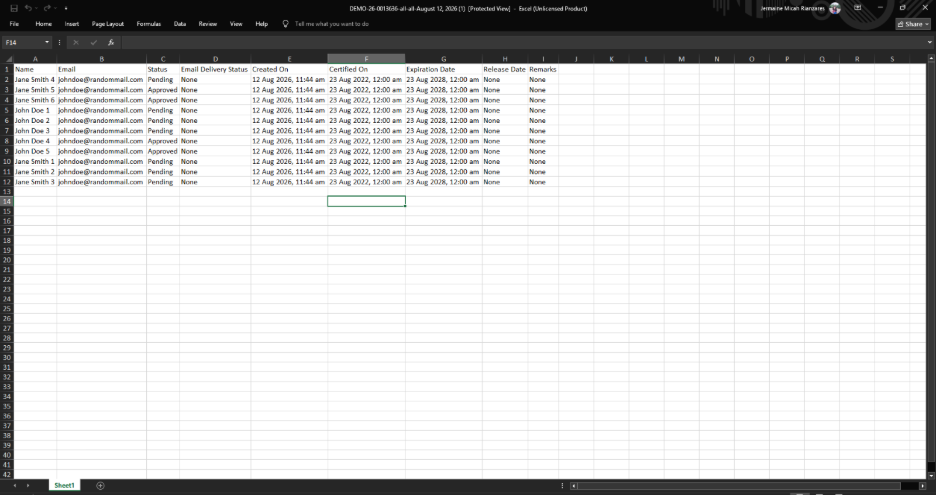
How to Download a Table in the Documents Tab
The Download Table feature allows Issuing Authorities to export document information from a specific issuance batch into an Excel (.xlsx) file. This is useful for tracking issuance progress, reviewing recipient and document details, monitoring email delivery, and maintaining records outside the platform.
The exported file includes key information such as Name, Email, File Name, Document Status, Email Delivery Status, Created On, Certified On, Expiration Date, Release Date, and Remarks, making it easier to review and manage batch issuance data in one file.
Follow these steps to export the table from the Documents tab as an Excel (.xlsx) file:
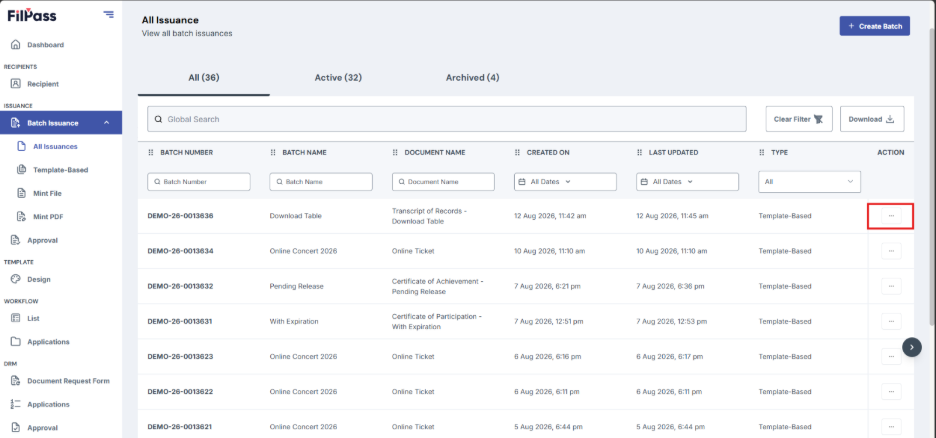
1. From the All Issuance page, locate and select the batch containing the documents you want to export.
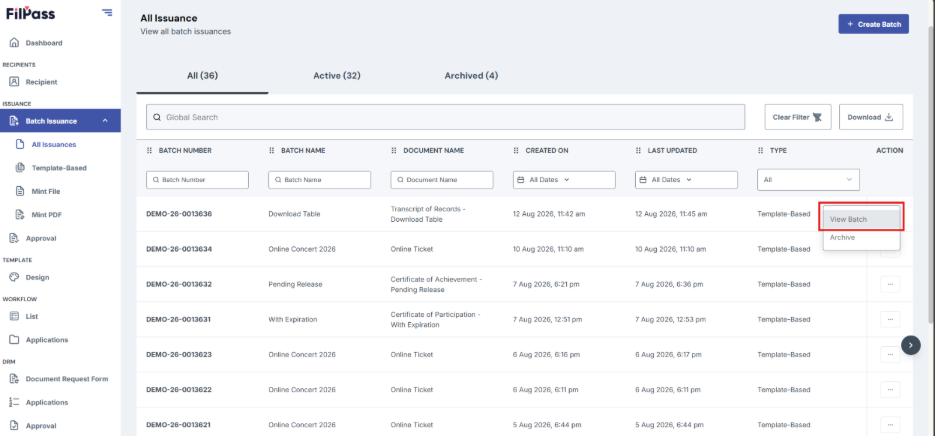
2. In the Actions column, click the three-dot menu (⋮) and select View Batch.
3. You will be redirected to the batch details page. Navigate to the Documents tab.
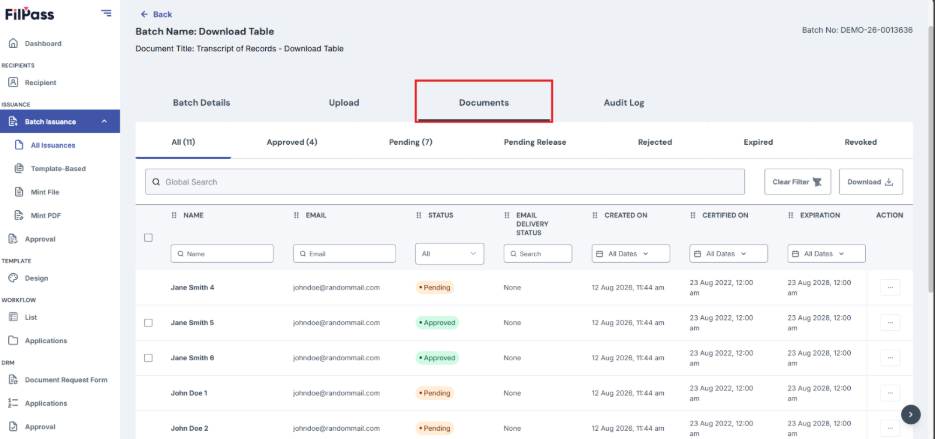
4. Under the All tab, click the Download button located above the documents table.
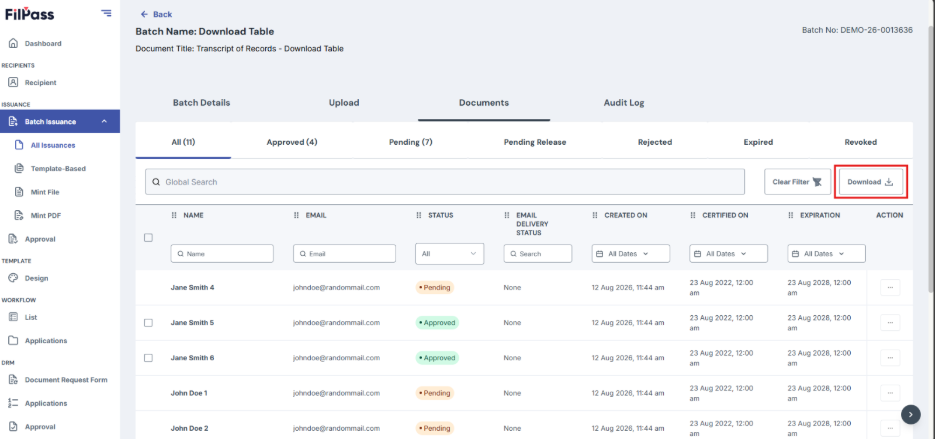
5. Wait for the system to generate and download the Excel file. The download time may vary depending on the number of records being exported.

6. Once the download is complete, open the downloaded Excel (.xlsx) file to view the exported data.