

How to use Mailtest?
1. Go to the Mailtest website: https://mailtest.befied.com
2. To sign in, enter the API key provided to you by your institution in the require field.
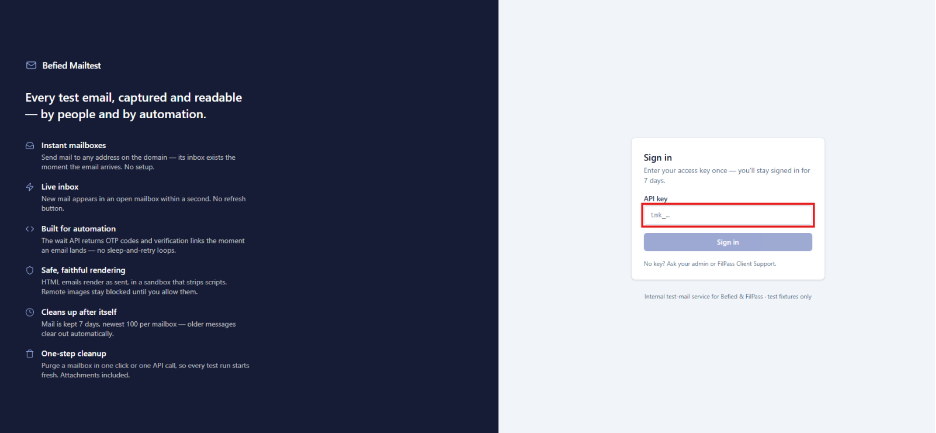
3. After entering the API key, click the Sign in button to continue.
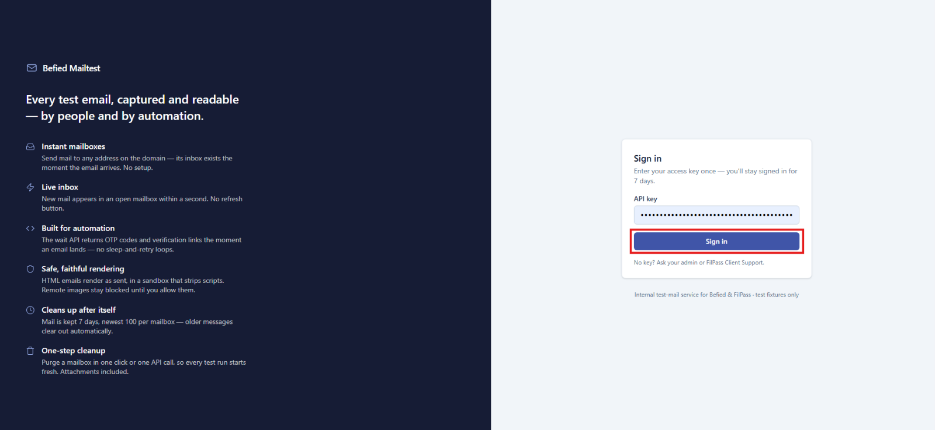
4. Mailtest provides two ways to access an email mailbox:
a. Customized email
To create a customized email address:
Enter the username you want to use in the text box. And click Open to activate the mailbox.
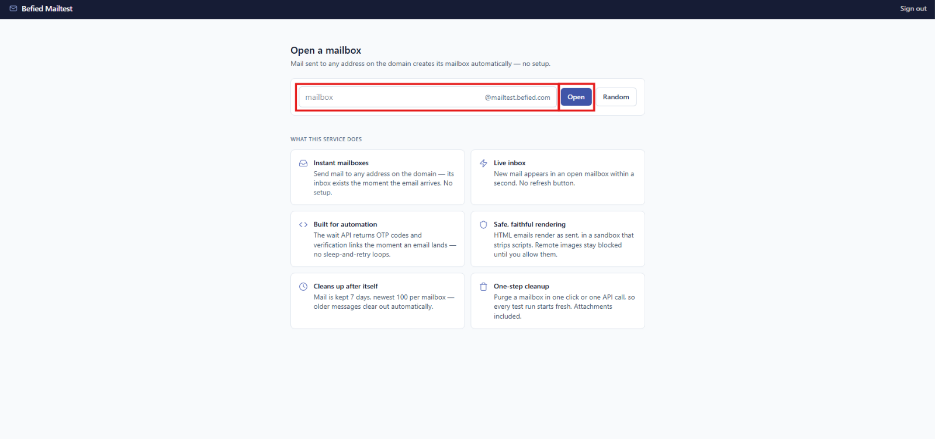
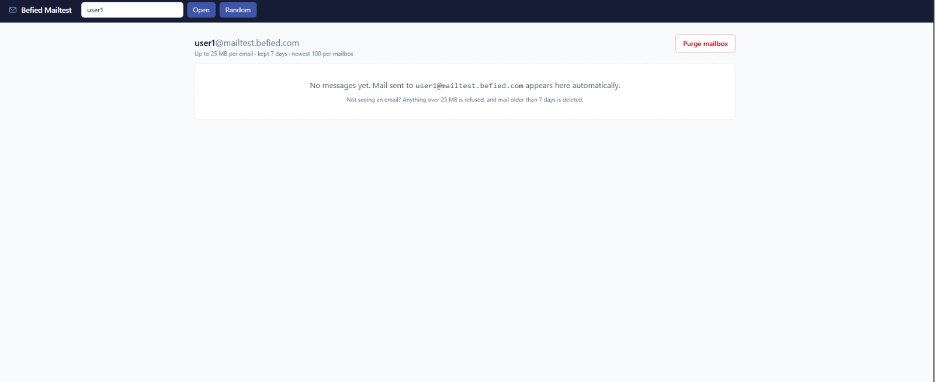
Once the mailbox is opened, you can access and view emails sent to the customized email address.
b. Randomized email
You can also use a randomly generated email address.
To access a randomized email mailbox, click the Random button.
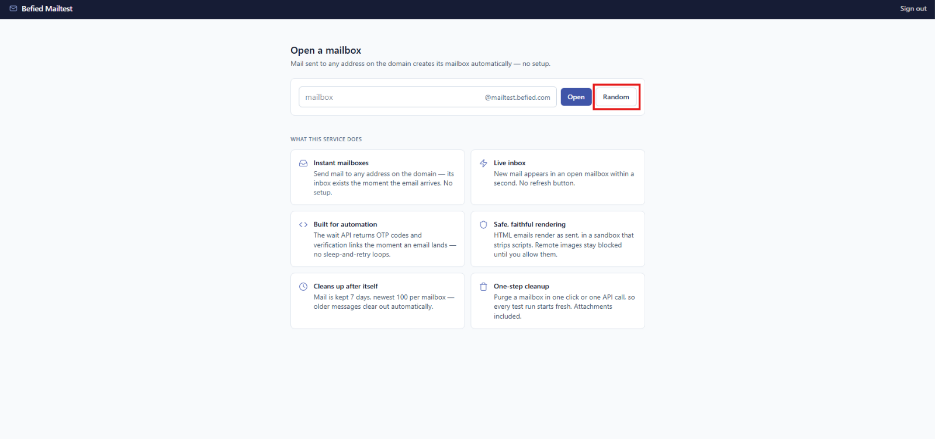
The system will automatically open a randomly generated email address that you can use for testing.
5. Mailtest also provides a Purge Mailbox option. Clicking Purge Mailbox will permanently delete all emails currently stored in the mailbox.
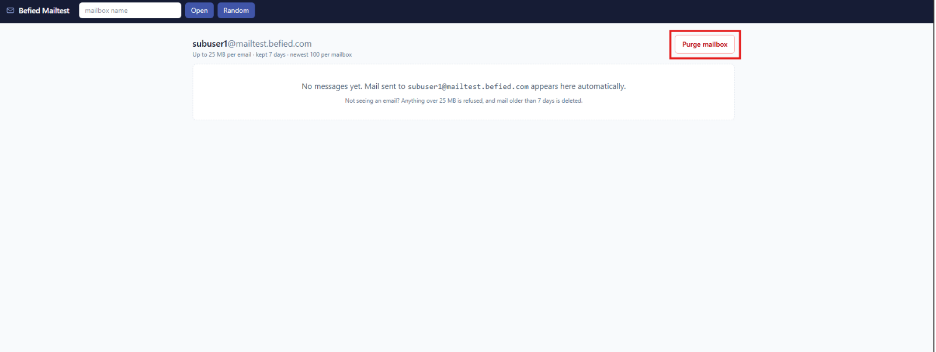
Important Mailbox Limitations
Please keep the following limitations in mind when using Mailtest:
- Emails are stored for 7 days only.
- Emails exceeding 25 MB will not be received.
- Purging a mailbox will delete all emails currently stored in it.