

How to Bulk Download Issuances?
This section explains how to bulk download within any Batch Issuance.
Reminder that you can only download Documents with the Status of Approved, Pending-Release, and Expired.
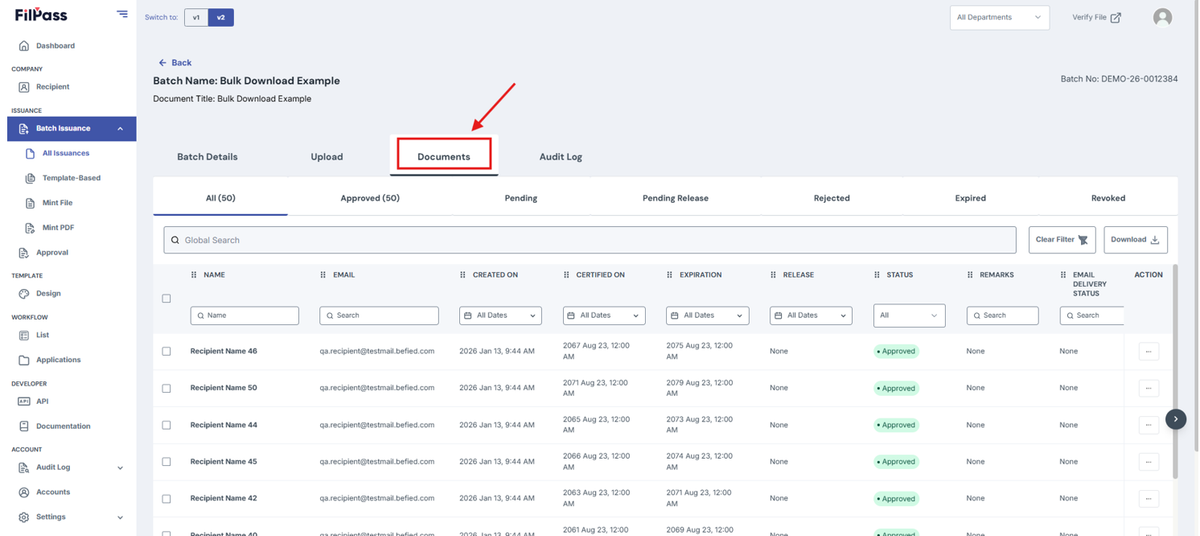
1. Open your Batch Issuance and go to the Documents Tab of your specified Batch Issuance.
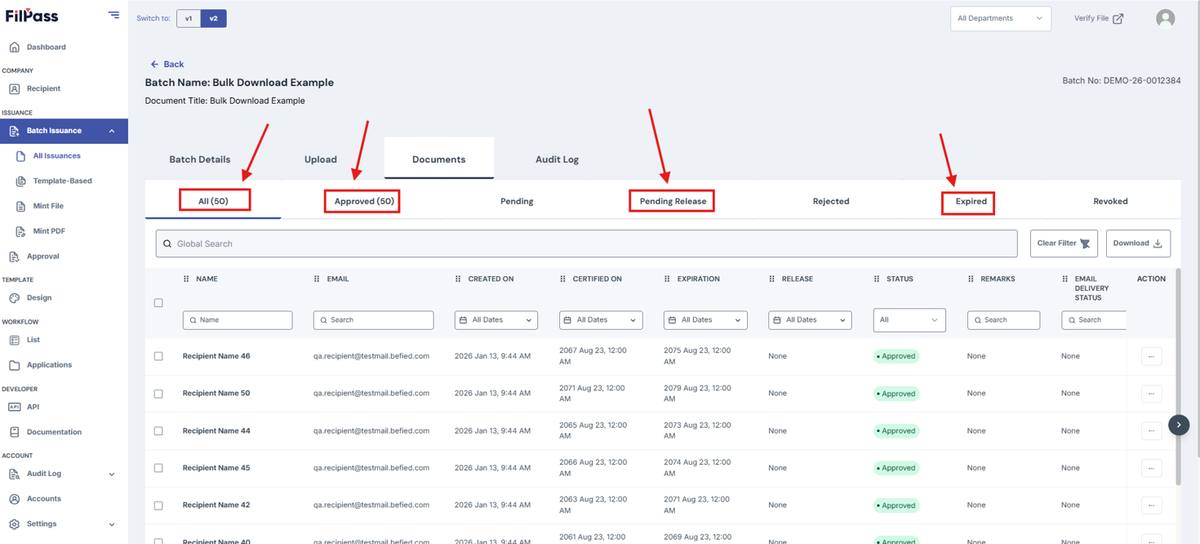
2. Choose one of the three tabs you want to bulk download from: Approved, Pending-Release, Expired. You can also bulk download from the All Tab.
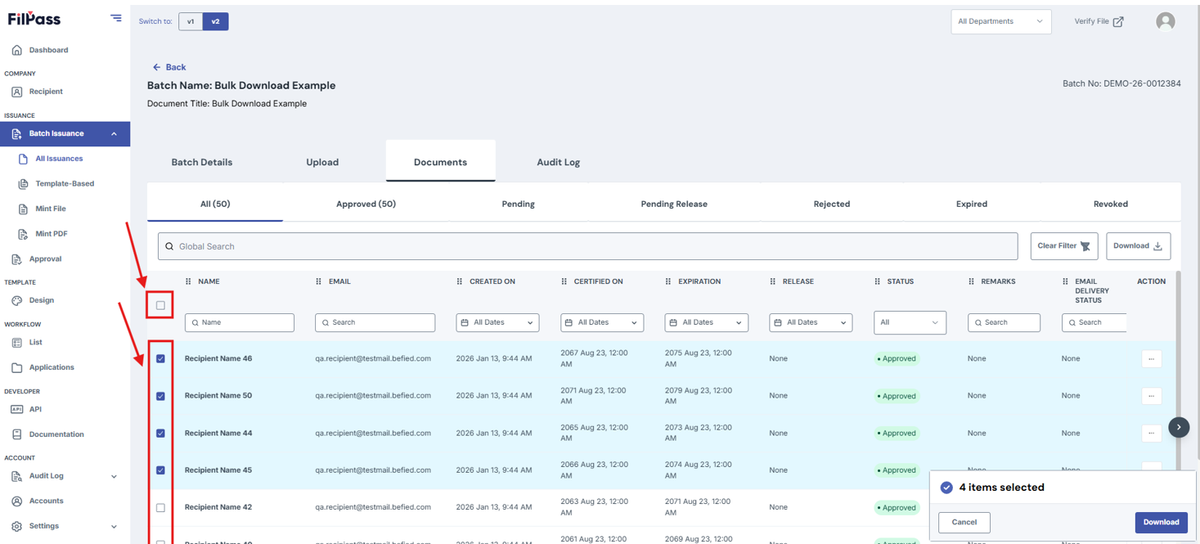
3. Upon choosing your tab, click on all of the checkboxes of the documents you want to download. You can also click the checkbox in the column header to select all checkboxes on that page.
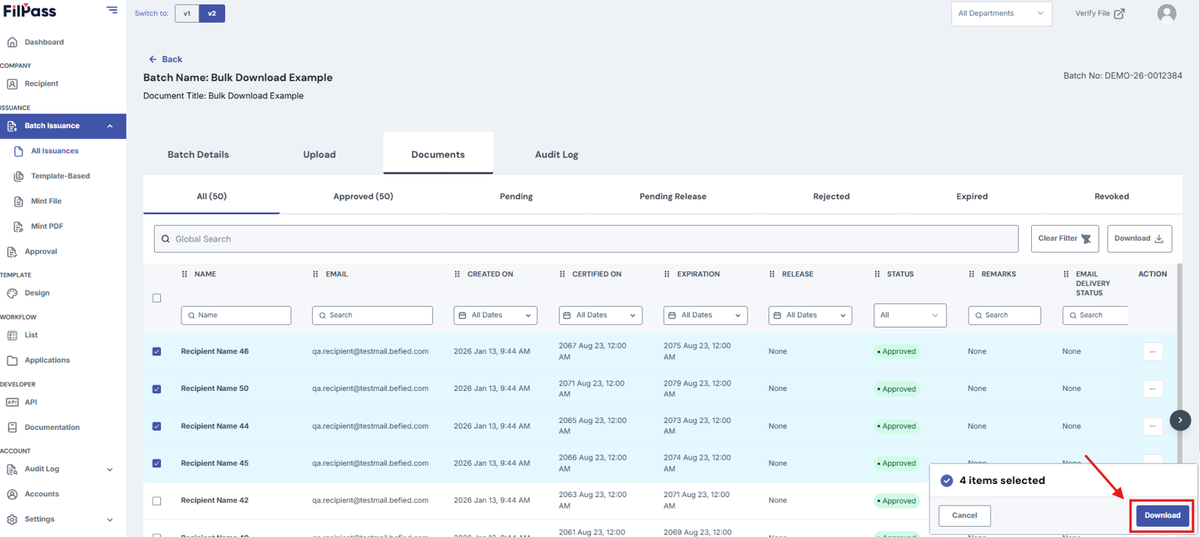
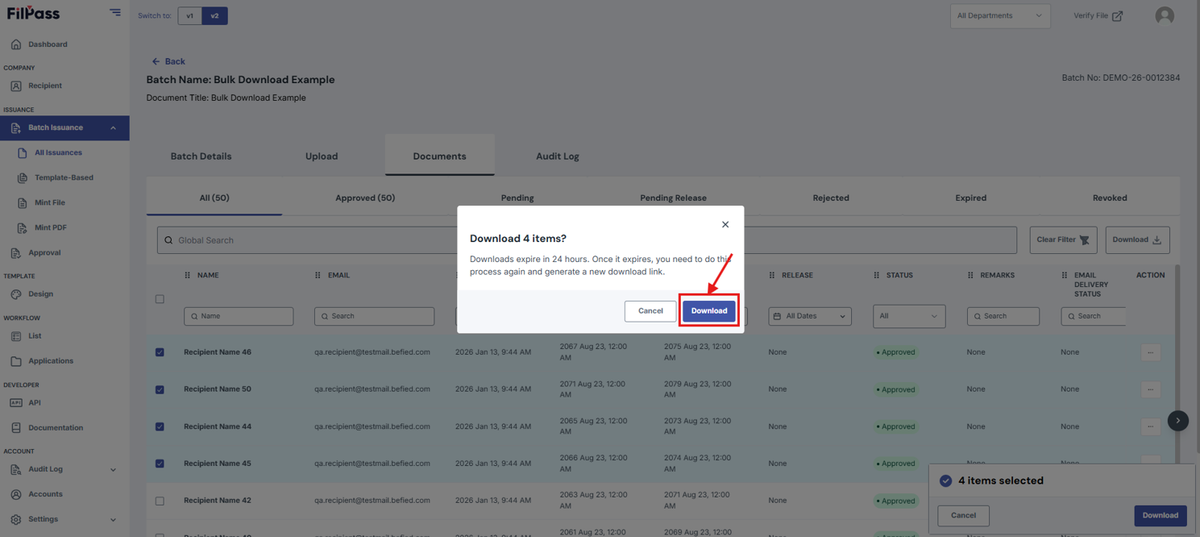
4. Click the Download button on the lower-left modal.
5. Click on the download in the pop-up modal.
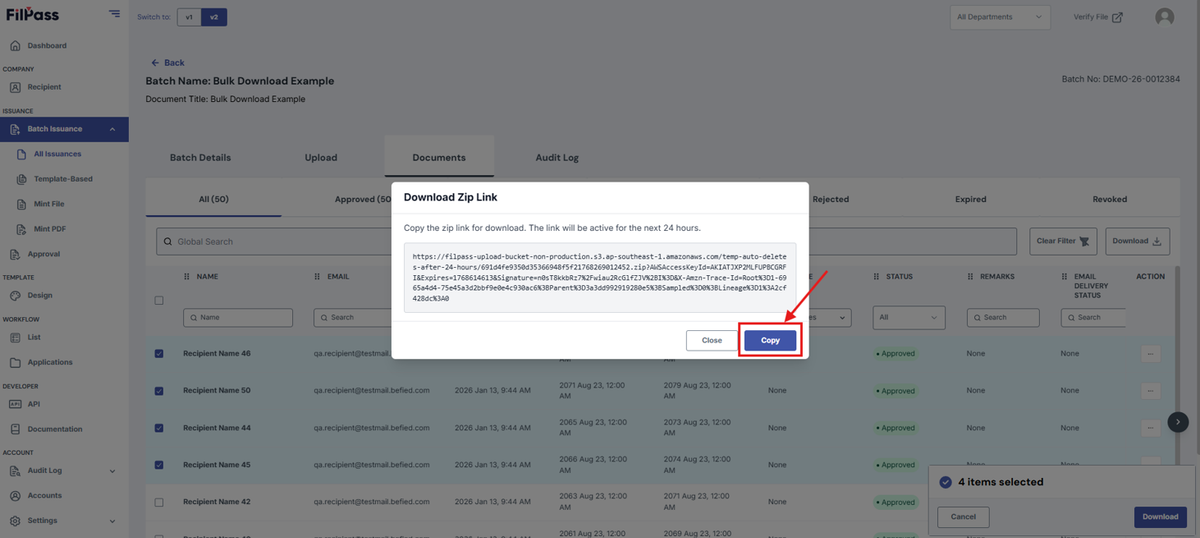
6. Copy the Zip Link using the Copy Button then paste it in another tab to open it and start the download. It will only be available for 24 Hours.
7. You have now downloaded your bulk download.