

How to Add OpenCerts file to Skills Passport?
Step 1: Log in to your Skills Passport account.
Step 2: Navigate to the Certificates section from the dashboard.
Step 3: Click on the Add Qualification button.
Step 4: Enter the required certificate details manually in the provided fields.
Certificate details are no longer automatically populated after upload. Ensure all required fields are completed accurately before proceeding.
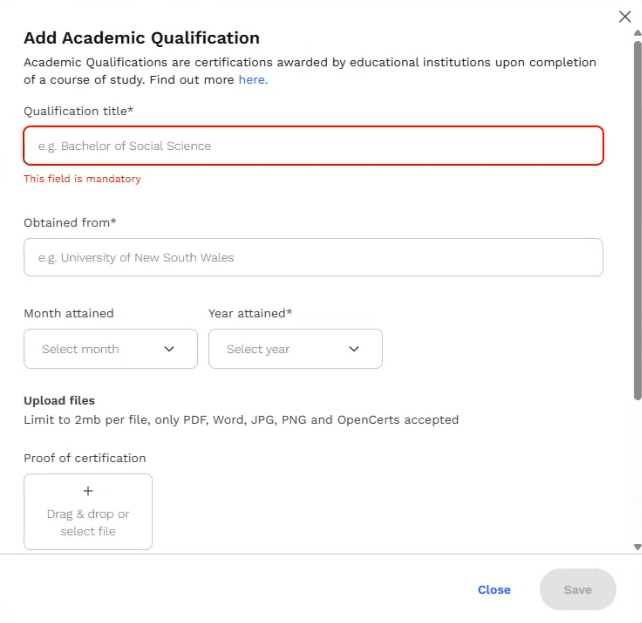
Step 5: Upload your OpenCerts file and wait for the upload progress to complete.
Step 6 (Optional): Add supplementary files, if applicable.
Step 7: Click Save to successfully add the certificate to your Skills Passport.
Was this helpful?