
How to Update Profile Details

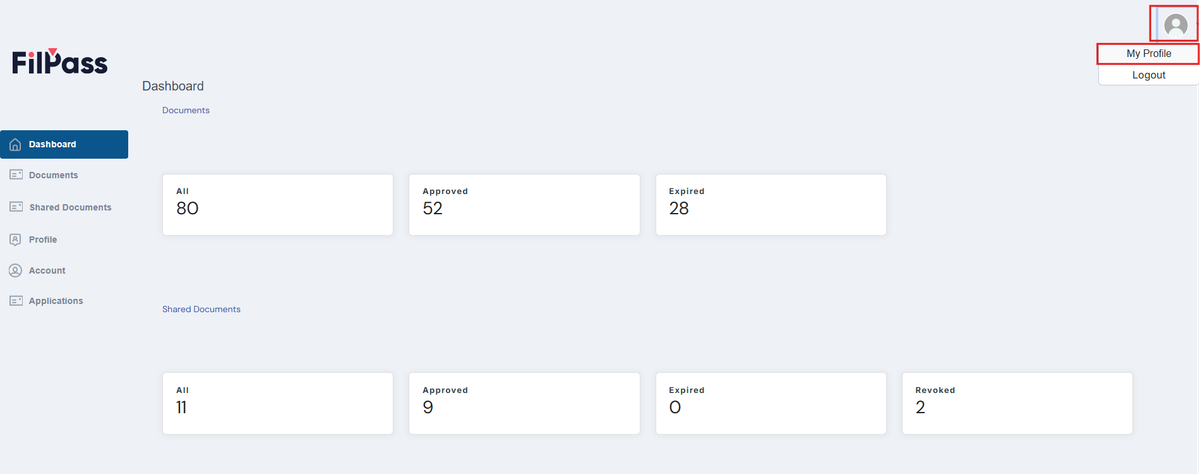
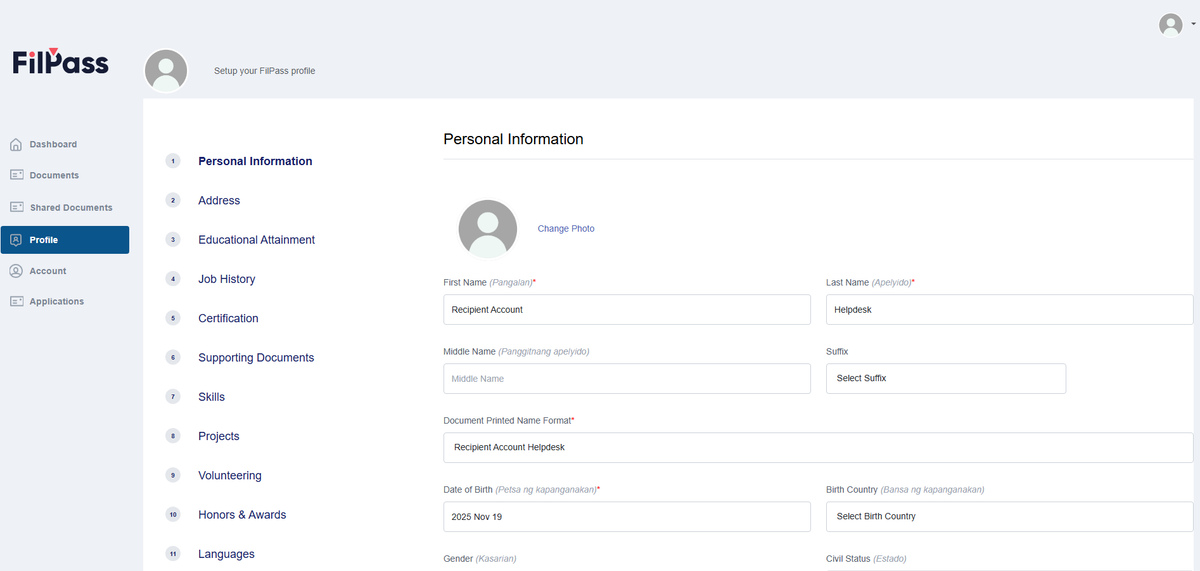
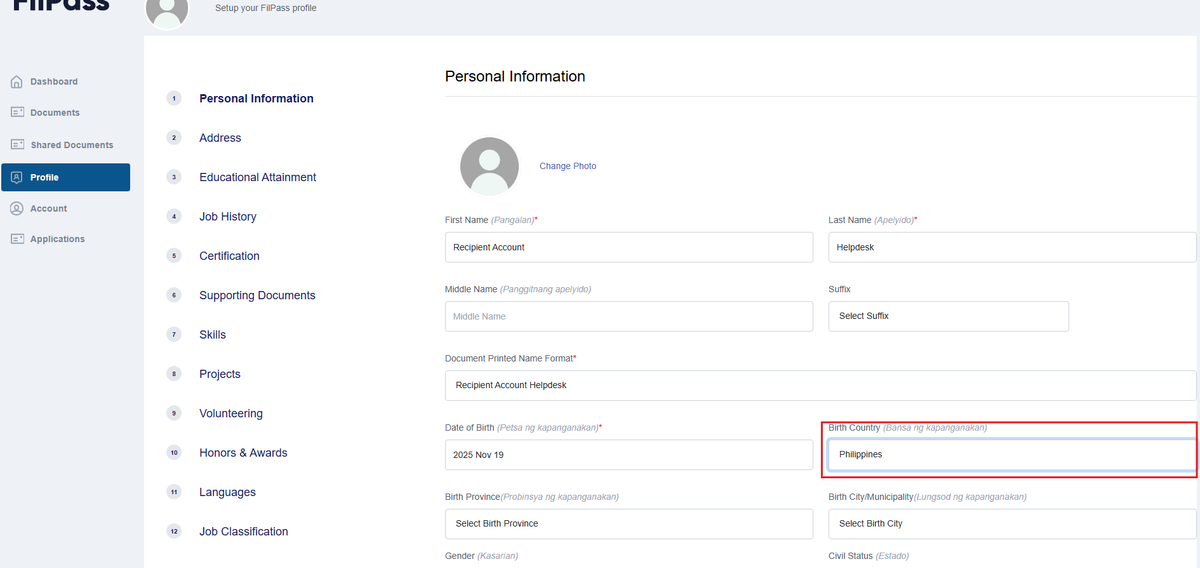
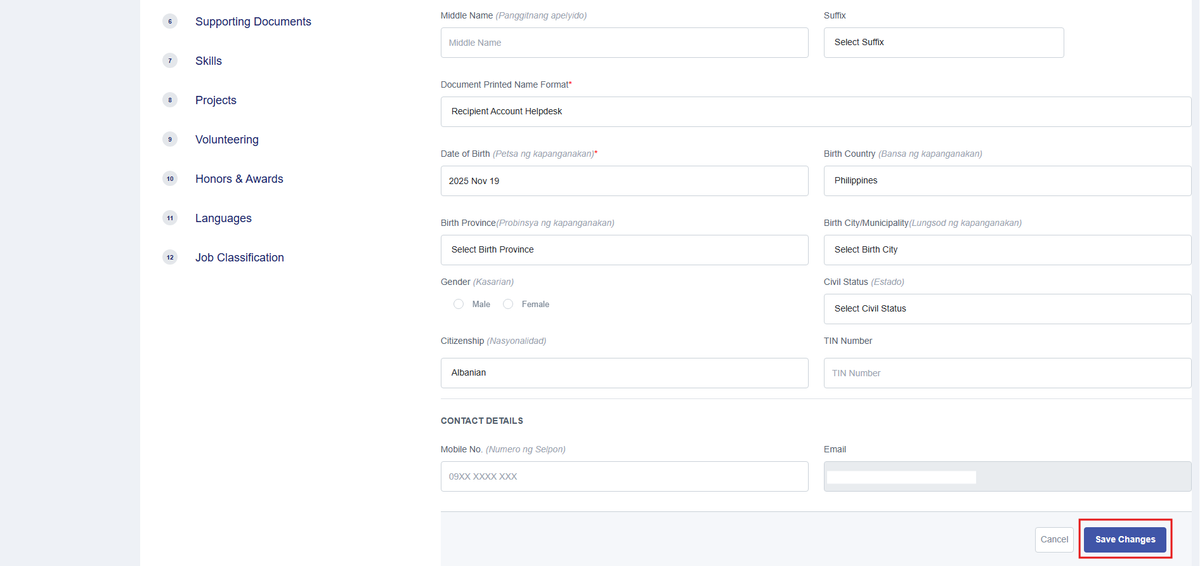
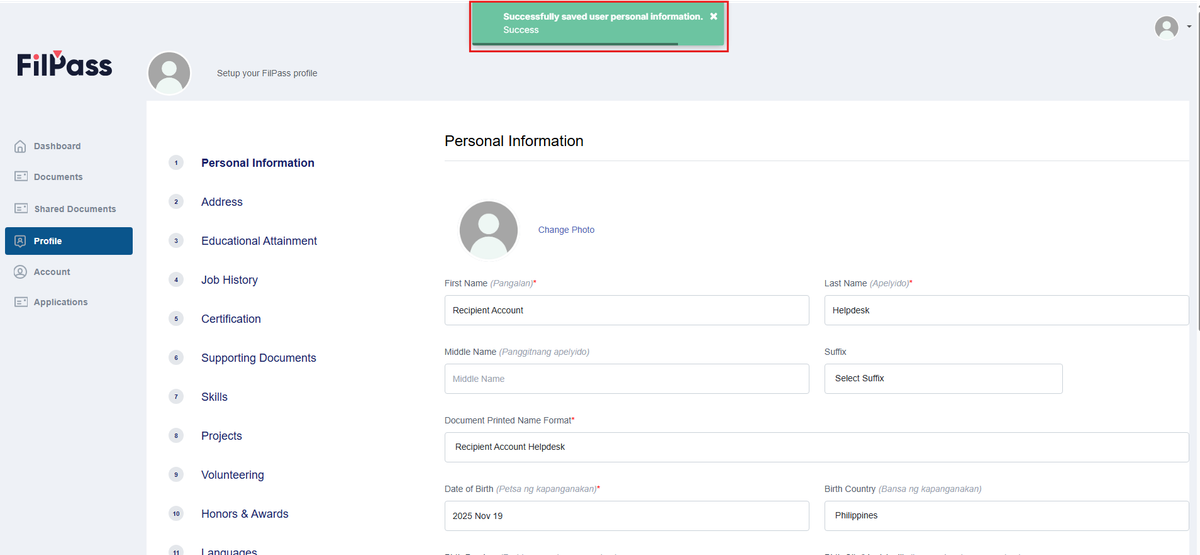
This section shows how to update your profile. 1. Click the icon at the upper right portion of your Dashboard. To check your current profile, click the My Profile button. 2. There are 12 different sections that make up your profile. This includes Personal Information, Address, Educational Attainment, Job history, Certification, Supporting Documents, Skills, Projects, Volunteering, Honors & Awards, Languages, Job Classification. Choose the section that you want to edit by clicking on it. 3. Make the necessary changes to your information. 4. Once you are done modifying your information, click Save Changes at the bottom right portion of the page. 5. If the update is successful, you will receive a pop-up message stating such.
Related Articles

Recipient

How to Create Recipient Account

This section provides a step-by-step guide on creating a FilPass Recipient Account. 1. Go to https://app.filpass.ph/ 2. Click the Sign-up button. 3. Enter your email and display name, then click Conti

0 views
Recipient

How to Validate your Email for Registration

This section explains how to validate the email you provided during registration. 1. During registration, enter your email and display name, then click Continue. 2. If there are no errors with your re

0 views
Recipient

How to Change/Reset Password

This section explains how to change/reset your account password. 1. Click the Account tab on your dashboard. Your primary email address will be displayed. 2. Click the Password button in the account s

0 views
Recipient

How to View Share Status of Documents

This section explains how to check the shared status of your ID. 1. Click the Shared Documents tab on your dashboard. This will display the digital documents and certificates you have shared. 2. Use G

0 views