

How to Download Documents

This section shows how you can download your digital ID or documents from FilPass.

1. Go to Documents.
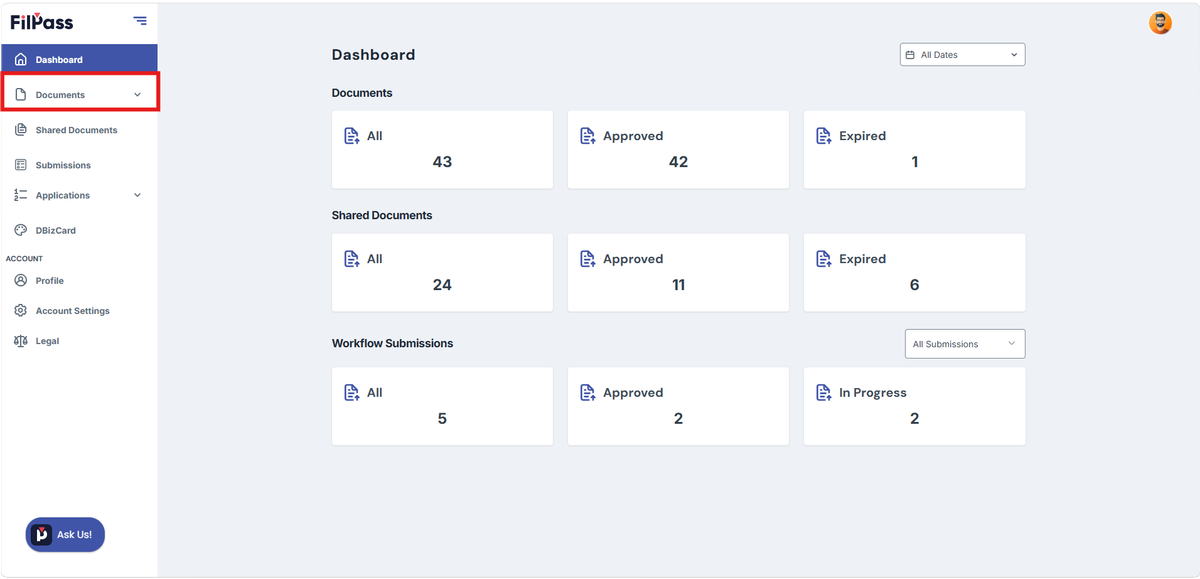
Image of the Dashboard with the Documents button highlighted in a red box

2. Search for the document in the Global Search. Still using the Issuer of the Document, Document Number, Expiration Date, Certification Date, or Status as your keyword. 
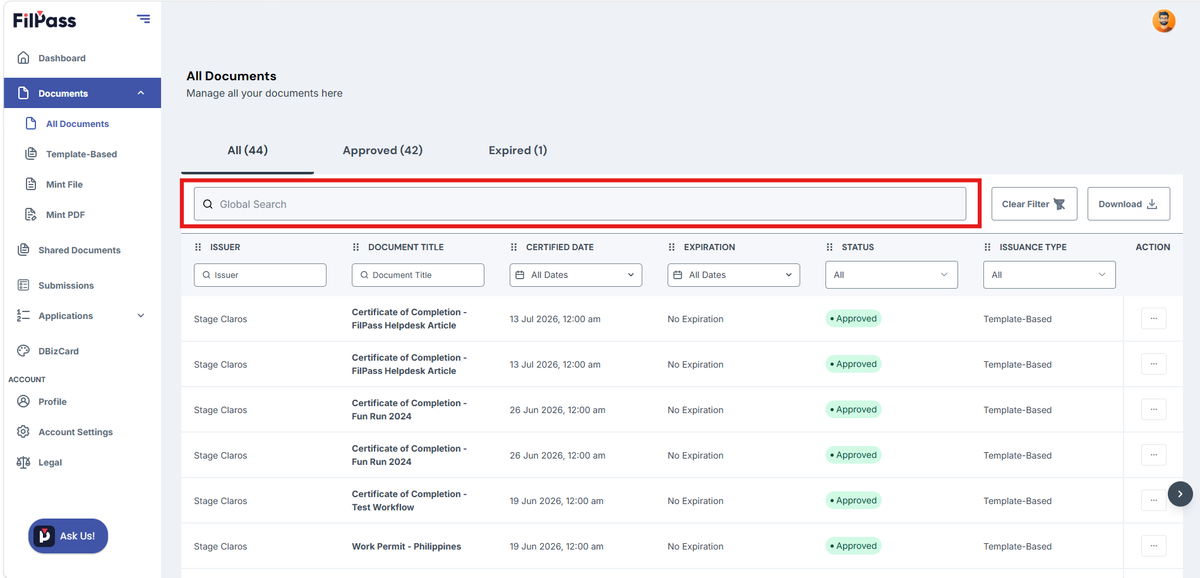
Image of Documents page with the Global Search highlighted in a red box

3. Go to action to Click three dots (⋮) to Download the file in pdf.
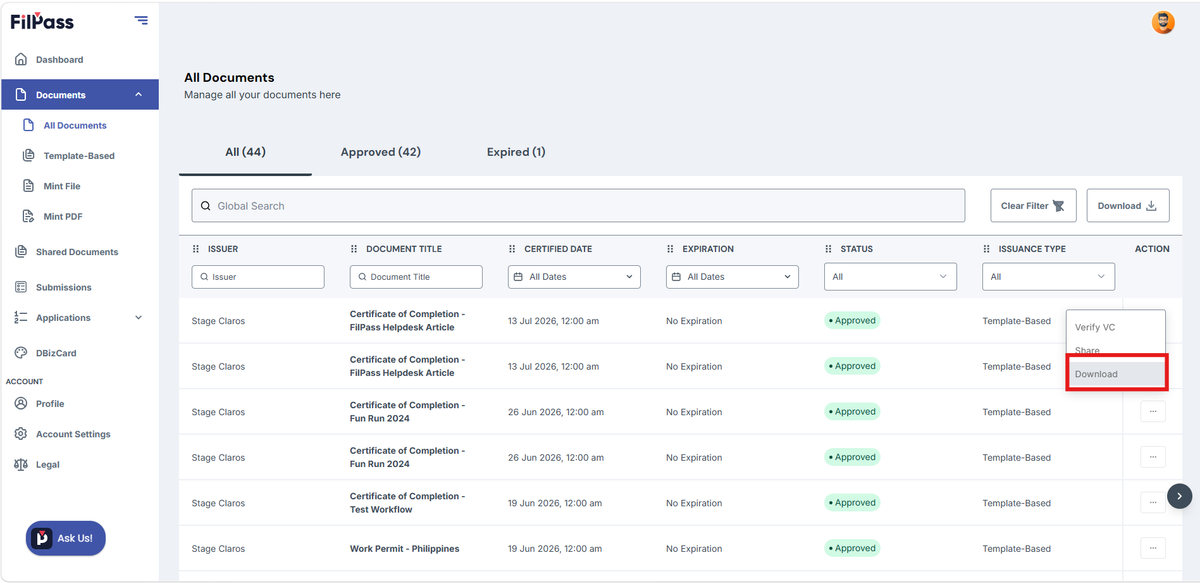
Image of the Documents page with the Download button highlighted in a red box

Related Articles

RecipientRecipient

How to Change Password?

This section allows users to reset or change their password if they have forgotten it, to ensuring continued secure access to their account.

how-torecipient
04 Feb 202613 views
RecipientDocuments

How to Download Invoice

This section shows how to view and download the invoices for your previous transactions.

how-to
04 Feb 20267 views
RecipientRecipient

How to Revoke Shared Status

This section explains how to revoke the shared status of your shared documents.

how-to
11 Feb 20264 views