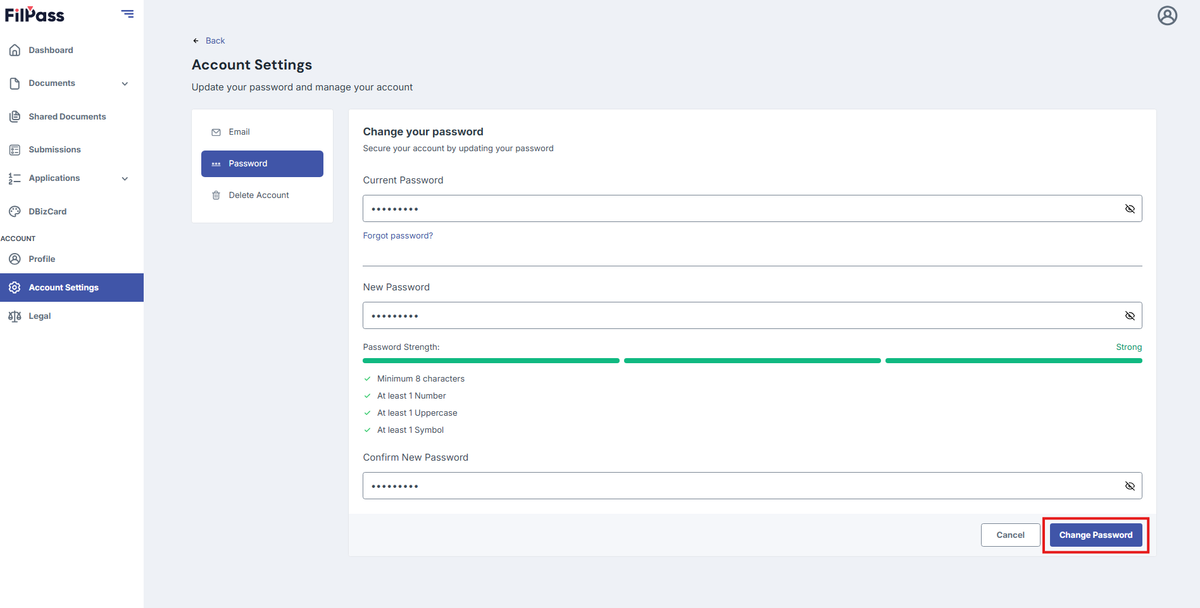

How to Change Password?

If you are not logged in:

1. Click “Forgot Password?” to change your password.
Please ensure that you choose a password you can remember and keep it secure.
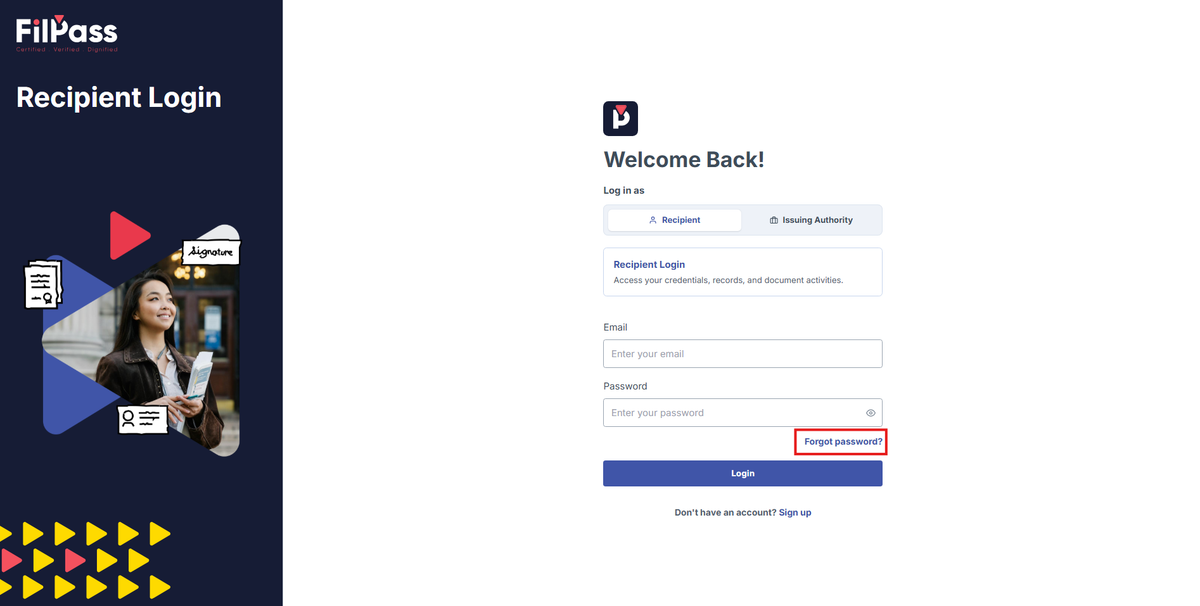
image to Forgot Password

2. You need to fill up in the email address you provided, and a reset OTP will be sent to your email.
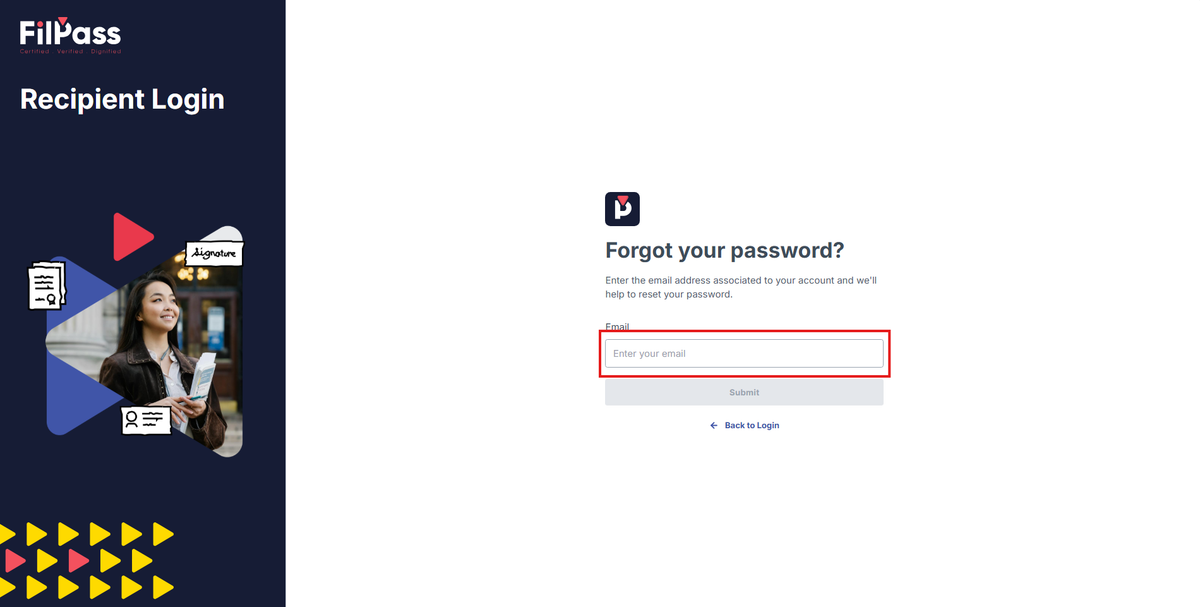
image to Enter Email

3. Once you’ve entered your Reset OTP, you can now set your new password.
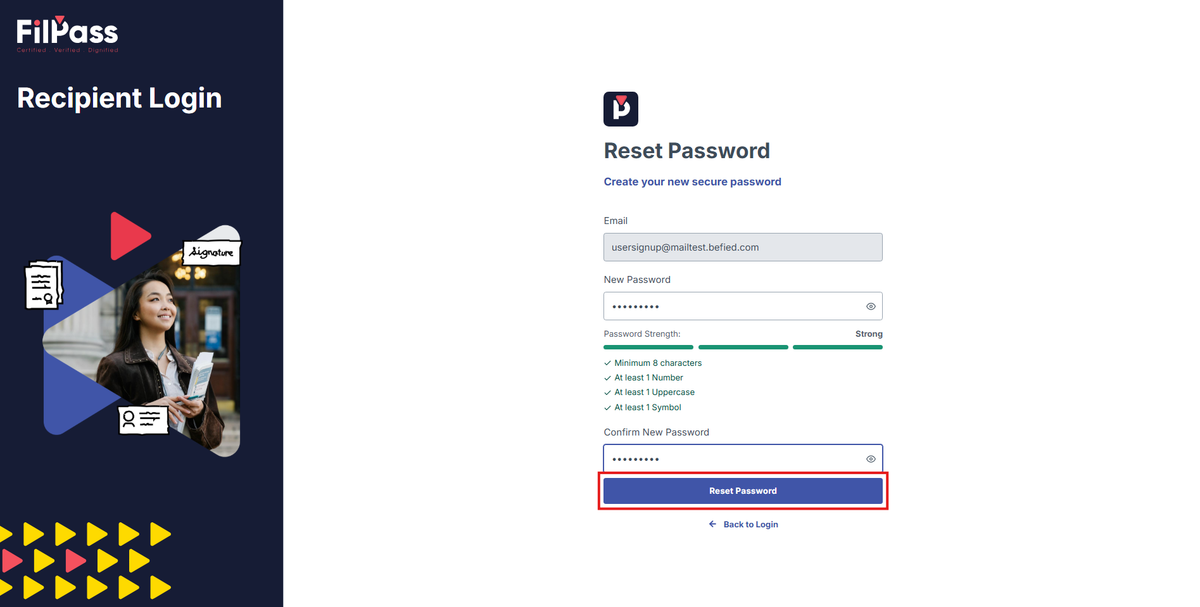
Image of the Set password page with the Set Password button highlighted in a red box

4. A success pop up message would show up and you will be redirected to the Login page where you can login with your new password.
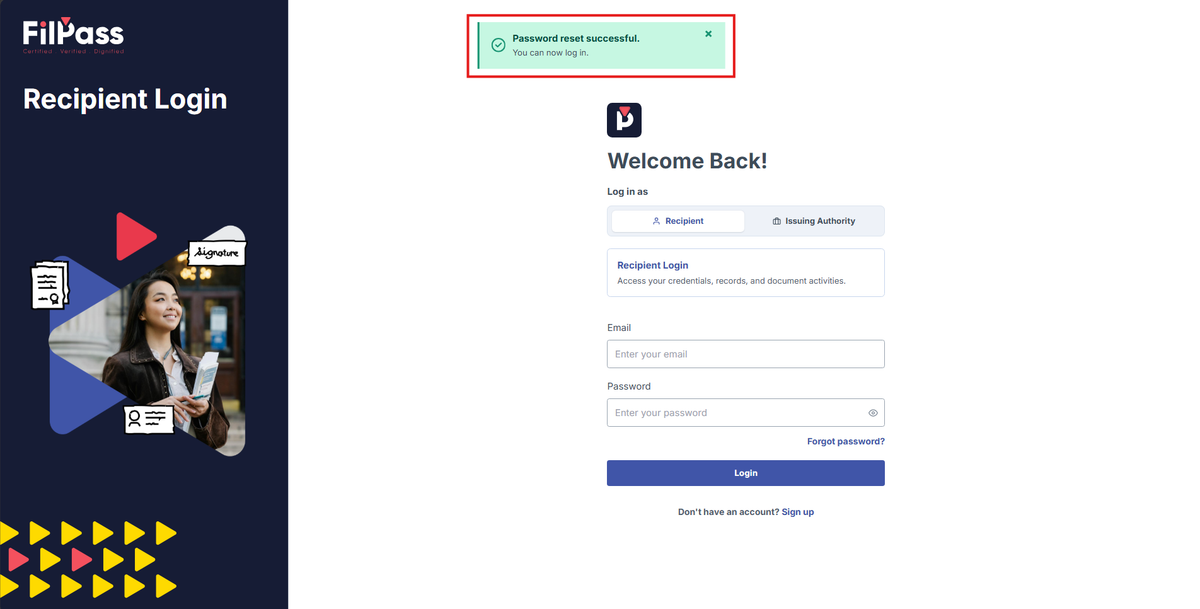
Image of the Login page with the Success pop up message, "Please proceed to login with your email and password." highlighted in a red box

If you are still Logged in the website:

1. Click the “Account” tab on your dashboard. Your primary email address will be displayed.
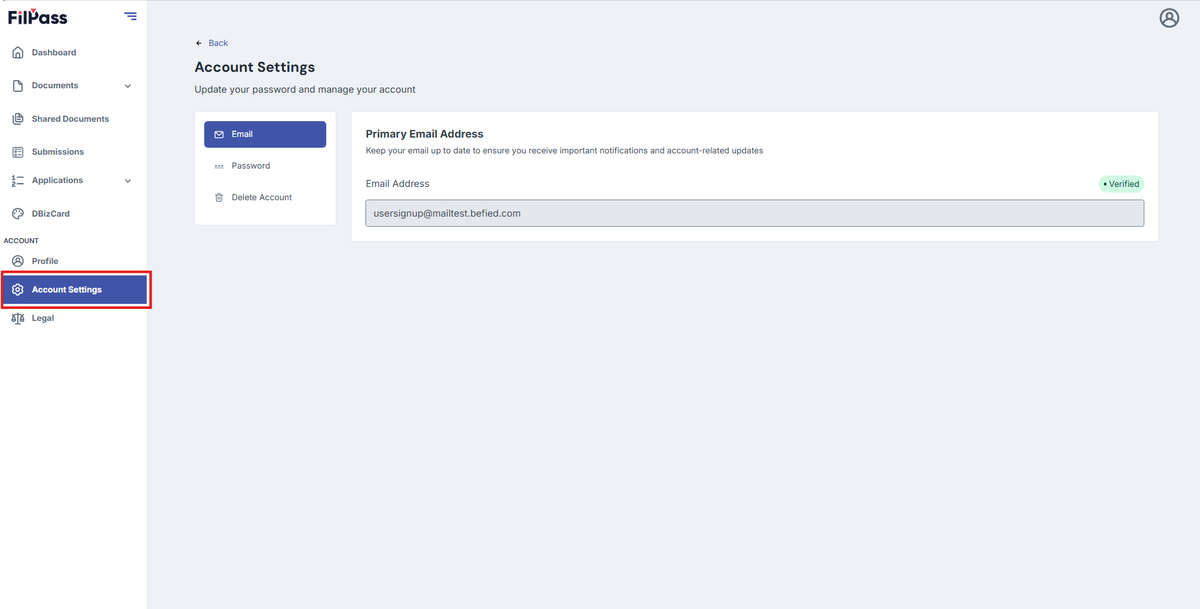
Image of the Account page with the Account button highlighted in a red box

2. Click the Password in the account.
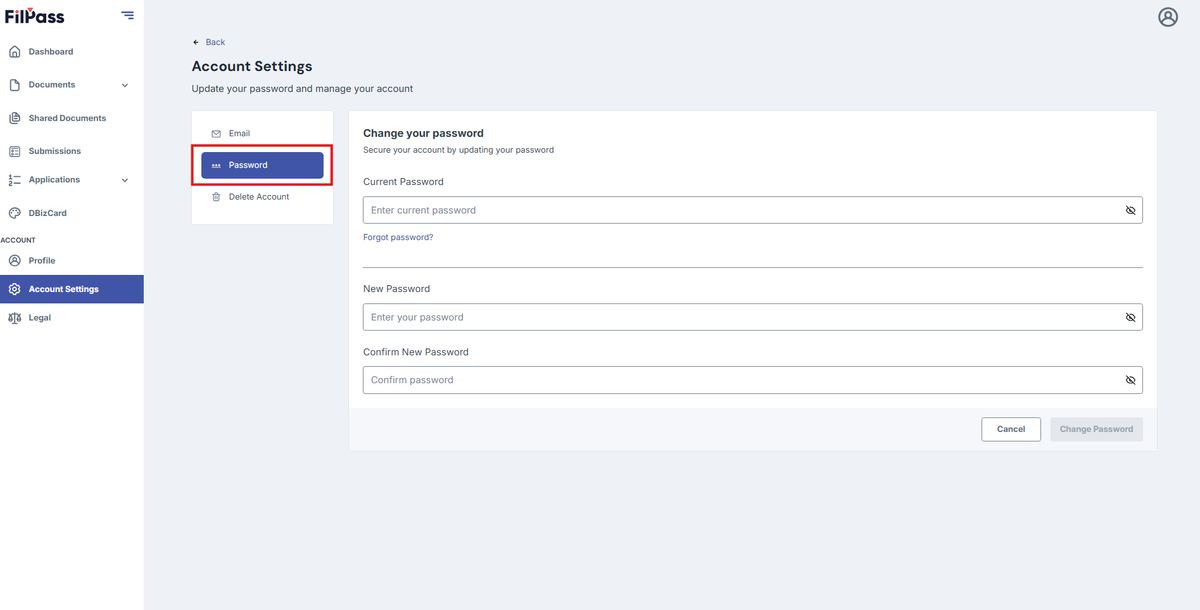
Image of the Account page with the Password button highlighted in a red box

3. Enter your New Password and Confirm your new Password
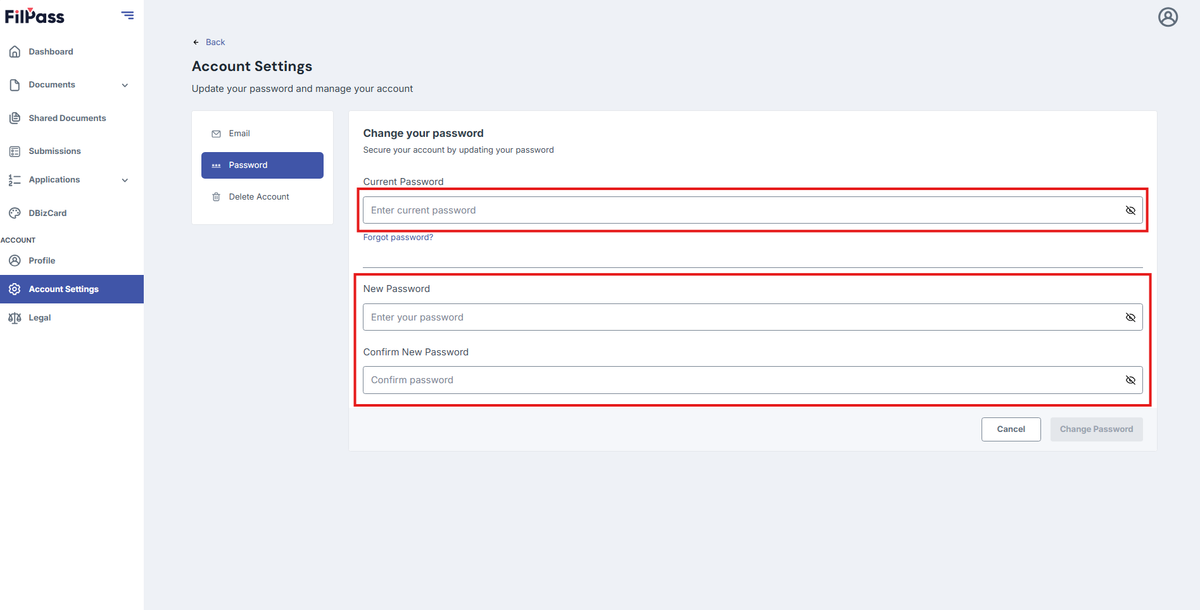
Image of the Account page with the New Password and Confirm New Password fields highlighted in a red box

4. Click on Change Password Button

Image of Account page with the Change password button highlighted in a red box

5. A Success Message will pop up when the password change is successful.
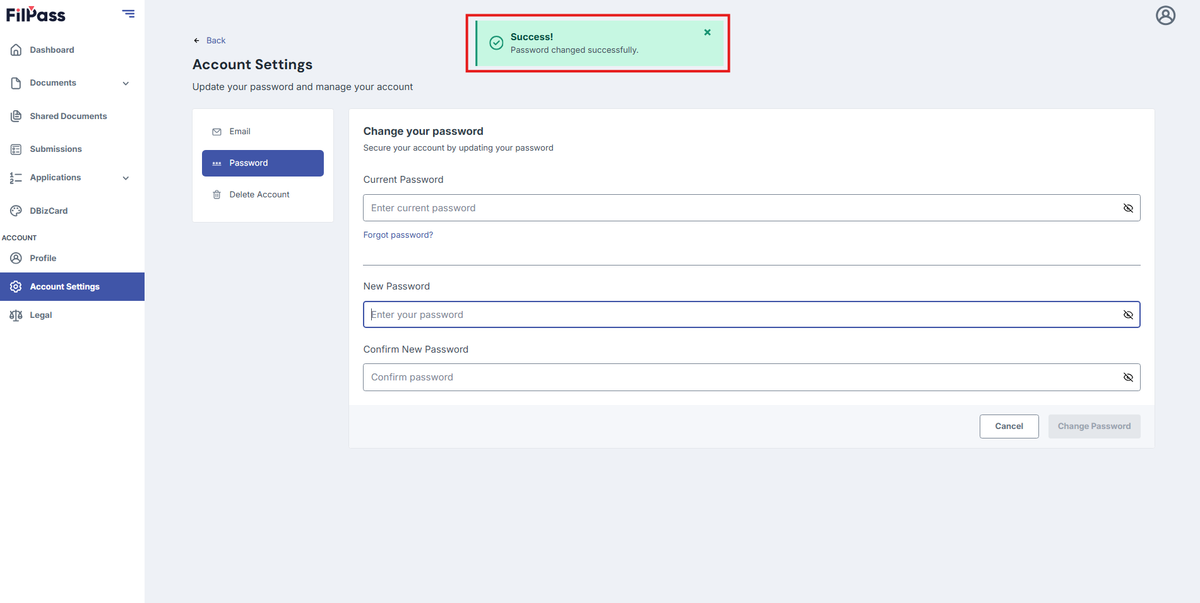
Image of Accounts page with the Success Message pop up "Password has been successfully updated." highlighted in a red box

Related Articles

RecipientRecipient

How to Download Documents

This section shows how you can download your digital ID or documents from FilPass.

how-to
12 Feb 20267 views
RecipientDocuments

How to Download Invoice

This section shows how to view and download the invoices for your previous transactions.

how-to
04 Feb 20267 views
RecipientWorkflow

How to Download Proof of Payment

This section explains how to issue “Download invoice” via “Workflow” .

how-torecipient
04 Feb 20266 views