
How to Download Invoice

This shows how to view and download the invoices for your previous transactions through your answered Workflow.

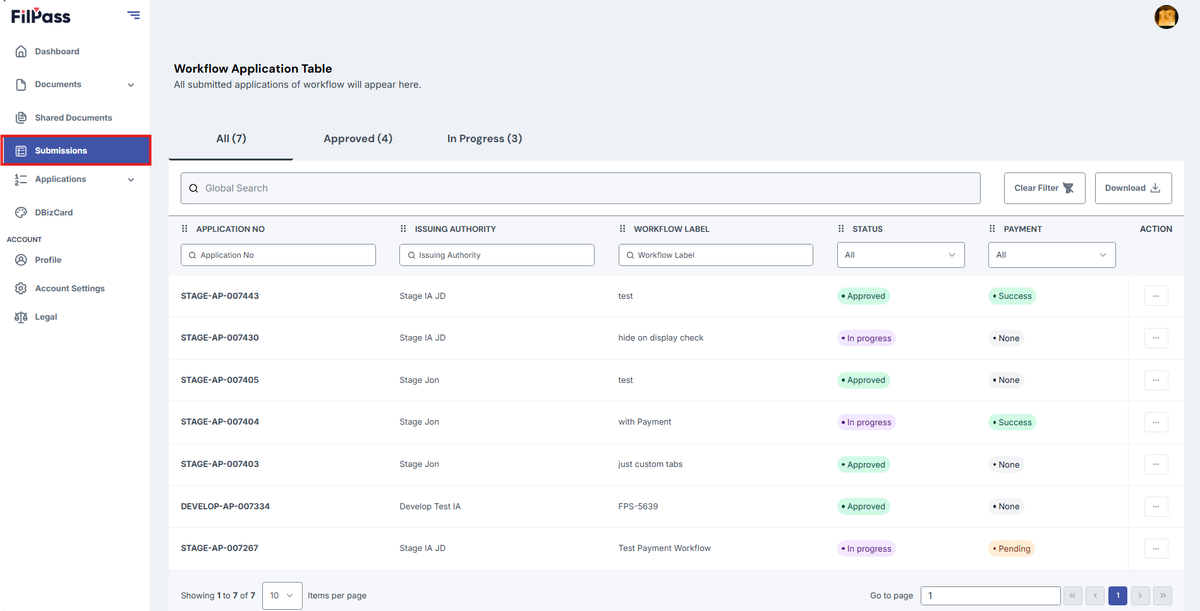
1. Go to Applications page

Image of the Dashboard page with the Applications button highlighted in a red box

2. Find the Workflow that you’ve answered that included payment. To view this easily, you can filter the data through Payment Status.

If the Workflow has “none” as payment status, there was no purchase processed through that Workflow.
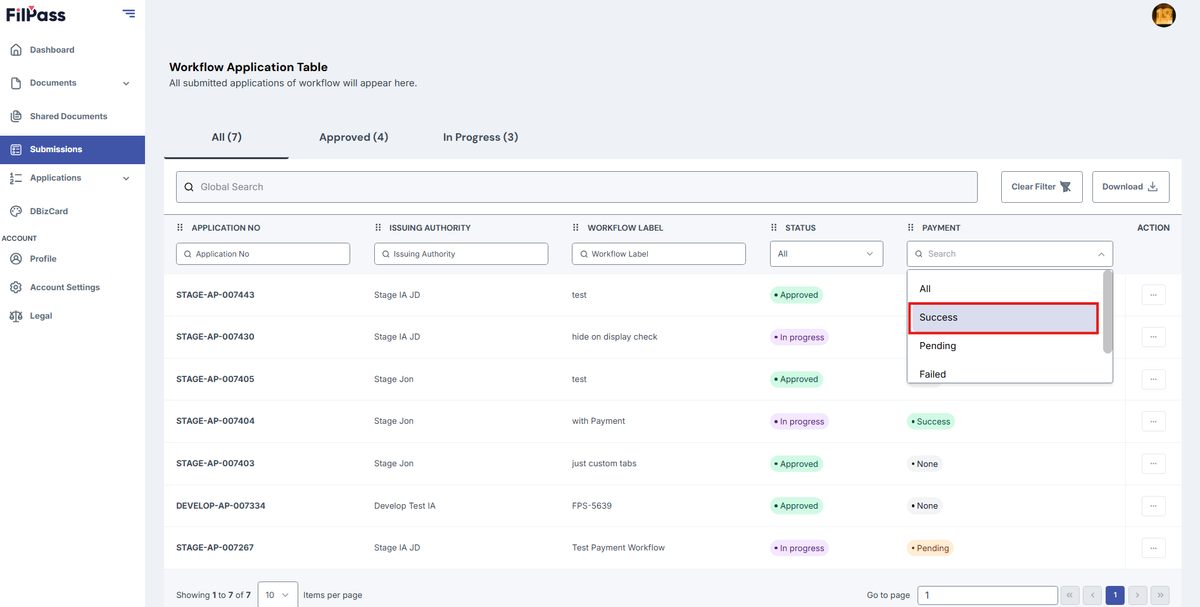
Image of Applications page with the Payment Status filter and its options highlighted in a red box

3. Click the Action button of the Workflow you wish to download the Invoice from.
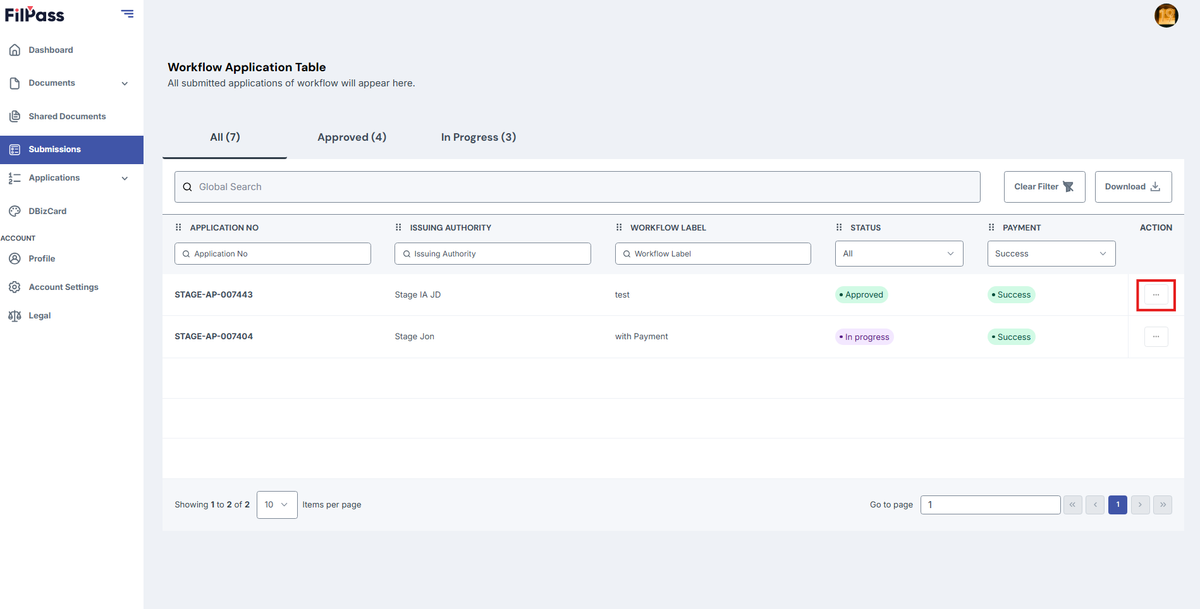
Image of the Applications page with the Action button highlighted in a red box

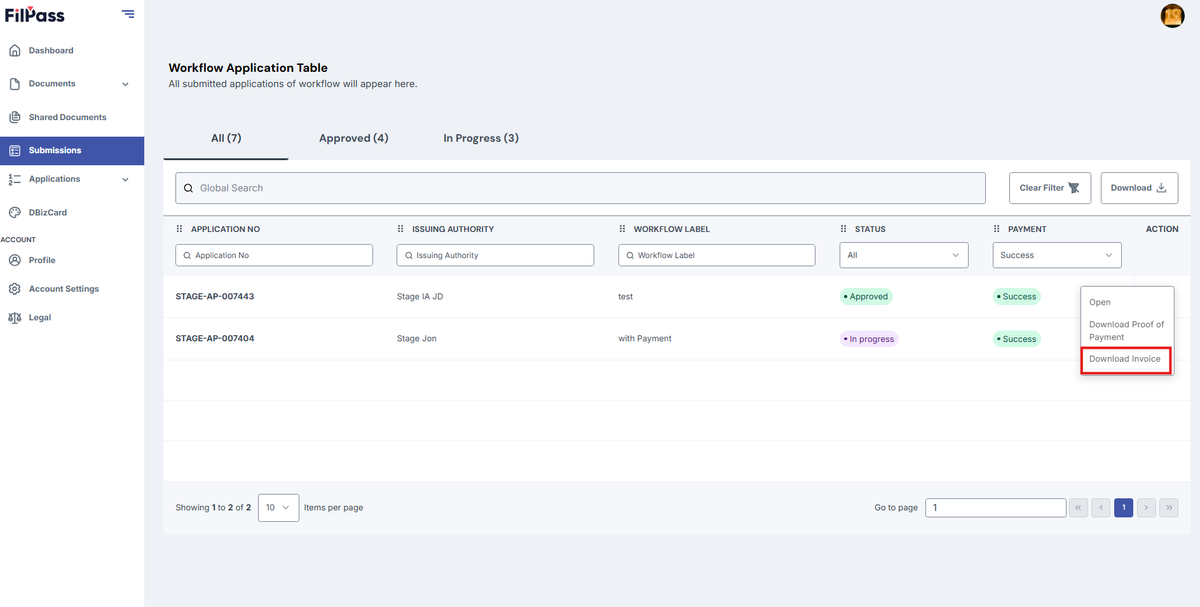
4. Click on Download Invoice button.

Image of Applications page with the Download Invoice button highlighted in a red box

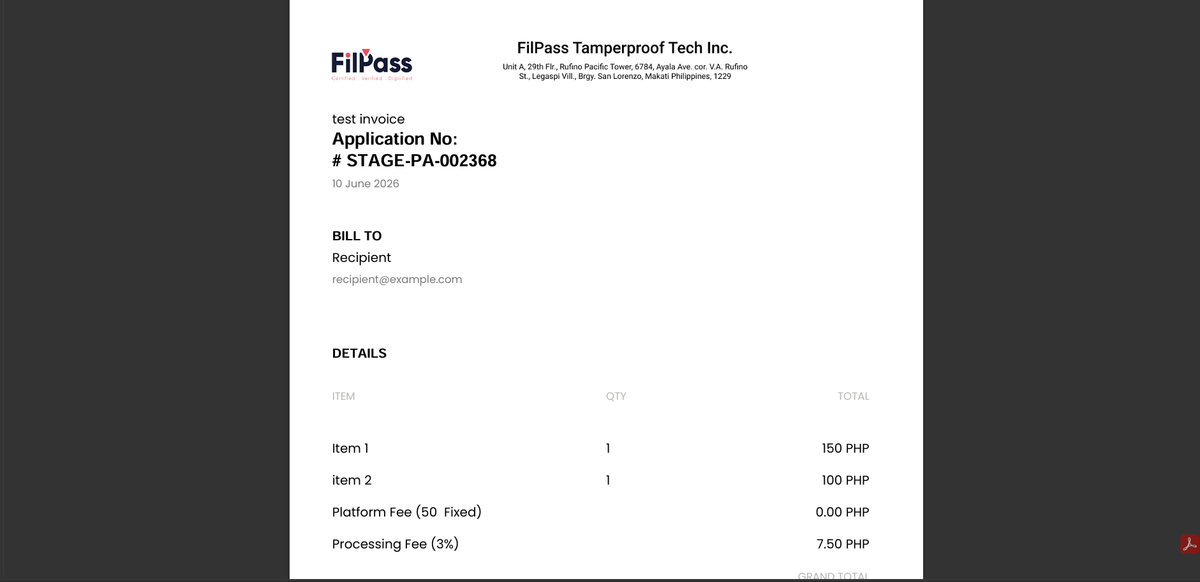
5. In the Invoice preview, you can click on Download button to get a downloaded copy of your invoice.

Image are highlighted for Download

6. A Success message will pop up to confirm that your Invoice is now downloaded.
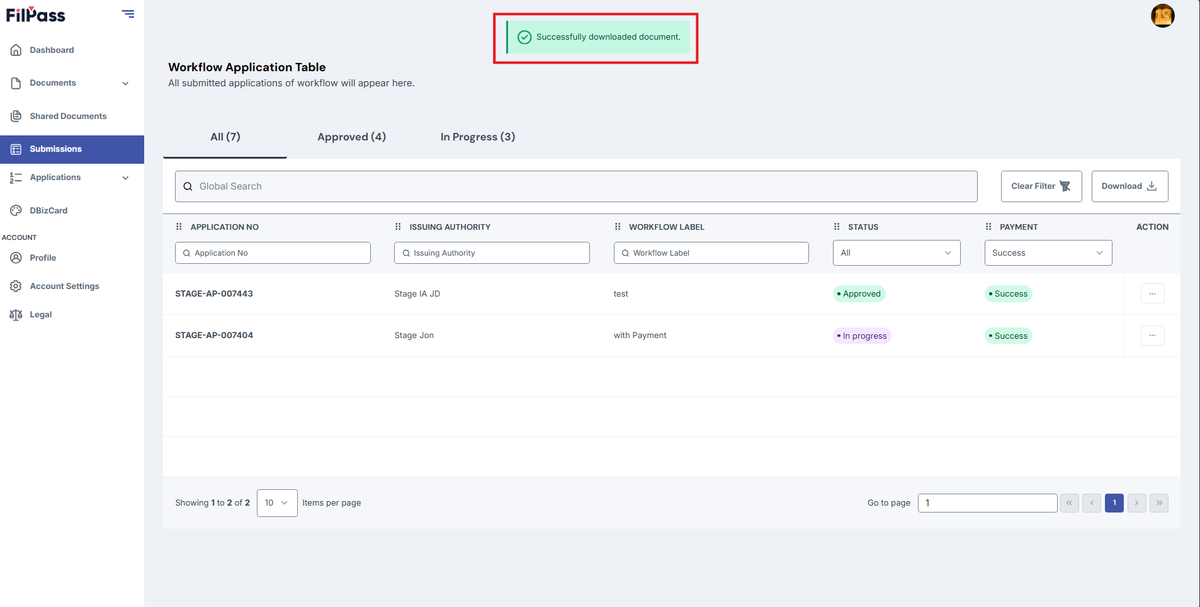
Image of the Invoice window with the success message "Invoice successfully downloaded." highlighted in a red box

Related Articles

RecipientRecipient

How to Change Password?

This section allows users to reset or change their password if they have forgotten it, to ensuring continued secure access to their account.

how-torecipient
04 Feb 202613 views
RecipientRecipient

How to Download Documents

This section shows how you can download your digital ID or documents from FilPass.

how-to
12 Feb 20267 views
RecipientRecipient

How to Revoke Shared Status

This section explains how to revoke the shared status of your shared documents.

how-to
11 Feb 20264 views