

How to Map a Template?
Template Mapping is important because it allows the template to use the appropriate email template and verifier for the recipients. If not mapped, the user will not be able to use the template for issuing.
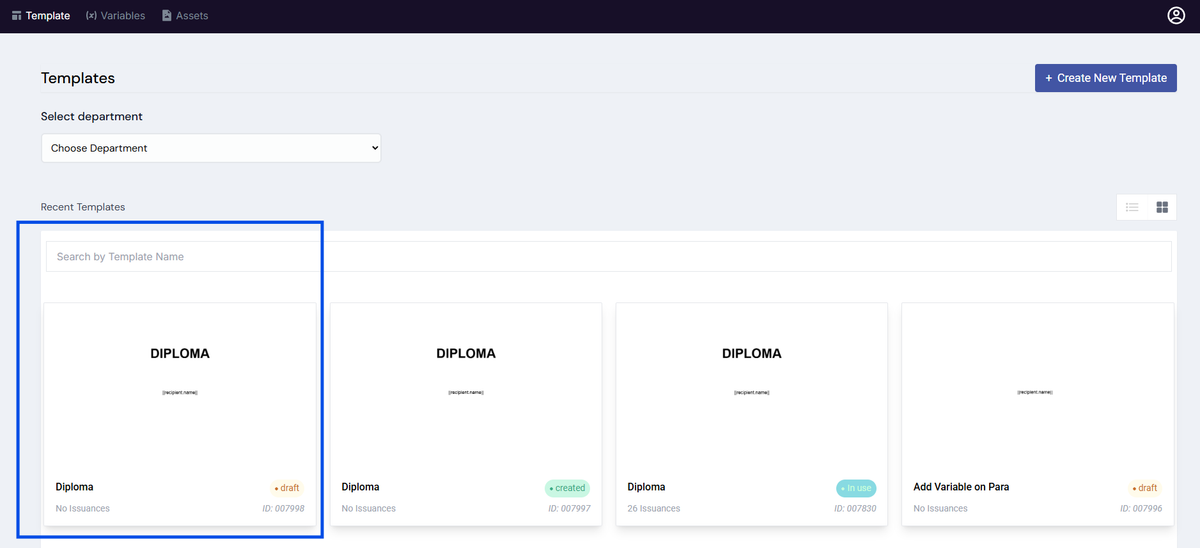
1. First, go to the Template Design, on the dashboard, click on your draft template.
2. Click the Publish
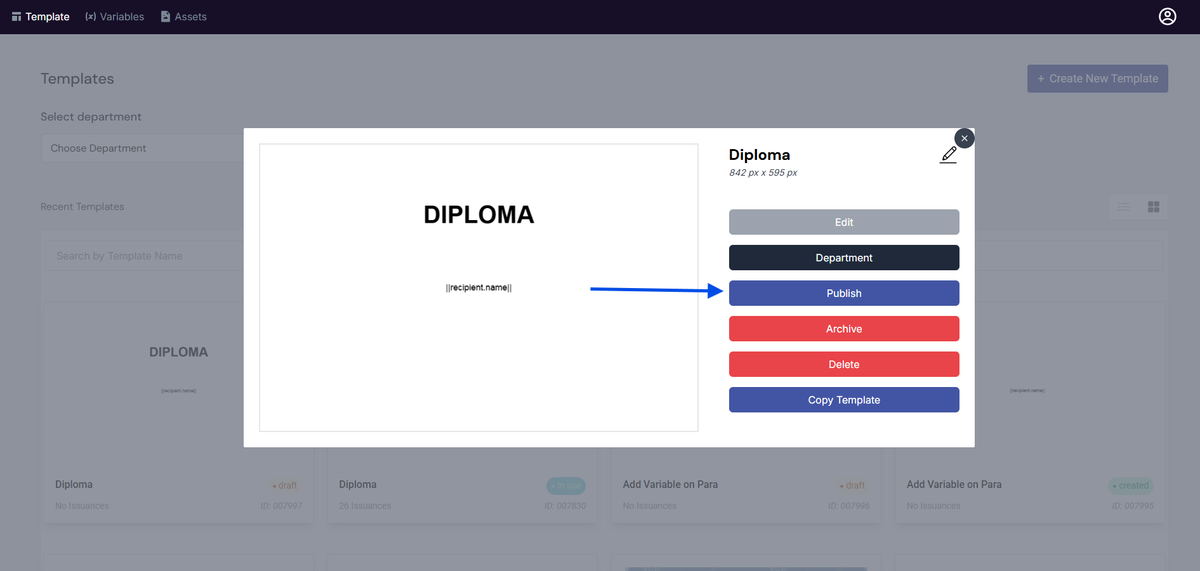
Note: If you have closed the window after publishing the Template, you can still go back and continue to Map the template.
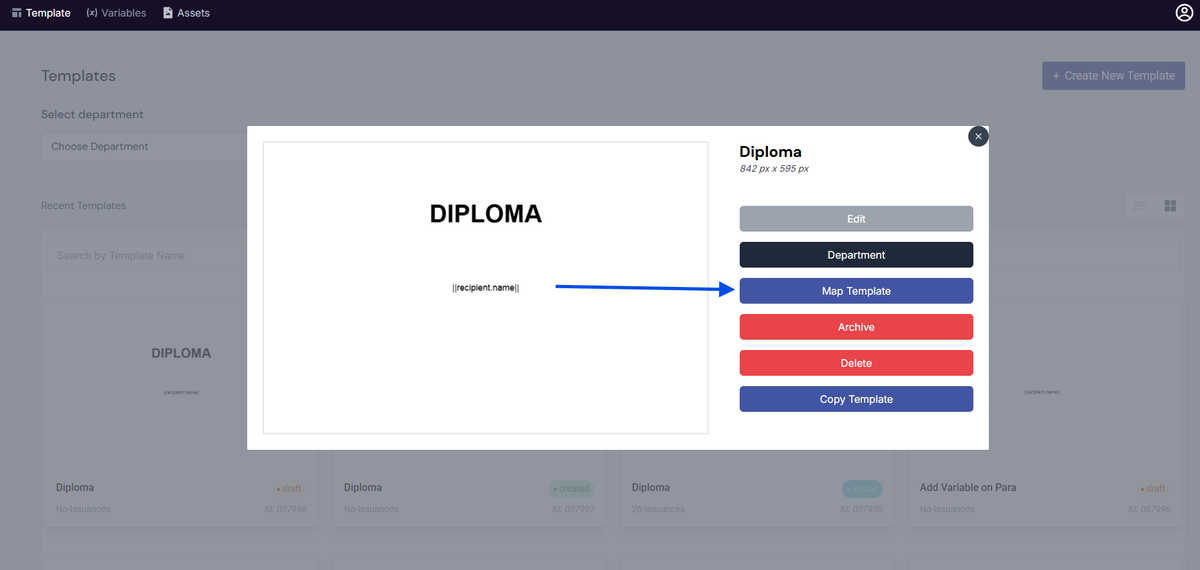
3. Set the desired setting of the email template and verifier
If you do not know your desired map settings, follow the value below:
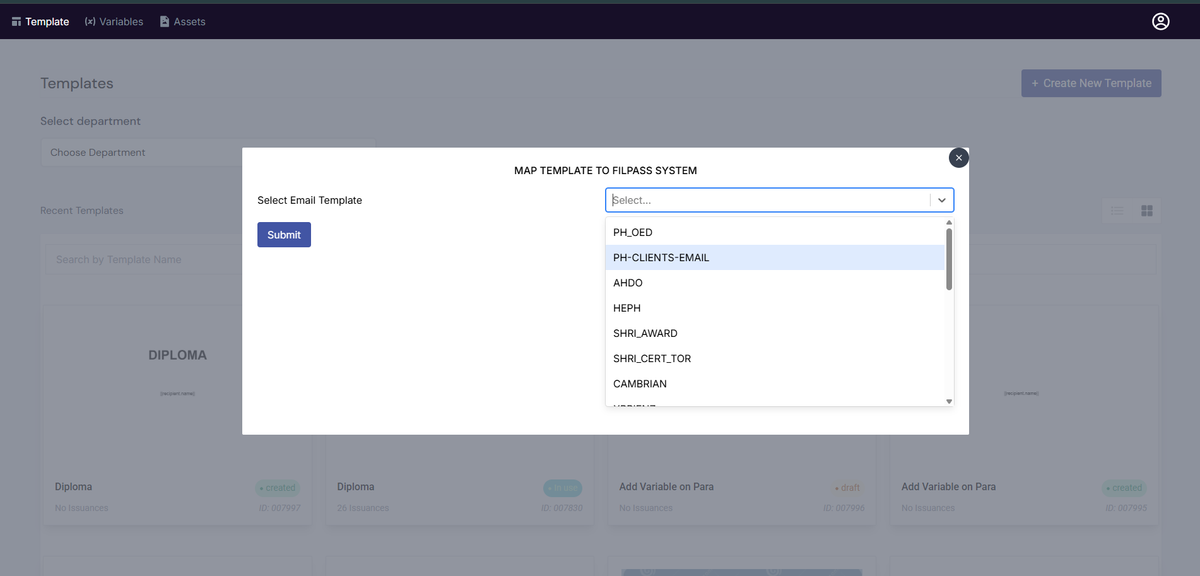
4. Click Submit
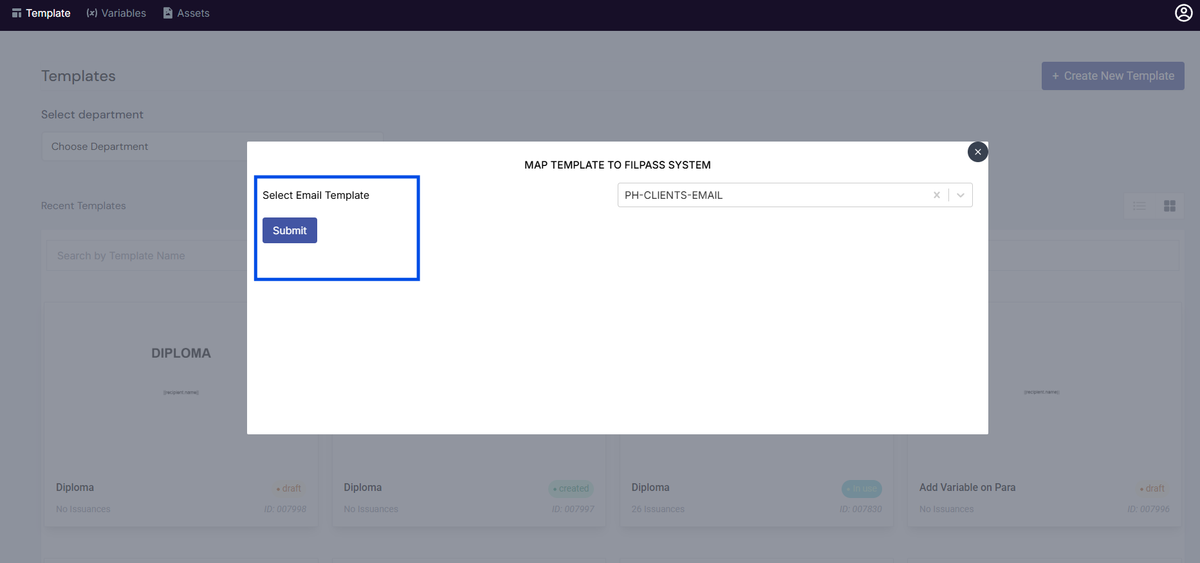
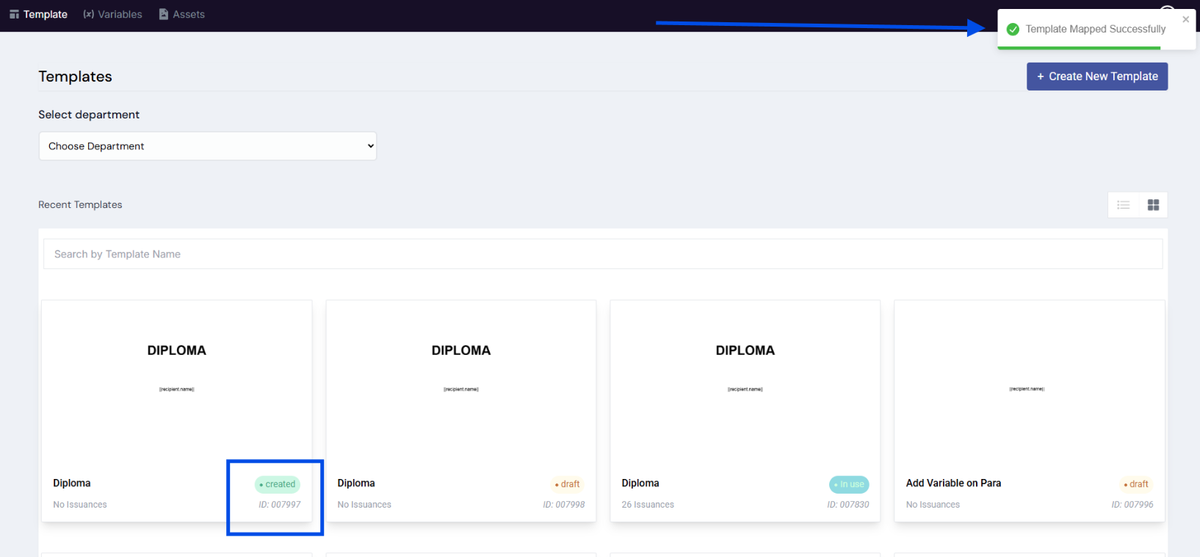
5. After clicking submit, it would show a message “Template Mapped Successfully”. To verify, continue with the next step.
Notes:
- Mapping is required before a template can be used for issuance.
- You can map a template immediately after publishing or at a later time.
- If a template is not mapped, it will not be available for use in issuance.
Was this helpful?