

How to Create a Template
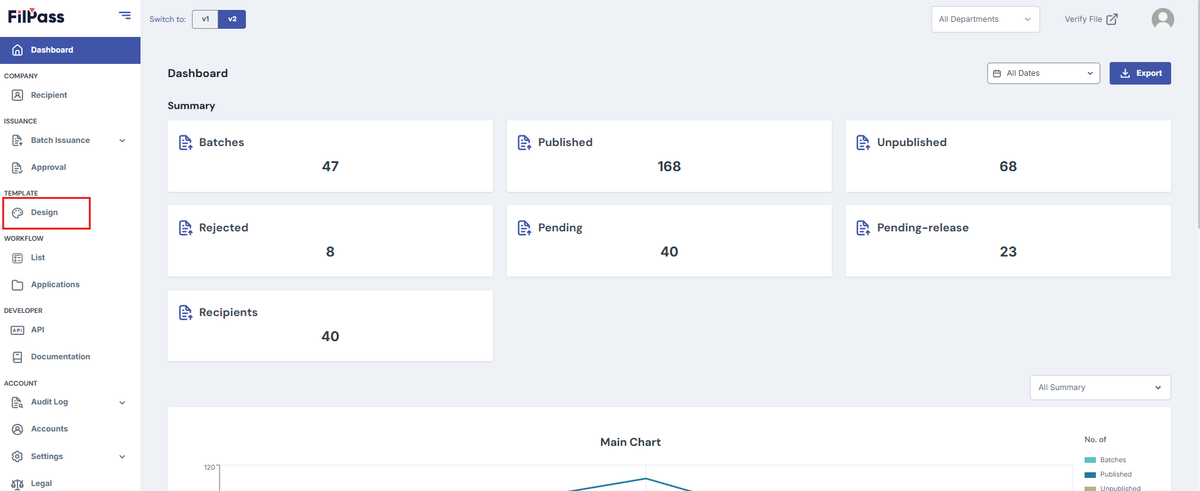
1. Go to the Template Design page by clicking on Design on the navigation bar.
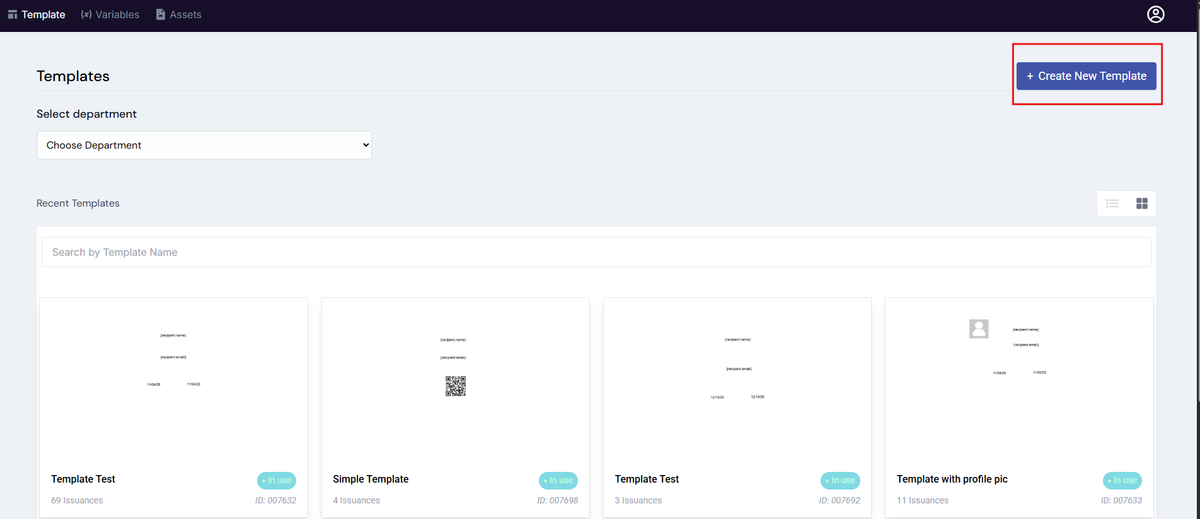
2. On the newly opened page, click on “Create New Template” button
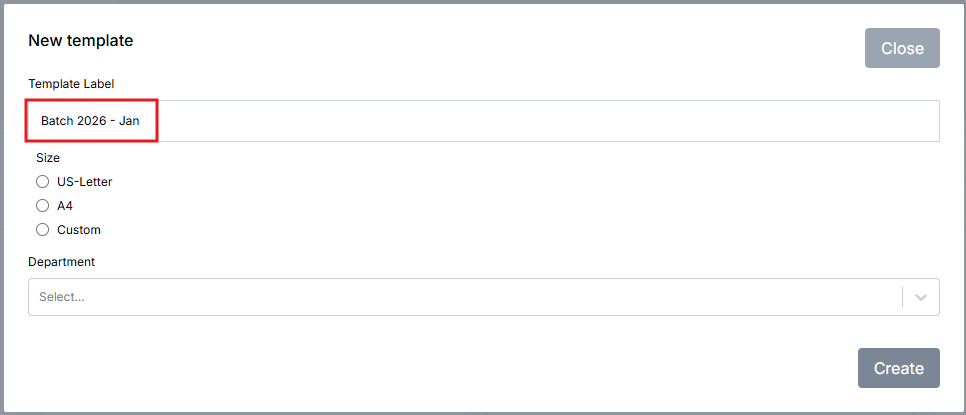
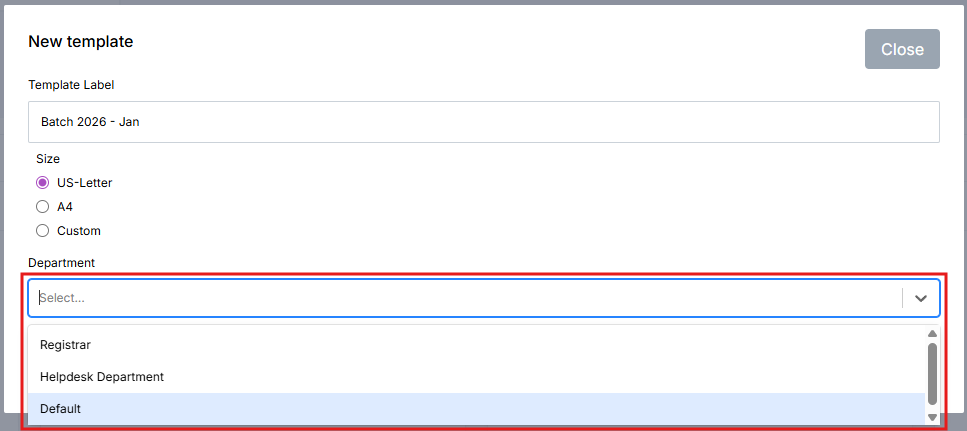
3. Under Template Label, Enter your Template Name
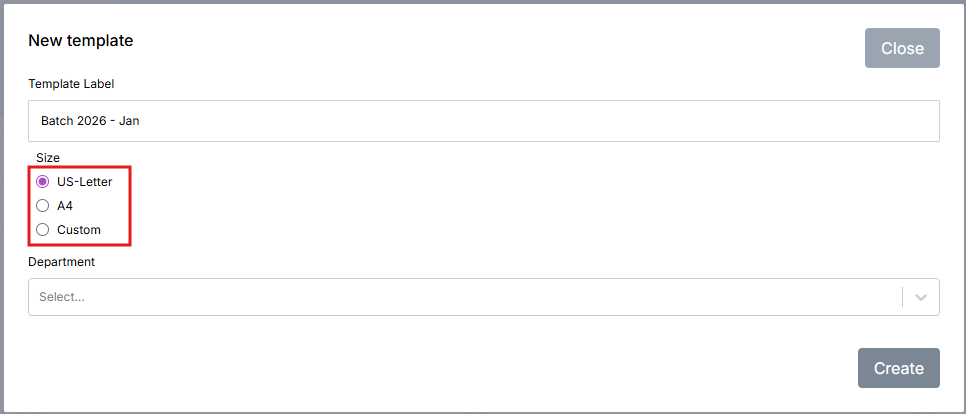
4. Select the appropriate size for your document.
5. Under Department, select which Departments will the Template be visible to.
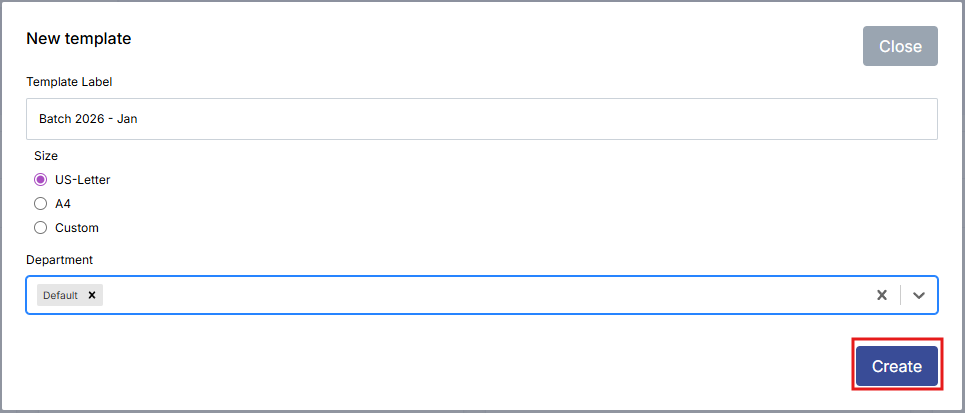
6. Click “Create” button.
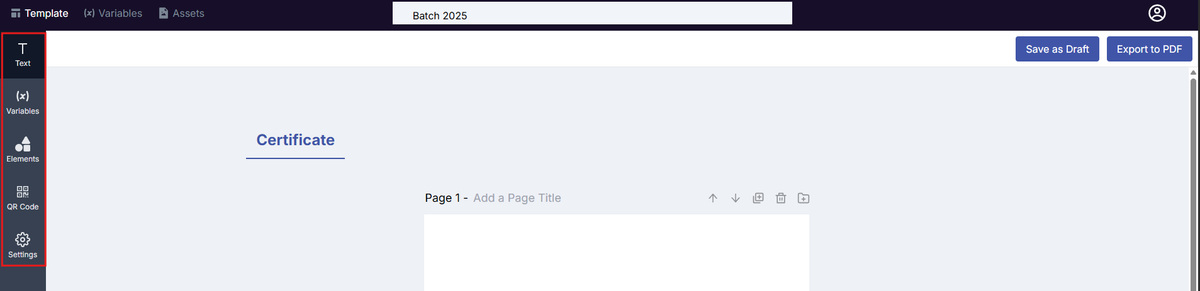
7. From the current page, you can add Text, Variables, Elements, QR Code/s and change the Settings of your document. There is also the option to make your document Flippable or make it a Digital badge from here.
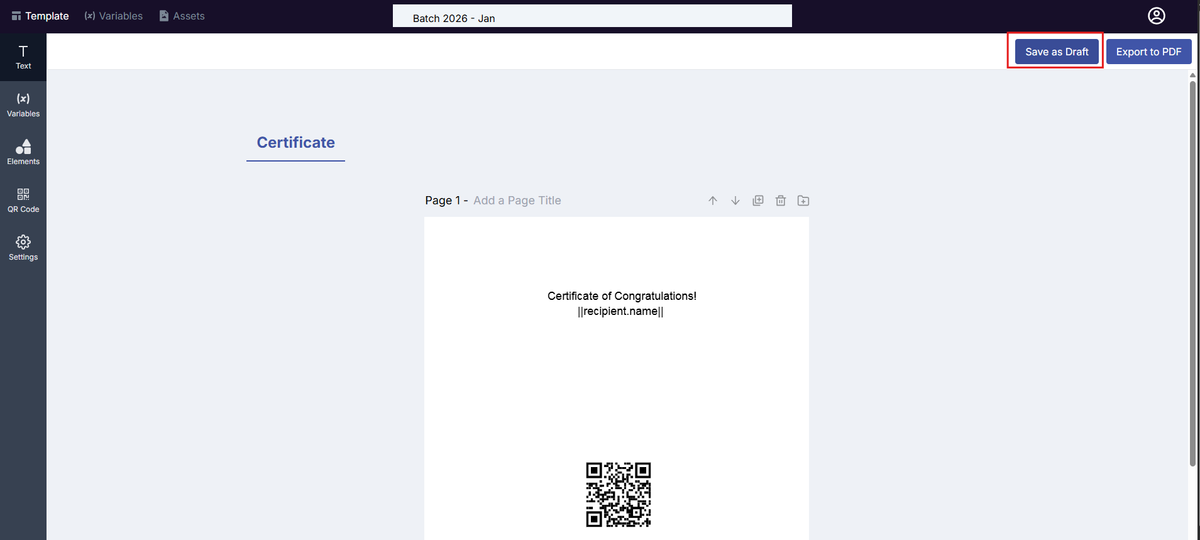
8. When you’re done designing your document, click on the “Save as Draft” button to save your Template to save your document.
Was this helpful?