

How to Archive and Unarchive a Template
- Log in to the FilPass System using your Issuing Authority (IA) account.
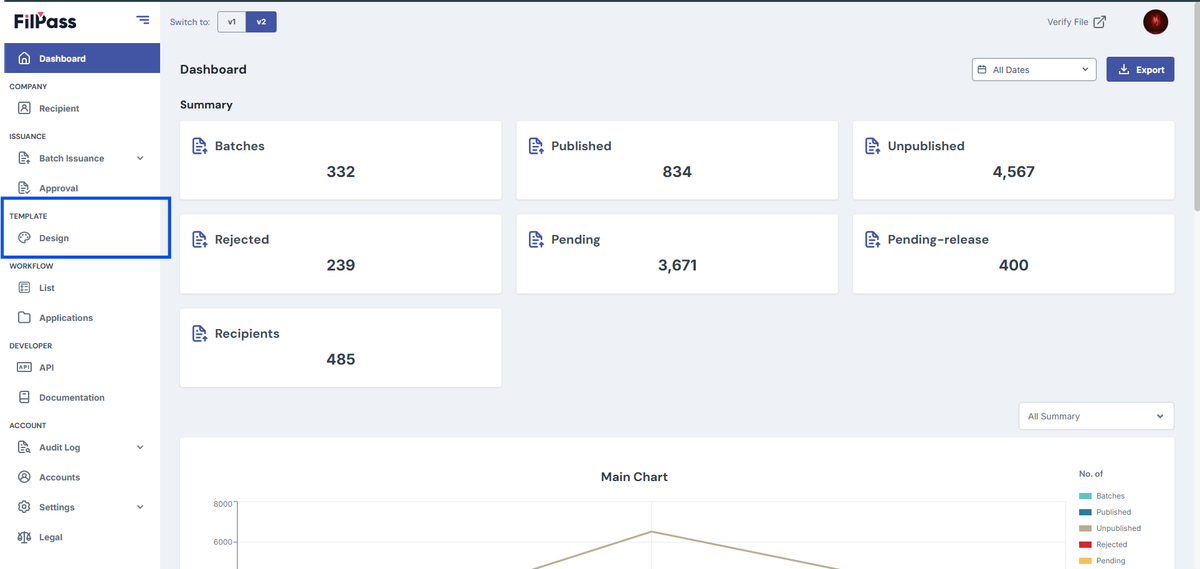
- From the left sidebar, click Design under the Template section.
- Note: The Template Design module will open in a new browser tab.
3. Locate the template you want to archive or unarchive from the list.
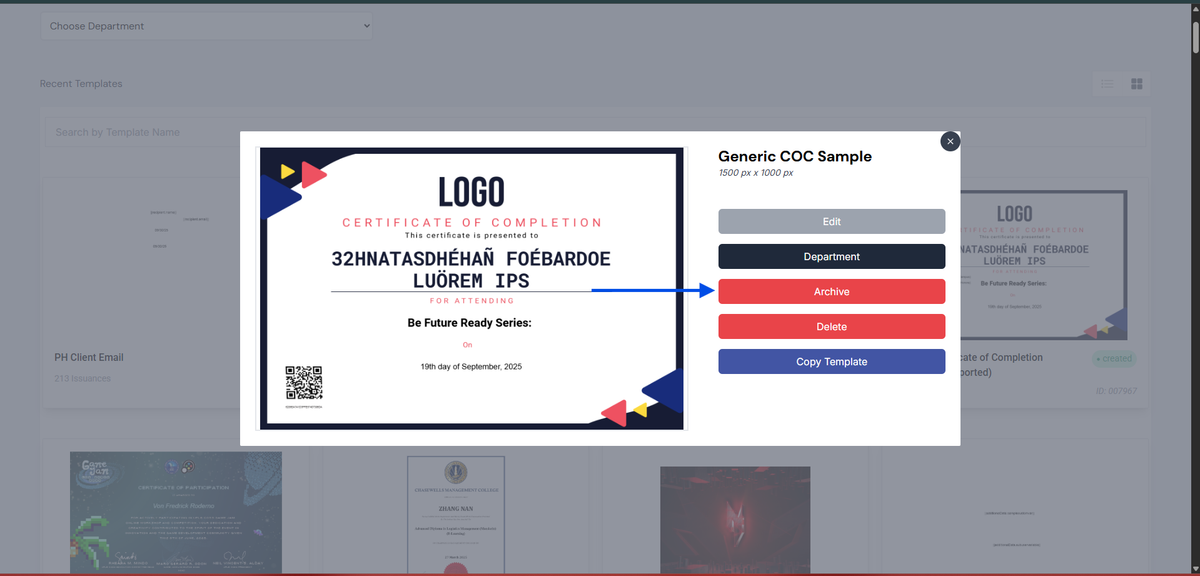
4. Click the template to open its options.
5. Select Archive to archive the template, or Unarchive to restore it.
Notes:
- You can archive templates with Draft, Created, or In-use status.
- Archived templates will not be available for use in issuance.
- Unarchiving a template will make it available again based on its status.
Was this helpful?