

What is the Approval Module?
This section provides a detailed navigation of the Approval Tab
1. Navigate to the Approval Tab
- Click on the Approval Tab on the Side Navigation bar
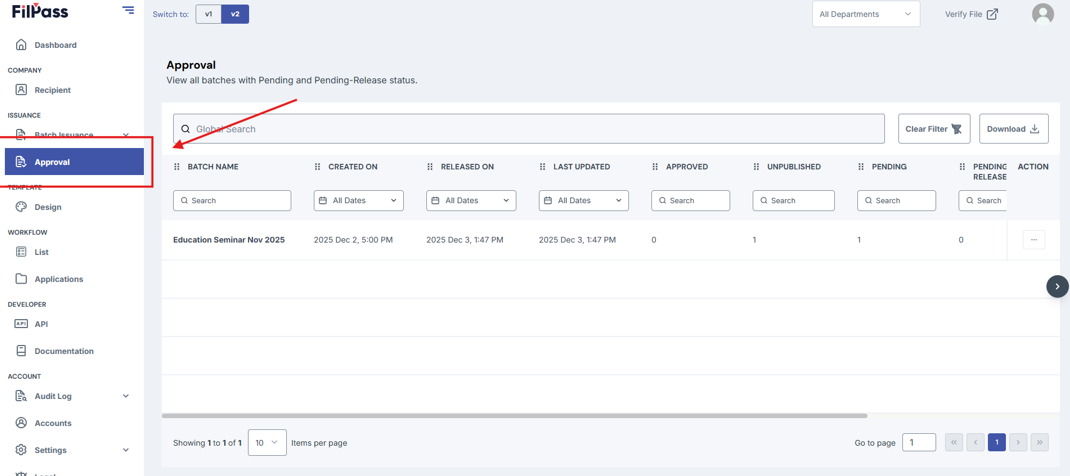
- You can now see the Approval Tab
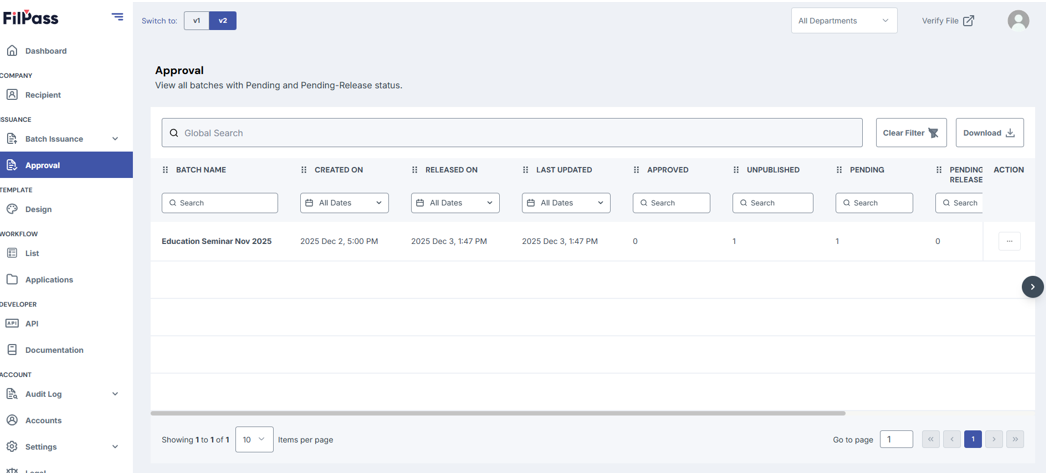
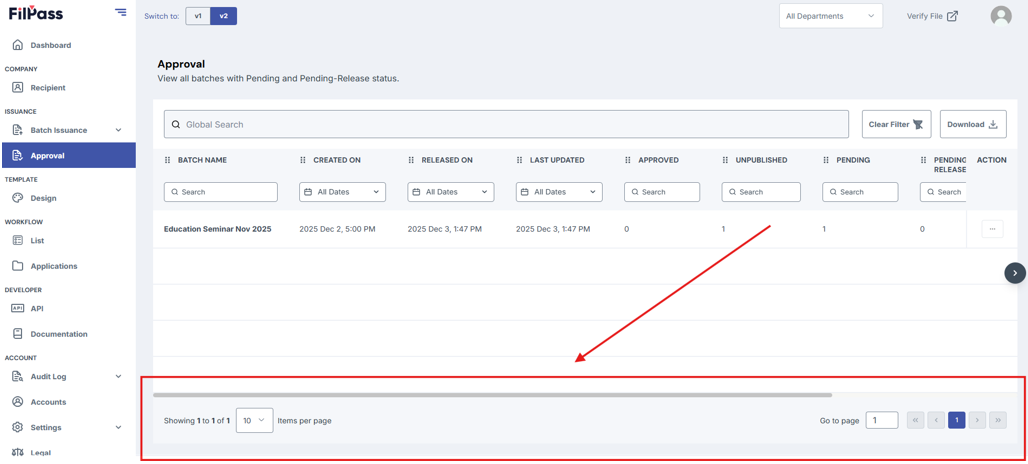
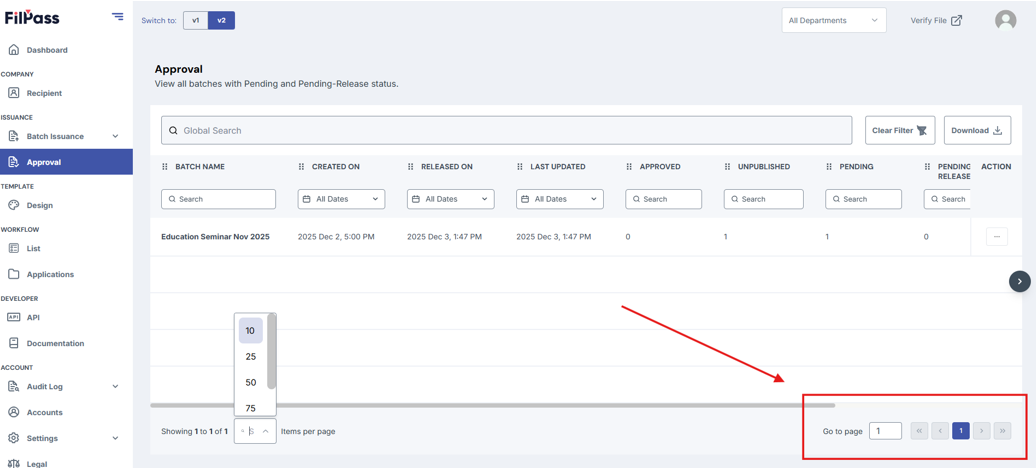
2. Using the pagination of the Approval Tab
Turn your attention to the lowest part of your Approval page.
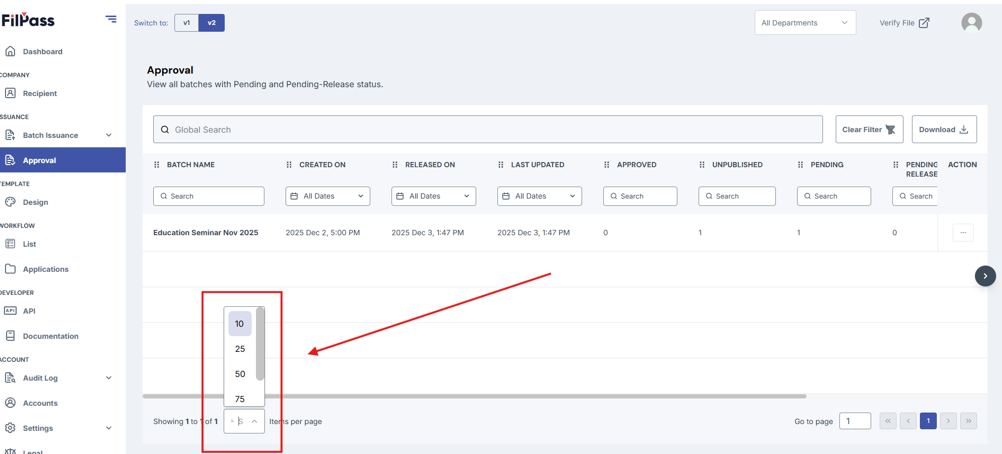
- Changing the number of Approvals per page
- Press the dropdown icon on the lower left

- Choose from the available options for the number of items you wish to have per page
- 10
- 25
- 50
- 75
- 100
- Switching between Pages
To switch between pages, look to the lower right. Press the navigation arrows or type the pages.
3. View Batch
Accessing these actions lets you easily see the issuances that have Pending and Pending-Release statuses for easy approval / rejections instead of going through the whole process of going to the Documents Tab of a Batch Issuance.
Tabs for View Batch
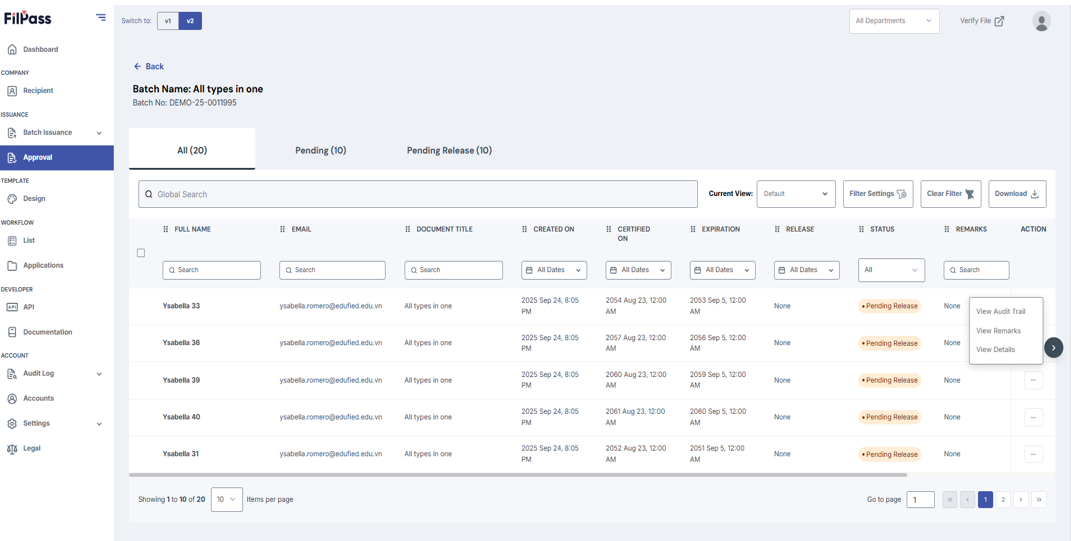
- All: Shows all documents for that specific Batch Issuance
- Actions:
- View Audit Trail: Views the audit trail of the document
- View Remarks: Views the remarks left by the Issuing Authority and the System for that document
- View Details: Views complete details of the document
- Actions:
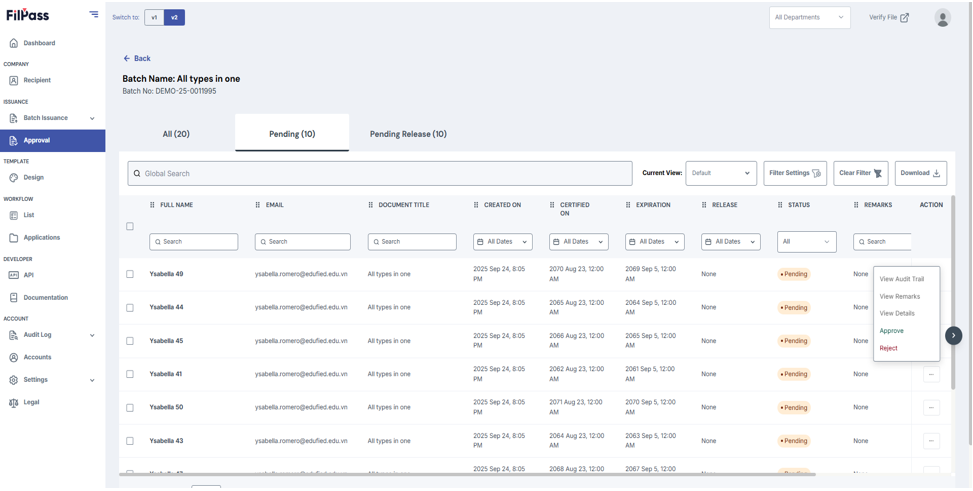
- Pending: Shows all documents for Pending Batch Issuances
- Actions:
- View Audit Trail: Views the audit trail of the document
- View Remarks: Views the remarks left by the Issuing Authority and the System for that document
- View Details: Views complete details of the document
- Approve: Approves the document
- Reject: Rejects the document
- Actions:
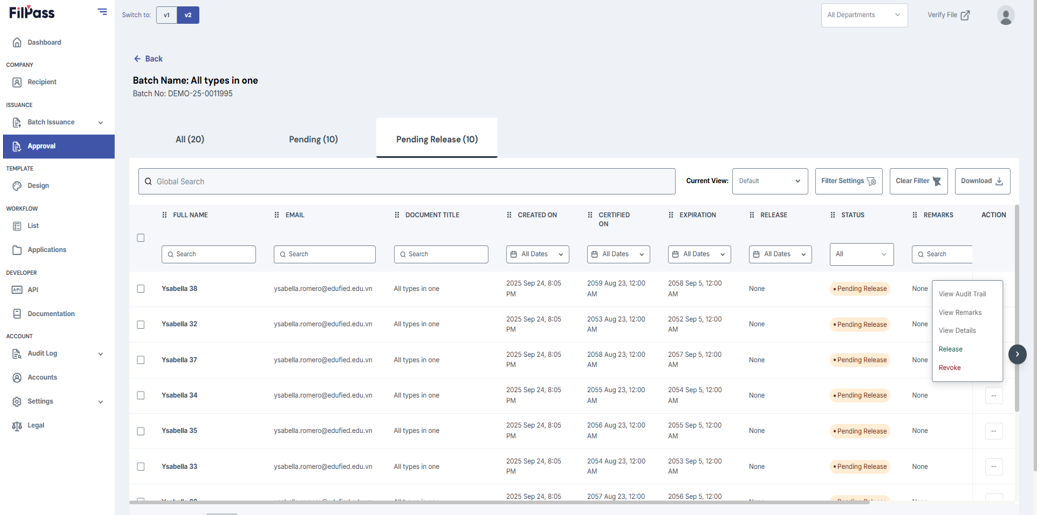
- Pending Release: Shows all documents for Pending Release Batch Issuances
- Actions:
- View Audit Trail: Views the audit trail of the document
- View Remarks: Views the remarks left by the Issuing Authority and the System for that document
- View Details: Views complete details of the document
- Release: Releases the document
- Revoke: Revokes the document
- Actions:
Was this helpful?