

What are the Types of Approval?
This section provides information using Approval Type in Batch Issuance.
Approval Type allows you to assign approvers to a batch so that it would only get released or sent to the Document Release Controller after the issuance passed through all of the approvers.
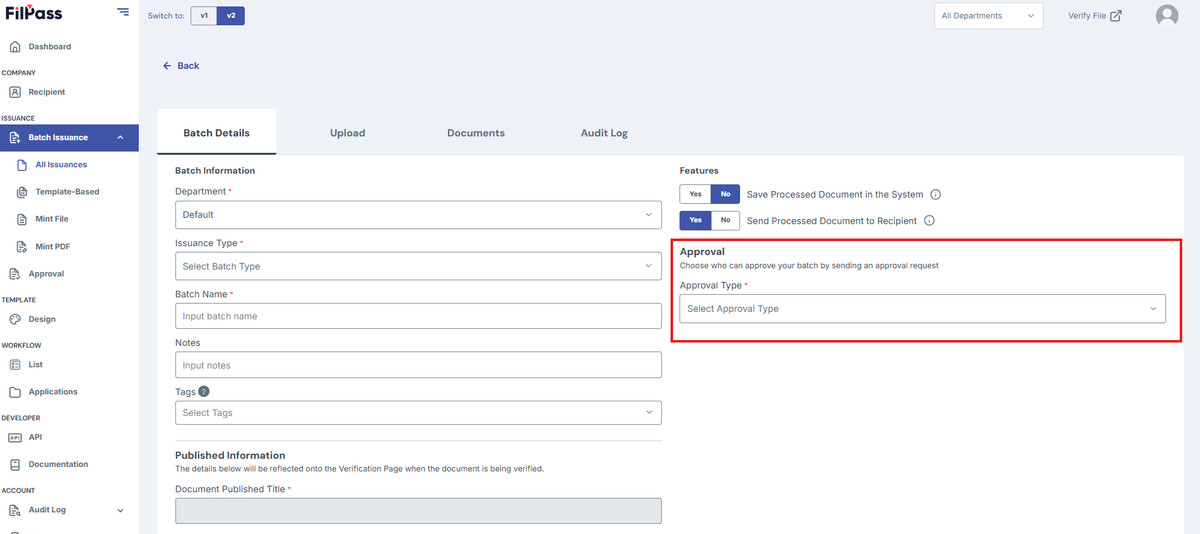
1. Locate Approval Type
- It is always located beneath the features area.
2. Determine your Approval Type
Determine what approval type you want to use.
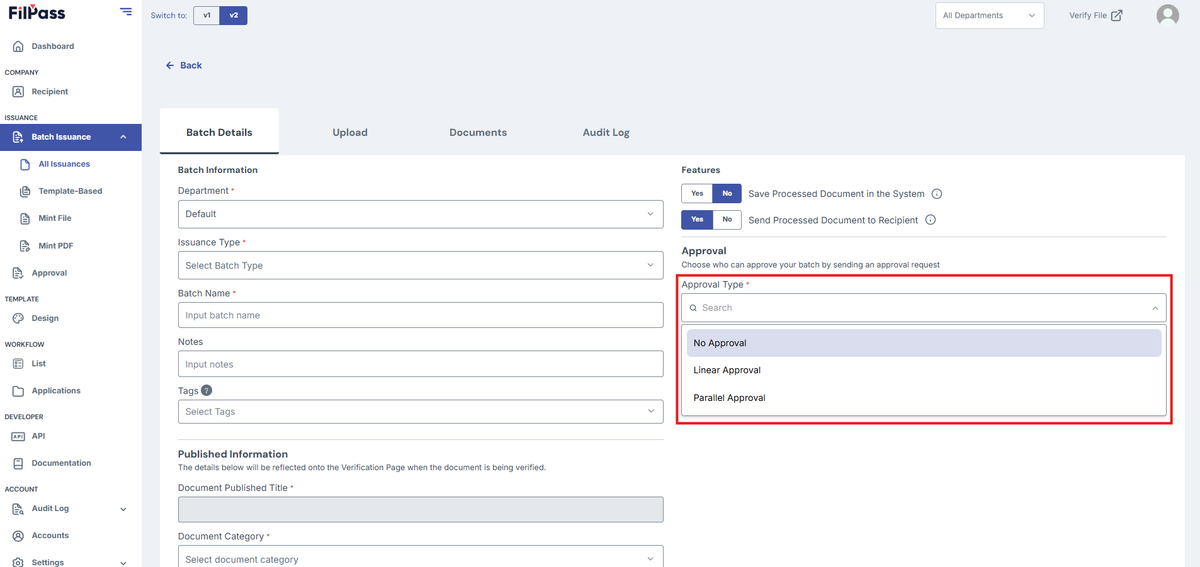
- In the Approval Type drop down, select one of the following:
- No Approval - No approval is required for this Batch Issuance; all documents uploaded are automatically considered approved.
- Linear Approvals must be done by the first approver followed by the next, in sequence.
- Parallel Approval - Approvals may be done in order.
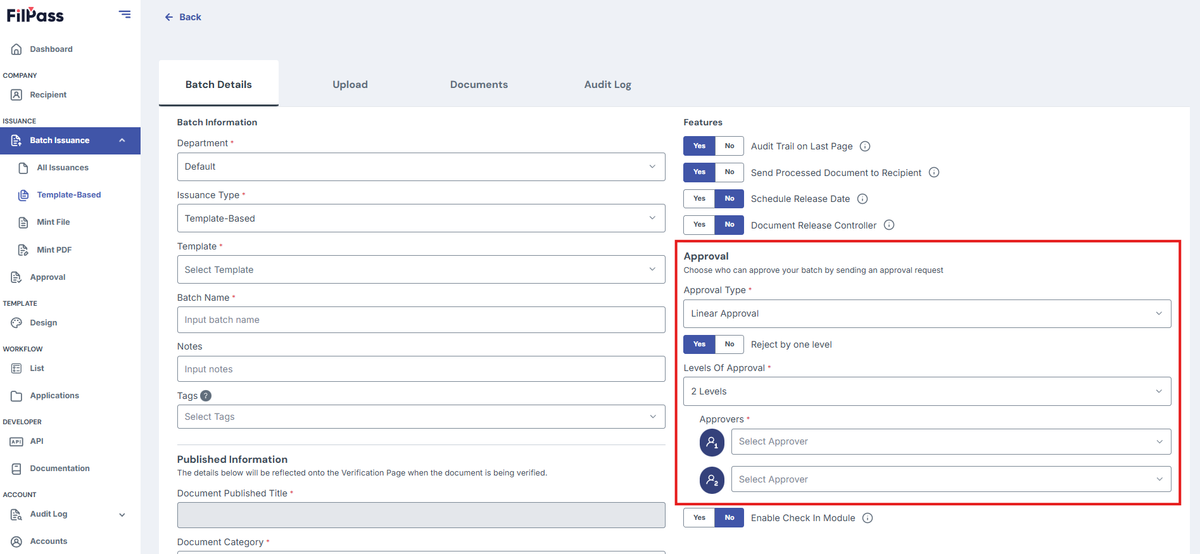
- If you choose Linear Approval, you also have a feature called Reject by one level.
- No: The issuance will be automatically rejected if one of the approvers rejects it.
- Yes: The issuance will return to the previous approver to approve again if one of the approvers rejects it.
- Proceed with your Issuance as normal.
3. Demo Approval
- Linear Approval
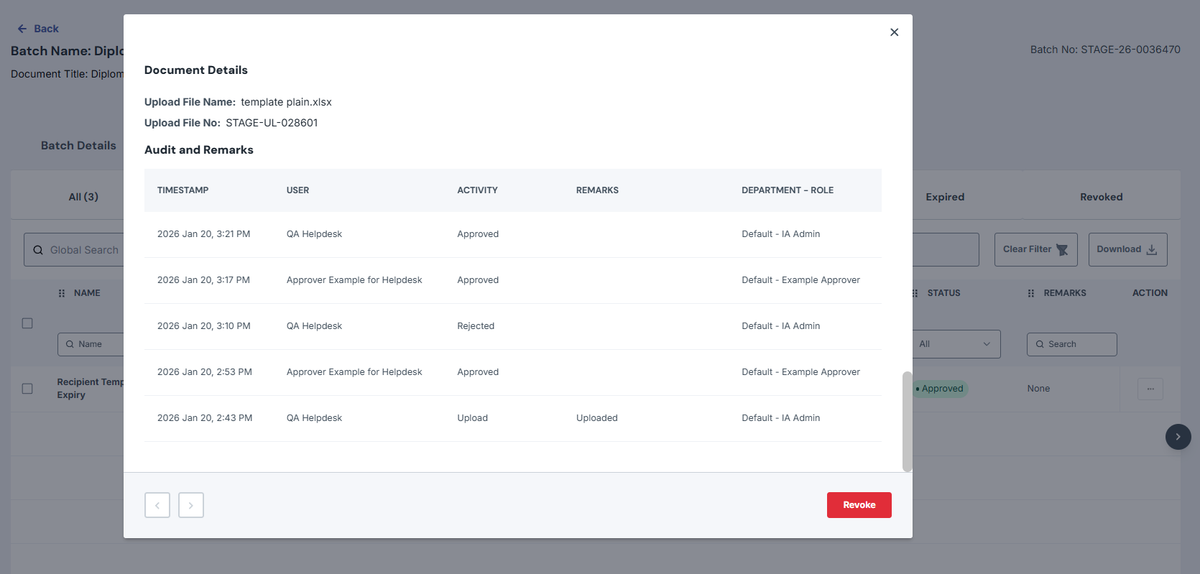
SCENARIO: You want to have Linear Approval with two Approvers and YES to Reject by One Level
- HOW TO DO THIS:
- Do the Batch Details as normal and set the Approval to Linear Approval and set two Approvers
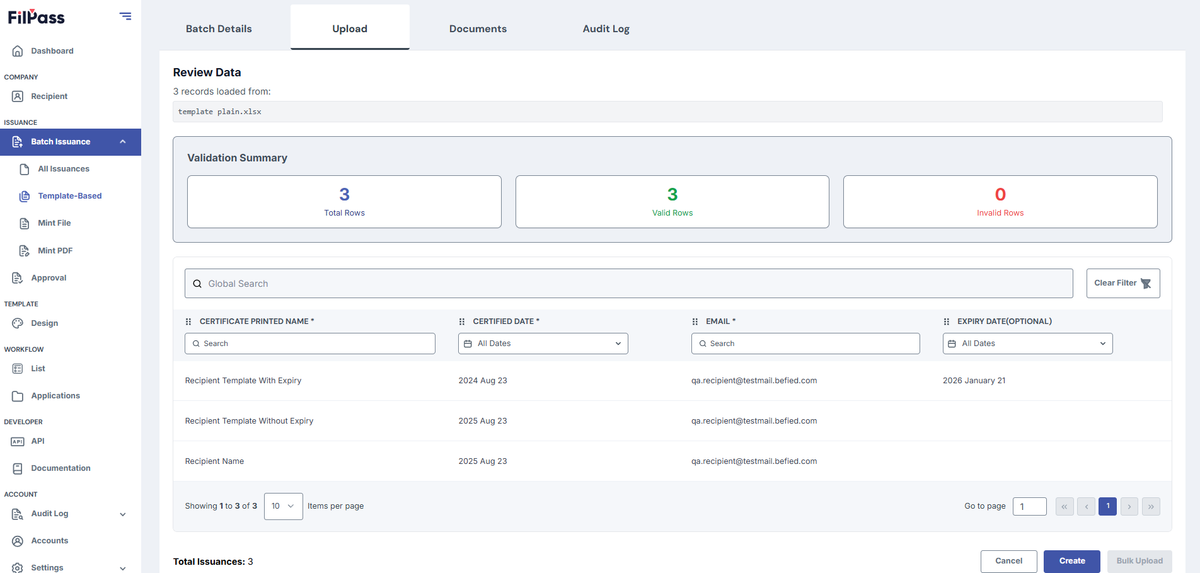
- Upload your template to be approved
- Since this is Linear Approval, it must go in order, so the first Approver (Approver 1) must approve it first.
After the first Approver (Approver 1) has approved the document, the Second Approver can now Approve it.
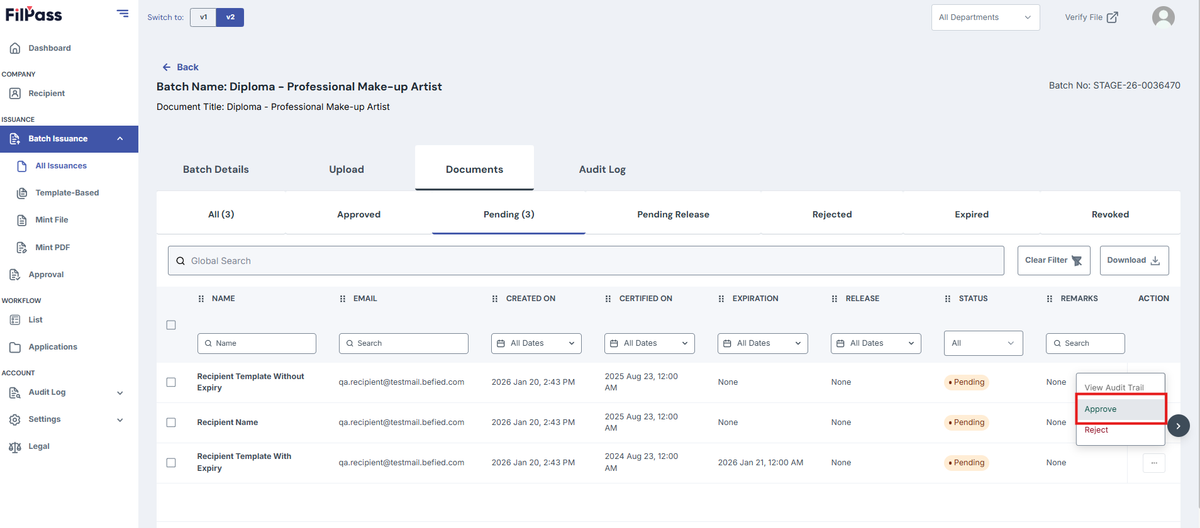
- If the Second Approver (Approver 2) rejects the document, it will return to the First Approver since you toggle YES to Reject by One Level. If Reject by One Level is set to NO, it will be automatically rejected completely otherwise.
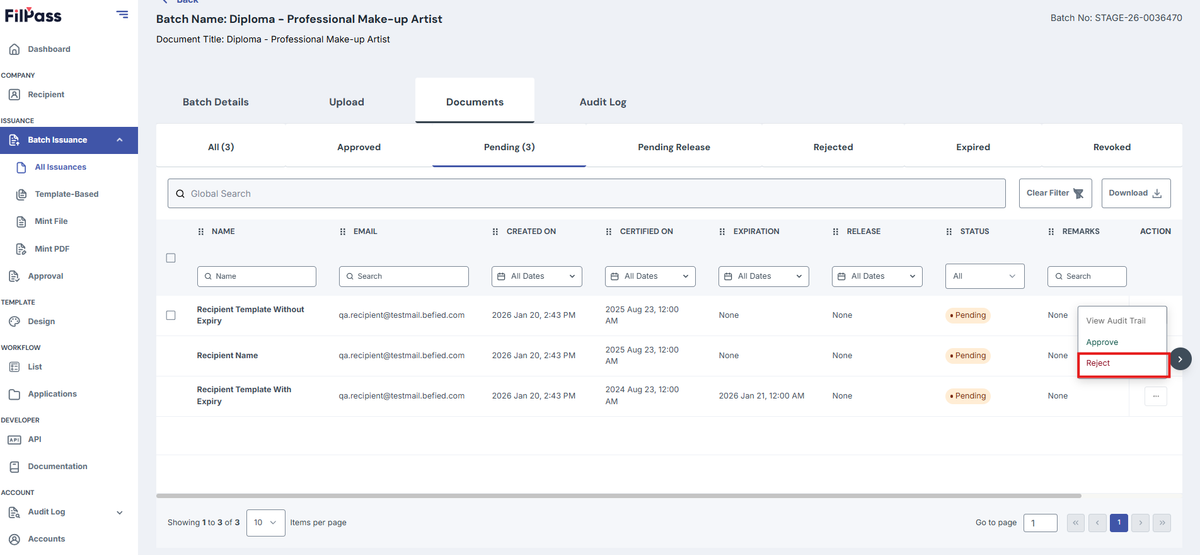
- The First Approver (Approver 1) has to approve it again if the Second Approver (Approver 2) rejects it.
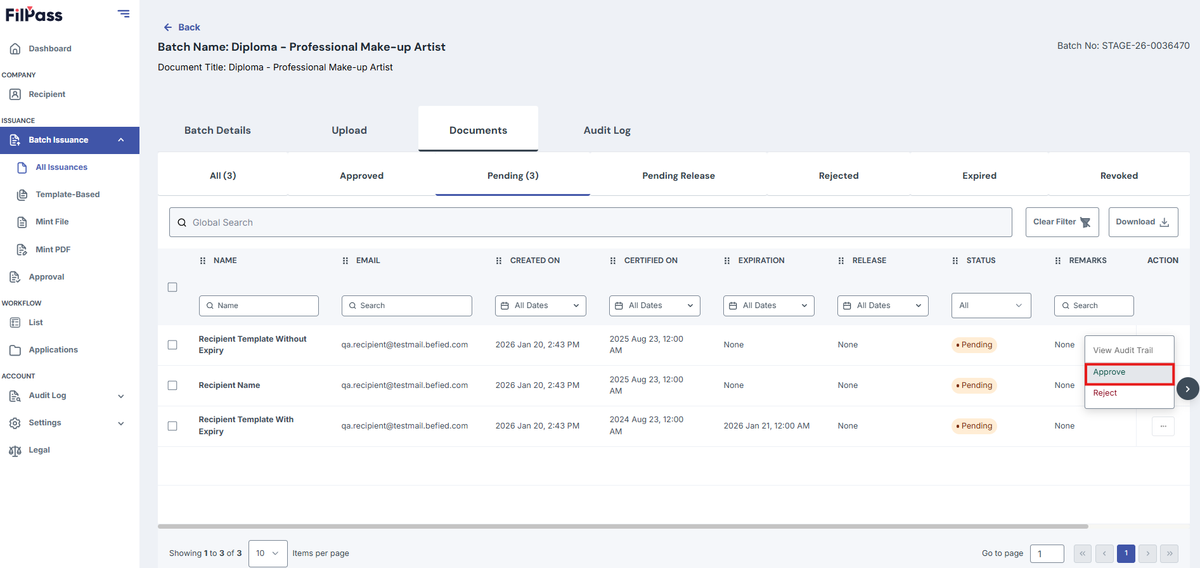
- The Second Approver (Approver 2) must approve it.
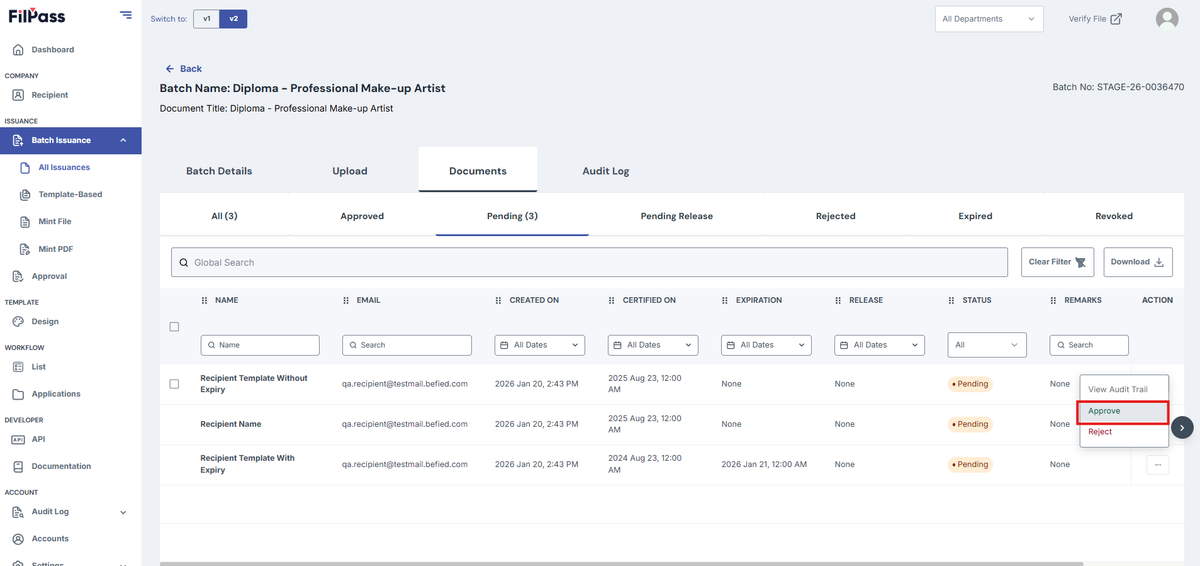
- Once the Second Approver has approved the document, it will be released.
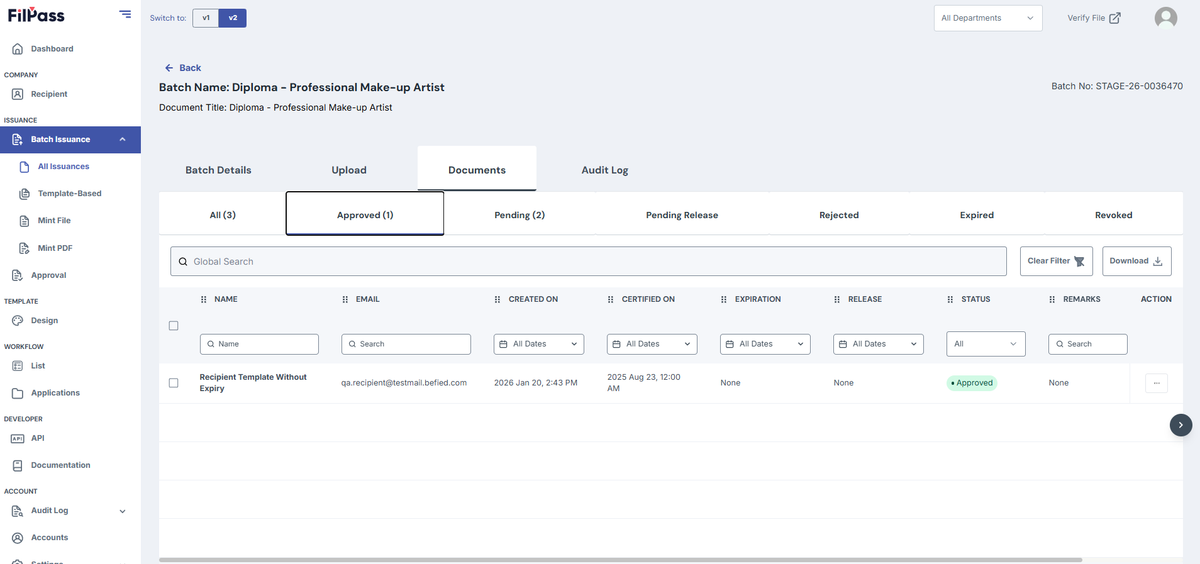
- Audit Trail of that document as reference of what happened in this demo
- Parallel Approval
SCENARIO: You want to have Parallel Approval with two Approvers
- HOW TO DO THIS:
- Do the Batch Details as normal and set the Approval to Parallel Approval and set two Approvers
- Upload your template to be approved
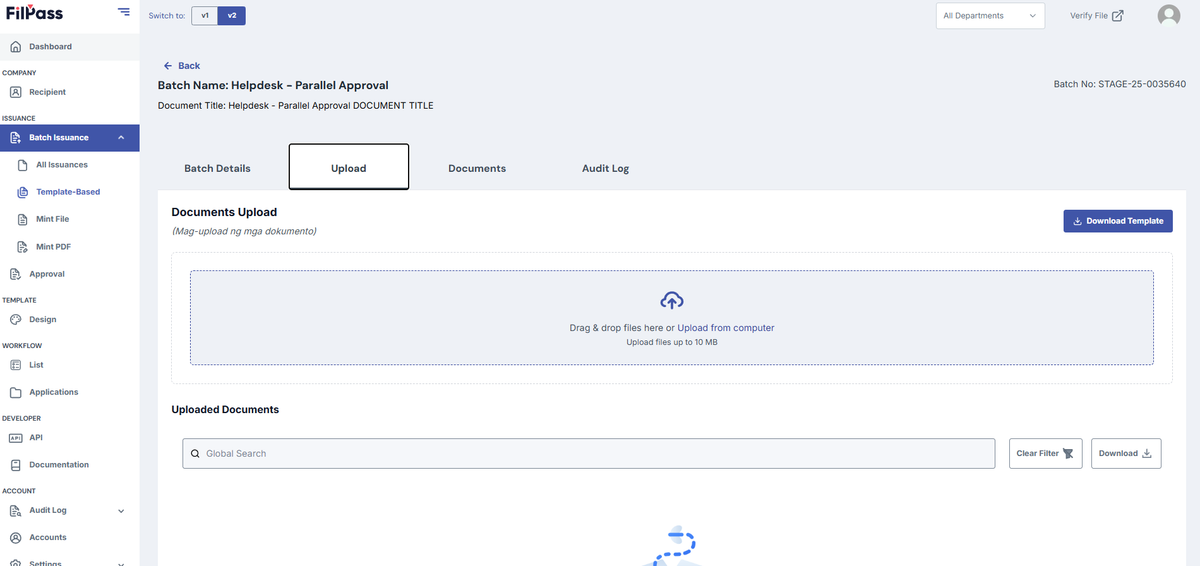
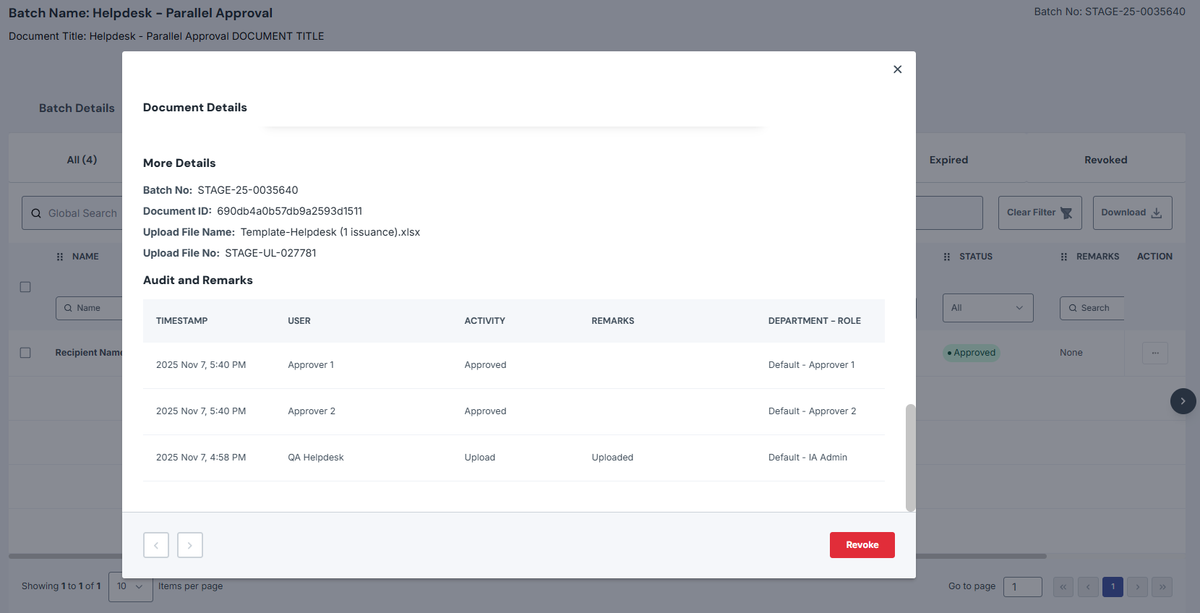
- Since this is Parallel Approval, any approver of any level can approve it first. In other words, it can be approved.
- For example, the First Approver can be Approver 2.
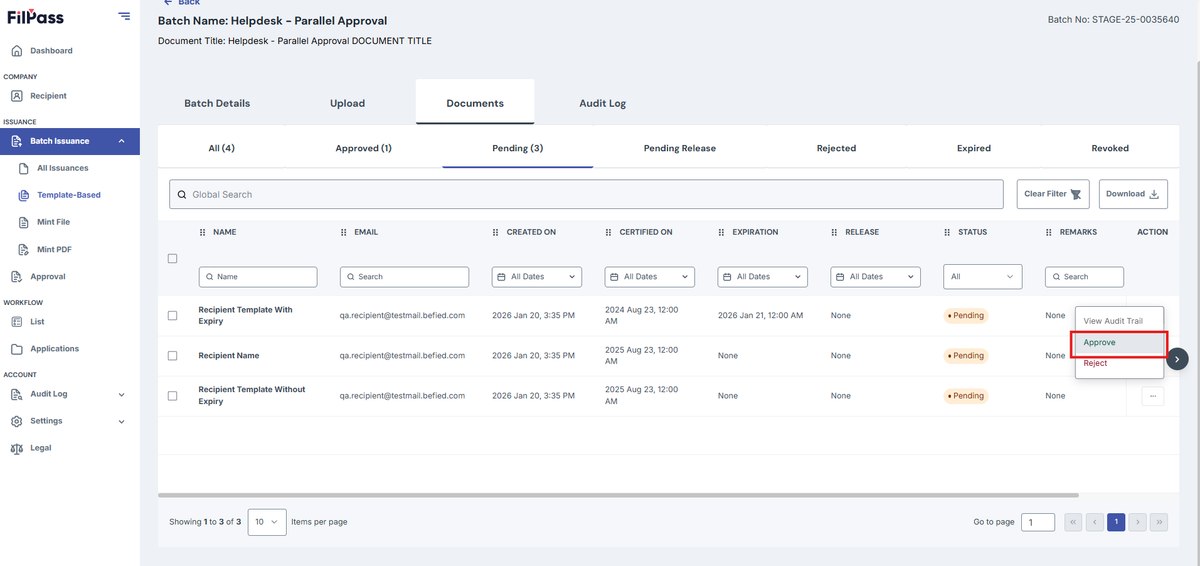
- And the Second Approver can be Approver 1.
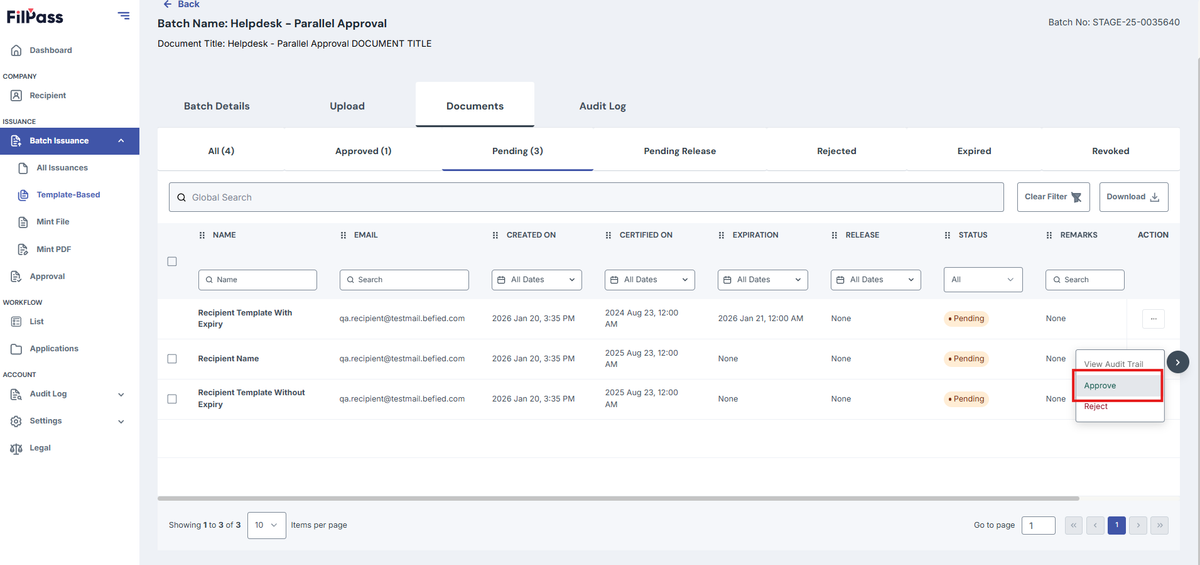
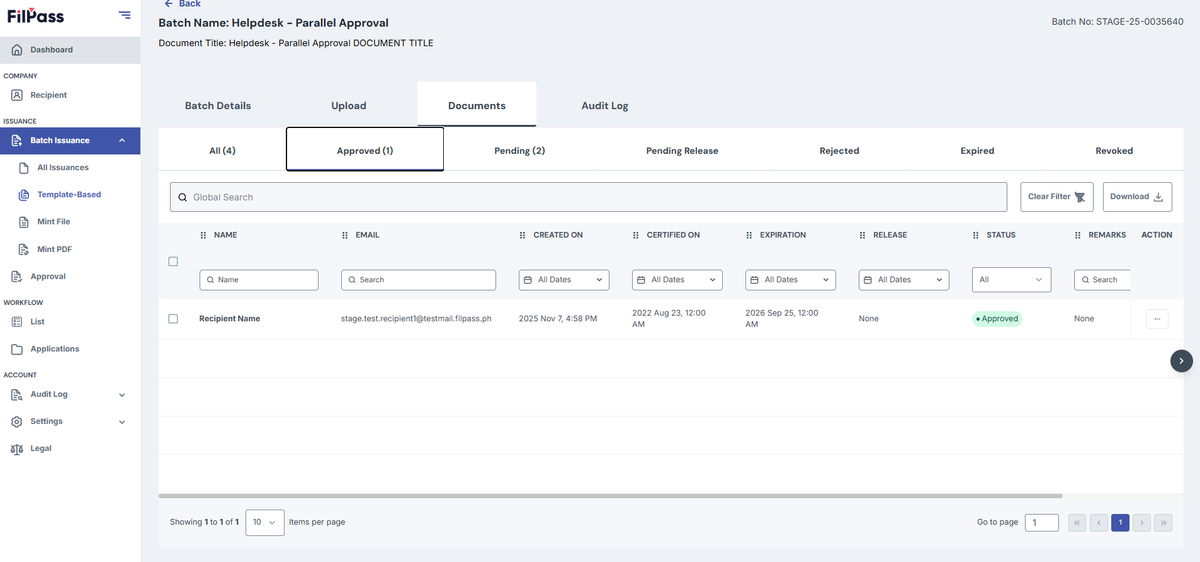
- Once it has been approved by all Approvers, it will be released
- Audit Trail of that document as reference of what happened in this demo
Was this helpful?