

How to Verify Email
This section explains how to verify your email address.
1. Enter your email address and password, then click Log In.
2. If there are no errors, a message will appear requesting that you verify your email address.
3. Check your email inbox. You should receive a message from FilPass with the subject “Your One Time Password (OTP) Code from FilPass.
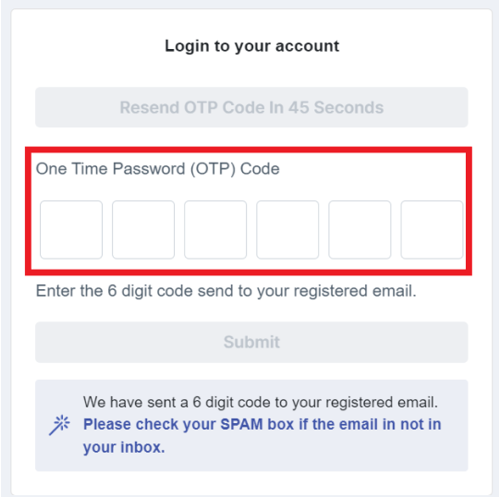
4. Copy the OTP code and paste it on the login page.
5. You are now logged into your account.
Note: For creating a new Issuing Authority (IA) with Client Support (CS) in Demo Environment, please contact the QA department to add the verifier to their accounts.
Was this helpful?