

How to Download the OpenCerts File (Recipient)
When you receive your digital certificate from the Issuing Authority, the email will include the necessary files required for verification. This guide explains how to download the OpenCerts file to verify your certificate.
Step-by-Step Instructions
Step 1: Open the Email from the Issuing Authority
Go to your inbox and locate the email sent by the Issuing Authority.
The email subject may reference your certificate or document issuance.

Step 2: Locate the Attachments
Upon opening the email, you will see two attachments:
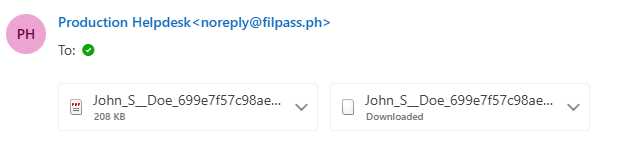
- PDF file – A readable copy of your certificate
- OpenCerts file (.opencert) – The digital verification file
Step 3: Download the OpenCerts File
To verify the authenticity of your certificate:
- Click on the OpenCerts attachment (not the PDF).
- Download the file to your device.
- Save it in a secure location.
Important: The PDF is for viewing purposes only. The OpenCerts file is required for digital verification.
Why Download the OpenCerts File?
The OpenCerts file contains the web3 verification data that proves your certificate is authentic and issued by a recognized authority.
You will need this file when uploading to OpenCerts verification platform.