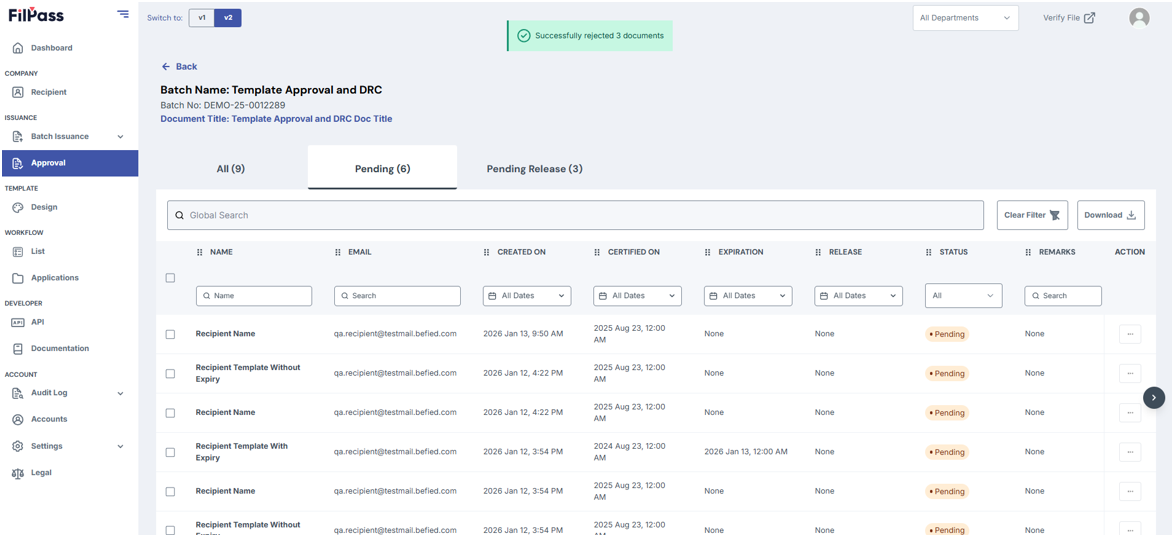
How to Bulk Reject Documents?
There are two ways for an Issuing Authority to reject documents.
- Through the Documents tab of a Batch Issuance
- Through the Approval tab in the Navbar
1. Go to your preferred batch with a Document Release Controller to download your document by clicking on the “Action” button
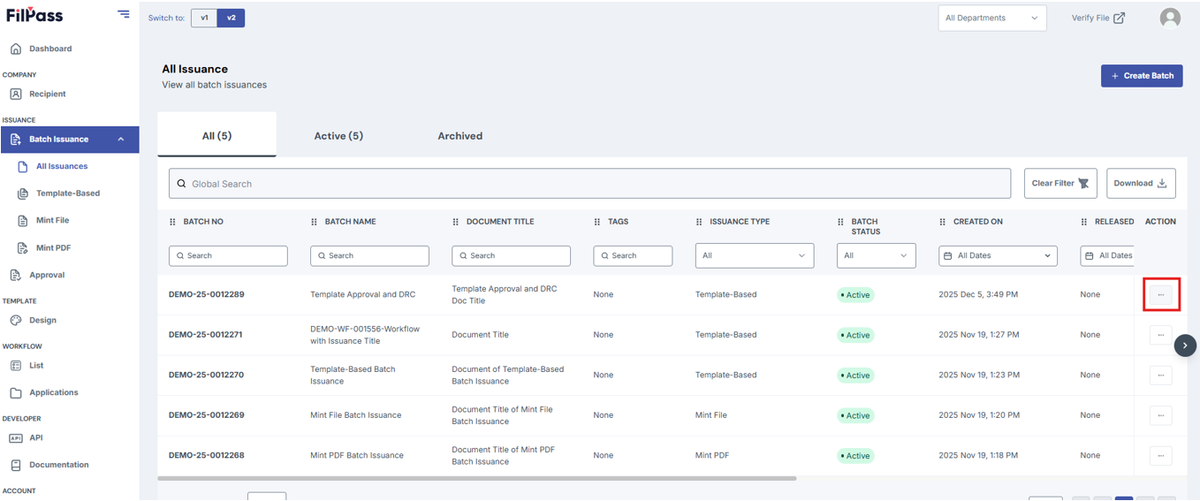
2. Click on View batch.
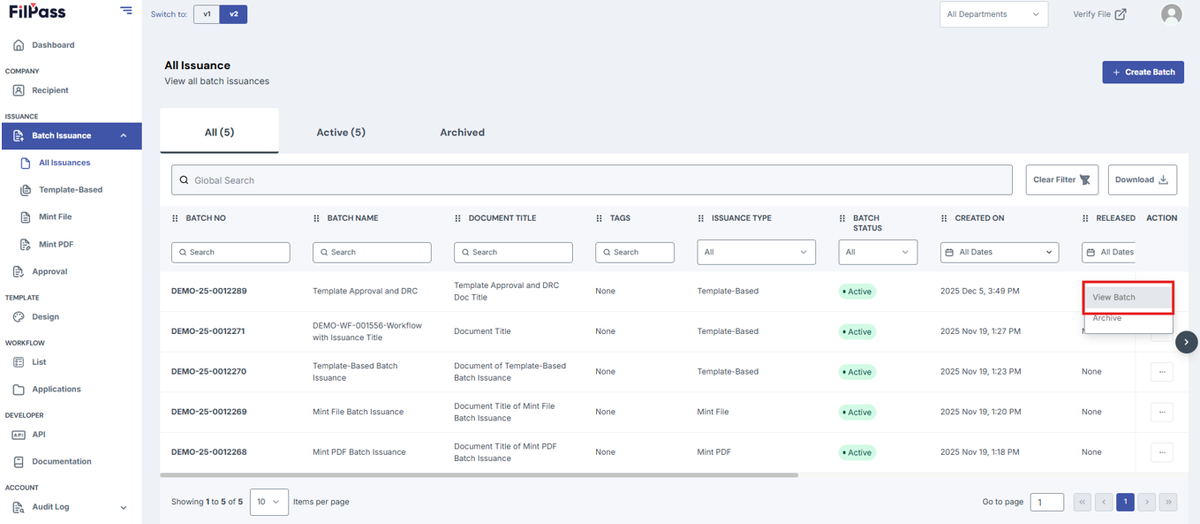
3. Go to Documents tab
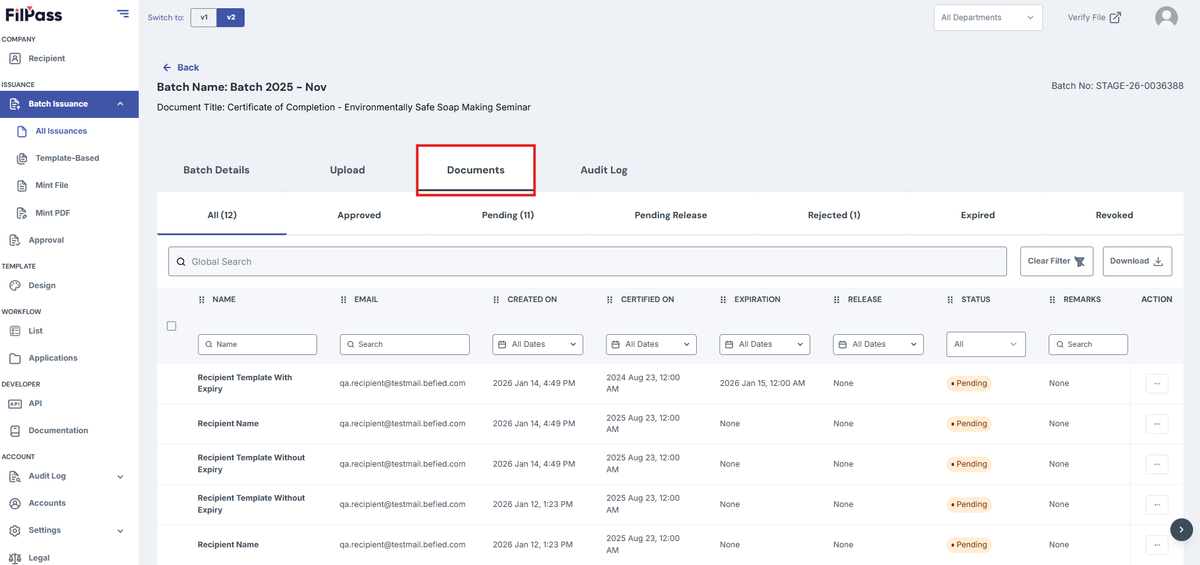
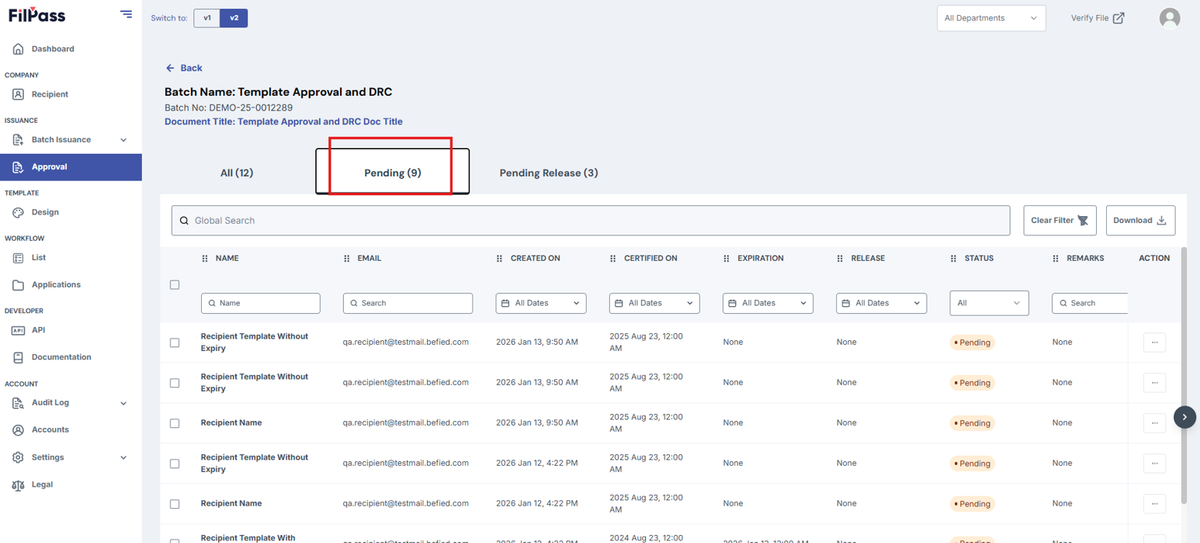
4. Click on Pending tab
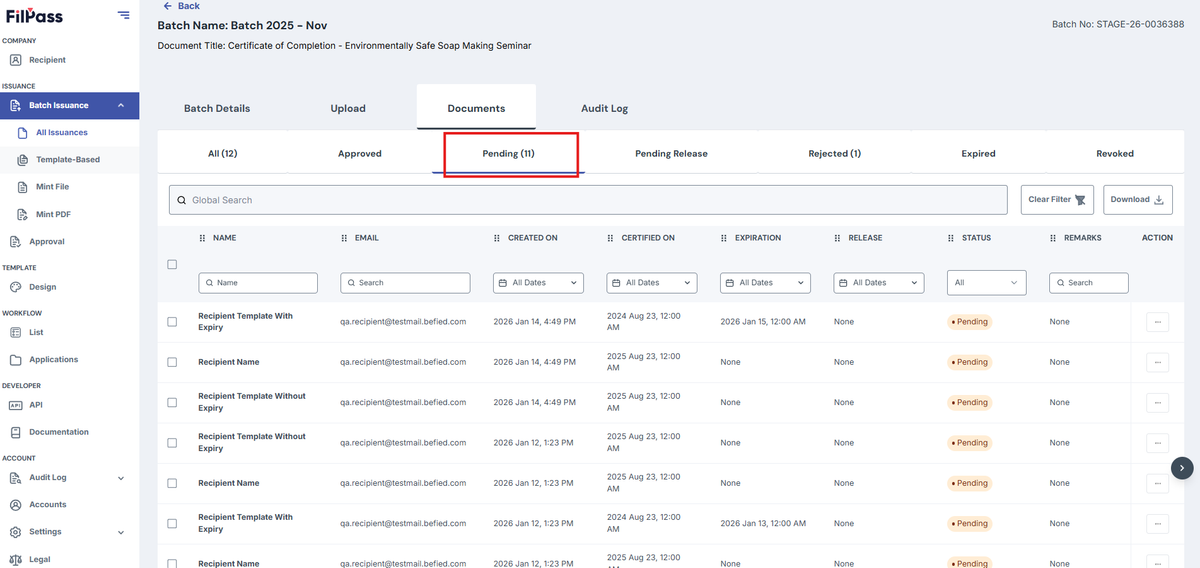
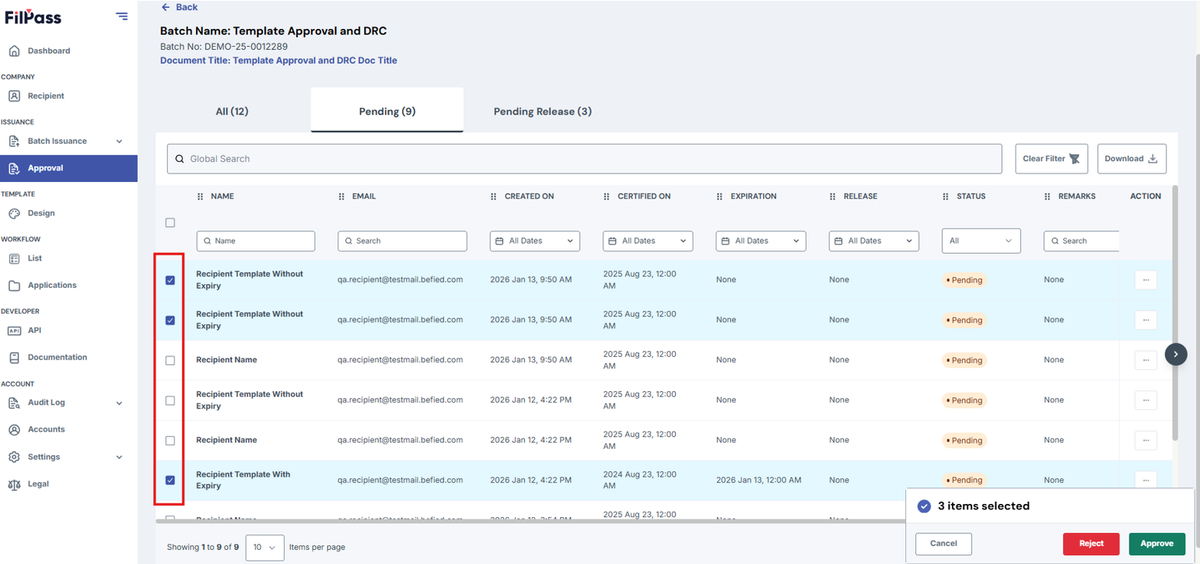
5. Select documents to Reject
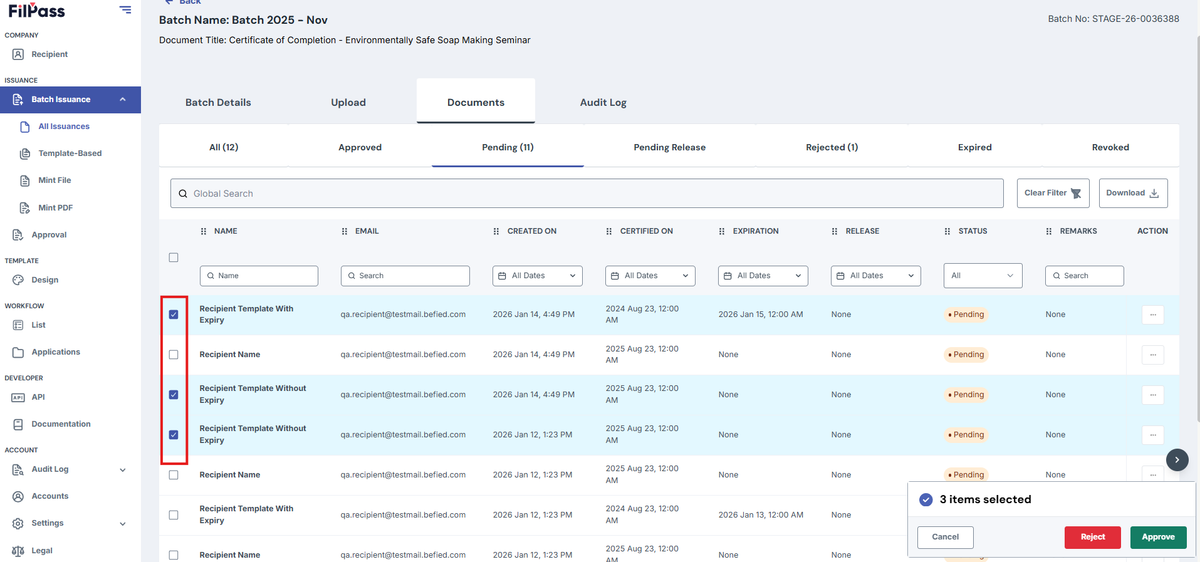
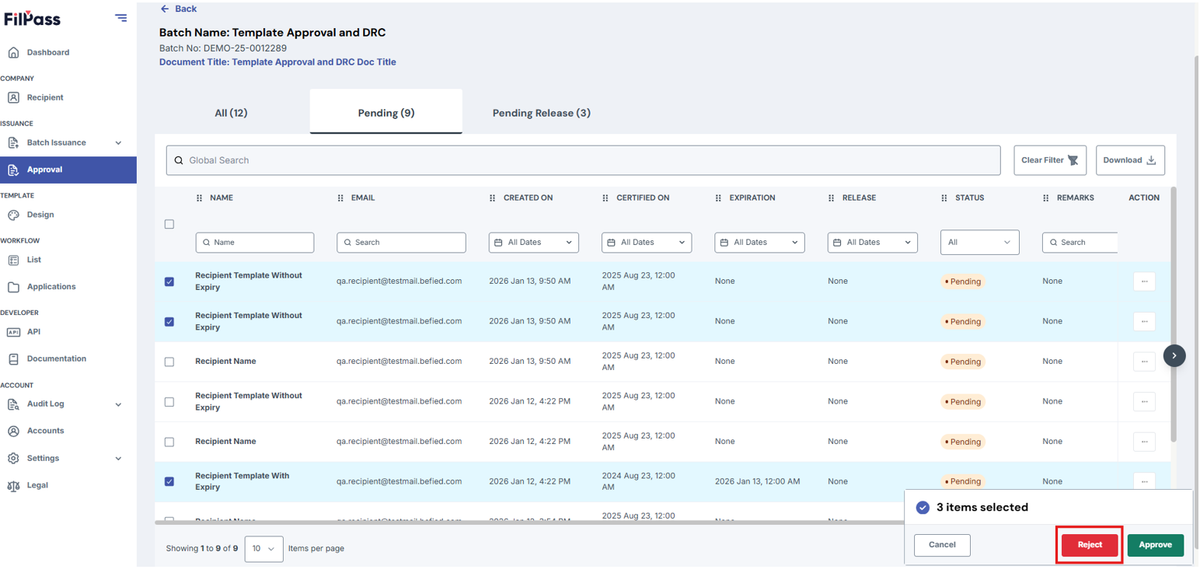
6. Click on Reject button
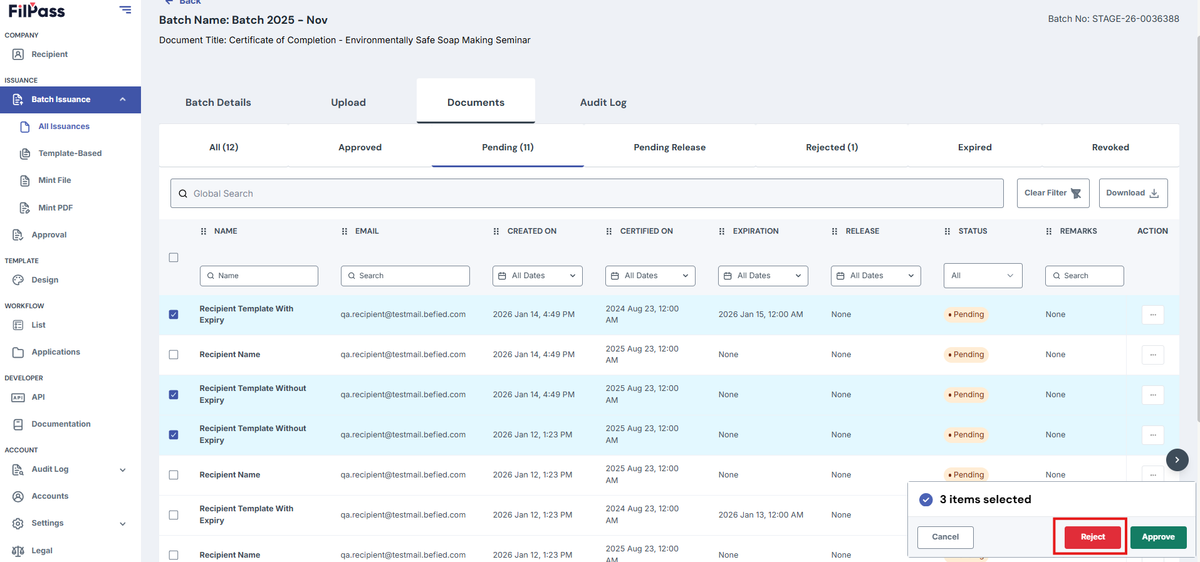
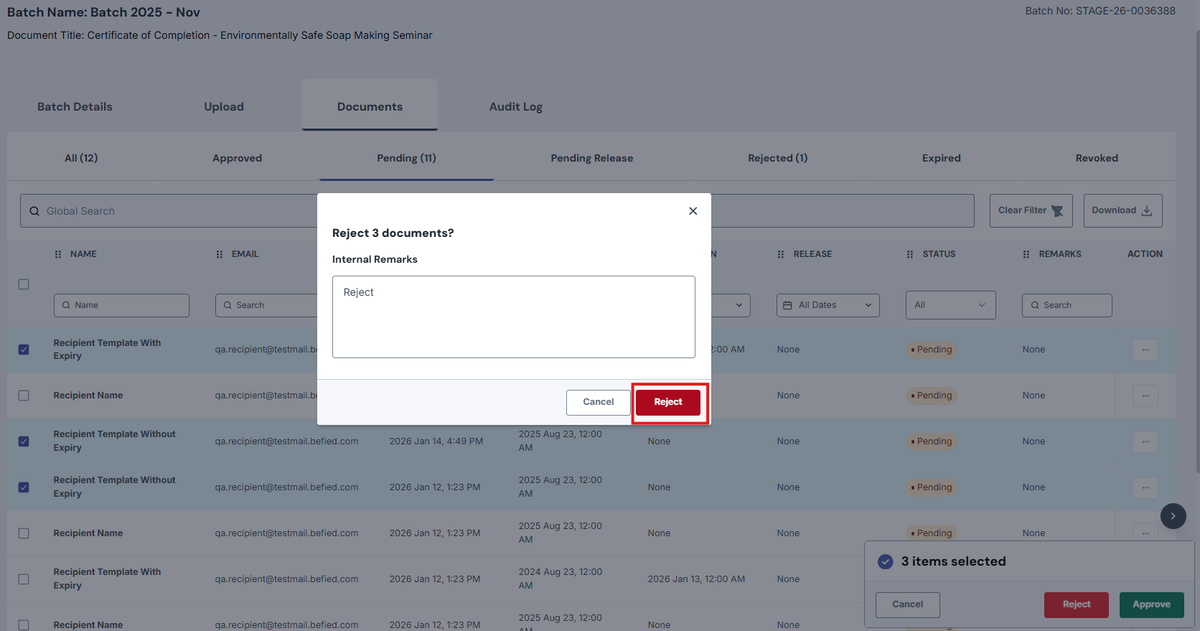
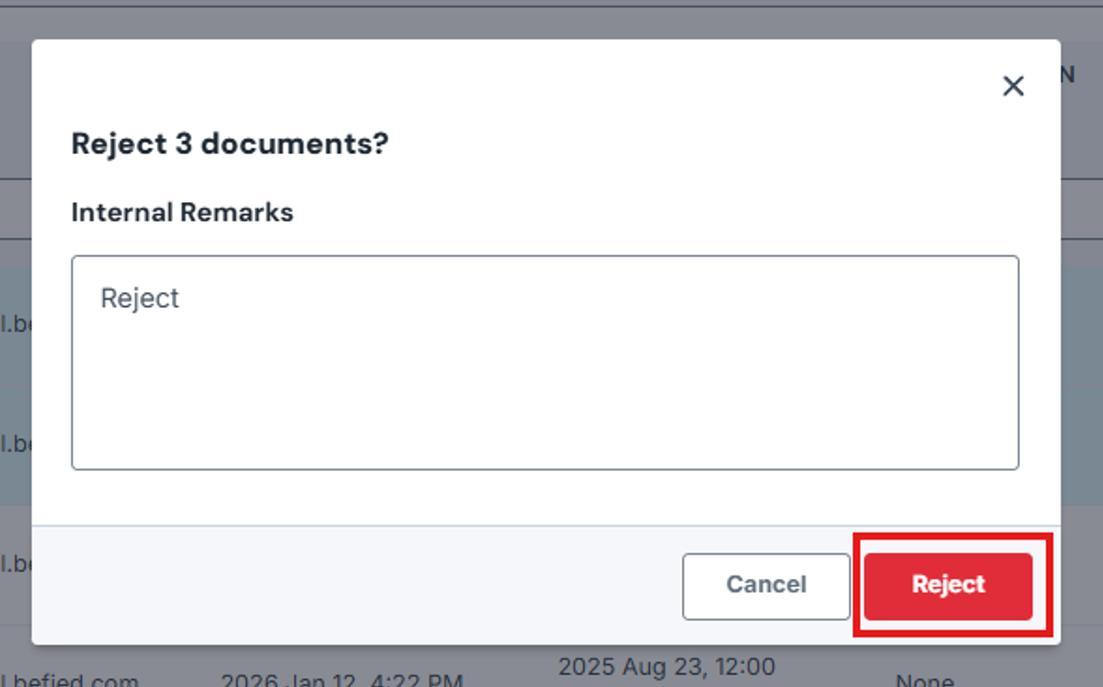
7. On the confirmation modal, click on Reject button. Internal Remarks can be filled in needed by the user.
8. After clicking Reject, the page shows a Success pop up.
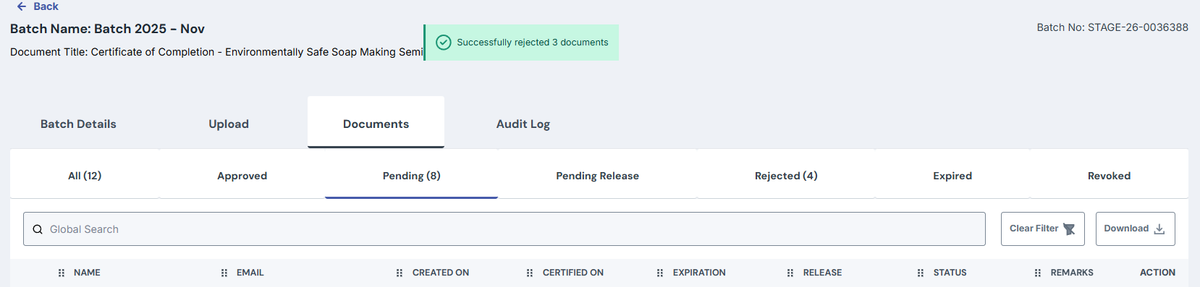
The user can go to the Rejected tab to check the rejected documents.
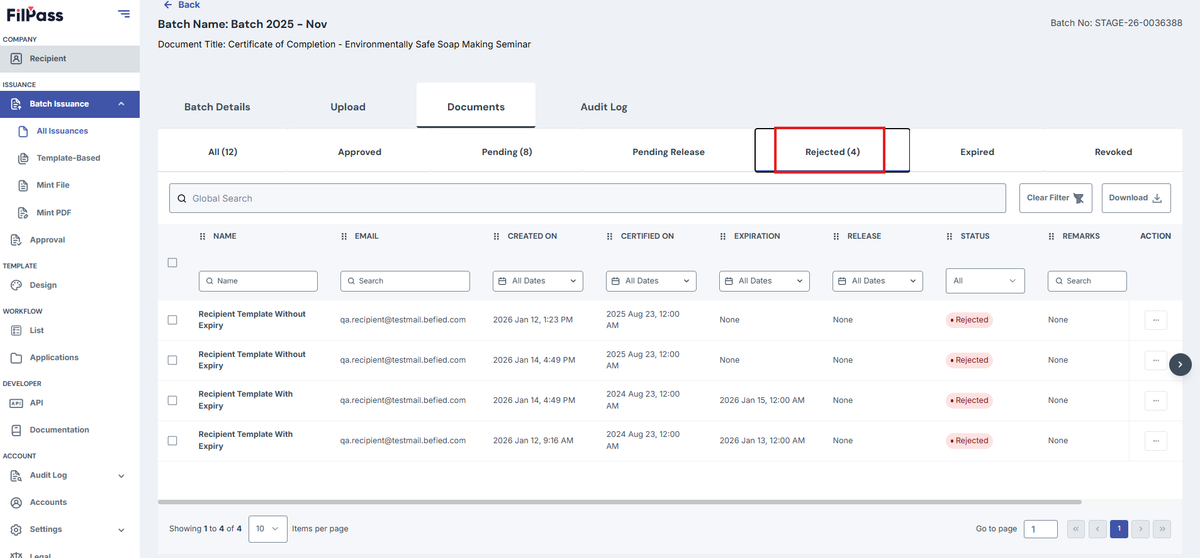
Approval Tab in the Navbar
1. Determine what Batch Issuance with a document you want to reject documents on and click the Action button
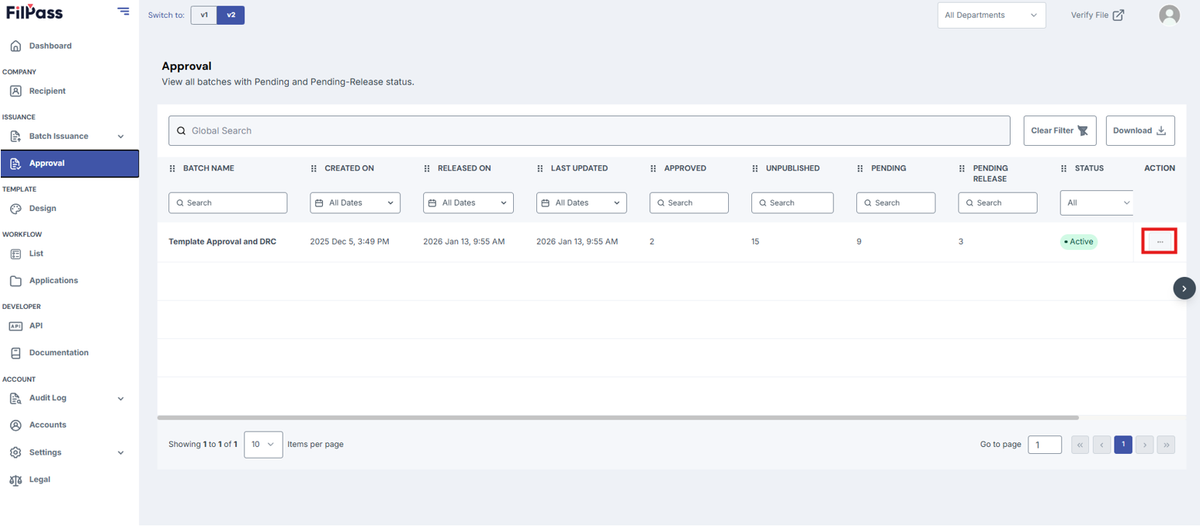
2. Click View Batch.
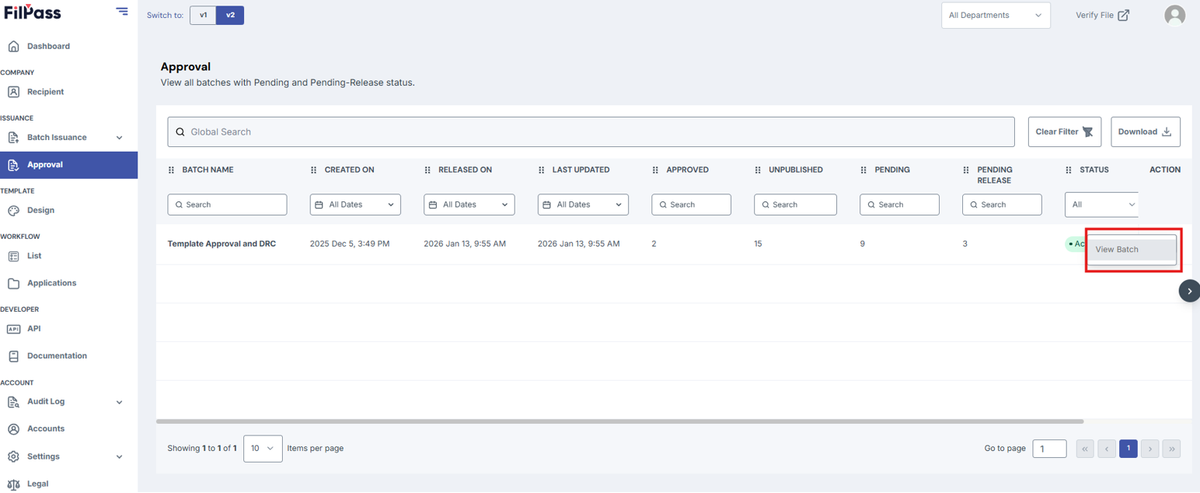
3. Move to Pending.
4. Select Documents to Reject by clicking on the checkboxes.
5. Click Reject.
6. Click on Reject. Internal Remarks are optional.
7. A pop up message will show that the document is rejected successfully.