How to Bulk Delete?
This section explains how to delete items from Bulk uploading documents.
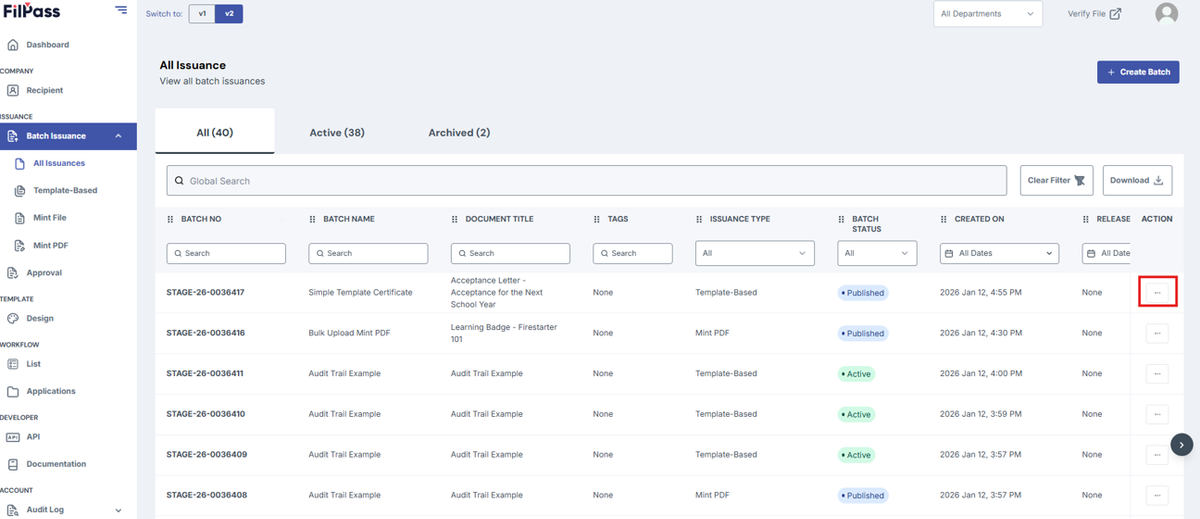
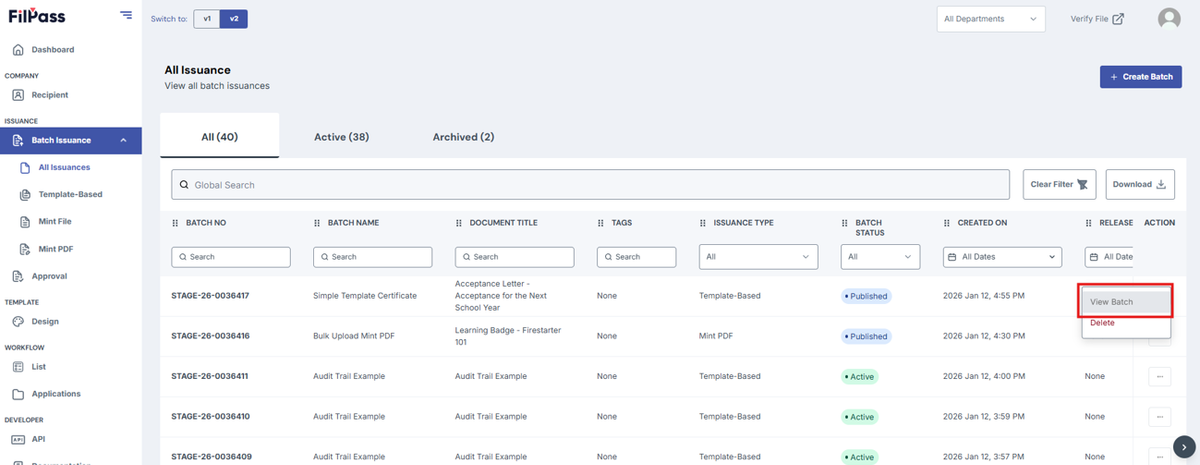
1. Select your preferred Batch Issuance and click the Action Button.
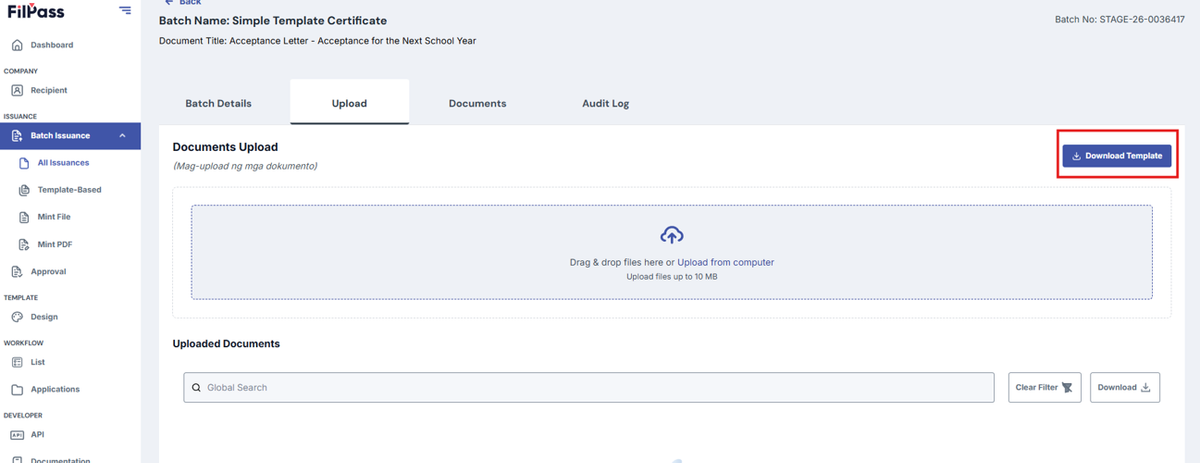
2. Click “Download Template”.
3. Open the downloaded Excel file and enter the Recipient details. The content to be entered depends on the Template Design.
4. Enter recipient credentials in the Excel sheet. The number of recipients depends on the number of rows.
- Profile Photo Column: For Bulk uploading, Enter File Name as file to be uploaded in bulk.
- Type the exact file names of the photos you want to upload.
- Ensure that there are no duplicate file names.
- File names include the correct extension.
- Ensure no other information is added except for the existing data if not uploading the photos manually.
Note: Direct links should not be entered in the Excel file. Follow the steps below to upload photos correctly.
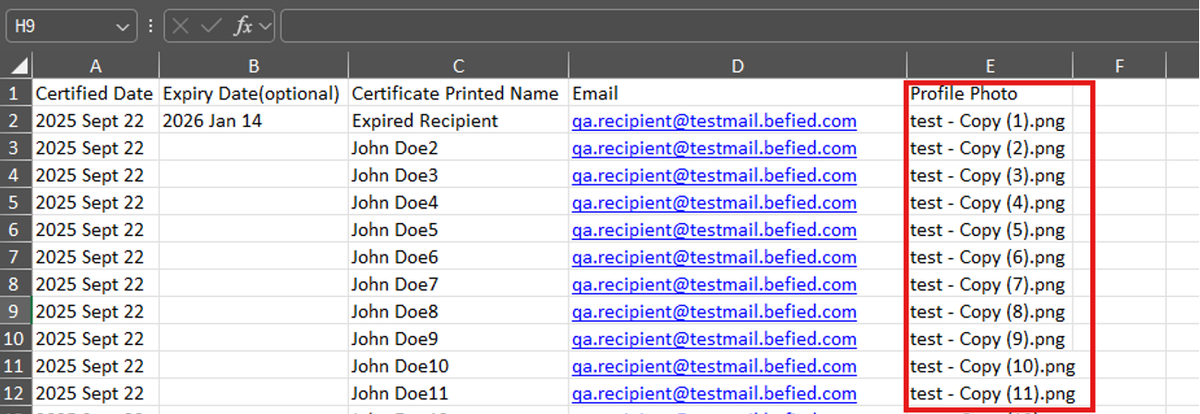
5. Drag and drop the completed template or upload it from your computer.
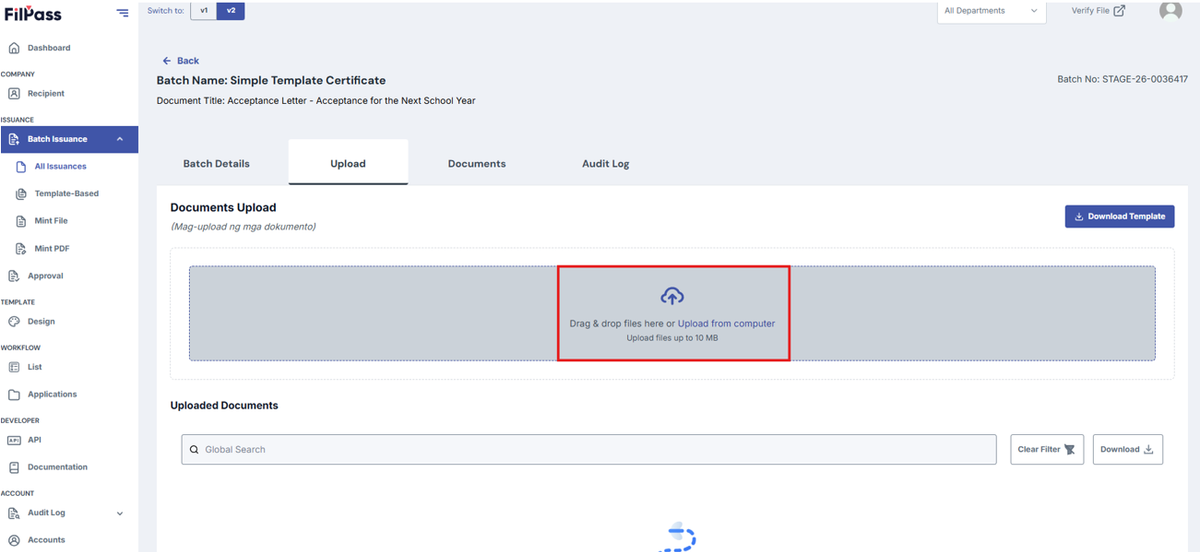
6. Once the Excel file is uploaded, click on Bulk Upload Button.
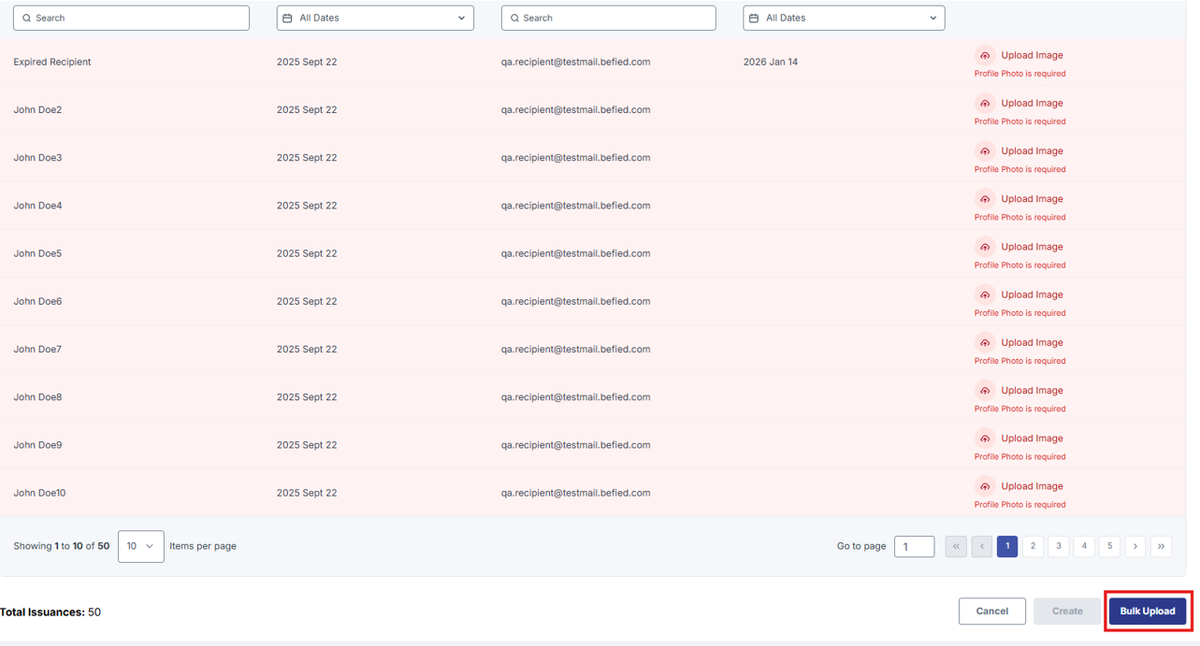
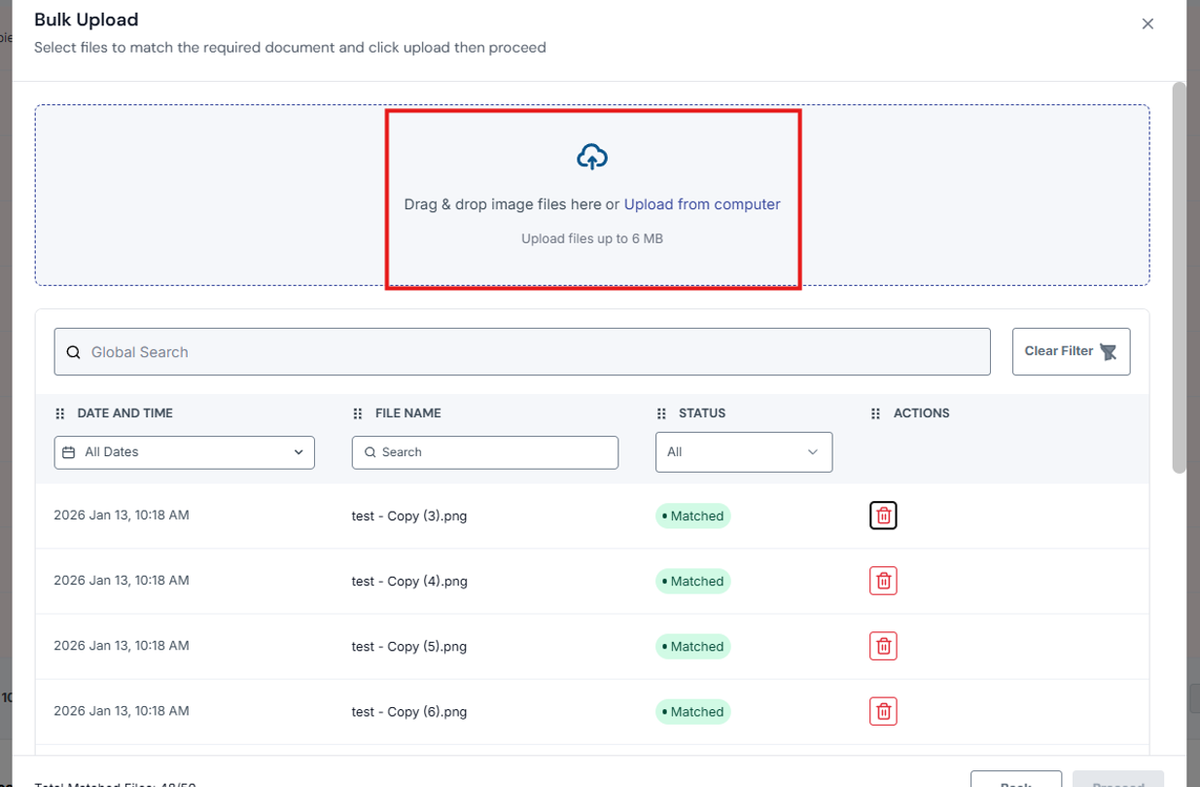
7. Drag and Drop or Upload the photos for the Template.
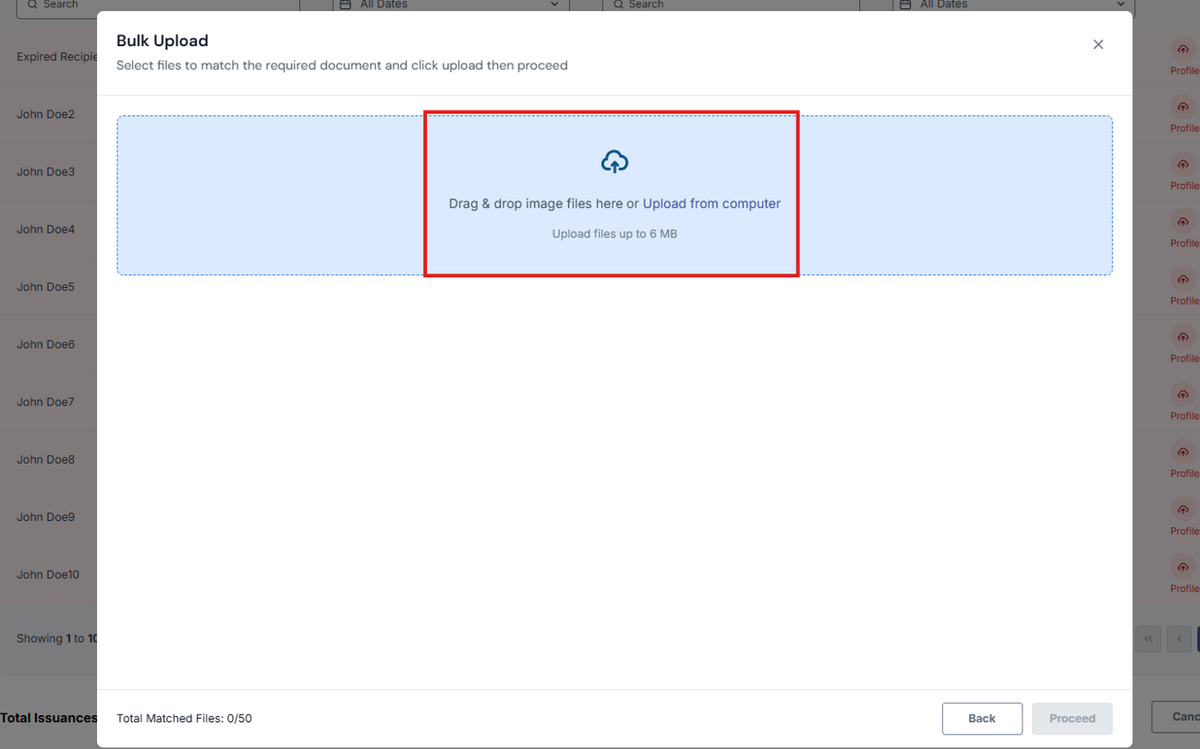
8. For the file that you want to replace, click on the Delete button
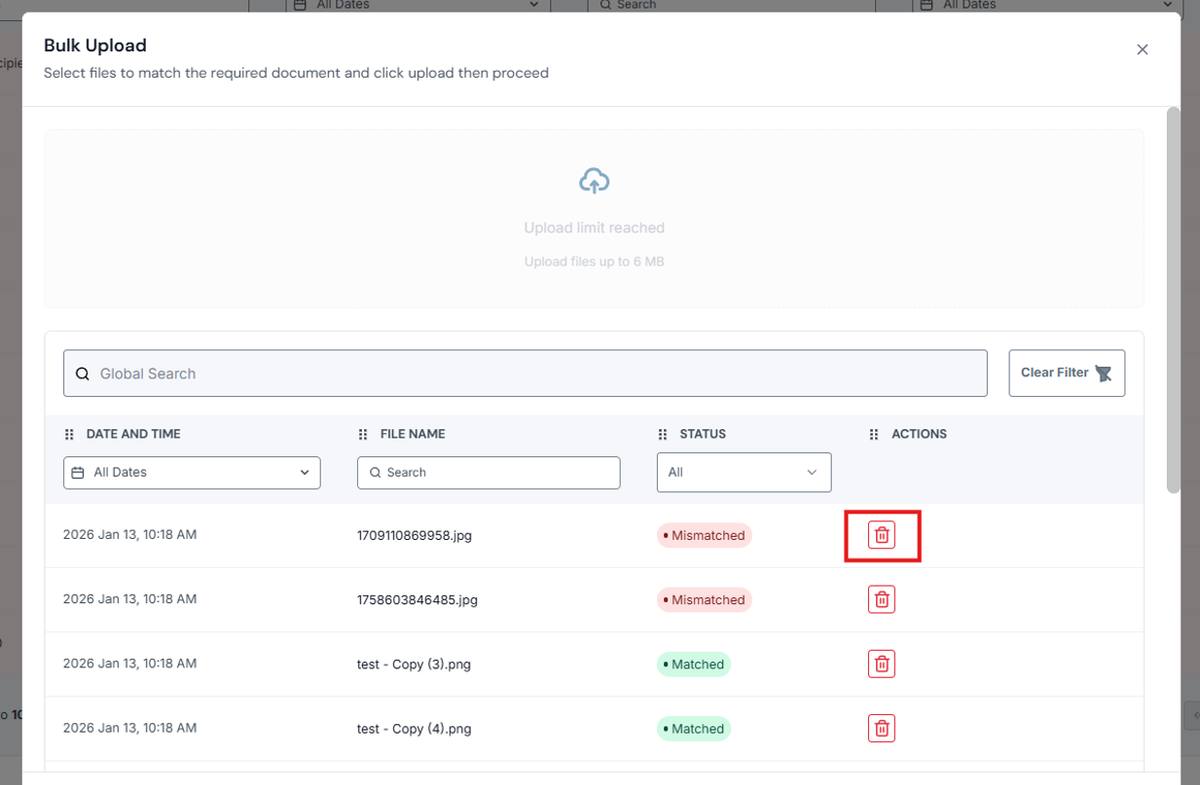
9. Upload the correct files again to replace the deleted file/s
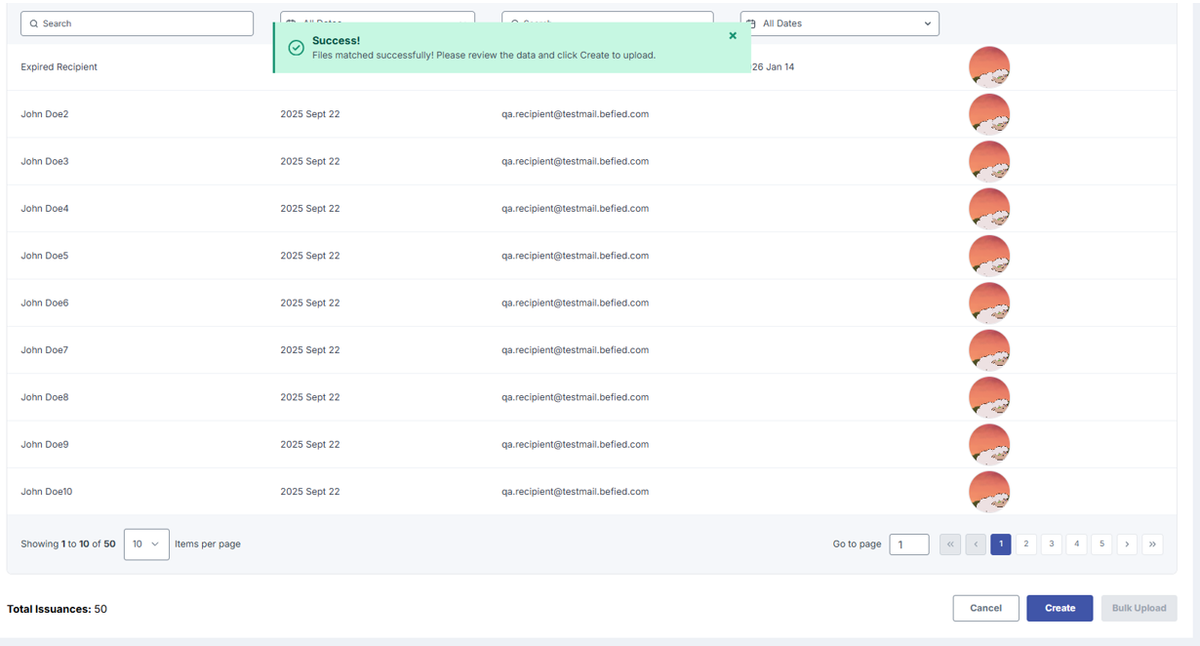
10. Once all the files are matched, click Proceed to complete the Bulk Upload.
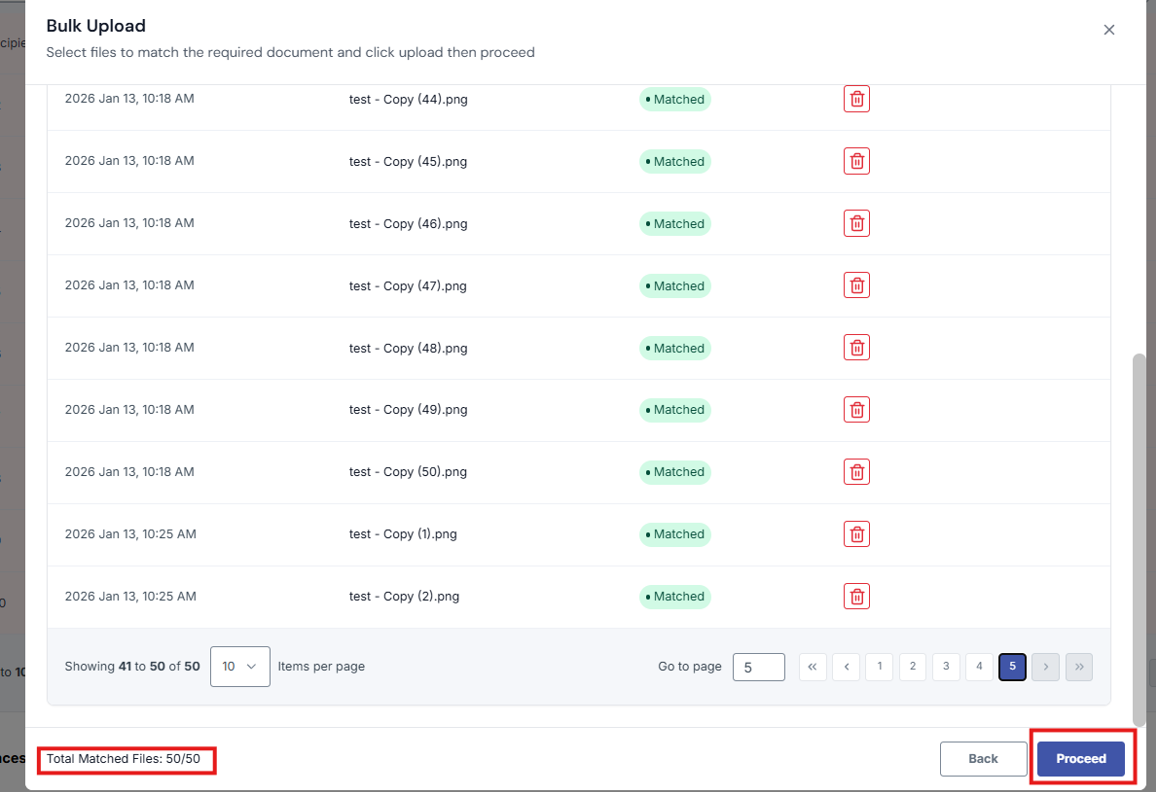
11. A pop up message should show that your files are matched successfully.