

How to Download the OpenCerts File (Issuing Authority)
Issuing Authorities (IA) can download both the OpenCerts file and the PDF copy directly from the FilPass v2 system. These files are available under the Audit Log section for each upload batch.
Step-by-Step Instructions
Step 1: Log in to the FilPass v2 System
Access the FilPass v2 platform using your Issuing Authority credentials.
Step 2: Navigate to Audit Log
From the main dashboard, locate and click on Audit Log.
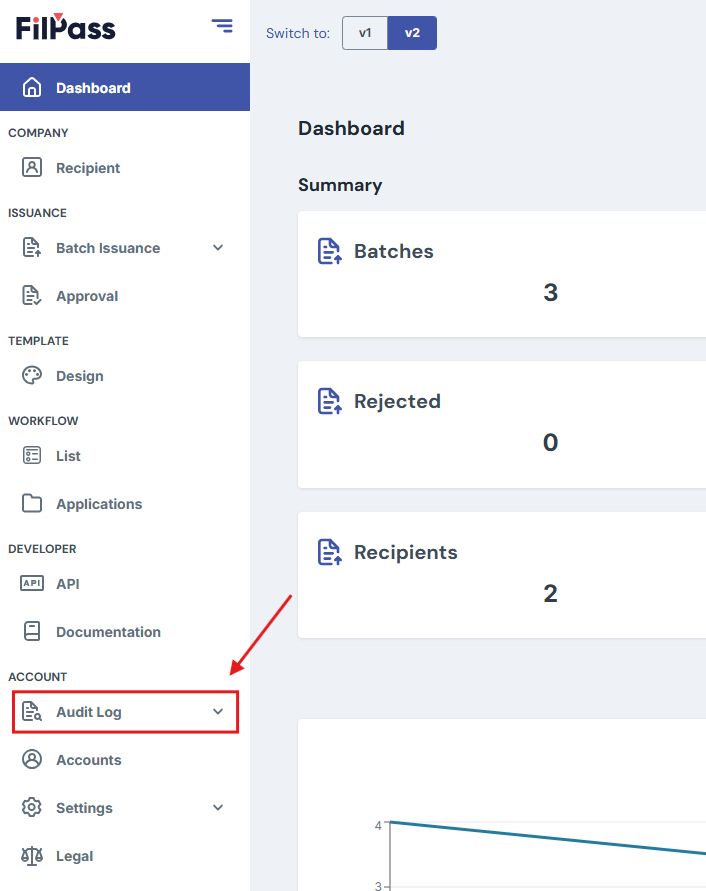
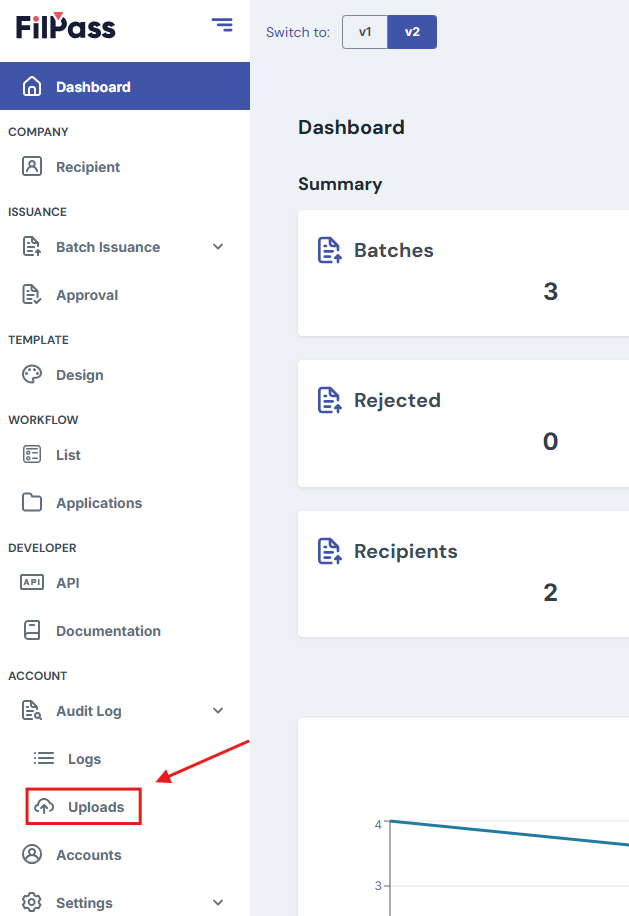
Step 3: Go to Uploads
Within the Audit Log section, select Uploads.
This page displays all previously uploaded certificate batches.
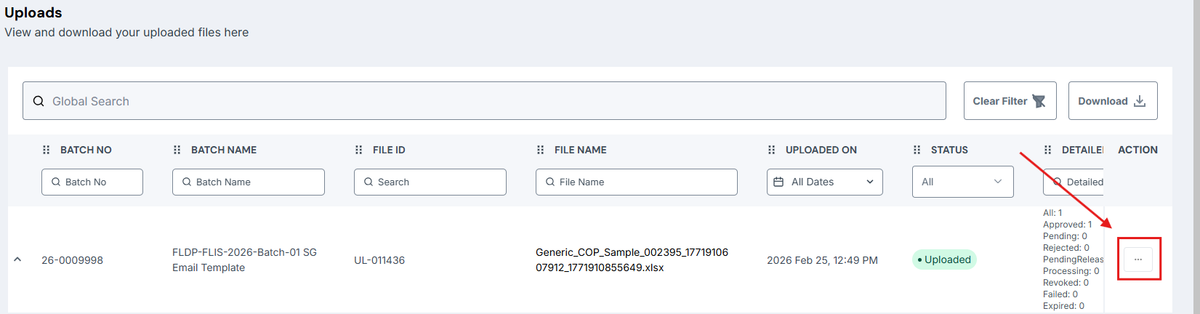
Step 4: Locate the Specific Upload and Download the ZIP
In Audit Log → Uploads, find the specific upload batch you wish to download.
On the far right of the selected upload row, click the three-dot (•••) Action button.
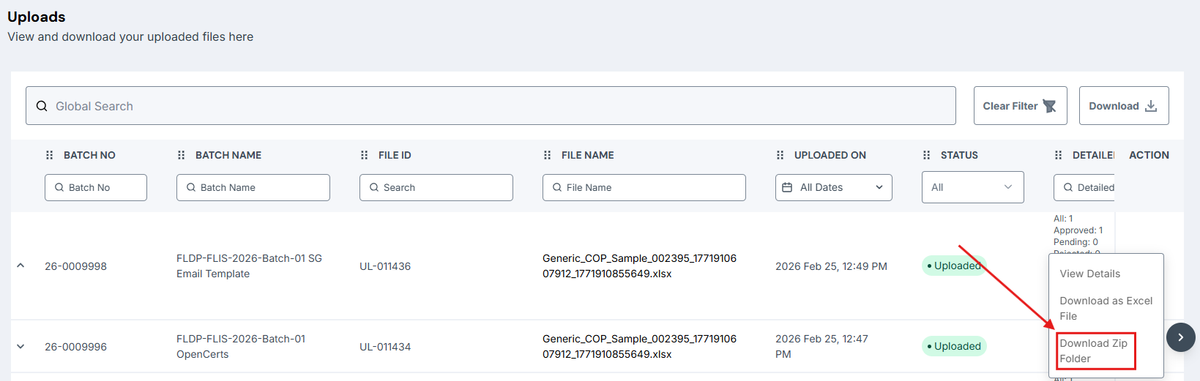
Step 5: Download the ZIP Folder
From the dropdown menu, select Download ZIP.Find the specific upload batch you wish to download.
Ensure you are selecting the correct batch based on date or reference details.
The ZIP folder will contain:
- The OpenCerts files
- The PDF copies

You can extract the ZIP file to access both formats.
Important Notes
- The ZIP download contains both the OpenCerts and PDF versions.
- Ensure you select the correct upload batch before downloading.
- Keep downloaded files securely stored according to your organization’s data handling policies.